Apple’s iPhones are packed with smart, well-designed features that often go unnoticed. While most people know the basics like Face ID, AirDrop, or Siri shortcuts, there are several lesser-known tools hidden deep inside iOS that can make your daily life easier and more productive.
In this article, we’ll explore five secret iPhone features that many users overlook — but once you discover them, you’ll wonder how you ever managed without them. From accessibility gestures to built-in measuring tools, password recovery tricks, and advanced shortcuts, each feature is practical, easy to use, and worth trying today.
Let’s dive right in.
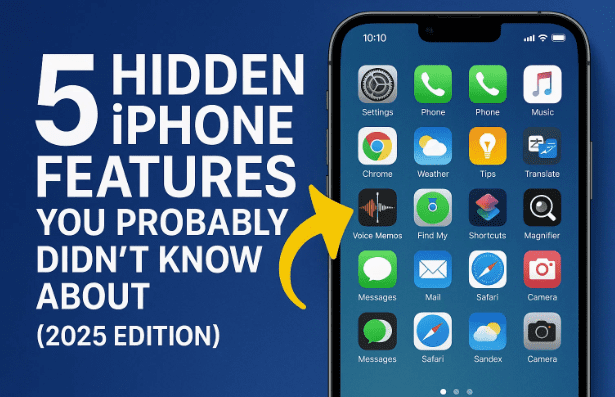
1. Reachability Mode – Use iPhone Comfortably With One Hand
Let’s start with a feature that solves one of the most common problems iPhone users face — using the phone with one hand.
If you’ve ever struggled to reach the top of the screen with your thumb while holding your iPhone, Reachability Mode is made for you. This feature temporarily brings the entire display halfway down, allowing you to tap buttons and icons that would otherwise be out of reach.
How to Enable and Use Reachability
- Open Settings on your iPhone.
- Go to Accessibility → Touch.
- Scroll down and toggle on “Reachability.”
Once enabled:
- On iPhones with Face ID, swipe down on the bottom edge of the screen.
- On older models with a Home button, double-tap (not press) the Home button.
The top of your screen will slide downward, giving you easy access to the upper icons. When you swipe up again, the display returns to normal.
This feature is extremely useful when your other hand is busy — maybe you’re holding a coffee cup, carrying groceries, or typing with one thumb. With Reachability, you can still navigate your phone easily and safely.
2. Accessibility Text Settings – Adjust Font, Boldness, and Contrast for Better Visibility
Let’s move to the next hidden gem — the Accessibility Display & Text Settings. Many people don’t realize that you can fine-tune how text appears across your entire iPhone, making reading and navigation far more comfortable.
This is especially helpful if you read a lot, wear glasses, or often use your phone from a distance (for example, when it’s placed on a desk or dock).
Step-by-Step: Adjusting Text and Display Settings
- Go to Settings → Accessibility → Display & Text Size.
- Toggle on Bold Text for thicker, easier-to-read letters.
- Scroll to the bottom and enable Increase Contrast to improve legibility in low-light or high-glare conditions.
- Tap Larger Text, then use the slider to increase or decrease font size as per your comfort.
You’ll notice that all system text — menus, messages, notifications — will adapt instantly.





If you’re helping someone with mild vision difficulty (for instance, elderly family members), this setting can make the iPhone much easier to read and operate.
Tip: You can even set up Accessibility Shortcuts (triple-click the side button) to toggle Bold Text or Zoom instantly.
3. Measure App – Measure Distance and Level Objects Using Your iPhone Camera
Here’s something most iPhone users never explore: your phone can act as a digital measuring tape and leveling tool.
Apple’s Measure app comes pre-installed on every iPhone and uses augmented reality (AR) to measure real-world distances or check whether a surface is perfectly level.
Let’s explore both features.
How to Access and Use the Measure App
- Swipe down on your home screen and search for Measure.
- Tap to open the app — you’ll see two main tools:
- Measure – for measuring the length or height of objects.
- Level – for checking whether a surface is perfectly horizontal or vertical.
Measuring Objects with iPhone
- Point your iPhone camera at the object you want to measure.
- Tap the “+” (plus) icon to set your starting point.
- Move your phone slowly until you reach the end of the object, then tap “+” again.
- The app will automatically calculate the length and display it in centimeters or inches.
You can measure anything — a table, a book, or even the dimensions of your living room.
For example, if you place your iPhone in front of a marker or pen and mark both ends, the app might show 14 cm, just like a real ruler.
It’s surprisingly accurate for everyday use and perfect when you need quick measurements but don’t have a physical scale nearby.
Using the Level Tool
Switch to the Level tab in the Measure app.
Place your iPhone on a flat surface, and you’ll see an on-screen angle indicator.
- When the phone shows 0° and turns green, it means the surface is perfectly level.
- Negative or positive numbers (like –2° or +5°) indicate tilt direction.
This can be incredibly helpful when hanging photo frames, adjusting shelves, or checking whether a wall or floor is uneven.
In short: your iPhone is not just a communication device — it’s also a compact measuring toolkit that’s always in your pocket.
4. Reset Apple ID Password Directly from iPhone Settings
Forgetting your Apple ID password can be frustrating, especially when setting up a new iPhone or accessing iCloud. The good news? You can now reset your Apple ID password directly from your device — no need to visit Apple’s website separately.
Here’s how you can do it in a few simple steps.
Step-by-Step: Resetting Apple ID Password
- Open Settings and tap your Apple ID profile name at the top.
- Select Sign-In & Security.
- Tap Change Password.
- Enter your iPhone’s device passcode when prompted.
- Follow the on-screen steps to reset or create a new password.
Apple will verify your identity using your device passcode and recovery options linked to your account. Once completed, your Apple ID password will be updated immediately across all connected Apple devices.
Alternative Method via Web
If you can’t access your iPhone, open any browser and visit iforgot.apple.com.
Here you can reset your Apple ID password using your recovery email, trusted phone number, or two-factor authentication.
This feature is a lifesaver for users switching to a new iPhone or those who accidentally log out and forget their credentials. It ensures that you stay in control of your Apple ecosystem without relying on customer support or third-party tools.
5. Back Tap – Double-Tap the iPhone’s Back to Trigger Any Shortcut
Let’s finish with one of iOS’s most underrated features — Back Tap.
Exclusive to iPhones running iOS 14 and later, Back Tap allows you to perform actions by simply double-tapping or triple-tapping the back of your phone.
You can use it to open the camera, take a screenshot, launch an app, toggle the flashlight, or even run custom Shortcuts automation.
How to Enable Back Tap
- Go to Settings → Accessibility → Touch.
- Scroll down and tap Back Tap.
- Enable it, then choose your gesture:
- Double Tap – assign one quick action.
- Triple Tap – assign a second action.
Once set up, gently tap the back of your iPhone (around the Apple logo). The feature works using the device’s accelerometer and gyroscope sensors, so no visible button press is needed.
Practical Uses for Back Tap
You can assign Back Tap to:
- Take a screenshot (no need to press two buttons).
- Open the Camera app instantly.
- Toggle the Flashlight when walking at night.
- Launch Siri Shortcuts (like starting your navigation route or enabling Do Not Disturb).
- Mute or lock the screen without pressing physical buttons.
Back Tap adds convenience to your routine and can even serve as an accessibility tool for users with limited hand mobility.
If you love customizing your iPhone, this feature is one of the simplest ways to make it feel truly personal and powerful.
FAQs
Q1. Do all iPhones have these features?
Most of these features — Reachability, Accessibility options, Measure app, Apple ID management, and Back Tap — are available on iPhones running iOS 14 or later. Older models may have partial support.
Q2. Is Back Tap safe to use?
Yes. It’s built directly into iOS and does not share data externally. It simply acts as a trigger for built-in actions or automation shortcuts.
Q3. Does the Measure app require internet?
No. The Measure app works offline using your phone’s camera and sensors. However, AR accuracy can improve with updated calibration through Apple’s system updates.
Q4. What if I can’t find the Back Tap option?
If your iPhone is older than the iPhone 8 or running a version earlier than iOS 14, Back Tap might not appear. Update your iPhone to the latest iOS version under Settings → General → Software Update.
Q5. How secure is resetting Apple ID via settings?
It’s fully secure. Apple requires your device passcode and linked two-factor authentication for verification. No one else can change your password without access to your phone.
Final Thoughts
Apple’s iPhones often surprise users with small yet powerful tools tucked away within the settings. These five features — Reachability, Accessibility Text Controls, Measure app, Apple ID reset, and Back Tap — are not gimmicks; they’re genuinely useful in daily life.
- Reachability saves you from stretching your fingers awkwardly.
- Accessibility options make your screen easier on the eyes.
- The Measure app doubles as a virtual toolkit.
- The Apple ID reset keeps you secure and independent.
- And Back Tap gives your phone a futuristic touch of control.
So the next time you unlock your iPhone, explore these tools and personalize your device beyond what’s visible on the surface. You’ll realize there’s far more your iPhone can do than you ever imagined.
Disclaimer
This article is for informational purposes only. Features and menu names may vary slightly based on your iOS version and iPhone model. For official guidance, visit Apple’s Support Page.
Tags
iPhone tips, hidden iPhone features, iOS accessibility, iPhone reachability, iPhone back tap, Apple ID password reset, iPhone measure app, iPhone tricks 2025
Hashtags
#iPhoneTips #iOSFeatures #Apple #iPhone2025 #iPhoneTricks #Accessibility #TechGuide #iOSUpdates







