When most people think about what makes a computer powerful, they’ll name the CPU or graphics card. But what if I told you the most important part of your PC might be your hard drive?
Here’s why: if your GPU or RAM fails, you can just replace the component. But if your hard drive crashes, you could lose all your data—your photos, documents, projects, and memories—forever.
That’s why regularly checking your hard drive’s health is crucial.
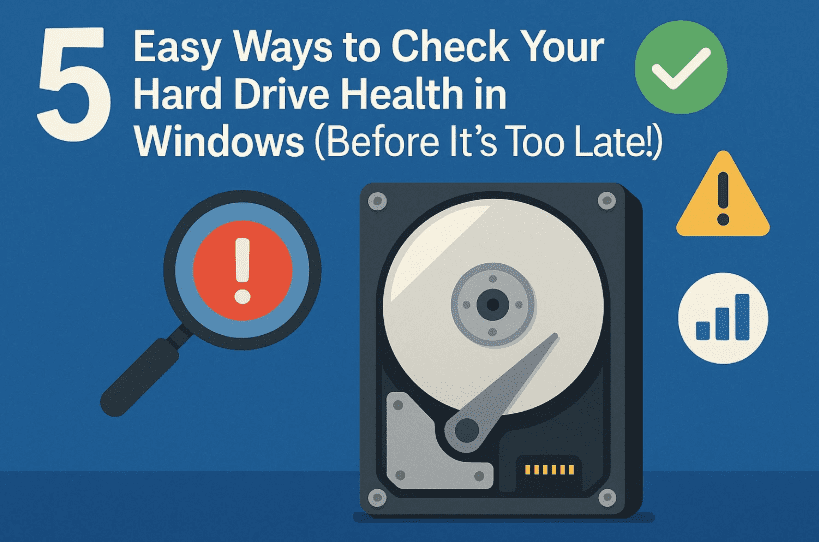
In this guide, I’ll walk you through five simple yet powerful methods to check your disk health on Windows. Some are built right into the OS, and others use free tools. Let’s take this one step at a time, with clear instructions and a human touch.
🧰 Why Disk Health Matters More Than You Think
Before diving into tools and steps, let’s take a moment to understand why this matters. Your disk stores everything, from your Windows installation to the files you can’t afford to lose. A failing drive often gives early signs—but many ignore them until it’s too late.
Common signs your disk may be failing:
- Frequent system crashes or freezes
- Slow file transfers or loading times
- Strange clicking or grinding sounds
- Files becoming corrupted or disappearing
If you’re seeing any of these signs, it’s even more urgent that you check your disk now. Even if everything seems fine, it’s still smart to do a quick health check every few months.
So, let’s begin.
✅ Method 1: Use Windows Built-in “Check Disk” Tool
This is one of the easiest and quickest ways to detect errors.
Steps:
- Open the search bar and type: This PC
- In the “Devices and drives” section, find your main drive (usually
C:with the Windows logo). - Right-click on the drive and choose Properties.
- Click on the Tools tab.
- Under Error checking, click Check → then click Scan drive.
The system will now scan for file system errors and bad sectors. It might take a few minutes, depending on your drive’s size.
Possible Results:
- No errors found: Your drive is healthy.
- Errors were found and fixed: Small problems were repaired automatically.
- Errors were found but not fixed: A serious warning. Back up your data immediately.
💡 Click “Show Details” to open Event Viewer, which will show you the scan log for advanced info.







💻 Method 2: Check Drive Status via Command Prompt (WMIC)
If you prefer a quicker text-based method, Windows Management Instrumentation Command-line (WMIC) is another way to go.
Let’s jump into it:
Steps:
- Type Command Prompt in the Windows search.
- Right-click on Command Prompt and select Run as Administrator.
- Type this command exactly and hit Enter:
wmic diskdrive get status, model
You’ll see a list of your drives and their current health status.
What to Look For:
- Status: OK = Drive is working fine.
- Status: Degraded, Pred Fail, or Unknown = Trouble is brewing. Backup ASAP.
You can also note down the model name of your drive and Google it to find specifications like storage capacity, speed, and brand.
📝 This method gives a general idea, but it doesn’t show detailed statistics. For deeper insights, read on.
🔍 Method 3: Run a Deep Disk Scan Using CHKDSK
Since the Command Prompt is already open, we’ll use another built-in tool: chkdsk. This gives more detailed diagnostics than the previous method.
Let’s move forward!
Steps:
- In the Command Prompt, type:
chkdsk C:(ReplaceC:with the drive you want to check, likeD:orE:) - Press Enter.
This command will scan the disk and report:
- Total disk space and used space
- Any bad sectors (physical damage)
- File system errors
⚠️ If bad sectors are found, your drive could be physically damaged. Back up your data right away and consider replacing it.
🛡️ Method 4: Use Windows Security Health Report
Don’t want to type commands? Here’s a fast, no-fuss way using Windows Security.
Steps:
- Open the Start Menu, type: Windows Security, and click to open it.
- In the left panel, select Device performance & health.
- Under “Storage capacity,” look for any disk warnings.
This is a simple way to spot basic issues without installing third-party software. But for more detailed statistics, we’ll use a dedicated tool next.
📊 Method 5: Use CrystalDiskInfo for Advanced Insights (FREE Tool)
If you want deep, real-time disk diagnostics with a clean and colorful interface, CrystalDiskInfo is a fan favorite—and it’s completely free.
🖥️ What is CrystalDiskInfo?
It’s a lightweight utility that reads your drive’s SMART data and presents health stats like temperature, power-on hours, error rates, and more.
Let’s install it together:
- Open your browser and visit the official site:
👉 https://crystalmark.info/en/software/crystaldiskinfo/ - Scroll down and select your preferred edition:
- Standard Edition
- Shizuku Edition (Anime-themed)
- Kurei Kei Edition (Also Anime-themed)
💡 All versions have the same features; only the UI theme is different.
- Click Download and install the software.
- Launch the app.
How to Read CrystalDiskInfo:
- Health Status:
- Good (Blue) = No issues
- Caution (Yellow) = Warning signs
- Bad (Red) = Drive may fail soon. Backup immediately!
- Temperature:
- Normal: 30–50°C
- Consistently over 50°C is bad for long-term health.
- Power-On Hours: How long your drive has been used.
- Power-On Count: Number of times your drive has been booted.
- Rotation Rate: Only for HDDs, shows RPM (e.g., 5400 or 7200 RPM).
Don’t worry about occasional yellow indicators unless they persist or get worse. It’s all about monitoring trends over time.
💡 Bonus Tip:
Click Function > Auto Refresh > Every 5 Minutes to monitor the drive in real-time.
❓ FAQs – Disk Health & CrystalDiskInfo
Q1. Is CrystalDiskInfo safe?
Yes, it’s widely trusted and has no bloatware or ads.
Q2. Can I use it with SSDs?
Absolutely! It works with both SSDs and HDDs.
Q3. What should I do if my drive shows “Caution” or “Bad”?
Immediately back up your data to an external drive or cloud storage and consider replacing the disk.
Q4. Can CrystalDiskInfo fix problems?
No, it’s a diagnostic tool. Use Windows tools like chkdsk for basic fixes.
🧯 Final Thoughts: Don’t Wait for a Disaster
So far, you’ve learned not just one but five practical methods to assess your hard drive’s health—from quick built-in scans to full SMART monitoring with CrystalDiskInfo.
Your drive holds everything important. A few minutes of monitoring today could save years of memories or critical files tomorrow.
Stay safe, stay backed up, and happy computing!
⚠️ Disclaimer
This guide is for educational purposes only. CrystalDiskInfo and other tools mentioned are third-party utilities. Always download software from the official website. Data loss can occur suddenly—even with healthy drives—so always keep backups.
🏷️ Tags & Hashtags
Tags:
hard drive health, check disk health windows, chkdsk command, CrystalDiskInfo tutorial, disk monitoring tools, SSD health check, prevent data loss
Hashtags:
#WindowsTips #DataSafety #DiskHealth #CrystalDiskInfo #TechGuide #PCMaintenance #HardDriveCheck
Have questions or concerns about your hard drive? Let us know in the comments. We’d love to help you keep your PC running like new.








