Ever feel like your PC is slower than it should be, even when you’re not doing much? Well, you’re not alone. One of the most common causes of lag and high RAM or disk usage in Windows is unnecessary background services running quietly behind the scenes.
The good news? Many of these services are completely safe to disable—especially if you don’t use specific features like Bluetooth, remote desktop, or Xbox services.
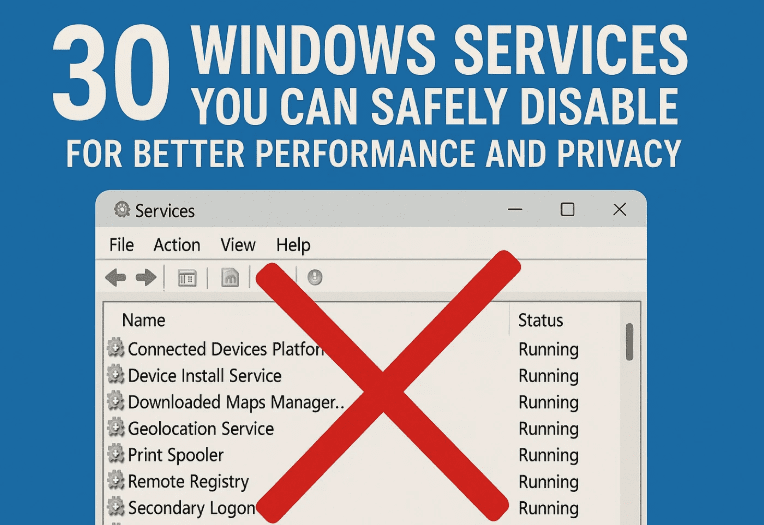
In this guide, I’ll walk you through 30 Windows services that are safe to turn off—categorized by performance, privacy, and usage-based relevance. This step-by-step article is written with clarity, human-friendly guidance, and important tips to help you optimize your PC without breaking anything.
Let’s dive in!
🛠️ How to Access the Services Panel
Before we begin disabling anything, you’ll need to access the Windows Services Manager.
Here’s how:
- Click the Start menu or press Windows + S to open the search bar.
- Type services.msc and press Enter.
- The Services window will open, showing you a full list of background processes.
From here, we can start disabling the services you don’t need. But always disable responsibly—and don’t worry, you can always re-enable a service later if needed.
🚫 Privacy-Invading Services You Can Disable
Let’s begin with services that collect your data and send it to Microsoft. If you care about your privacy and don’t need Microsoft’s feedback features, disable these.
So far, so good! Let’s protect your privacy first.
- Connected User Experiences and Telemetry
Sends data about how you use Windows.
👉 Safe to disable. - Diagnostic Policy Service
Collects diagnostics info and sends it to Microsoft.
👉 Safe to disable. - Windows Error Reporting Service
Reports crashes and issues to Microsoft.
👉 Safe to disable. - Windows Insider Service
Only used if you’re on the Insider Program.
👉 Safe to disable for regular users. - Retail Demo Service
Only for store demo PCs.
👉 Safe to disable.
🧹 Performance Killers You Should Disable
These services may sound helpful, but they often eat up system resources—especially on older PCs.
Let’s reduce RAM and disk usage with these tweaks:








- SysMain (previously Superfetch)
Tries to speed up app loading but causes high disk usage.
👉 Safe to disable. - Windows Search
Constantly indexes files in the background.
👉 Safe to disable if you rarely use Windows Search. - Offline Files
Syncs files from network drives.
👉 Useless for home users. - Touch Keyboard and Handwriting Panel
Needed only on touch-screen or tablet PCs.
👉 Disable if you’re using a regular desktop/laptop. - Secondary Logon
Allows multiple users to sign in simultaneously.
👉 Rarely used at home—safe to disable.
🧭 Services for Features You Likely Don’t Use
Next up are services that exist for niche functionality—like smart cards, faxes, and parental controls.
If you’re not using these features, disabling their services can free up resources.
- Smart Card
For enterprise security systems.
👉 Safe to disable at home. - Smart Card Enumeration Service
Detects connected card readers.
👉 Safe to disable. - Smart Card Removal Policy
Locks PC if the card is removed.
👉 Disable unless required by your job. - Fax Service
Self-explanatory.
👉 Safe to disable. - Parental Controls
For child accounts only.
👉 Safe to disable if unused. - Downloaded Maps Manager
For the Maps app and location-based services.
👉 Safe to disable. - Geolocation Service
Tracks your device location.
👉 Safe to disable if not using location-based apps.
🎮 Xbox & Gaming Services (Disable if You Don’t Game)
If you’re not into Xbox games or syncing with Microsoft’s game features, these services are simply wasting resources.
- Xbox Live Auth Manager
- Xbox Live Game Save
- Xbox Accessory Management Service
- Xbox Live Networking Service
👉 All are safe to disable if you don’t play Xbox games on PC.
📡 Remote Access & Bluetooth Services
Let’s clean up the services related to Remote Desktop, Bluetooth, and enterprise-grade networking.
If you’re using a standard home PC or laptop, you probably don’t need these.
- Remote Desktop Services
- Remote Desktop Configuration
- Remote Registry
👉 Safe to disable if not using Remote Desktop or working in a networked office. - Bluetooth Support Service
- Bluetooth Audio Gateway Service
👉 Disable only if you never use Bluetooth devices.
👁️ Biometric & IoT Services
These last services are more relevant for businesses, biometrics, or smart home integration.
- Windows Biometric Service
Manages fingerprint scanners and facial recognition.
👉 Disable if you don’t use Windows Hello or biometric logins. - AllJoyn Router Service
Used for smart home device connections.
👉 Safe to disable on most PCs. - Phone Service (Mobile Hotspot)
Allows mobile data sharing or tethering.
👉 Disable if you don’t use this feature.
🔄 Final Step: Restart Your PC
After you’ve disabled all the services above that apply to you, it’s important to restart your computer. This ensures the changes take effect properly and any background memory usage is cleared.
❓ Frequently Asked Questions (FAQs)
Q1. Can I re-enable a service later if something breaks?
Yes, simply open the Services window again, right-click the disabled service, and set it back to Automatic or Manual.
Q2. Will disabling these services affect my PC negatively?
If you stick to this guide, no. All listed services are safe to disable for typical home users. Don’t disable critical system services unless you know what they do.
Q3. Will disabling services speed up my PC?
Yes—especially on systems with low RAM or slow HDDs. You’ll see reduced background disk usage and slightly faster boot times.
Q4. Should I disable everything listed?
No, only disable what you don’t use. For example, if you use Bluetooth headphones or Remote Desktop, leave those services enabled.
📌 Summary: What We’ve Accomplished
Nice work so far! By disabling these 30 safe-to-remove services, you’ve:
- Boosted system performance
- Reduced unnecessary RAM and disk usage
- Improved your privacy
- Stopped useless background processes
It may seem like a small change, but collectively, these tweaks can result in a noticeably smoother and faster PC.
⚠️ Disclaimer
This article is intended for informational purposes. Disabling critical system services without proper knowledge can result in system instability. Always ensure you are only disabling services mentioned here and only if they’re not needed on your system.
🏷️ Tags & Hashtags
Tags:
Windows optimization, disable background services, Windows 10 performance tips, Windows privacy, safe services to disable, PC speed up guide
Hashtags:
#WindowsTips #SpeedUpPC #DisableServices #PCOptimization #WindowsPerformance #PrivacyTips #TechGuide
Have a friend still struggling with a slow PC? Share this article with them and help them optimize their computer the smart way!







