Microsoft Word remains the most widely used word processor in professional environments, yet most users only scratch the surface of its capabilities. This comprehensive guide reveals 30 powerful techniques that will transform how you work with documents, saving you hours of effort while producing more polished results.

1. Generate Random Text Instantly
Need placeholder content? Type:
=rand(2,3)- 2 = number of paragraphs
- 3 = sentences per paragraph
Pro Tip: Use =lorem() for Latin placeholder text instead.
2. Create Tables in Seconds
Type:
+------+-------+--------+ [Press Tab between + signs]Hit Enter to convert to a table. Add rows by pressing Enter at the end of each line.
3. Instant Horizontal Lines
Create different divider styles:
---→ Plain line###→ Thick line===→ Double line***→ Dotted line___→ Bold line
Press Enter after typing three characters.
4. Quick Text Resizing
- Increase Font:
Ctrl + Shift + > - Decrease Font:
Ctrl + Shift + < - 1-pt Increments:
Ctrl + [orCtrl + ]
5. Navigation Shortcuts
| Shortcut | Action |
|---|---|
Ctrl + →/← | Jump between words |
Ctrl + ↑/↓ | Move by paragraphs |
Ctrl + Home/End | Start/end of document |
Ctrl + Shift + → | Select words forward |
6. Smart Selection Tricks
- Double-click: Select word
- Triple-click: Select paragraph
- Ctrl + Click: Select sentence
7. Advanced Find (Ctrl + F)
The Navigation pane allows:
- Phrase searches
- Wildcards (
*for multiple characters) - Format-specific searches (fonts, styles)
8. Word Deletion Shortcuts
- Delete Left Word:
Ctrl + Backspace - Delete Right Word:
Ctrl + Delete
9. Line Spacing Control
- Single:
Ctrl + 1 - Double:
Ctrl + 2 - 1.5 Lines:
Ctrl + 5
10. Clipboard Manager
Access via Home > Clipboard (or Win + V):
- Stores 24 items across Office apps
- Paste multiple items simultaneously
11. Direct Email Sharing
File > Share > Email options:
- Attachment (original .docx)
- PDF (preserves formatting)
- XPS (fixed-layout format)
12. Split Window View (Ctrl + Alt + S)
Work on two document sections simultaneously. Disable with Alt + Shift + C.









13. Instant Alignment
| Shortcut | Alignment |
|---|---|
Ctrl + L | Left |
Ctrl + E | Center |
Ctrl + R | Right |
Ctrl + J | Justify |
14. Format Painter Pro Tip
Double-click the Format Painter icon to apply formatting to multiple selections.
15. Shrink to One Page
Add the Shrink One Page button via:
- File > Options > Quick Access Toolbar
- Select All Commands
- Add Shrink One Page
Perfect for adjusting resumes or reports.
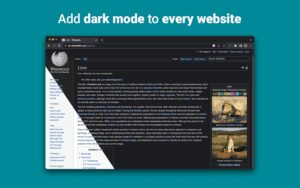
16. Dark Mode & Themes
Change UI appearance:
- File > Options > General
- Choose Office Theme:
- Colorful (default)
- Dark Gray (easier on eyes)
- Black (true dark mode)
17. Built-in Translator
Right-click text → Translate:
- Supports 70+ languages
- Preserves original formatting
- Integrated with Microsoft Translator
18. Quick Access Menu (Alt + W)
Reveals hidden formatting and view options:
U→ Document outlineP→ Print layoutF→ Read Mode
19. Document-Wide Spacing
Design > Paragraph Spacing offers:
- Compact (tight spacing)
- Open (extra breathing room)
- Custom (set exact values)
20. Partial Document Spacing
Select text → Home > Line Spacing:
- 1.0 (single)
- 1.15 (standard business)
- 2.0 (double)
21. Smart Lookup (Right-click > Smart Lookup)
- Definitions from Oxford Dictionary
- Web results via Bing
- Related images and concepts
22. Hyperlinks (Ctrl + K)
Link to:
- Web URLs
- Local files
- Email addresses
- Document bookmarks
23. Advanced Font Control (Ctrl + Shift + F)
Opens full Font dialog with:
- Character spacing
- Text effects
- Advanced ligatures
24. Custom Page Colors/Backgrounds
Design > Page Color options:
- Standard colors
- Gradient fills
- Image backgrounds (great for watermarks)
25. Screenshot Tool
Insert > Screenshot captures:
- Open program windows
- Screen clipping (custom area)
No need for third-party tools!
26. Track Changes & Comments
Review tab features:
- New Comment (
Ctrl + Alt + M) - Track Changes (records all edits)
- Compare Documents (merge versions)
27. Language Settings (Alt + R, U, L)
Set proofing language for:
- Spell check
- Grammar rules
- Thesaurus suggestions
28. Column/Block Editing
Hold Alt while selecting to:
- Edit vertical text blocks
- Apply formatting to columns
- Delete rectangular sections
29. Date & Time Stamps
- Current Date:
Alt + Shift + D - Current Time:
Alt + Shift + T - Auto-update option available
30. Heading Styles (Ctrl + Alt + 1/2/3)
Apply consistent headings for:
- Table of Contents generation
- Document navigation pane
- Accessibility compliance
Bonus: Customize styles via Styles pane (Ctrl + Alt + Shift + S).
Pro Tips for Power Users
- Quick Parts (
Alt + F3): Save reusable content (logos, disclaimers) - Navigation Pane (
Ctrl + F): Drag-and-drop section reordering - AutoCorrect: Create shortcuts for frequent phrases (e.g., “addr” → full address)
Tags: Microsoft Word, productivity tips, document formatting, Office 365, Word shortcuts, professional writing, office skills
Hashtags: #MicrosoftWord #ProductivityHacks #OfficeTips #WordTutorial #DocumentEditing #TechHowTo #WorkplaceSkills #Office365
By mastering these techniques, you’ll work 50% faster while producing documents that stand out professionally. Which tip will you try first? Let us know in the comments!







