Ever feel like Windows hides everything three clicks too deep? The Run dialog is your secret shortcut. Type a command, press Enter, and boom—you’re at the exact tool you need. In this guide, I’ve turned the raw list into a clean, fully styled article with proper H1 headings, icons, TOC, and step-by-step instructions. I’ve also corrected the typos from the source so you don’t waste time on commands that don’t exist.
Before we jump in, quick note: where a tool can be risky (like Registry Editor or Services), I’ll flag it clearly and show you the safe way to use it.
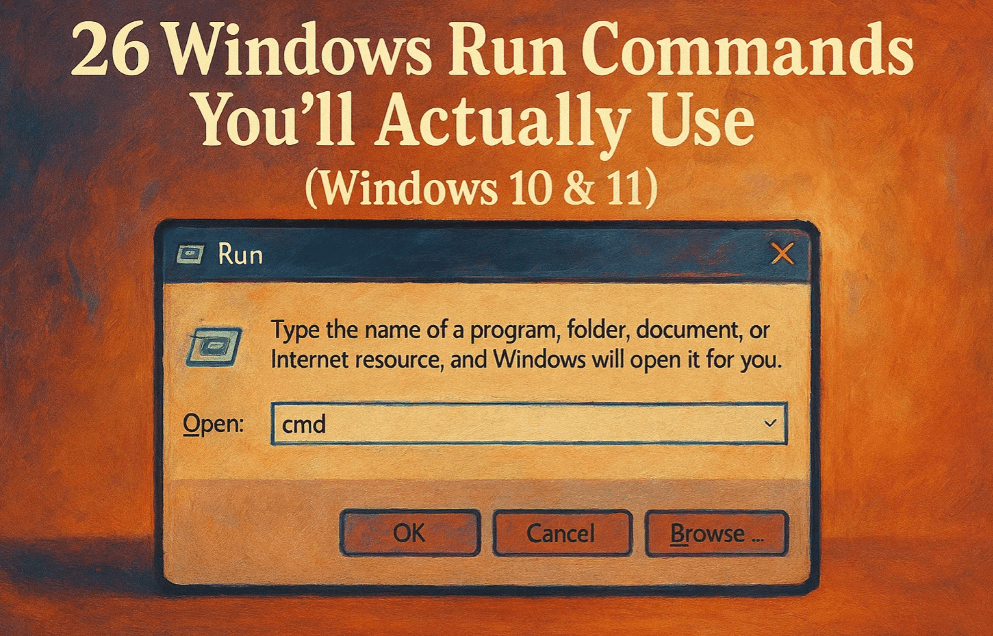
Table of Contents
- 1. 🪟 Open the Run Box (Windows + R)
- 2. 🛡️ Safety First: Ground Rules
- 3. 💽 Jump to Any Drive (C:, D:, E:)
- 4. 🧮 Calculator (calc)
- 5. 🌐 Remote Desktop Connection (mstsc)
- 6. 📝 Steps Recorder / Alternatives (psr)
- 7. 📊 Task Manager (taskmgr)
- 8. 🧹 Malicious Software Removal Tool (mrt)
- 9. 📈 Performance Monitor (perfmon.msc)
- 10. 📡 Resource Monitor (resmon)
- 11. 🎨 Display Color Calibration (dccw)
- 12. 🖥️ Display Settings: Classic + Modern (desk.cpl / ms-settings:display)
- 13. 🔧 Registry Editor (regedit) — use with care
- 14. 🧩 Services (services.msc) — use with care
- 15. 👋 Fast Sign-Out (logoff)
- 16. 📴 Shut Down / Restart like a Pro (shutdown switches)
- 17. 🌐 Network Connections (ncpa.cpl)
- 18. 🧰 Programs & Features (appwiz.cpl)
- 19. 🔥 Windows Defender Firewall (firewall.cpl)
- 20. 💿 Disk Management (diskmgmt.msc)
- 21. 🧩 Device Manager (devmgmt.msc)
- 22. ⚙️ Control Panel (control)
- 23. ⌨️ On-Screen Keyboard (osk)
- 24. 🔤 Character Map (charmap)
- 25. 🧱 System Configuration (msconfig)
- 26. 🧾 System Information (msinfo32)
- 27. 📚 Bonus: Event Viewer (eventvwr.msc)
- FAQ • Official Microsoft Resources • Disclaimer • Tags & Hashtags
🪟 Open the Run Box (Windows + R)
How:
- Press Windows + R, or
- Right-click Start → Run.
Why it matters: Run jumps directly to a destination (Device Manager, Disk Management, etc.)—no nested menus. Once it’s muscle memory, you’ll save minutes every day.
Alright, now that the door is open, let’s set a few safety rules so we don’t create late-night regrets.
🛡️ Safety First: Ground Rules
- Don’t change what you don’t understand. Especially in Services, Registry, and msconfig.
- Prefer reversible edits. Disable instead of deleting. Export a registry key before editing.
- Create a restore point before major changes (search “Create a restore point”).
- Managed PCs: If you’re on school/work hardware, some features are policy-locked—ask IT first.
💽 Jump to Any Drive (C:, D:, E:)
Command: type C:\ (or D:\, E:\) and press Enter
What it does: Opens the drive root instantly in File Explorer.
Pro tip: Paste full paths like C:\Windows\System32 to land on a specific folder.
🧮 Calculator (calc)
Command: calc
Why you’ll use it: Faster than searching. Supports Standard, Scientific, Programmer, Graphing, plus unit conversions (length, data, currency, etc.).
🌐 Remote Desktop Connection (mstsc)
Command: mstsc
Use case: Connect to a Windows PC via RDP.
Steps:
- Run →
mstsc→ Enter - Enter PC name or IP → Connect
Good to know: The classic client is still great for quick sessions even as newer “Windows App” solutions emerge.
📝 Steps Recorder / Alternatives (psr)
Command: psr
What it is: Captures clicks + screenshots + notes to show exactly what happened.
Heads-up: On newer Windows 11 builds, Steps Recorder is deprecated. If psr doesn’t open, use:
- Snipping Tool (screen recording), or
- Xbox Game Bar (Windows + Alt + R) for app recordings.
📊 Task Manager (taskmgr)
Command: taskmgr (or press Ctrl + Shift + Esc)
Why it’s key: Triage a slow/frozen PC, end tasks, manage Startup apps, and jump into deeper tools.
🧹 Malicious Software Removal Tool (mrt)
Command: mrt
Use it for: Quick, built-in malware checks (not a full AV, but handy).
Steps: Quick/Full/Custom scan → remove/quarantine if found.

📈 Performance Monitor (perfmon.msc)
Command: perfmon.msc
What you get: Deep, long-form performance counters, Data Collector Sets, and reports.
Quick win: Run perfmon /report to auto-generate a timed System Diagnostics report.
📡 Resource Monitor (resmon)
Command: resmon
When to open it: You see high CPU/Disk/Network in Task Manager and need to know which process is guilty.
Tip: Use the Network tab to find apps hogging bandwidth, and Disk tab for heavy I/O.
🎨 Display Color Calibration (dccw)
Command: dccw
Why bother: Fix washed-out or oversaturated screens; essential for design/photo work.
Steps: Follow the wizard for gamma, brightness, contrast, color balance (do each monitor separately).
🖥️ Display Settings: Classic + Modern (desk.cpl / ms-settings:display)
- Classic:
desk.cpl(older Control Panel applet) - Modern:
ms-settings:display(Settings → Display)
Advice: Prefer modern Settings unless you need a legacy toggle.
🔧 Registry Editor (regedit) — use with care
Command: regedit
Golden rules:
- Export a key before editing (File → Export).
- Test risky tweaks on a non-critical machine or a VM.
- Corporate policies may override your edits.
🧩 Services (services.msc) — use with care
Command: services.msc
What to do here: Start/stop services, change Startup type, read Dependencies.
Safe approach: For diagnostics, use temporary changes or clean boot (see msconfig below). Avoid random “tweak lists.”
👋 Fast Sign-Out (logoff)
Command: logoff
Heads-up: No confirmation. Save work first.
Note: Lock (Windows + L) is different—it keeps your session running.
📴 Shut Down / Restart like a Pro (shutdown switches)
Commands you’ll actually use:
- Shut down now:
shutdown /s /t 0 - Restart now:
shutdown /r /t 0 - Abort a pending shutdown:
shutdown /a - (Optional) Force close apps: add
/f(risk of data loss)
🌐 Network Connections (ncpa.cpl)
Command: ncpa.cpl
Why it’s useful: Jump straight to adapter Properties to change IPv4/IPv6, DNS, disable/enable, etc.
Tip: For DNS hiccups, try ipconfig /flushdns in an elevated Command Prompt.
🧰 Programs & Features (appwiz.cpl)
Command: appwiz.cpl
What you get: Classic uninstall for Win32 apps. Also links to Turn Windows features on or off (optional components like Hyper-V, SMB, etc.).
🔥 Windows Defender Firewall (firewall.cpl)
Command: firewall.cpl
Use cases: Review firewall state, allow an app, or toggle in a pinch (avoid leaving it off).
Deeper configs: Use Windows Security or scripted tools (PowerShell/netsh) for advanced policies.
💿 Disk Management (diskmgmt.msc)
Command: diskmgmt.msc
What you can do: Initialize new disks, create/shrink partitions, assign letters, attach/detach VHDs.
Warning: Double-check the disk and volume you’re editing before applying changes.
🧩 Device Manager (devmgmt.msc)
Command: devmgmt.msc
Use it when: A device shows a yellow exclamation, drivers need rolling back, or you need hardware IDs for driver lookups.
⚙️ Control Panel (control)
Command: control
Why still relevant: Some settings live here, some users just prefer it, and many classic applets are still best-in-class for admin tasks.
⌨️ On-Screen Keyboard (osk)
Command: osk
Handy for: Touchscreens, kiosk setups, accessibility, and keyboard-hardware issues.
🔤 Character Map (charmap)
Command: charmap
Why you’ll love it: Insert ™ © ✓ • or accented characters without remembering Alt codes. Double-click → Copy → paste anywhere.
🧱 System Configuration (msconfig)
Command: msconfig
Best practices:
- Boot tab → Safe boot (with networking if needed).
- Services tab → tick Hide all Microsoft services → then disable third-party services for a clean boot test.
- Treat msconfig as a diagnostic tool, not a permanent “tweaks” panel.
🧾 System Information (msinfo32)
Command: msinfo32
What it shows: OS build, BIOS/UEFI, installed RAM, virtualization state, device lists, drivers, and components. Export to .NFO or text for support cases.
📚 Bonus: Event Viewer (eventvwr.msc)
Command: eventvwr.msc
Why it helps: When something keeps failing silently, the logs tell the story (Application, System, Setup, etc.). Filter by time and source to find patterns fast.
FAQ
Q1. Is it safe to disable services to speed up Windows?
A: Not as a blanket tweak. Many services have dependencies. For performance, focus on Startup apps (Task Manager → Startup) and Storage Sense. Use clean boot via msconfig only for diagnosis.
Q2. Steps Recorder (psr) doesn’t open on my PC.
A: It’s deprecated on newer Windows 11 builds. Use Snipping Tool (screen recording) or Xbox Game Bar for simple captures.
Q3. Why do some commands open “classic” windows?
A: Microsoft is migrating features to Settings, but classic consoles (.msc / .cpl) remain essential for admin work.
Q4. Device shows a yellow exclamation—what next?
A: Open Properties for the status code → try Update driver or Roll Back Driver. OEM drivers are often better than Windows Update for stubborn devices.
Q5. Disk Cleanup vs. Storage Sense—what’s better?
A: Storage Sense (Settings → System → Storage) automates cleanup. Disk Cleanup (cleanmgr) is great for a quick, one-off sweep.
Q6. Can I jump straight to specific Settings pages?
A: Yes. Try ms-settings:display, ms-settings:appsfeatures, ms-settings:privacy, etc.
Official Microsoft Resources (General)
All tools above are built into Windows—you don’t need third-party downloads. For detailed, always-current documentation, see:
- Windows Support (official): https://support.microsoft.com/windows
- Microsoft Learn (Windows): https://learn.microsoft.com/windows/
If you want, I can append per-tool Microsoft doc links right under each section—say the word and I’ll add them.
Disclaimer
This guide covers system-level tools that can change how Windows starts, connects, and behaves. If you’re unsure about a setting, don’t change it. Back up important data and create a restore point before serious edits—especially in Services and Registry Editor. If your PC is managed by school or work, features may be restricted; consult your IT admin.
Tags & Hashtags
Tags: windows run commands, windows 11, windows 10, productivity, troubleshooting, performance monitor, resource monitor, registry editor, device manager, disk management, firewall, network settings, programs and features, steps recorder, calculator, display calibration
Hashtags: #Windows11 #Windows10 #RunCommands #TechTips #Productivity #Troubleshooting #SysAdmin #ITPro








