The iPhone is packed with features, but many users only scratch the surface of what iOS can really do. In this article, we’ll walk you through 11 incredibly useful iPhone features that are practical, easy to use, and worth integrating into your daily routine.
1. Mark Up Screenshots Anytime
You probably know that after taking a screenshot on your iPhone, a thumbnail appears for a few seconds that lets you immediately mark it up. But what if you dismiss it and want to mark it up later?
No worries—just go to the Photos app, open the screenshot, and tap Edit. At the top of the screen, you’ll see a pen icon. Tap it to access the Markup menu. From here, you can use tools like the pen, pencil, highlighter, eraser, and more. You can also add shapes, text, signatures, and even image descriptions.
Pro tip: When drawing shapes (like circles or arrows), hold your finger on the screen for a second after drawing. iOS will automatically refine the shape to make it look cleaner and more polished.
2. Instantly Crop Photos Without Entering Edit Mode
Here’s a hidden gem: you can crop photos without ever tapping “Edit.”
Simply open the photo in the Photos app, zoom in to the area you want to keep, and a crop button will appear in the top-right corner. Tap it, then hit Done—and your photo is instantly cropped.
3. Use Text Replacement for Common Phrases
If you frequently type your email or any repetitive text, save time using Text Replacement.
To set it up:
- Go to Settings > General > Keyboard > Text Replacement
- Tap the + icon to add a new shortcut
- Enter your email (or any phrase) in the Phrase field
- Enter a shortcut like
@@in the Shortcut field - Tap Save
Now, every time you type @@, your email address will appear as a suggestion.
4. Smart Suggestions While Typing
iOS intelligently understands the context of your typing and suggests relevant information. For example:
- Typing “My email is” will prompt your email address as a suggestion
- Typing “My address is” will offer addresses from your Contacts
It even works in conversations—if someone texts, “What’s your address?”, the system will suggest it above the keyboard, ready to send in one tap.










5. Customize Lock Screen Shortcuts in iOS 18
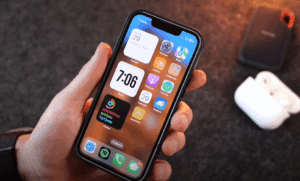
With iOS 18, you can now customize the lock screen shortcuts.
To do this:
- Long-press the lock screen and tap Customize
- Tap Lock Screen
- Remove the existing shortcut (e.g., flashlight or camera)
- Add a new one from a list of options like Calculator, Notes, Voice Memos, and even third-party apps
Now, your lock screen becomes even more powerful and personalized.
6. Lock Your iPhone to One App Using Guided Access
Guided Access lets you lock your iPhone into a single app—perfect if you’re letting someone use your phone temporarily.
To enable:
- Go to Settings and search for Guided Access
- Turn it on and enable Accessibility Shortcut
To use it:
- Open the app you want to lock
- Triple-press the Side Button
- Tap Start, then enter a passcode
To exit, triple-press the side button again and enter your passcode. Great for handing your phone to kids or strangers!
7. Close All Safari Tabs Instantly
Got dozens of tabs open in Safari? Instead of swiping one by one, there’s a quicker way:
- Tap and hold the tab icon (two overlapping squares)
- Choose Close All Tabs
Your Safari will instantly be cleared out.
8. Make Volume Adjustments More Precise
When you press the volume buttons, a volume slider appears. Tap and drag the slider directly to make fine-tuned adjustments. You have to be quick, as the slider disappears in a couple of seconds, but it’s great for setting the perfect volume level.
9. Use Reachability to Access the Top of the Screen
Reachability makes it easier to use large iPhones with one hand.
To use:
- Swipe downward on the bottom edge of the screen
- The entire screen will shift down, bringing hard-to-reach elements within thumb’s reach
This is especially helpful on the iPhone 16 Pro Max. It also works with the Dynamic Island, bringing notifications and app widgets closer to your thumb.
10. Summarize Articles Using Apple Intelligence
If you have an iPhone 15 Pro or any iPhone 16 model, you can use Apple Intelligence to summarize articles in Safari.
Here’s how:
- Open an article in Safari
- Tap the Reader Mode icon
- If supported, tap the Summarize button
You’ll get a one-paragraph summary of the article—perfect for digesting info quickly.
11. Search Photos With Unlimited Keywords
With iOS 18, Apple has improved search in the Photos app. You can now search using multiple keywords to narrow results.
Try this:
- Search for terms like “tree,” “Maui,” and “summer”
- As you add each term, your photo results will filter down to match your exact query
This is incredibly helpful for finding specific memories—like “golf,” “Nevada,” and “video”—from a past trip.
Final Thoughts
These 11 features show just how powerful and intelligent iOS has become. Whether it’s saving time, staying organized, or enhancing your productivity, these tools can make a real difference in how you use your iPhone every day.
Take a few minutes to explore these settings—you might just discover a new favorite feature you never knew existed.
Tags: iPhone, iOS18, AppleTips, MobileProductivity, SmartFeatures, GuidedAccess, SafariTips, PhotoEditing, LockScreen, AppleIntelligence
Hashtags: #iPhoneTips #iOS18 #AppleHacks #Productivity #MobilePhotography #TechTips #iPhoneFeatures #AppleIntelligence #SmartphoneTips








