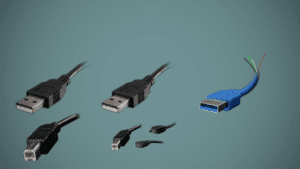
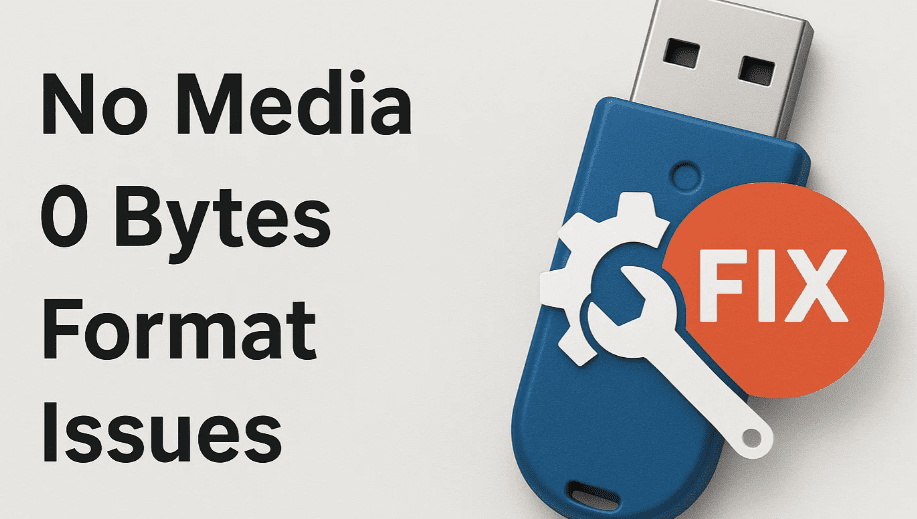
If your USB pen drive or memory card is not showing up, has become corrupted, or is completely unresponsive, don’t worry—this guide will walk you through a simple, effective solution. Using a free utility, you can recover and repair your storage device, even when it’s not detected or prompts errors like “Please insert a disk into USB Drive.”
Let’s dive into the step-by-step process.
🛠 Common Issues Fixed Using This Method
- USB Pen Drive not showing up on your system
- “Please Insert a Disk” error on accessing drive
- Dead or corrupted memory cards
- Pen drive not allowing file transfer
- Inaccessible or non-responsive storage devices
✅ Software Required
We will use a lightweight yet powerful tool called Bootice to diagnose and repair the pen drive. It allows users to manage partitions, format corrupted drives, and restore functionality even in complex cases.
🔗 Download Bootice: Bootice Download Page
(Choose 32-bit or 64-bit version based on your system configuration)
🧩 Step-by-Step Repair Process
Step 1: Identify the Corrupted Drive
- Insert the problematic pen drive or memory card into your system.
- If it shows an error like “Please Insert a Disk,” don’t panic. Proceed to the next step.
Step 2: Download and Open Bootice
- Download the correct version of Bootice (either 32-bit or 64-bit).
- Locate the
.exefile and run it by double-clicking. - If prompted by User Account Control (UAC), click Yes.
Step 3: Select the Correct Drive
- Bootice will display all connected drives.
- Be careful NOT to select your internal hard drive or SSD.
- Select the USB or memory card that you want to repair.
Step 4: Navigate to the Partition Management Tool
- Click on the “Parts Manage” or “Partition Management” tab.
- You may see multiple partitions if the drive was partitioned earlier.
- Choose “Repartitioning” or “Rebuild” (depending on the version).
Step 5: Set a Single Partition
- Create one primary partition (default settings usually work).
- Apply the settings and wait for the operation to complete.
Step 6: Format the Drive
- Once partitioning is complete, format the drive using FAT32 or NTFS, depending on your needs.
- Re-insert the pen drive if necessary.
Step 7: Check Functionality
- Open “My Computer” or “This PC.”
- The drive should now be visible and accessible.
- Try copying and deleting a test file to confirm functionality.
💡 Pro Tip:
If Bootice does not recognize the drive initially, try:
- Using a different USB port
- Testing on another computer
- Running Bootice as Administrator
⚠️ Disclaimer:
Always double-check which drive you’re selecting in Bootice. Incorrectly formatting your internal hard disk could lead to permanent data loss. Use this tool cautiously and at your own risk.
🏁 Final Thoughts
This simple and free method works wonders for repairing corrupted or dead USB drives and memory cards. Many users find it faster and easier than traditional command-line solutions. Whether your pen drive is not formatting, not showing up, or displaying strange errors, Bootice can help bring it back to life.
🔖 Tags:
corrupted pen drive repair, memory card repair tool, usb drive not showing, pen drive formatting error, bootice software, dead pen drive fix, usb recovery tool, corrupted usb fix, partition repair, free usb repair tool
📣 Hashtags:
#PenDriveRepair #CorruptedUSB #MemoryCardFix #Bootice #USBRecovery #TechTips #DataRecovery #DeadUSBFix #FreeTools