If you’re a Mac user looking to get the most out of your device, you’re in the right place. Here are 10 incredibly useful tips to help you work smarter and more efficiently on your Mac. Whether you’re a beginner or a seasoned user, these tricks will improve your workflow and unlock some hidden gems of macOS.
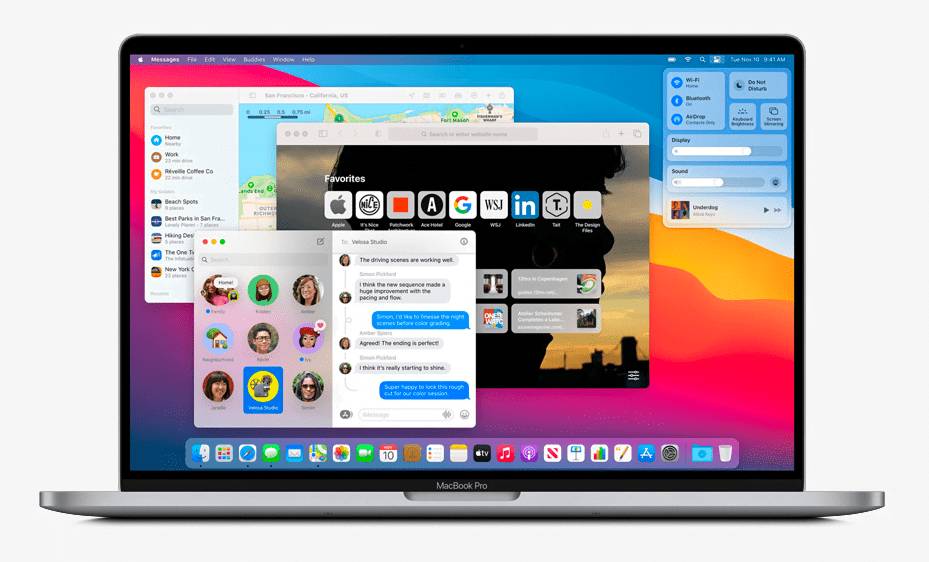
1. Quick Look – Preview Files Without Opening Them
Quick Look is one of the simplest yet most powerful features in macOS. Instead of opening a file just to view its contents, you can preview it instantly.
How to use it:
- Open Finder and navigate to any file.
- Click on the file once, then press the spacebar.
- A preview window will pop up.
- Press spacebar again to close it.
This works with most file types, including images, PDFs, text files, and more.
2. Quit Applications with a Shortcut
Many users assume clicking the red close button fully quits an app. It doesn’t. The app continues to run in the background.
To completely quit an app:
- Press Command + Q while the app is active.
- This clears the app from memory and frees up RAM.
No need to right-click or go through menus — just use this handy shortcut.
3. Access Emoji Keyboard with Ease
Using emojis on a Mac is just as simple as on an iPhone or iPad — if you know how to access them.
Shortcut:
- In any text field, press Command + Control + Space.
- The emoji picker will appear.
- You can search emojis or access frequently used ones.
Perfect for casual messages or even professional communication with a bit of flair.
4. Capture a Specific Window in a Screenshot
Most users know Command + Shift + 3 captures the entire screen, and Command + Shift + 4 lets you select a portion. But what if you want to capture a specific window?









Here’s how:
- Press Command + Shift + 4.
- Then hit the spacebar — your cursor will turn into a camera icon.
- Click on the window you want to capture.
- A clean image of that window will be saved (including rounded corners!).
5. Turn on Tap to Click for the Trackpad
If you’re using a MacBook or a desktop with a trackpad, enabling “Tap to Click” can make navigation smoother.
Steps:
- Go to System Settings > Trackpad.
- Enable Tap to Click.
Now, instead of physically pressing the trackpad, a light tap will simulate a click. It’s subtle but significantly improves the user experience.
6. Quick Definitions Using Force Touch or Look Up
Need a quick definition? macOS lets you look up any word easily.
Options:
- If you have a trackpad, force press (press firmly) on a word to see the definition.
- Alternatively, right-click on the word and select Look Up.
This is great for research, reading, or studying without having to leave your current app.
7. Unlock Your Mac Automatically with Apple Watch
If you own an Apple Watch, you can use it to unlock your Mac without typing a password or using Touch ID.
Steps:
- Open System Settings > Touch ID & Password.
- Enable Unlock with Apple Watch.
Now, as long as your watch is on and unlocked, your Mac will log in as soon as you wake it up.
8. Use Split Screen View
Split Screen allows you to use two apps side by side — ideal for multitasking.
How to activate:
- Hover over the green traffic light icon at the top-left corner of a window.
- Choose Tile Window to Left of Screen or Right of Screen.
- Select another window for the opposite side.
It’s not as intuitive as Windows, but once you get the hang of it, it’s a productivity booster.
9. Launchpad Gesture Shortcut
The Launchpad gives you a grid view of all your installed apps. Instead of clicking the dock icon, there’s a quicker way (trackpad required).
Gesture:
- Use four fingers and pinch inward on the trackpad.
- Launchpad will open immediately.
It’s a fast and fluid way to access your apps, especially when in full-screen mode.
10. Customize the Control Center
The macOS Control Center gives you access to key toggles like Wi-Fi, Bluetooth, Do Not Disturb, and more.
To add items to the menu bar:
- Open Control Center from the top-right corner.
- Click and drag any toggle (e.g., Focus Mode, Display, Volume) to the menu bar.
Now, you can access frequently used controls without opening the Control Center each time.
By following these tips, you’ll get far more out of your Mac and increase your daily productivity. Bookmark this article and return to it whenever you want to refresh your memory or help others optimize their macOS experience.
Tags: mac productivity, macbook tips, mac os features, quick look mac, mac keyboard shortcuts, mac screenshot, emoji mac shortcut, split screen mac, apple watch mac unlock, mac control center, tap to click mac
Hashtags:
#MacTips #MacBookTricks #ProductivityHacks #MacShortcuts #AppleTips #MacOSFeatures #MacBookGuide #TechTips #MacQuickLook #SplitScreenMac








