Upgrading to Windows 11—especially on an older or unsupported PC—can feel like a big leap, especially if you’re coming from Windows 10 or even Windows 7. From the redesigned Start Menu to new system behavior, it’s a completely different experience. To help make the transition smooth and boost your system’s performance, here are 10 must-do tweaks and optimizations after installing Windows 11.
Whether you’re using a brand-new laptop or a decade-old desktop, these tips will improve speed, usability, and efficiency.
✅ 1. Install the Latest Windows Updates and Drivers
Right after installing Windows 11, the very first thing to do is update your system:
- Go to Settings > Windows Update > Check for updates
- Install all available updates and restart your computer.
For driver updates:
- Navigate to Settings > Windows Update > Advanced options > Optional updates
- Click Driver updates, then install all listed drivers (especially graphics, audio, chipset).
Manual Driver Installation:
If you’re using an older or unsupported PC, Windows might not detect all necessary drivers. Find your laptop/PC model (check the label under your device), and search online:
YourModelNumber drivers Windows 11
Download from the official manufacturer’s website (Dell, HP, Lenovo, etc.). If Windows 11 drivers are not available, Windows 10 drivers usually work as well.
🪄 2. Move the Start Menu to the Left (Like Windows 10)
If you prefer the classic layout:
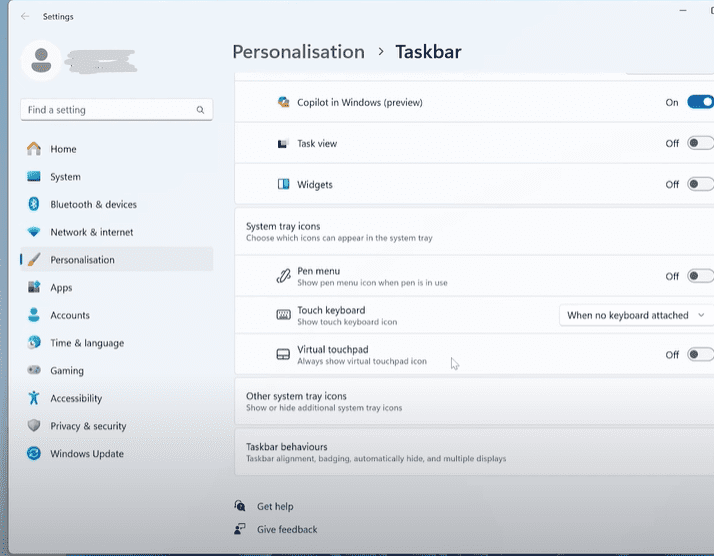
- Right-click on the Taskbar and select Taskbar settings
- Scroll to Taskbar behaviors > Taskbar alignment
- Choose Left
You can also disable unwanted taskbar items (like widgets or task view) from the same settings page.
🖱 3. Restore the Classic Right-Click Context Menu
Windows 11’s new context menu adds an extra click to access older options. To bring back the classic right-click menu:
- Use a lightweight tool like W11ClassicMenu
- Launch the tool and click “Enable Classic Context Menu”
- Restart Windows Explorer for changes to apply
You can always revert back to the default with the same tool.
🧹 4. Debloat Windows 11 for Better Performance
Windows 11 includes many pre-installed apps you may never use. Removing them saves resources.






Use the Windows Debloater Tool:
- Download the latest version from a trusted source (GitHub or community site)
- Open it in Terminal as Administrator
- Run the pre-configured tweaks by clicking “Apply Tweaks”
This tool will remove OneDrive, Xbox, bloatware games, and other unnecessary software.
🧼 5. Disable Unwanted Startup Programs
Programs that launch on startup can slow down your system:
Method 1:
- Right-click the Taskbar > Task Manager > Startup tab
- Disable any program you don’t need running at startup
Method 2:
- Settings > Apps > Startup
- Toggle off programs from launching at boot
You can also go to Settings > Apps > Installed apps and uninstall unused applications like TikTok, Xbox, or OEM bloatware.
🎨 6. Turn Off Visual Effects for Faster Performance
Visual animations and transparency effects may look pretty, but they slow things down:
- Settings > Accessibility > Visual effects
- Turn off Transparency effects
- Turn off Animation effects
This will make your PC feel snappier—especially helpful on older machines.
🔕 7. Disable Notifications and Ads
Get rid of distractions and system advertising:
- Go to Settings > System > Notifications
- Turn off unnecessary notifications
- Go to Settings > Privacy & Security > General
- Disable “Let apps show me personalized ads”
This makes for a cleaner, less intrusive user experience.
⚡ 8. Set Power Plan to High Performance
Many systems default to a balanced or power-saving mode that limits performance:
- Search “Edit power plan” > Open
- Click Power Options
- Choose High Performance
Avoid the Power Saver plan unless you are prioritizing battery life on a laptop.
🧽 9. Clear Temporary Files and Enable Storage Sense
Free up disk space and keep your system clean:
To clear temporary files:
- Search “Temporary Files” and select the result
- Delete device driver packages, cache, and downloads (if not needed)
To enable Storage Sense:
- Go to Settings > System > Storage > Storage Sense
- Turn it on to automatically clean junk files in the future
🛡 10. Use Windows Security for Virus Protection
Avoid third-party antivirus software as it may slow down your system. Windows 11 comes with built-in protection:
- Open Windows Security > Virus & threat protection > Quick Scan
You can also use ADWCleaner (a free tool) to remove adware or suspicious software.
💡 Bonus Tips for Supercharged Performance
💾 Add More RAM
If your system supports it, upgrading your RAM can drastically improve multitasking and speed.
🔁 Switch to SSD
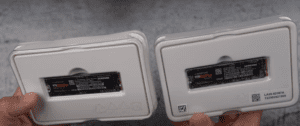
Still using an old hard drive? Switching to an SSD will make your system feel 5x faster.
📁 Partition Your Drive
Create a D:\ drive from unused space to better organize files and keep Windows running smooth.
Final Thoughts
With these 10+ tips, you can turn even an unsupported or old PC running Windows 11 into a smooth and efficient machine. These tweaks improve boot time, responsiveness, and reduce resource usage—making Windows 11 a joy to use, no matter your system’s specs.
If you found this guide helpful, share it with friends or bookmark it for future installs. Happy computing!
Tags: Windows 11 tips, optimize Windows 11, unsupported PC Windows 11, Windows 11 tweaks, speed up Windows 11, Windows 11 debloat, classic context menu Windows 11, disable startup apps Windows 11, SSD upgrade, performance boost
Hashtags: #Windows11 #WindowsTips #PCPerformance #SpeedUpWindows #TechTips #ComputerHacks #Windows11Optimization #OldLaptopFix #DebloatWindows #DIYTech







