We’ve all seen the headlines and viral scripts promising “instant FPS,” “zero latency,” and “super-private Windows” with a single click. Tempting, right? But if you’ve ever run a debloat tool and then wondered which mystery switches it flipped (or why your PC started acting weird), you’re not alone.
This guide turns the noise into clarity. We’ll break down what debloating can realistically do, where it won’t help, the risks you should avoid, and a tiered, safe game plan you can follow with rollback options. You’ll also see specific examples for Windows Settings, Group Policy (for Pro/Enterprise), and PowerShell—plus a practical checklist, FAQs, and a simple way to document changes so you’re never guessing later.
Before we dive into the steps, a quick note about mindset: the goal isn’t to “nuke Windows” into a barebones shell. The goal is to remove what you don’t need, keep what protects you, and preserve stability. We’ll go slow, explain every decision, and keep everything reversible.
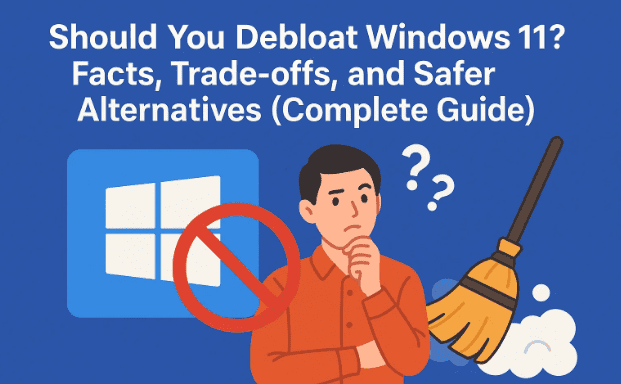
1) What Is “Debloating” Windows 11—Really?
Let’s set a sensible baseline before any toggles or commands. Debloating means trimming Windows features, apps, background services, and scheduled tasks you don’t need—without gutting core security or breaking system functions you’ll miss tomorrow.
There are two broad approaches:
- Manual & Understandable: You use Settings, Group Policy, and a few targeted PowerShell commands—every change is explainable and reversible.
- One-Click Mystery: You run a random tool or script that flips dozens (or hundreds) of switches silently. You get quick results—but you can’t tell what changed or why.
This guide prioritizes the first approach. You stay in control, and you’ll know how to undo anything.
2) What Debloating Can and Cannot Do (No Myths, Just Reality)
Before we start flipping switches, let’s align expectations. It helps to pause here for a moment—this is where most frustration begins if you expect miracles.
What Debloating Can Do
- Reduce background activity on low-end or older PCs (helpful if your CPU is pegged at 100% during multitasking).
- Speed up boot and lower idle RAM use by removing startup apps and unnecessary scheduled tasks.
- Slightly improve privacy by disabling ad suggestions, some telemetry options, and consumer experiences.
- Reduce distraction/bloat by removing apps and features you never use.
What Debloating Cannot Do
- It won’t turn a mid-range PC into a high-end rig. Expect incremental improvements, not 100+ FPS jumps.
- It won’t make Windows “fully private.” Windows is closed-source; some telemetry is baked in.
- It won’t fix poor game optimization or slow internet, bad drivers, thermal throttling, or storage bottlenecks.
- It won’t be risk-free if you blindly disable services you don’t understand.
If someone promises huge FPS gains or “complete privacy with one click,” be skeptical.
3) The Real Risks: Scripts, Custom ISOs, and “Aggressive” Tweaks
We’ve all seen tools that recommend removing or crippling core components. This is where things can go sideways quickly.
- Custom Windows ISOs (from forums, torrents, or mystery sites): You have no idea what’s been added or removed. You could be installing a backdoor. Avoid them.
- Aggressive tools/scripts that remove Windows Defender, Windows Update, Core Isolation/Virtualization-Based Security, Windows Search, or Edge—these often break system features or reduce security.
- Mixed “tweak packs” that change networking stacks, TCP parameters, or scheduler priorities—these can degrade performance and stability.
If a script asks you to disable antivirus to run, that’s a red flag. If a tool gets flagged by multiple reputable AV engines, walk away.
For context only: utilities like O&O ShutUp10++ are broadly considered conservative (you still must review each switch). You can read about it and download from the developer’s site: https://www.oo-software.com/en/shutup10.
4) Who Should Consider Debloating—and Who Should Not
Good candidates
- Older/low-end PCs struggling at idle.
- Users who value a cleaner, quieter Windows and fewer preinstalled apps.
- Privacy-conscious users who want to reduce (not eliminate) data collection.
- Power users comfortable documenting changes.
Probably skip it (or stay at Level 1)
- Your PC is new, fast, and stable—and you rely on Microsoft 365, OneDrive, Copilot features, or enterprise management.
- You’re not comfortable reversing registry/Group Policy/PowerShell changes.
- You need maximum compatibility for work (corporate VPN, device encryption, compliance).
5) Three Levels of Debloat (from Safe to Advanced)
Let’s outline the path we’ll follow. Each level has a purpose. Read the intro below before touching anything.
- Level 1 (Safest): Doable entirely in Settings. Disable tips, ads, consumer experiences; remove unwanted apps; trim startup items; manage notifications; switch off background app permissions.
- Level 2 (Intermediate): Group Policy (Windows Pro/Enterprise). Turn off optional consumer experiences, ad personalization signals, suggested content, and some telemetry policies—without breaking Defender/Windows Update.
- Level 3 (Advanced/Targeted): PowerShell to remove specific inbox apps for the current user (reversible). Avoid removing core components or shared frameworks.
If you’re new to this, stop at Level 1. If you’re comfortable and on Windows Pro, Level 2 is a great middle ground.
6) Safety Nets First: Backups, Restore Points, and Change Logs
We’ve made good progress laying the groundwork; now let’s set up safety nets. This step protects your future self.
a) Create a Restore Point
- Press Start → type Create a restore point → open it.
- Select your system drive → Configure → ensure Turn on system protection.
- Click Create → name it (e.g., “Pre-Debloat”).
b) Back up key files
- Use File History (Settings → Windows Update → Advanced Options → Backup) or copy Documents/Pictures/Desktop to an external drive/cloud.
- If you can, make a disk image with a tool you trust.
c) Start a Change Log
- Open Notepad, name it Debloat-Log.txt, and record every change you make (policy name, setting path, command used).
- This is the difference between calm troubleshooting and guesswork.
7) Level 1 – Built-In Windows Settings (Safest & Recommended)
Before we “flip switches,” a quick orientation. The goal here is to reduce noise (ads, tips, preinstalled apps) and stop needless background activity—without touching core security. Move slowly; after each cluster of changes, use your PC for a bit and confirm nothing you rely on broke.
A) Uninstall Promotional/Unneeded Apps
- Settings → Apps → Installed apps: remove games/promos you never use.
- Settings → Apps → Optional features: remove tools you truly don’t need (e.g., XPS Viewer). Leave anything you don’t recognize.
Tip: If you’re unsure, hide apps from Start and disable background permissions rather than uninstall.
B) Disable Background App Permissions
- Settings → Apps → Installed apps → pick an app → App permissions (Background apps).
- Set Let this app run in background to Never for low-value apps.
C) Trim Startup Apps
- Settings → Apps → Startup: turn off what you don’t need at boot.
- Good candidates: “Helper” updaters, tray notifiers, “cloud music launchers,” etc.
- Keep GPU control panels, IME/keyboard tools, and anything required for work login/VPN.
D) Reduce Suggestions, Ads, and Consumer Experiences
- Settings → System → Notifications → Additional settings: uncheck tips/suggestions.
- Settings → Personalization → Start: disable Show recommendations…
- Settings → Privacy & security → General:
- Turn off Let apps show me personalized ads (ad ID).
- Turn off Show me suggested content in the Settings app (if present).
E) Activity History and Inking/Typing
- Settings → Privacy & security → Activity history: consider turning off Store my activity history on this device.
- Settings → Privacy & security → Inking & typing personalization: turn off if you don’t need improved suggestions.
F) Notifications Hygiene
- Settings → System → Notifications: disable noisy apps; leave critical ones (Security, Backup, Storage).
G) Storage and Cleanup
- Settings → System → Storage → Storage Sense: enable and configure periodic cleanup of temp files and recycle bin.
- Settings → System → Storage → Temporary files: remove previous Windows installations only if you’re sure you don’t need rollback.
Pause here and use your PC for an hour. If everything feels normal—but a little calmer and snappier—you’re on the right track.
8) Level 2 – Group Policy (Windows Pro/Enterprise)
Group Policy allows consistent, explainable changes without registry spelunking. If you’re on Windows Home, you can skip to Level 3.
Open the editor: Win + R → gpedit.msc → Enter. For each path below, read the description and set to Enabled/Disabled as indicated. Apply one cluster at a time, reboot, and test.
Microsoft’s documentation for Group Policy lives at: https://learn.microsoft.com/windows/ (search the exact policy name if you want details).
A) Turn Off Consumer Experiences
- Computer Configuration → Administrative Templates → Windows Components → Cloud Content
- Turn off Microsoft consumer features → Enabled
- Do not show Windows tips → Enabled
B) Reduce Advertising/Recommendations
- Computer Configuration → Administrative Templates → System → Internet Communication Management → Internet Communication settings
- Review policies that disable online tips/help suggestions (leave items you rely on).
- User Configuration → Administrative Templates → Start Menu and Taskbar
- Remove “Recently added” list from Start Menu (optional)
- Turn off feature advertisement balloon notifications (if present)
C) Privacy/Telemetry (Moderate)
- Computer Configuration → Administrative Templates → Windows Components → Data Collection and Preview Builds
- Allow Telemetry → Enabled → set to Basic (or Required/Security on Enterprise).
- Avoid third-party “force zero telemetry” hacks—they often break features.
D) Windows Spotlight and Lock Screen Suggestions
- Computer Configuration → Administrative Templates → Windows Components → Cloud Content
- Turn off all Windows spotlight features → Enabled
- User Configuration → Administrative Templates → Windows Components → Cloud Content
- Do not use diagnostic data for tailored experiences → Enabled
Reboot, verify that Start/Settings are cleaner, and that your login/workflow is unaffected. If something you like disappeared (e.g., Spotlight wallpapers), revert just that policy.
9) Level 3 – PowerShell App Cleanup (Targeted, Reversible)
Now that we’ve done the safe work, let’s talk about targeted app removal. The idea is remove only what you truly don’t use, for your user profile, and keep it reversible.
Open PowerShell as Administrator. To list installed provisioned apps (system-provisioned packages for new users), run:
Get-AppxPackage | Select Name, PackageFullName
Copy your log first. Then, to remove an app only for the current user:
Get-AppxPackage *bingnews* | Remove-AppxPackage
Examples people often remove (only if you never use them):
- BingNews, BingWeather, Xbox components (if you never use Xbox), 3DViewer, MixedReality, certain “GetHelp/FeedbackHub” (but FeedbackHub can be useful for reporting).
Reinstall an inbox app later:
Get-AppxPackage -AllUsers *bingnews* | ForEach-Object { Add-AppxPackage -Register "$($_.InstallLocation)\AppxManifest.xml" -DisableDevelopmentMode }
Important:
- Avoid removing Microsoft Store unless you want a very constrained system.
- Avoid removing Photos, Calculator, Clipchamp if you rely on them.
- Do not remove shared frameworks (e.g., .NET, VCLibs, UI.Xaml). If you aren’t sure what a package does, leave it.
10) Do Not Disable These (Security, Stability, Updates)
We’re doing a responsible debloat, not a demolition. Keep these ON unless you truly understand consequences:
- Windows Defender (Microsoft Defender Antivirus)
- Core Isolation / Memory Integrity (Settings → Privacy & security → Windows Security → Device security)
- Virtualization-Based Security (VBS) and Credential Guard (enterprise contexts)
- Windows Update (you may schedule and defer, but don’t rip it out)
- Windows Search (turning it off breaks indexing/Office/Outlook scenarios; instead, trim what’s indexed)
- SmartScreen (phishing/malware protection)
- BitLocker/Device Encryption (if you use it—don’t disable on laptops that travel)
If any “debloat” guide tells you to kill these across the board, that’s not optimization—that’s attack surface expansion.
11) Privacy: What Improves and What Won’t Change
Let’s be honest and precise. After Level 1–2 changes:
You likely improved:
- Fewer personalized ads and suggestions.
- Less “consumer experience” content, app preinstalls, and background chatter.
- Some telemetry reduced to Basic/Required on supported editions.
But not everything changes:
- Windows is still Windows. Some diagnostic signals remain, services still phone home for updates, Store, Defender, and activation.
- If you want max privacy, consider segmenting sensitive work on Linux or inside a virtual machine, and harden your browser with uBlock Origin, DNS-over-HTTPS, etc.
Privacy is a spectrum, not a switch. This guide moves you toward private—without breaking daily computing.
12) Gaming & Performance: Expectation vs Reality
You’ll see the biggest benefit on older dual-core CPUs or low-RAM systems that idle high because of preinstalled stuff. On modern hardware, debloating is more about less noise than raw FPS.
What does move the needle for gaming:
- Up-to-date GPU drivers and a clean install when switching brands.
- Turn off overlays you don’t use (GeForce Experience overlay, Discord overlay, etc.).
- Game Mode (Settings → Gaming → Game Mode) on; it can help stabilize scheduling in Windows 11.
- Storage & thermals: NVMe health, adequate cooling, and a real-world check that your CPU/GPU aren’t throttling.
- Per-game settings: resolution scaling, FSR/DLSS/XeSS, and good in-game presets.
What doesn’t: miracle scripts claiming 50–200 FPS. Treat those as marketing, not engineering.
13) If You Broke Something: How to Roll Back
Things happen. Here’s your recovery ladder—from lightest to strongest.
- Undo a single setting: revert the toggle or policy you just changed, reboot, and test.
- Reinstall a removed app (see PowerShell reinstall snippet above).
- System Restore: Start → Create a restore point → System Restore → choose Pre-Debloat point.
- Repair Windows components (keeps files/apps):
- Open Command Prompt (Admin) and run:
sfc /scannow DISM /Online /Cleanup-Image /RestoreHealth
- Open Command Prompt (Admin) and run:
- Repair install (in-place upgrade with the same or newer ISO from Microsoft—keeps data and apps).
Document what happened in your Debloat-Log.txt so you never repeat a bad toggle.
14) Quick Comparison Table (Benefit vs Risk vs Effort)
| Level | What You Do | Benefit (Old HW) | Benefit (Modern HW) | Risk | Effort |
|---|---|---|---|---|---|
| 1 | Settings: remove bloat, trim startup, disable suggestions | Medium | Low–Medium | Very Low | Low |
| 2 | Group Policy: consumer features off, reduce telemetry, tame Spotlight | Medium | Low | Low | Medium |
| 3 | PowerShell: remove select inbox apps (per user) | Medium | Low | Medium (if careless) | Medium |
Bottom line: Most users should live in Level 1–2. Only use Level 3 when you know exactly which apps you don’t need.
15) FAQ: Your Most Common Questions—Answered
Q1) Will debloating make my PC faster?
Sometimes. On older hardware, trimming startup/background activity helps responsiveness. On modern rigs, expect quality-of-life gains, not dramatic performance jumps.
Q2) Is it safe to remove Microsoft Defender?
No. Defender is tightly integrated, gets frequent definition updates, and protects you when a download or USB goes wrong. Removing it increases risk significantly.
Q3) Can I disable Windows Update to “save resources”?
Don’t. You can schedule/restrict active hours, but removing updates means missing critical security fixes and driver/compatibility improvements.
Q4) Is Group Policy better than random scripts?
Yes. It’s explicit, documented, and reversible. You’ll know exactly what changed—and so will future you.
Q5) What about tools that ask me to disable antivirus first?
Walk away. That’s a classic red flag.
Q6) Can I get complete privacy on Windows 11?
No. You can reduce telemetry and ads, but complete silence is unrealistic on a closed-source OS. Use hardened browsers, privacy-respecting DNS, and compartmentalize sensitive work.
Q7) I’m a gamer. Which single change helps the most?
Ensure clean GPU drivers, keep Game Mode on, and trim overlays. Those three beat any “FPS script.”
Q8) If I already ran a mystery debloat script, now what?
Create a restore point, consider a repair install (in-place upgrade), and rebuild using Level 1–2 from this guide. Take back control with documented, understandable changes.
16) Conclusion & Suggested Next Steps
Should you debloat Windows 11? Yes—and No.
- Yes, if your aim is a calmer, cleaner system with fewer background tasks and less promotional clutter—and you stick to sensible, reversible changes.
- No, if you’re chasing miracle FPS or “absolute privacy” promised by aggressive scripts, or if you’re not ready to track what you change and how to put it back.
The sweet spot for most people is Level 1–2: use Windows’ built-in controls and Group Policy (on Pro) to reduce noise without sacrificing security. If you later find a few inbox apps you truly never use, address them with targeted Level-3 PowerShell—carefully, with a restore point and a change log.
If you follow the path above, you won’t have to fear updates, mystery crashes, or that one tool someone swore by on a forum. You’ll know what changed, why it changed, and how to change it back. That’s real control.
Disclaimer
This article is for educational purposes. Changing system policies, uninstalling apps, or adjusting services can affect stability, features, and security. Always create a restore point and a backup before making changes. Keep Windows Defender, Windows Update, Core Isolation, SmartScreen, and BitLocker enabled unless you fully understand and accept the risks.
Helpful Official Resources
- O&O ShutUp10++ (conservative privacy toggles; review each setting yourself): https://www.oo-software.com/en/shutup10
- Microsoft Docs (search policy names to see official descriptions): https://learn.microsoft.com/windows/
Note: We intentionally did not link to aggressive debloat scripts or modified ISOs. If you choose to explore them, verify reputations and read code carefully. Proceed at your own risk.
Tags: Windows 11 debloat, Windows privacy, Group Policy, PowerShell, performance tuning, Windows security, startup optimization, telemetry, Microsoft Defender, Windows Update
Hashtags: #Windows11 #Debloat #Performance #Privacy #GroupPolicy #PowerShell #WindowsSecurity #PCOptimization








