Voicemeeter is a powerful virtual audio mixer loved by gamers, streamers, and content creators. But uninstalling it isn’t always as straightforward as clicking “Uninstall.” Many users find that even after removing the app, its virtual drivers linger, causing system clutter, conflicts with audio devices, or even blocking Windows updates—such as the 24H2 update.
In this article, we’ll walk you through step-by-step instructions to completely remove Voicemeeter and any leftover ghost drivers, ensuring your system stays clean, conflict-free, and update-ready.
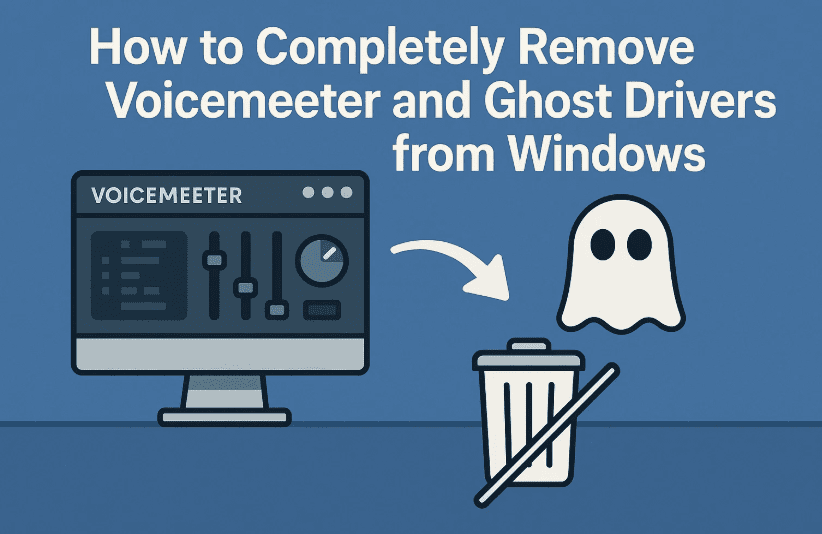
So if you’ve ever wondered why those mysterious “Voicemeeter Input” or “VB-Audio” devices still appear long after uninstalling—this guide is for you.
💡 Why You Should Remove Ghost Drivers
Before jumping into the removal process, let’s understand why ghost drivers are a problem:
- They occupy system resources even if they aren’t in use.
- They may conflict with physical audio devices or other software like OBS, Zoom, or DAWs.
- They can cause update failures in Windows, particularly during major version updates like 24H2.
- Windows might attempt to reinstall them if not fully removed, restarting the problem cycle.
If you’re not actively using Voicemeeter or its virtual audio devices anymore, cleaning them out is a smart idea.
🛑 Warning Before You Begin
If you actively use Voicemeeter or rely on its routing features, removing its drivers will break your audio setup. Make sure you really intend to remove it completely, and note that you may need to reinstall and reconfigure Voicemeeter later if needed.
✅ Step-by-Step Guide to Fully Remove Voicemeeter and Its Drivers
Let’s now move step-by-step through the complete cleanup process. We’ll start with the software, then handle ghost drivers in the system.
🔻 Step 1: Ensure Voicemeeter is Not Running
Before uninstalling anything, we want to make sure Voicemeeter is fully closed and no related services are running in the background.
Here’s what to do:
- Close the Voicemeeter interface if it’s open.
- Right-click the Taskbar > Task Manager, and make sure no VB-Audio or Voicemeeter processes are running.
- If you’re unsure, just restart your PC to ensure everything is stopped.
This ensures the files and drivers aren’t locked during uninstallation.
🔸 Step 2: Uninstall Voicemeeter Using the Standard Method
Now let’s remove the application:



- Open Settings > Apps > Installed apps (or Control Panel > Programs and Features).
- Search for Voicemeeter, Voicemeeter Banana, or Voicemeeter Potato.
- Click Uninstall.
- Follow the on-screen instructions to complete removal.
⚠️ Note: This step only removes the program interface, not the virtual audio drivers.
You might think the job is done—but it’s only half the story.
🔍 Step 3: Identify Leftover Ghost Drivers
Now we’ll dig into Device Manager to hunt down leftover virtual audio devices.
Let’s move to the next step.
🎧 Step 4: Open Device Manager and Remove Voicemeeter Drivers
Here’s where we remove the real leftover troublemakers.
Steps:
- Press Windows + X and select Device Manager.
- Expand the category “Sound, video and game controllers.”
- Look for entries with names like:
- Voicemeeter Input
- Voicemeeter Output
- VB-Audio Voicemeeter VAIO
- VB-Audio Voicemeeter AUX
- Voicemeeter Potato
- VB-Audio Cable
- For each Voicemeeter or VB-Audio entry:
- Right-click > Uninstall device
- Check the box that says:
☑ Delete the driver software for this device - Click Uninstall
- Repeat for every matching virtual audio device.
💡 Important: Checking that box ensures Windows won’t reinstall the same driver silently later.
🔁 Step 5: Restart Your Computer
After you’ve uninstalled all the relevant drivers, restart your PC.
This will:
- Fully unload any remaining registry links to Voicemeeter.
- Confirm the drivers don’t return after reboot.
If you return to Device Manager and the entries are gone—mission accomplished.
Windows update error regarding Voicemeeter – Outdated Voicemeeter Driver Error – Fix Windows 11 24H2 Update Failing Due to Unsupported Driver Issue
📦 Optional: Clean Leftover Registry Entries (Advanced)
This step is optional and only for advanced users who are comfortable with editing the Windows Registry.
⚠️ Warning: Incorrect changes in the Registry can harm your system. Proceed only if you know what you’re doing.
If you want to clear all traces:
- Press Win + R, type
regedit, and press Enter. - Navigate to:
HKEY_LOCAL_MACHINE\SOFTWARE\VB-AudioHKEY_LOCAL_MACHINE\SYSTEM\CurrentControlSet\Services\VB-Audio
- Right-click the folders and choose Delete.
You can also use Autoruns from Sysinternals to find startup services related to Voicemeeter and uncheck/delete them safely.
🔗 Download Autoruns
🧽 Final Check: Confirm the System Is Clean
Here’s how to verify that all drivers and traces are gone:
- Go to Control Panel > Sound > Playback/Recording tab
- You should no longer see “Voicemeeter Input” or “Voicemeeter Output”
- Check Device Manager again for any remaining virtual audio devices
If none of them are present—you’ve officially cleaned your system.
❓FAQ: Frequently Asked Questions
Q: Why didn’t Windows remove the drivers during uninstallation?
A: Many virtual driver-based apps (like Voicemeeter, VPNs, or VMs) install kernel-level components that are registered separately. They aren’t removed unless you explicitly delete the drivers from Device Manager with the box checked.
Q: Why are these ghost drivers a problem?
A: Even unused, they consume resources and can conflict with:
- Realtek or NVIDIA audio drivers
- OBS or streaming software
- Communication apps like Zoom or Discord
- Windows Update checks (especially for 24H2)
Q: What if Voicemeeter shows up again after uninstalling?
A: It may be cached in Windows driver store, or an update may reinstall it. Be sure to check “Delete driver software” during uninstallation. If that still fails, try using Driver Store Explorer (RAPR).
🔗 Driver Store Explorer (GitHub)
🔧 Bonus: Use Command Line to Check Hidden Drivers
You can also run the following command in PowerShell as Administrator to see non-present (ghost) devices:
pnputil /enum-drivers
Look for any lines containing VB-Audio or Voicemeeter and remove them with:
pnputil /delete-driver oemXX.inf /uninstall /force
(Replace oemXX.inf with the correct driver filename shown above.)
🧼 Final Thoughts
Voicemeeter is powerful—but when you’re done with it, it leaves a trail. Now you know how to completely remove every trace of it from your system, from the app itself to virtual drivers and registry leftovers.
Whether you’re preparing for a major Windows update, solving audio conflicts, or simply cleaning house, these steps will help you keep your system lean and problem-free.
🔖 Tags:
voicemeeter uninstall, remove ghost drivers, vb-audio cleanup, windows audio driver fix, voicemeeter virtual device removal, windows 11 update error fix
🔖 Hashtags:
#Voicemeeter #GhostDrivers #WindowsFix #AudioDriverCleanup #PCMaintenance #Windows11 #TechSupport







