Imagine you’re traveling, working on someone’s computer, or facing a system crash on your own PC — and suddenly you can’t boot Windows, remove malware, or even access your files.
What if you had a single USB drive that could handle all of it — from repairing boot issues to removing ransomware or resetting forgotten passwords?
That’s exactly what Medicat USB does.
Medicat is a powerful bootable toolkit designed for IT professionals, technicians, and everyday users who want to fix computers without reinstalling Windows. It’s essentially a “Swiss army knife” of troubleshooting — packed with antivirus tools, data recovery utilities, password reset programs, partition editors, live operating systems, and much more.
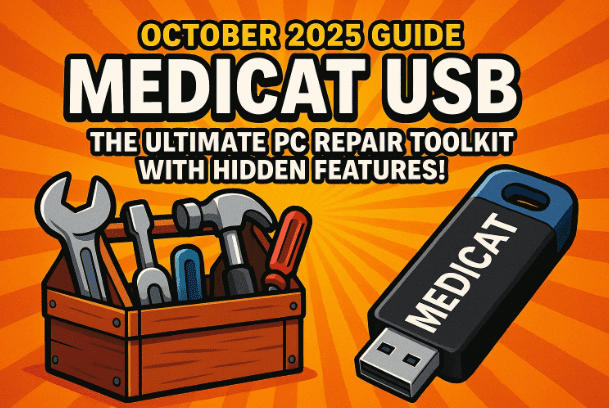
In this article, we’ll take a deep dive into what Medicat is, how it works, its best features, and step-by-step instructions on how to create your own Medicat USB drive safely.
💡 1. What Is Medicat USB and Why It Matters
Medicat is a bootable toolkit — meaning you plug it into a PC, boot from it, and access a complete environment outside your regular operating system. It’s built using the Ventoy platform and contains a curated collection of open-source repair and recovery tools.
You can think of it as your all-in-one digital emergency kit that can:
- Repair unbootable PCs
- Scan and remove malware
- Recover deleted files or partitions
- Reset forgotten Windows passwords
- Clone drives or back up data
- Fix corrupted bootloaders
- Run diagnostic tests on RAM, CPU, or disks
And all this happens without even logging into Windows — making it indispensable for technicians and power users.
⚖️ 2. Is It Legal and Safe to Use?
Yes — Medicat USB itself is legal. It’s built entirely from legitimate, free, and open-source tools. What’s illegal, however, is using any hacking or password-reset tools on computers you don’t own or have permission to repair.
Just like a hammer can build or break, Medicat’s tools depend on how you use them. For personal troubleshooting, data recovery, or ethical IT work, it’s perfectly fine.
🔍 3. Medicat vs Hiren’s BootCD PE: What’s Different?
You may have heard of Hiren’s BootCD, another legendary recovery toolkit. So how does Medicat compare?
| Feature | Medicat USB | Hiren’s BootCD PE |
|---|---|---|
| Base System | Ventoy (multi-boot) | Windows 10 PE |
| Size | ~25–30 GB | ~3 GB |
| Updates | Monthly | Rarely updated |
| Live OS | Mini Windows 10 + Linux | Windows PE only |
| Tools | 500+ open-source utilities | 100+ |
| Antivirus Support | Yes (Malwarebytes, Kaspersky, McAfee, etc.) | Limited |
| Boot Repair Options | Windows, Linux, GRUB, EFI | Basic Windows fix |
| Interface | Menu-driven with categories | File Explorer-like |
In short, Medicat offers far more flexibility, compatibility, and power, though it’s larger in size and takes more time to set up. But in case if you want to read more about Hiren’s Boot USB Disk
How to Reset or Remove Windows 10/11 Login Password Using Hiren’s Boot USB (No Data Loss)



🧩 4. Top Features and Tools Inside Medicat
Medicat is organized into tool categories, making it easy to find what you need. Let’s explore the highlights before we move into the installation process.
🦠 Antivirus and Malware Removal
Medicat includes tools like:
- Malwarebytes
- McAfee Stinger
- Kaspersky Rescue Tool
- Ransomware Decryptors
These can detect and remove infections even from systems that won’t boot into Windows.
🧱 Backup and Recovery
Under the Backup and Recovery section, you’ll find utilities for restoring files, cloning drives, and recovering lost partitions, including:
- EaseUS Data Recovery
- Active File Recovery
- MiniTool ShadowMaker
- Macrium Reflect
⚙️ Boot Repair
Fix broken boot sectors for both Windows and Linux:
- Boot Repair Disk
- Grub2 Fix Tools
- MBR & BCD repair utilities
🧠 Diagnostics and Stress Tests
You can test RAM, check CPU health, or verify disk integrity using:
- Memtest86+
- CrystalDiskInfo
- HWiNFO
- Ultimate Boot CD
💽 Partition and Formatting Tools
Perfect for creating, resizing, or erasing partitions safely:
- GParted
- AOMEI Partition Assistant
- Active KillDisk (for secure data wipe)
🔐 Password Reset and Security
If you forget your Windows login password, Medicat has tools like:
- NT Password Editor
- Windows Password Recovery
- Ophcrack (for older systems)
🪟 Windows Recovery
For quick Windows reinstalls or repair:
- Built-in Windows 8/10/11 recovery ISOs
- Windows 11 Install Assistant
- Driver Fix tools
🧰 Utilities and Fun Extras
You’ll even find extras like:
- Balena Etcher for flashing images
- Putty, Wireshark, Process Explorer, and more
- And yes — even a few simple games to pass time during scans!
🧠 5. Step-by-Step: How to Create a Medicat USB Drive
Let’s get to the most important part — how to build your very own Medicat USB.
You’ll need:
- A 64GB or larger USB flash drive (preferably USB 3.0 or SSD for speed)
- A Windows PC with administrator access
- Stable internet connection
Step 1: Visit the Official Website
Go to the official Medicat USB website:
👉 https://medicatusb.com
Scroll down to the Downloads section.
You’ll find two key downloads:
- Medicat Installer (BAT script)
- Medicat ISO Files (main package)
You can download them directly or via Torrent or mirror links. If direct download is slow, try Mirror 1 — it’s often faster.
🧱 6. Setting Antivirus Exclusions (Important Step)
Before you extract anything, there’s one crucial precaution.
Some tools included in Medicat (like password reset utilities) may be flagged by Windows Defender or antivirus programs. These are false positives — legitimate tools that security software misunderstands.
To prevent deletion during setup:
- Open Windows Security → Virus & Threat Protection.
- Click Manage settings → Add or remove exclusions.
- Choose Add an exclusion → Folder.
- Add the folder where you’ll extract the Medicat files (for example,
C:\Users\YourName\Desktop\Medicat).
This ensures installation runs smoothly.
Step 2: Extract and Run the Installer
Once downloaded, extract both the Medicat Installer and the main ISO package into the same folder.
Now, right-click Medicat_Installer.bat → Run as Administrator.
Don’t worry if Windows shows a warning — this is expected for BAT scripts. Click “Run anyway”.
When the Command Prompt opens, follow these steps:
- Press Enter to continue.
- Select “Install Medicat”.
- Choose your USB drive letter carefully (e.g.,
J:).
⚠️ Double-check this step — selecting the wrong drive could erase your data! - Confirm GPT partition when asked (type Y).
- Leave Secure Boot support enabled.
Medicat will now format your drive, rename it to Ventoy, and begin extracting all components.
Depending on your USB speed, installation may take 15–30 minutes.
Step 3: Finalize Installation
Once extraction finishes:
- The drive’s name may change to Ventoy (that’s normal).
- Medicat verifies all files and installs its boot menu system.
If Windows Defender quarantines any files, simply restore them and whitelist the drive again.
After completion, eject and reinsert your USB. You should now see folders like:
/boot
/EFI
/Medicat
/Ventoy
Congratulations — your Medicat USB is ready!
🧮 7. Booting Into Medicat and Exploring Its Tools
Now that your USB is ready, it’s time to boot from it.
Step 1: Enter Boot Menu
Restart your PC and press the boot key repeatedly during startup:
- F11 or F12 (most PCs)
- Esc (HP)
- Del (desktop boards)
Select your USB drive from the list.
Step 2: Disable Secure Boot (If Needed)
Some BIOS setups may block unsigned bootloaders. If Medicat fails to load:
- Enter BIOS Setup → Security tab.
- Disable Secure Boot.
- Save and exit.
Step 3: Welcome to Medicat
After booting, you’ll see the main Medicat menu divided into categories like:
- Antivirus
- Backup & Recovery
- Boot Repair
- Diagnostics
- Partition Tools
- Windows Recovery
- Live Operating Systems
Each menu option launches specialized tools.
You can perform virus scans, restore data, or even reset passwords — all without loading Windows.
🪟 8. Using Live Operating Systems in Medicat
One of Medicat’s most impressive features is its live operating systems — lightweight environments you can run directly from the USB.
🔹 Mini Windows 10
A fully functional Windows environment that loads entirely into RAM.
You can:
- Access your PC’s drives
- Run disk cleanup, imaging, and recovery tools
- Use Balena Etcher, Process Explorer, Wireshark, and more
It even includes utilities like:
- Driver Tools
- Anti-ransomware kits
- Password reset apps
- Disk defragmenters and cleanup tools
If you’ve ever faced ransomware or system lockouts, this mini OS can be a lifesaver.
🔹 Active Data Studio
Another live environment focused on data recovery and partition management.
It includes:
- Active Disk Image (clone and backup drives)
- Partition Recovery
- Password Changer
- Active KillDisk (securely erase data)
- Active Undelete (restore accidentally deleted files)
Each live OS is tailored for specific scenarios — one for diagnostics, another for recovery, and another for file management. If one doesn’t boot properly, try launching with an alternative mode like WIM Boot for compatibility.
⚙️ 9. Common Issues and How to Fix Them
1. USB not booting:
– Check BIOS boot order.
– Ensure Secure Boot is disabled.
– Recreate Medicat using the installer (drive may not have formatted correctly).
2. Missing or quarantined files:
– Add antivirus exclusions before installation.
– Restore flagged files from Windows Defender’s quarantine.
3. “Ventoy” shows instead of “Medicat”:
– Normal behavior — Ventoy is the bootloader platform Medicat uses.
4. Boot stuck or black screen:
– Reboot and select another boot mode (Legacy/UEFI).
– Use a different USB port (preferably USB 3.0).
5. Installation very slow:
– Use a high-speed USB drive or SSD.
– Avoid USB hubs — plug directly into the motherboard.
❓ 10. Frequently Asked Questions (FAQ)
Q1. Is Medicat USB free?
Yes, it’s completely free and open-source. If someone charges you for it, you’re being scammed.
Q2. How large should my USB be?
A 64GB or larger drive is recommended. Smaller drives may lack enough space for updates.
Q3. Can I use Medicat on macOS or Linux?
Medicat is primarily built for Windows environments, though some Linux tools and GRUB repair options are available.
Q4. Will it work on Secure Boot PCs?
In most cases yes, but if it fails, disable Secure Boot temporarily.
Q5. Can it remove ransomware?
Yes. It includes several ransomware decryption and recovery tools, but success depends on the infection type.
Q6. Can I add my own ISOs or tools?
Absolutely! Medicat runs on Ventoy, so you can drag and drop additional ISO files onto your USB — they’ll appear in the boot menu automatically.
Q7. How often should I update it?
New versions release every few months. Check Medicat’s official site for the latest builds.
🧭 11. Final Thoughts
Medicat USB is more than just a bootable rescue drive — it’s an all-in-one digital first-aid kit that every technician, repair hobbyist, or IT professional should have in their toolkit.
Whether you’re fixing corrupted drives, reviving old PCs, removing viruses, or resetting forgotten passwords, Medicat can do it all.
It may take some patience to set up, but once ready, you’ll have the power to troubleshoot almost any computer problem from your keychain.
If you regularly deal with Windows recovery, data loss, or malware issues, Medicat is a must-have companion.
⚠️ Disclaimer
Medicat USB includes powerful system utilities that can modify, delete, or overwrite sensitive data.
Use it only on systems you own or have explicit permission to repair.
Unauthorized use of password-reset or data access tools can be illegal.
Always back up critical data before attempting recovery or repair operations.
Official Website: https://medicatusb.com
#Medicat #WindowsRepair #DataRecovery #Ventoy #BootableUSB #TechTools #PCMaintenance








