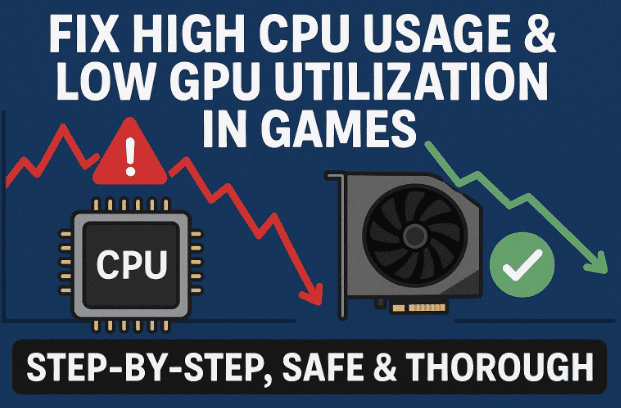
If your games keep stuttering, your CPU stays pegged near 100%, and your powerful GPU loafs around at 30–50%, this guide is for you. We’ll go straight to the root causes and apply fixes the right way—no gimmicks, no “secret packs,” no risky tweaks you’ll regret later. Just a clear, human, step-by-step path to a smoother, more stable gaming PC.
I’ll start by explaining why these issues happen (so the fixes make sense), then we’ll apply changes in the safest possible order: built-in Windows settings first, vendor tools next (NVIDIA/AMD/Intel), and a few carefully chosen utilities with caveats. I’ll also flag common myths and mistakes—because avoiding bad tweaks is half the battle.
So far so good—let’s get your system balanced and your frames buttery smooth. Ready? Let’s dive in. 👇
📚 Table of Contents
- Why Games Stutter: The Real Bottlenecks
- Safety First: Backups, Restore Points & Baselines
- Fix 1: Stop Power Throttling the CPU (Windows Setting)
- Fix 2: Clean Startup & Services the Right Way
- Fix 3: Power Plans That Actually Help (No Snake Oil)
- Fix 4: GPU Is Underused? Assign Apps to the Dedicated GPU + HAGS
- Fix 5: NVIDIA/AMD Driver Controls That Matter
- Fix 6: Storage, Background Apps & Network Latency
- Optional Tools (Use Carefully): QuickCPU & MSI Mode Utility
- What Not to Do (Myths & Misconceptions)
- Verification: How to Test Before/After (Repeatable)
- FAQ (Real Questions, Straight Answers)
- Final Checklist & Verdict
- Disclaimer, Tags & Hashtags
1) 🧠 Why Games Stutter: The Real Bottlenecks
Before we change anything, here’s the simple picture:
- High CPU usage with low GPU usage usually means your CPU can’t feed the GPU fast enough (CPU-bound). Reasons include power-saving throttles, too many background tasks, inefficient game settings, or driver scheduling issues.
- Memory & storage also play a role: slow disks and aggressive antivirus scans can choke asset streaming and shader compilation.
- Network latencies (not just “ping” in the scoreboard) cause rubber-banding and hitches that feel like FPS stutter.
- Driver settings and Windows graphics assignments sometimes point your game to the wrong GPU or keep the GPU in a low-power state.
We’ll address all of these in a safe order so each step is measurable.
2) 🦺 Safety First: Backups, Restore Points & Baselines
Before any tuning, let’s set up a rollback plan and a testing baseline. This is where most “optimization” guides cut corners—let’s not.
Do this first:
- Create a Restore Point:
Windows Search → “Create a restore point” → System Protection tab → Create… → name it (e.g., “Pre-tuning”). - Update drivers & Windows:
Get the latest GPU driver (NVIDIA/AMD/Intel), motherboard chipset driver, and Windows Update patches. - Record a baseline:
Launch a test game and capture 3–5 minutes with CapFrameX or PresentMon (free). Note average FPS, 1% low, and 0.1% low. We’ll re-test later to validate gains.
Human note: it’s tempting to skip baselines. Don’t. Seeing a concrete improvement is the best motivation—and proof you’re moving in the right direction.
3) 🔌 Fix 1: Stop Power Throttling the CPU (Windows Setting)
Windows includes a feature called Power Throttling that limits background CPU activity on laptops to save battery. On desktops (and plugged-in laptops), it can cause inconsistent CPU behavior and uneven frame pacing.
The safe route (no downloads):
A. Use Group Policy (Windows Pro/Enterprise/Education)
- Press Win + R, type
gpedit.msc, press Enter. - Navigate:
Computer Configuration → Administrative Templates → System → Power Management → Power Throttling Settings - Open Turn off Power Throttling → set to Enabled → Apply → OK.
- Restart your PC.
B. Windows Home Edition alternative (Registry) — optional and careful
If you don’t have Group Policy, you can set a registry value to reduce background throttling tendencies:






- Press Win + R, type
regedit, press Enter. - Go to:
HKEY_LOCAL_MACHINE\SYSTEM\CurrentControlSet\Control\Power\PowerThrottling - If PowerThrottlingOff (DWORD) doesn’t exist, create it. Set Value =
1. - Restart.
Tip: After this, your CPU should behave more consistently in games (fewer random dips). We’ll complement this with power plan and driver settings next.
4) 🧽 Fix 2: Clean Startup & Services the Right Way
This is where many systems silently lose performance: at boot, Windows can start dozens of updaters, launchers, and telemetry helpers that eat CPU cycles you’d rather give to your game.
A. Startup apps (Task Manager)
- Press Ctrl + Shift + Esc → Startup apps tab.
- Disable non-essential launchers/updaters (game launchers can stay if you need auto-updates; otherwise, disable them too).
- Leave GPU, audio, input essentials enabled.
B. Services (System Configuration)
- Press Win + R, type
msconfig, press Enter → Services tab. - Check Hide all Microsoft services (important).
- Disable non-essential third-party services (updaters, telemetry, printer helper daemons, RGB bloat you don’t use).
- Apply → OK → Restart when prompted.
👀 Important correction to a common myth:
In msconfig → Boot → Advanced options…, do not tick “Number of processors” to “unlock cores.” Leaving it unticked allows Windows to use all cores. Ticking it can actually limit cores and hurt performance. If you previously set it, uncheck it and reboot.
With background clutter reduced, your CPU can feed the GPU far more predictably.
5) ⚡ Fix 3: Power Plans That Actually Help (No Snake Oil)
Windows power plans determine how aggressively your CPU clocks up/down. For gaming on desktops:
- Balanced (modern Windows) is decent, but can sometimes downshift mid-match.
- High performance (built-in) keeps clocks higher more often.
- Ultimate performance (built-in on Pro for Workstations; unlockable via command) removes more latency for heavy loads.
Switch quickly
- Settings → System → Power (or “Power & sleep” → “Additional power settings”).
- Choose High performance.
- If you want Ultimate performance, open PowerShell (Admin) and run:
powercfg -duplicatescheme e9a42b02-d5df-448d-aa00-03f14749eb61Then select it under Power Options.
Human tip: Try High performance first. If you notice better stability with Ultimate, keep it. If temps soar or fans annoy you, drop back to Balanced and continue with the rest of the fixes.
6) 🎮 Fix 4: GPU Is Underused? Assign Apps to the Dedicated GPU + HAGS
Sometimes Windows runs a game on the integrated GPU by mistake, or keeps the dGPU in a power-saving mode.
A. Force games to use your dedicated GPU
- Settings → System → Display → Graphics.
- Browse to add your game’s
.exe. - Click Options → choose High performance (selects the dGPU) → Save.
- Repeat for each game you play.
B. Hardware-Accelerated GPU Scheduling (HAGS)
In the same Graphics panel, if available, toggle Hardware-accelerated GPU scheduling On and reboot.
Note: HAGS helps some systems and hurts others. If you notice odd stutter, test Off vs On with your baseline run. Keep whichever yields better 1% lows.
7) 🧩 Fix 5: NVIDIA/AMD Driver Controls That Matter
Driver control panels include low-level options that directly affect latency and GPU clocks.
NVIDIA Control Panel
- Open: Right-click desktop → NVIDIA Control Panel → Manage 3D settings → Global (or per-game overrides).
- Set:
- Low Latency Mode: On (or Ultra for DX11 games without NVIDIA Reflex). If your game supports NVIDIA Reflex, prefer Reflex in-game and keep this Off/On (not Ultra).
- Power management mode: Prefer maximum performance.
- Vertical sync: Off globally (use G-SYNC or in-game V-Sync/Adaptive if you see tearing).
- Texture filtering – Quality: High performance (slight quality trade for stability/perf).
AMD Software: Adrenalin
- Open: Adrenalin → Gaming → per-game profile.
- Set:
- Radeon Anti-Lag/Anti-Lag+ (if the game lacks Reflex).
- Radeon Chill: Off for benchmarks; can be On with sensible min/max for cooler sessions.
- Texture Filtering Quality: Performance.
- Wait for Vertical Refresh (V-Sync): Off, unless application specifies.
Small but mighty: Ensuring Max Performance prevents the GPU from dropping clocks mid-match, which often shows up as “mysterious” low GPU utilization.
8) 🧹 Fix 6: Storage, Background Apps & Network Latency
Let’s remove the subtle bottlenecks that cause stutters even when CPU/GPU look fine.
- Storage: Install games on an NVMe SSD if possible. Ensure at least 15–20% free space for the drive’s wear-leveling and caching.
- Shader compilation: Many modern games compile shaders at launch. Let them finish before you start matchmaking.
- Antivirus exclusions: Add your game folders and Steam/Epic library folders to your antivirus exclusions to prevent real-time scanning hitches.
- Overlays & recorders: Disable extra overlays (Discord, GeForce Experience Highlights, Xbox Game Bar) if you’re chasing maximum consistency.
- Network: Prefer Ethernet over Wi-Fi. If you must use Wi-Fi, minimize distance, avoid 2.4 GHz, and kill heavy downloads/streams on your network during matches.
A short breather here—we’ve handled the big, safe levers. Next, two optional tools you can use, but only with understanding and restraint.
9) 🧪 Optional Tools (Use Carefully)
A) QuickCPU (advanced power plan tuning)
- Official site: coderbag.com/product/quickcpu
- When to use: If you want finer control over core parking and frequency scaling than Windows exposes.
- Suggested starting point:
- Select your active plan (e.g., High/Ultimate Performance).
- Core Parking: Set low (0–10%) or Disable to keep cores available.
- Frequency Scaling: High (90–100%) for competitive consistency.
- Turbo Boost: Enabled.
- Caution: If your temps or fan noise spike, dial back. This tool doesn’t magically add performance; it trades efficiency for stability and responsiveness.
B) MSI Mode Utility (Message Signaled Interrupts)
- Official site: coderbag.com/product/msi-utility
- What it does: Switches certain devices (like GPUs) from legacy IRQ to MSI mode to improve interrupt handling latency.
- How to use (admin):
- Run MSI Utility as Administrator.
- Find your GPU under Display adapters.
- Tick MSI and set Interrupt Priority = High.
- Apply and reboot.
- Caution: Not all devices benefit; don’t enable MSI on storage or audio blindly. If you encounter instability, revert.
Human note: These tools can help polish frame pacing—after you’ve done the big steps above. Think of them as final seasoning, not the main recipe.
10) 🚫 What Not to Do (Myths & Misconceptions)
Let’s clear a few persistent myths you may have seen:
- “msconfig → Number of processors” unlocks cores.
❌ False. Leave it unchecked. Ticking it can limit cores. - Random “optimization packs” or registry dumps fix everything.
❌ Risky. Unvetted.regfiles can break power management, drivers, or security. We’ve covered safe, explainable changes instead. - Forced 100% everything is always best.
❌ Not necessarily. Maxing every slider raises heat/noise and may trigger thermal throttling. Balance is key. - V-Sync off is always right.
❌ Not if you hate tearing. Prefer G-SYNC/FreeSync or Adaptive V-Sync when possible.
11) 📏 Verification: How to Test Before/After (Repeatable)
To confirm you actually fixed something (and didn’t just move the problem):
- Re-run your baseline capture (same scene, same route, same match type).
- Compare Average FPS, 1% low, 0.1% low.
- Use MSI Afterburner + RivaTuner overlay to watch CPU %, GPU %, clocks, temps while you test.
- If GPU utilization climbs and 1% lows improve, you’ve addressed the true bottleneck.
Tip: If your CPU is still 100% but GPU sits low, lower a few CPU-heavy settings (view distance, crowd density, CPU physics) rather than pure GPU settings (resolution scale, AA). The goal is to free the CPU so it can feed the GPU.
12) ❓ FAQ (Real Questions, Straight Answers)
Q1. My CPU is always 100% but GPU is 50%. Is my CPU too weak?
Not necessarily. First, finish all steps above. Then test a lower-CPU preset (reduced view distance, shadows, crowds). If the gap persists across many titles, your CPU may be the limiting factor in those games.
Q2. Should I keep HAGS on or off?
Test both. Keep the version that gives better 1% lows. Results vary by driver, GPU, and game.
Q3. Is Low Latency Mode “Ultra” always best on NVIDIA?
If your game has NVIDIA Reflex, use Reflex in-game and keep Low Latency Mode Off/On (not Ultra). For older DX11 titles without Reflex, Ultra can help.
Q4. Are QuickCPU and MSI Utility safe?
They’re legitimate tools when used conservatively. Stick to the minimal changes listed here, and revert if you see instability or heat spikes.
Q5. Do I need to uninstall overlays?
Not necessarily—just disable the ones you don’t use (Discord in-game overlay, Highlights, etc.). Every millisecond counts for 1% lows.
Q6. Does disabling Microsoft services boost FPS?
Don’t do that. Hide all Microsoft services and disable only non-essential third-party ones. Breaking core Windows services causes bigger problems.
13) 🧾 Final Checklist & Verdict
Let’s wrap up cleanly. If you follow this order, you’ll fix 90% of “high CPU, low GPU” cases without risking system stability.
The order that works:
- Update Windows + GPU & chipset drivers.
- Restore point created; baseline captured.
- Disable Power Throttling (GPO or registry).
- Trim Startup & Services (hide Microsoft, disable third-party noise).
- Select Power Plan (High or Ultimate Performance).
- Assign Games to dGPU + test HAGS.
- Tune Driver Panel (NVIDIA/AMD max performance + appropriate latency/V-Sync).
- Storage, Antivirus Exclusions, Overlays, Network tidy-up.
- Optionals (QuickCPU/MSI Utility) — only if you still need more consistency.
What you should feel after this:
- Higher GPU utilization in CPU-bound moments.
- Fewer frame-time spikes (better 1% and 0.1% lows).
- More consistent performance match-to-match.
If you’d like, I can also generate a small before/after testing worksheet (CSV or Google Sheet) to track your changes and results. It makes future tuning a breeze.
🔗 Helpful Official Links
- NVIDIA Control Panel basics:
https://www.nvidia.com/en-us/drivers/ (download latest driver; Control Panel included) - AMD Software: Adrenalin Edition:
https://www.amd.com/en/support (download latest driver) - Intel Graphics & Chipset Drivers:
https://www.intel.com/content/www/us/en/download-center/home.html - QuickCPU (official):
https://coderbag.com/product/quickcpu - MSI Utility (official):
https://coderbag.com/product/msi-utility - Microsoft: Graphics settings (app GPU preference & HAGS):
https://support.microsoft.com/windows (search “Graphics settings” / “Hardware-accelerated GPU scheduling”)
If any link ever changes, search the product name + “official site.” Avoid clones or repacks.
⚠️ Disclaimer
This guide focuses on safe, reversible changes. Still, systems differ by hardware, BIOS, drivers, and background software. Create a restore point and test after each section. If temperatures or instability increase, revert the last change. I’ve intentionally removed all third-party “boosters,” paid ping tools, and unverified “optimization packs.” When in doubt, don’t import registry files you don’t understand.
Tags
Windows gaming optimization, fix high CPU usage, low GPU utilization, stuttering in games, NVIDIA Control Panel settings, AMD Adrenalin settings, Hardware Accelerated GPU Scheduling, power throttling Windows, dGPU assignment, gaming performance guide, QuickCPU, MSI Mode Utility, reduce input lag, improve 1% lows, Windows services optimization
Hashtags
#WindowsGaming #PCGaming #LowGPUUsage #HighCPUUsage #StutterFix #NVIDIATips #AMDTips #HAGS #InputLag #GamingPerformance








