🌅 Introduction: When an Update Breaks What’s Supposed to Fix
If you use Windows 11, you’re probably used to Microsoft’s monthly Patch Tuesday updates — those regular second-Tuesday patches that fix bugs and improve security.
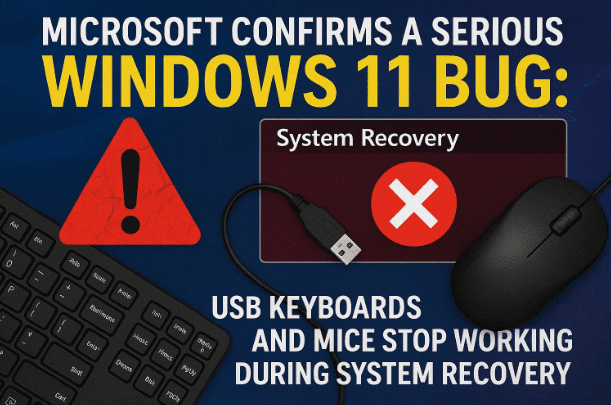
But on October 14, something unusual happened. Instead of improving stability, Microsoft’s latest cumulative update introduced a critical bug that can render your keyboard and mouse useless during a system restore or recovery.
Yes, you read that right — users who tried to roll back their systems after a failed update found themselves stuck in Windows Recovery Environment (WinRE), completely unable to control anything.
This article explains what happened, why it’s serious, how to prevent it, and what you should do right now to protect your system before the next Patch Tuesday arrives.
🗓️ 1. What Is Patch Tuesday and Why It Matters
Microsoft releases regular updates every second Tuesday of the month — commonly known as Patch Tuesday.
These updates usually include:
- Security patches
- Bug fixes
- Cumulative improvements
- Occasionally, new feature rollouts
However, because of the sheer variety of hardware configurations and drivers across millions of PCs, even a single faulty patch can cause system instability.
And that’s exactly what seems to have happened in October’s update — a small bug with very big consequences.
⚠️ 2. The New Bug: When Recovery Stops Responding
Shortly after installing the October 14, 2025 Patch Tuesday update, multiple users began reporting that they could no longer restore their system using System Restore or WinRE (Windows Recovery Environment).
Here’s what happens:
- You install the new update.
- Something goes wrong — maybe the update corrupts a driver or causes boot errors.
- You try to restore your system using a restore point.
- Windows boots into the recovery screen, but…
- Both your USB keyboard and mouse stop responding.
You’re left staring at the recovery screen — unable to click, type, or navigate.
No input = no recovery.
Essentially, your last line of defense against bad updates just got disabled.







🧩 3. Why USB Keyboards and Mice Stop Working in WinRE
Microsoft has confirmed that the issue is caused by USB driver initialization failures inside the Windows Recovery Environment.
During normal operation, Windows loads all required USB drivers through the main kernel. But WinRE is a stripped-down version of Windows designed for repair and restore. It only loads essential components — and the recent patch introduced a compatibility bug that prevents USB input drivers from being initialized in certain hardware configurations.
As a result:
- USB keyboards and mice don’t get detected.
- Users with PS/2 input devices may still have limited control.
- Systems relying entirely on USB peripherals (most modern PCs) are completely frozen in WinRE.
🧾 4. Microsoft’s Official Acknowledgement
After numerous user reports, Microsoft acknowledged the issue on its Windows Release Health Dashboard, stating:
“Some users may experience that USB-connected keyboards and mice do not function in Windows Recovery Environment (WinRE) after installing the October 2025 security update. We are investigating the issue and working on a resolution.”
You can view the official page for ongoing updates here:
🔗 Windows Release Health – Microsoft
This is an important admission — it confirms the problem isn’t user error, but a genuine Microsoft-side bug.
🛡️ 5. How to Protect Yourself Before Updating
Before you install any Windows updates, it’s crucial to safeguard your system.
The best way to do this is by creating a system restore point and disabling automatic updates temporarily.
This ensures:
- You can manually choose when to install new updates (after confirming they’re safe).
- You always have a fallback restore point before patching.
Let’s walk through both steps carefully.
🧾 6. Step-by-Step: How to Create a Restore Point
Creating a restore point in Windows 11 is simple, but many users skip this step — until it’s too late.
Let’s go through it in detail.
Step 1: Open System Properties
- Press Windows + S, type Create a restore point, and hit Enter.
- In the System Protection tab, select your main system drive (usually C:).
- Click Configure and ensure Turn on system protection is selected.
Step 2: Create the Restore Point
- Click Create, then enter a descriptive name (for example: Before October Patch).
- Click Create again and wait for the process to complete.
Once done, Windows will store a snapshot of your system configuration, registry, and key files.
If the next update causes issues, you’ll be able to revert back — assuming your keyboard and mouse still work!
⚙️ 7. Step-by-Step: How to Disable Automatic Windows Updates
Now let’s make sure your PC doesn’t install potentially risky updates on its own.
There are many ways to pause updates, but the most reliable method is through the Local Group Policy Editor.
Let’s move to the next step.
Step 1: Open the Run Command
Press Windows + R, type:
gpedit.msc
and press Enter.
If you’re using Windows 11 Home (which doesn’t include Group Policy by default), you can achieve similar results through the Registry Editor or third-party tools — but for now, let’s focus on the built-in professional route.
Step 2: Navigate to the Update Settings
In the Group Policy window, follow this path:
Computer Configuration
  → Administrative Templates
    → Windows Components
      → Windows Update
        → Manage end user experience
Now double-click Configure Automatic Updates.
Step 3: Disable Auto Updates
- Select Disabled.
- Click Apply, then OK.
This will completely stop Windows from downloading or installing updates automatically.
Why This Is the Best Option
After applying this setting:
- Windows will not download updates in the background.
- You will no longer see “Installing updates before shutdown” messages.
- You can still manually trigger updates when you decide it’s safe.
That means full control — no more unexpected restarts or surprise patches.
🕒 8. When and How to Safely Install Future Updates
Microsoft’s patches typically stabilize after a week or two.
Therefore, the safest approach is to wait 7–14 days after each Patch Tuesday before applying updates.
During this period:
- Early adopters will report major issues.
- Microsoft will often release hotfixes or retractions.
- You’ll avoid being part of the “test group” that encounters problems first.
Once you’re confident the update is stable:
- Re-enable Windows Update temporarily.
- Click Start → Settings → Windows Update.
- Choose Check for updates.
- Install and reboot.
Then, reapply the “Disable Automatic Updates” setting once again.
🧰 9. What If You’re Already Affected?
If your USB keyboard and mouse already stopped working in WinRE, the options are limited — but not hopeless.
Option 1: Try PS/2 Input Devices
If your computer has legacy PS/2 ports, connect an old PS/2 keyboard or mouse.
Unlike USB, PS/2 devices use a different controller that WinRE still recognizes.
Option 2: Use Windows Recovery via Installation Media
You can create a Windows 11 installation USB using Microsoft’s Media Creation Tool (https://www.microsoft.com/software-download/windows11) and boot into recovery from there.
This version of WinRE may include working drivers.
Option 3: Wait for Microsoft’s Fix
Microsoft is expected to address the issue in the next Patch Tuesday update (likely on October 21 or later).
If you can afford to wait, avoid restoring or reinstalling Windows until that fix is available.
💬 10. Frequently Asked Questions (FAQ)
Q1: What is WinRE?
The Windows Recovery Environment (WinRE) is a lightweight recovery toolset built into Windows for troubleshooting, restoring, and resetting your system.
Q2: How do I know if my keyboard or mouse will stop working?
There’s no easy prediction — it depends on your motherboard’s USB controller and drivers. The safest way to avoid this issue is to delay installing updates for 1–2 weeks.
Q3: Does this bug affect laptops too?
Yes, in some cases. If your laptop’s built-in keyboard and trackpad use an internal USB interface, they may also stop responding.
Q4: Can I use Remote Desktop to access the recovery screen?
No. WinRE runs outside the main Windows environment and does not support remote connections.
Q5: Is there a permanent fix yet?
Not yet. Microsoft is investigating the issue and expected to release a patch in an upcoming update.
🏁 11. Conclusion and Practical Advice
The October 2025 Patch Tuesday bug reminds us of one important truth — always stay in control of your system updates.
Automatic updates may seem convenient, but when a faulty patch hits, it can leave even advanced users helpless.
By taking simple precautions — creating restore points, disabling auto-updates, and waiting before installing new patches — you can save yourself from hours of recovery headaches.
Until Microsoft releases a permanent fix, remember:
- Create a restore point before every update.
- Turn off automatic updates.
- Wait at least a week before applying new patches.
- Keep a PS/2 keyboard handy if possible.
It’s not paranoia — it’s preparation.
Technology should serve you, not surprise you.
#Windows11 #Microsoft #PatchTuesday #USBKeyboard #WinRE #WindowsUpdate #TechTips #Troubleshooting #SystemRestore #WindowsBug
Disclaimer:
This article is for informational purposes only. The described issue is a known Microsoft bug as of October 2025. Always back up your data before installing updates. The steps provided here are safe preventive measures, but performing system-level changes is at your own discretion. For official updates, always refer to Microsoft’s Windows Release Health page:
👉 https://learn.microsoft.com/en-us/windows/release-health/








