Microsoft Office has long been one of the most essential software suites for work, study, and business. But if you’re a Linux user, you’ve probably faced one common problem: Microsoft Office isn’t natively available for Linux.
While there are great open-source alternatives like LibreOffice and OnlyOffice, many users still prefer the genuine Microsoft Office experience for its advanced formatting, compatibility, and familiar interface.
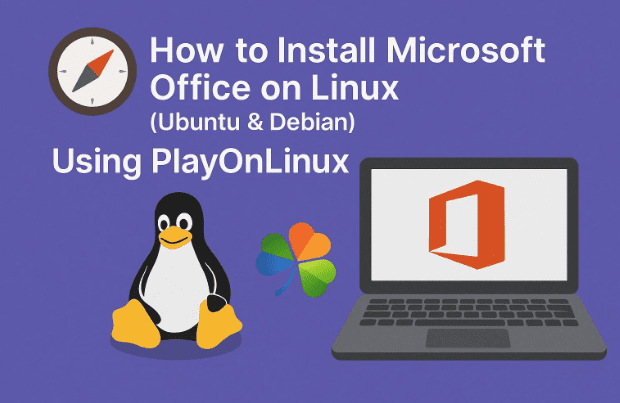
The good news? You can install and run Microsoft Office on Linux — including Ubuntu, Debian, Linux Mint, and Pop!_OS — using PlayOnLinux, a graphical frontend for Wine that makes running Windows applications on Linux a breeze.
🧰 1. What You’ll Need Before Starting
Before diving into terminal commands, let’s make sure you have everything ready.
You’ll need:
- A Debian-based Linux distribution such as Ubuntu, Linux Mint, or Pop!_OS.
- A Microsoft Office ISO file (Office 2013 is recommended for best compatibility).
- A stable internet connection to download dependencies.
- Around 6–8 GB of free disk space.
- Administrator (sudo) access.
👉 Note: While newer Office versions like 2016 or 2019 might work, Office 2013 has proven to be the most stable when installed through PlayOnLinux.
💡 2. Why Use PlayOnLinux Instead of Just Wine?
Many Linux users know about Wine, the compatibility layer that lets you run Windows apps on Linux. However, Wine alone can be complicated — managing prefixes, DLL overrides, and environment variables manually takes effort.
That’s where PlayOnLinux comes in.
PlayOnLinux is a graphical interface built on top of Wine that simplifies:
- Creating isolated “bottles” (Wine environments) for each program.
- Installing specific Wine versions for each app.
- Managing Windows software visually.
- Avoiding terminal configuration errors.
In simple terms — PlayOnLinux makes Wine beginner-friendly.
🧩 3. Installing PlayOnLinux on Ubuntu/Debian
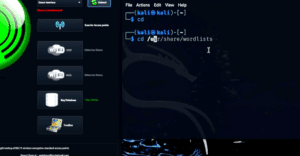
Let’s start by updating your system’s package list and installing PlayOnLinux. Open your terminal (press Ctrl + Alt + T) and type:





sudo apt-get update
sudo apt-get install playonlinux
This command performs two actions:
- Updates your APT package repository list to ensure you get the latest versions.
- Installs PlayOnLinux and its dependencies.
Once installed, you can launch it from your Applications Menu or by typing:
playonlinux
If the PlayOnLinux interface appears successfully, you’re on the right track!
It’s a simple window where you can install, manage, and remove Windows apps just like you would on Windows itself.
⚙️ 4. Installing Required Components for Compatibility
PlayOnLinux relies on Wine, but to ensure smooth installation and licensing for Microsoft Office, you’ll also need a few additional components.
Let’s go through them one by one.
🧩 Step 1: Install Winbind
winbind helps handle Windows-based authentication and licensing checks, especially useful during Office activation.
sudo apt-get install winbind
🧩 Step 2: Install Python Dependencies
PlayOnLinux uses Python scripts internally, and sometimes users face dependency errors related to missing Python modules. You can fix this by installing:
sudo apt-get install python3-pyasyncore
This ensures PlayOnLinux runs without Python-related warnings or crashes.
Once these are done, your system is now fully prepared to run Windows applications through PlayOnLinux smoothly.
💽 5. Preparing the Microsoft Office ISO File
Before installation, you’ll need the Microsoft Office 2013 ISO file. This ISO is a digital image of the installation disc.
You can use:
- A legitimate ISO from your Microsoft account or original DVD.
- Or, if you already have the setup files extracted, you can use those directly.
👉 Recommended: Stick to Office 2013 Professional Plus (32-bit) version. It works best with Wine/PlayOnLinux.
Let’s create a folder to mount this ISO later.
mkdir ~/word2013iso
This command creates a new directory in your home folder called word2013iso.
📀 6. Mounting the ISO File in Linux
Mounting means making the ISO file accessible like a virtual CD drive.
Let’s move to the next step — attaching that ISO to your newly created folder:
sudo mount -o loop ~/Downloads/file_name.iso ~/word2013iso
Replace file_name.iso with the actual name of your Office ISO file (for example: Office2013.iso).
After running this, you can verify that the mount worked correctly by navigating to the folder:
cd ~/word2013iso
ls
You should now see the setup.exe and other Office installation files listed.
If you do, congratulations — your ISO is successfully mounted and ready to install.
💻 7. Running the Microsoft Office Installer
Now comes the exciting part — actually installing Microsoft Office.
Step 1: Launch PlayOnLinux
If not already open, start it using:
playonlinux
Step 2: Open the Installation Wizard
In the PlayOnLinux window, click “Install a program”.
A search bar will appear — type Microsoft Office 2013 and select it from the results.
If it doesn’t appear in the list (sometimes offline repositories lack it), you can choose “Install a non-listed program.”
Step 3: Select Installation Method
When prompted:
- Choose Install a program in a new virtual drive.
- Click Next.
- Enable both Use another version of Wine and Configure Wine if you want advanced control (optional).
Step 4: Point to the Setup File
You’ll now be asked for the setup file location. Click Browse and navigate to:
/home/yourusername/word2013iso/setup.exe
Then proceed with Next.
Step 5: Follow the On-Screen Setup
From this point onward, you’ll see the familiar Microsoft Office installation interface, just like on Windows.
You can:
- Choose which Office components to install (Word, Excel, PowerPoint, OneNote, Outlook, etc.)
- Accept the license terms.
- Click Install Now.
Wait for the process to finish — it can take 10–20 minutes depending on your system.
🧾 8. Activating and Testing Microsoft Office
Once installation is complete, you’ll see shortcuts for Microsoft Word, Excel, PowerPoint, etc., within PlayOnLinux’s dashboard.
You can also create desktop shortcuts for easier access.
Now, let’s test the applications:
- Open Microsoft Word → Type something → Save a document.
- Open Microsoft Excel → Try creating a sample sheet.
Both should run smoothly, including the familiar ribbon interface and templates.
If you’re prompted for activation, you can:
- Enter your valid Microsoft Office license key.
- Or choose “I’ll activate later” if you just want to test the functionality.
✅ At this stage, you have a fully working Microsoft Office Suite running on Linux!
🧯 9. Troubleshooting Common Issues
Even though this process works well for most users, a few hiccups can occur. Let’s go over the most common ones and how to fix them.
| Problem | Possible Cause | Solution |
|---|---|---|
| PlayOnLinux shows Python dependency errors | Missing Python modules | Run sudo apt-get install python3-pyasyncore |
| Setup.exe doesn’t launch | ISO not mounted properly | Check with ls ~/word2013iso to confirm setup.exe exists |
| “Wine could not find drive C:” error | Corrupted PlayOnLinux prefix | Delete the virtual drive in PlayOnLinux and reinstall |
| Office crashes on startup | Incompatible Wine version | Use PlayOnLinux configuration → change to Wine 5.0 or 6.0 |
| Activation fails | Missing Winbind | Run sudo apt-get install winbind again and restart |
❓ 10. Frequently Asked Questions
Q1. Can I install Office 2016 or Office 2019 on Linux using this method?
Technically yes — but success rates vary.
Office 2013 remains the most stable because newer versions rely more on .NET and Windows-specific services that Wine may not fully emulate.
Q2. Does this method work on Linux Mint and Pop!_OS?
Absolutely. Both Mint and Pop!_OS are Ubuntu-based, so these same commands work flawlessly.
Q3. Is this method safe and legal?
Yes — as long as you use a genuine Microsoft Office license and installation ISO.
PlayOnLinux simply provides an environment for running it on Linux — it doesn’t modify or distribute Microsoft’s software illegally.
Q4. Will all Office features work?
Almost all major features (Word, Excel, PowerPoint, OneNote, Outlook) work fine.
Some advanced features like OneDrive sync or Access Database integration may be limited.
Q5. Can I uninstall it later?
Yes. Open PlayOnLinux → Select the Microsoft Office drive → Click “Remove.”
You can also delete the virtual drive folder from ~/.PlayOnLinux/.
🧭 11. Final Thoughts
Installing Microsoft Office on Linux used to be a complicated and unreliable process. But thanks to tools like PlayOnLinux, it’s now a simple, repeatable method that even non-technical users can perform.
Office 2013 runs smoothly, looks identical to the Windows version, and handles documents without compatibility issues.
If you rely on Office apps daily for work or school but prefer Linux’s speed and security, this is truly the best of both worlds.
You now have:
- Word, Excel, PowerPoint, and Outlook running natively inside your Linux desktop.
- A flexible way to install other Windows apps too (Adobe Reader, Notepad++, etc.) using the same PlayOnLinux interface.
⚠️ Disclaimer
This guide is meant for educational purposes only. Please ensure you use a licensed copy of Microsoft Office. Neither this article nor PlayOnLinux distributes Office software — it only demonstrates how to run legitimate Windows programs on Linux through compatibility layers.
🔗 Official Links
#LinuxTips #Ubuntu #MicrosoftOffice #PlayOnLinux #Wine #Office2013 #Debian #OpenSource #ProductivityTools








