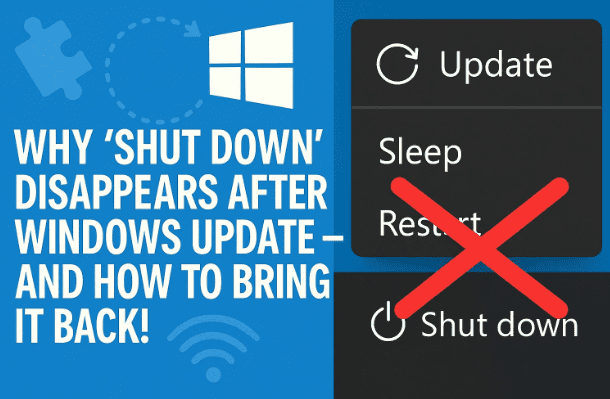
When you click on the Power button in your Start Menu after installing a Windows update, you might have noticed something strange — the regular “Shut down” option is missing!
Instead, you only see:
- Update and shut down
- Update and restart
That can be annoying, especially if you don’t want to apply the update right now or simply want to power off quickly.
If you’ve ever wondered why this happens or how to get all three options back, this detailed guide explains everything — from Microsoft’s logic to registry tweaks that can restore your normal shutdown button.
1️⃣ Why Windows Hides the Normal Shut Down Option
Windows updates aren’t just downloaded and done — they’re installed in phases. During the installation phase, the system needs a controlled restart or shutdown to apply changes safely.
So when an update is waiting to install, Windows temporarily replaces your usual power options with:
- “Update and restart”
- “Update and shut down”
The regular “Shut down” is hidden to prevent partial installations that could corrupt files or cause boot problems.
This behavior ensures the update completes properly before the PC powers off.
2️⃣ Understanding How Windows Updates Work
To understand this better, here’s a breakdown of how most Windows updates progress:
| Phase | What Happens | User Visible? |
|---|---|---|
| Download | Update files are downloaded silently while you work. | ✅ Yes |
| Pending install | Windows prepares the update but needs a reboot/shutdown to continue. | ⚠️ Shows “Update and shut down” |
| Installation | Update applies system files during restart or shutdown. | 🔄 Progress screen shown |
| Finalization | Windows completes post-install tasks before login. | ✅ Seen after reboot |
When your PC is in the pending install state, Windows removes the plain “Shut down” option to make sure the system restarts in a way that allows the update to complete.
3️⃣ How to Force a Normal Shutdown Without Installing Updates
Sometimes, you might not want to install updates right away — maybe you’re in the middle of work or want to save battery.
Here are safe ways to shut down normally even when Windows insists on updating.
💻 Option A: Use Command Prompt
- Press Win + R, type
cmd, and press Enter. - Type:
shutdown /s /f /t 0/s= shutdown/f= force-close running apps/t 0= no delay
This shuts down your system instantly, bypassing updates.
⚡ Option B: Use PowerShell
- Press Win + X → Windows PowerShell (Admin)
- Type:
Stop-Computer -Force
This does the same thing as the Command Prompt method — a clean shutdown without applying updates.




🧠 Option C: Use Ctrl+Alt+Del Menu
Press Ctrl + Alt + Del → Click the Power icon in the lower right corner.
Sometimes this screen still offers the original “Shut down” command even when it’s hidden in the Start Menu.
4️⃣ Fix: Bring Back All Three Power Options Permanently
Let’s move on to the main part — restoring all three power options so you can always choose what you want:
- Update and shut down
- Update and restart
- Shut down (normal)
We’ll go from simple to advanced fixes.
🪄 Step 1: Restart Windows Explorer
This simple refresh often brings back missing power menu entries.
Here’s how:
- Press Ctrl + Shift + Esc to open Task Manager.
- Find Windows Explorer in the list.
- Right-click → Restart.
- Open the Start Menu again → click the Power icon.
If you now see all three options, the issue was just a UI glitch.
⚙️ Step 2: Run the Windows Update Troubleshooter
If the missing option is caused by a stuck update flag:
- Go to Settings → System → Troubleshoot → Other troubleshooters.
- Find Windows Update → click Run.
- Follow the on-screen instructions.
- Restart your PC once done.
This resets Windows Update’s internal status so the UI can show all options correctly.
🧱 Step 3: Use Registry Fix (Works on Home Edition Too)
If you want to always show the normal “Shut down” option even when updates are pending:
- Press Win + R, type
regedit, and hit Enter. - Navigate to:
HKEY_LOCAL_MACHINE\SOFTWARE\Policies\Microsoft\Windows\WindowsUpdate\AU(If “AU” doesn’t exist, right-click → New → Key → name it “AU.”) - Right-click the right pane → New → DWORD (32-bit) Value.
- Name it:
NoAUAsDefaultShutdownOption - Double-click it → set Value data to
0.0= Show all shutdown options.1= Hide normal shutdown (default Windows behavior).
- Close Registry Editor and restart.
✅ You should now see:
- Update and restart
- Update and shut down
- Shut down
🧩 Optional:
If you want a one-click solution, create a .reg file with the content below and double-click it to apply:
Windows Registry Editor Version 5.00

[HKEY_LOCAL_MACHINE\SOFTWARE\Policies\Microsoft\Windows\WindowsUpdate\AU]
"NoAUAsDefaultShutdownOption"=dword:00000000
🧰 Step 4: Adjust Group Policy (for Pro / Enterprise)
If you’re on Windows 10/11 Pro or Enterprise, this policy can permanently restore all options:
- Press Win + R, type
gpedit.msc, press Enter. - Navigate to:
Computer Configuration → Administrative Templates → Windows Components → Windows Update - Find the setting:
Do not adjust default option to 'Install Updates and Shut Down' in Shut Down Windows dialog - Double-click it → select Enabled → click Apply → OK.
- Restart your PC.
Now Windows will always show “Shut down” alongside update options.
🛠️ Step 5: Repair System Files (if still missing)
If none of the above helped, your update components might be corrupted.
Run these commands as Administrator:
sfc /scannow
Wait for it to finish, then:
DISM /Online /Cleanup-Image /RestoreHealth
These repair core Windows components responsible for update management and UI display.
After reboot, check the Power menu again — it should now list all three options.
💬 5️⃣ Frequently Asked Questions
Q1. Why do some PCs show all three options by default?
Because their update configuration allows normal shutdown while keeping update options visible. It depends on internal policies, registry values, and update states.
Q2. Is it safe to bypass updates using the command line?
Yes, it’s safe for occasional use. But don’t make a habit of it — delaying updates too long can leave your system vulnerable.
Q3. Can I remove “Update and restart” entirely?
You can, but it’s not recommended. That command is needed for proper system maintenance. You can hide it temporarily through Group Policy, but updates will still install later.
Q4. Does this issue appear on Windows 10 and Windows 11 both?
Yes. It’s the same behavior across both versions because it’s part of the Windows Update mechanism (Servicing Stack).
🎯 6️⃣ Final Thoughts
So now you know exactly why the “Shut down” button disappears after updates — and how to bring it back permanently.
It’s not a bug; it’s a protective feature by Microsoft to ensure smooth update installations.
Still, for power users who want full control, the registry or group policy tweaks above will give you the freedom to choose between:
- Update and shut down
- Update and restart
- or just a plain old Shut down.
It’s all about balance — staying updated while keeping control of your system’s behavior.
⚠️ Disclaimer
Editing the Windows Registry or Group Policy can affect system behavior. Always create a System Restore Point before making changes.
Tags: Windows tips, Windows Update, Power menu, Registry tweaks, Windows troubleshooting, Windows 11, Shutdown options
#Hashtags: #Windows11 #WindowsUpdate #WindowsTips #RegistryFix #ShutdownOptions #DTPtips #WindowsTroubleshooting








