Windows 11 may be Microsoft’s sleekest operating system yet, but let’s be honest — it still feels like Windows 10 went for a haircut and called it a “new era.”
Sure, it’s fine. It works. But it doesn’t feel exciting. Between the unwanted bloatware, inconsistent design language, and performance hiccups, Windows 11 often ends up being more “plain oatmeal” than “premium dessert.”
But don’t worry — we can fix that.
In this detailed guide, we’ll go step-by-step through three essential tools that will clean up, refresh, and completely transform your Windows 11 experience:
- Chris Titus Tech’s Windows Utility – for removing bloatware and optimizing performance.
- Rectify 11 – for fixing Windows’ inconsistent design and giving it a modern, polished look.
- Rainmeter + JaxCore – for customizing your desktop with stunning widgets and live system monitors.
By the end of this guide, your PC will look cleaner, run faster, and finally feel personalized — the way Windows should have been from the start.
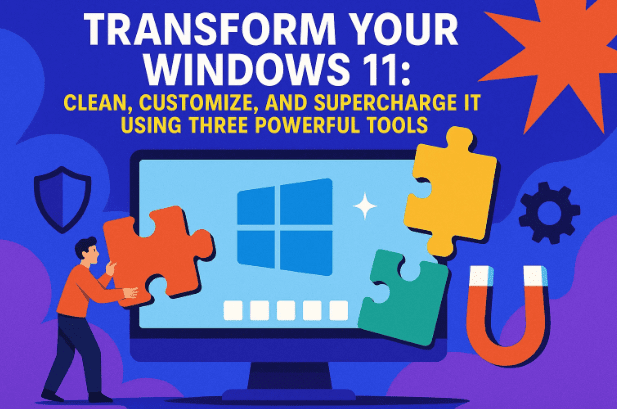
🧹 Step 1: Remove Bloatware and Optimize Windows 11 with Chris Titus Tech’s Windows Utility
Let’s start with the biggest problem — bloatware.
Out of the box, Windows 11 ships with an alarming number of pre-installed apps: things you’ll never use, features that run in the background, and services that quietly send telemetry data to Microsoft. The result?
- Slower startup times
- Random notifications
- Wasted system resources
Luckily, we have a fix — a free, open-source optimization tool built by Chris Titus Tech, a well-known systems expert.
You can find it on GitHub: Chris Titus Tech’s Windows Utility
What This Tool Does
This powerful script allows you to:
- Remove unnecessary Microsoft apps (Mail, Xbox, Weather, etc.)
- Disable telemetry and tracking services
- Adjust privacy and security settings
- Install useful applications (like Firefox, Discord, and developer tools)
- Optimize system performance through automated tweaks
Now that you know what it does, let’s move to the step-by-step setup process.
⚙️ How to Use Chris Titus Tech’s Utility (Step-by-Step)
- Open PowerShell as Administrator
- Click on the Start button, type “PowerShell”
- Right-click it and select Run as Administrator
- This gives the script permission to make system-level changes
- Run the Script
Copy and paste this command into PowerShell:iwr -useb https://christitus.com/win | iexPress Enter, and a graphical interface will appear — think of it as your Windows control center. - Clean and Customize
- Go to the Tweaks tab.
- Choose from presets like Minimal, Default, or Advanced.
- You can manually toggle options such as:
- Disable Telemetry (for privacy)
- Disable Game DVR (for non-gamers)
- Remove OneDrive
- Stop background Xbox services
- Install Essentials
Head to the Install tab to easily install must-have apps — browsers, developer tools, utilities, and more — all without visiting multiple websites. - Apply Changes
Once your selections are done, click Run Tweaks.
PowerShell will execute the selected optimizations automatically.
You’ll see text logs scrolling in the background — this means the script is working. After it finishes, your PC will feel noticeably lighter and faster.






💡 Pro Tip
If you’re new to PowerShell tweaks, stick to the Minimal or Recommended preset first. You can always re-run the tool later to apply advanced changes.
So far, we’ve cleaned out unnecessary junk and boosted performance. But Windows still looks… well, like Windows. Let’s fix that next with something more visual.
🎨 Step 2: Modernize and Polish Windows 11 Using Rectify 11
Cleaning helps, but design consistency is where Windows 11 still struggles.
The Start menu feels modern, but the Control Panel looks like it’s still stuck in 2012. Some corners are rounded, others are sharp. It’s as if Microsoft couldn’t decide whether Windows should be modern, retro, or both.
That’s where Rectify 11 steps in — a project created by designers and developers who wanted Windows 11 to finally look cohesive.
You can find it here: Rectify 11 GitHub Releases
🌈 What Is Rectify 11?
Rectify 11 is a complete design overhaul for Windows 11. It updates:
- System icons
- Control panel dialogs
- Context menus
- Visual effects
- Fonts and window borders
The result is a Windows experience that feels consistent, elegant, and finished — like something Microsoft should have released themselves.
⚙️ How to Install Rectify 11 (Step-by-Step)
Before we begin, one important reminder: Rectify 11 modifies system files. So, always create a System Restore Point first.
Here’s how to do it safely:
- Download the Latest Release
Visit the Rectify 11 releases page and download the newest build. - Extract and Run the Installer
After downloading the ZIP file, extract it and double-click the Rectify11Installer.exe file. - Bypass Windows Defender Warning
Since the tool modifies system resources, Defender might flag it. Click More Info → Run Anyway. - Grant Permissions
Allow it to make changes when prompted (this is normal). - Select Components to Install
You can choose which elements you want to “rectify”:- System Icons and Themes
- Enhanced Context Menus
- Remastered User Avatars
- Accent Window Colors
- Classic or Transparent Menus
- Create a Restore Point
Rectify 11 gives you the option to create one automatically. Always do this before applying changes. - Install and Restart
Once installation completes, restart your PC.
✨ The Result
After rebooting, you’ll notice the difference immediately:
- Icons look consistent and refined.
- File Explorer finally matches the rest of the UI.
- The corners and shadows feel balanced.
It’s subtle but transformative — Windows 11 finally looks polished and premium.
Now that your system looks great, let’s make it feel great — with live widgets and desktop customization.
🧭 Step 3: Customize Your Desktop with Rainmeter and JaxCore
Alright, we’ve optimized performance and refined design. Now it’s time to have fun with personalization.
Windows 11’s native widgets are… let’s just say “basic.” They’re limited, clunky, and often more distracting than useful.
If you’ve ever wanted your desktop to show live system stats, weather updates, music visualizations, or stylish clocks — Rainmeter is your go-to tool.
You can download it here: Rainmeter.net
💡 What Is Rainmeter?
Rainmeter is a free and open-source desktop customization platform that lets you display information directly on your desktop using skins (interactive widgets).
Think of it as the creative layer of Windows — where you can make your setup uniquely yours.
⚙️ Installing Rainmeter (Step-by-Step)
- Download and Install
Go to rainmeter.net → click Download Final Release.
During setup, choose Standard Installation (not Portable). - Launch Rainmeter
Once installed, Rainmeter will start automatically and show a few example widgets. These are called “skins.” - Unload Default Skins
If you don’t like the default ones, right-click each widget and choose Unload Skin. You’ll start with a clean canvas.
So far, we’ve installed Rainmeter — but it’s just the engine. To really make it shine, we need JaxCore.
🧩 Step 4: Adding JaxCore — The Ultimate Rainmeter Extension
JaxCore is a massive collection of high-quality Rainmeter skins bundled with a manager that makes customization simple.
You can download it here: JaxCore.app
This suite includes:
- System monitors (CPU, RAM, GPU usage)
- Music visualizers
- App launchers
- Weather widgets
- Animated overlays
Basically, it’s your creativity playground.
⚙️ How to Install JaxCore
- Download and Run the Installer
From jaxcore.app, click Download JaxCore.
Run theJaxCore.batfile (it opens in PowerShell). - Enable Hardware Acceleration
The installer will recommend enabling hardware acceleration for smoother animations. Type Y and press Enter. - Launch JaxCore Manager
After setup, the JaxCore interface will open — think of it as a skin manager for Rainmeter. - Explore Skins
You’ll see modules like Overlayer, Modular Clock, System Monitor, and more.- Toggle them on to add them to your desktop.
- Drag and drop them anywhere on the screen.
- Customize Skins
Each skin can be resized, recolored, and repositioned. For example:- Change fonts or accent colors
- Add weather location codes
- Toggle between 12-hour or 24-hour clocks
If you want even more variety, visit visualskins.com for hundreds of Rainmeter themes.
One popular example is the Mond Theme, which blends minimalism and functionality beautifully. Simply download the .rmskin file, double-click to install, and it will appear instantly.
🎨 Pro Tip
Avoid cluttering your screen with too many widgets. Start with essentials like a clock, CPU meter, and music visualizer, then build from there.
Now your desktop isn’t just functional — it’s alive. You’ve gone from a bland stock interface to something truly yours.
⚙️ Recap: What We’ve Done So Far
Let’s take a quick moment to appreciate the transformation.
We’ve:
- Debloated and optimized Windows using Chris Titus Tech’s utility
- Modernized the interface using Rectify 11
- Customized the desktop with Rainmeter and JaxCore
The end result?
Your Windows 11 now runs smoother, looks cleaner, and feels futuristic — no unnecessary bloat, no mismatched icons, and no boring stock widgets.
❓ Frequently Asked Questions
Q1. Is it safe to use these tools?
Yes, all mentioned tools are open-source and widely trusted. However, since some modify system files, always create a restore point before applying major changes.
Q2. Will Rectify 11 or Rainmeter affect system performance?
Rainmeter’s impact is minimal, and Rectify 11 mainly changes visuals. If your system has at least 8GB RAM, performance remains smooth.
Q3. Can I uninstall these tools later?
Absolutely.
- Chris Titus Utility: Just re-run and revert changes.
- Rectify 11: Use the included uninstaller or restore point.
- Rainmeter: Uninstall from Apps & Features.
Q4. Can I use these on Windows 10?
Yes! Chris Titus Tech’s utility and Rainmeter work on Windows 10 too, though Rectify 11 is designed primarily for Windows 11.
💭 Final Thoughts
Windows 11 is powerful, but often lacks the polish and personality users expect from a modern OS.
By combining these three tools, you’re taking control — removing what you don’t need, fixing what Microsoft ignored, and adding your own personal flair.
The result isn’t just a better-looking system — it’s a better experience.
So whether you’re a minimalist who loves clean aesthetics or a tech enthusiast chasing that “sci-fi desktop” vibe, these steps give you the freedom to shape Windows 11 your way.
⚠️ Disclaimer
This article is for educational and informational purposes only. Tools like Rectify 11 modify system resources; use them responsibly and always create restore points before applying visual or registry changes. The author is not affiliated with any of the software mentioned.
#Windows11 #Rainmeter #Rectify11 #ChrisTitusTech #JaxCore #WindowsCustomization #PCOptimization #TechGuide #DTPTips







