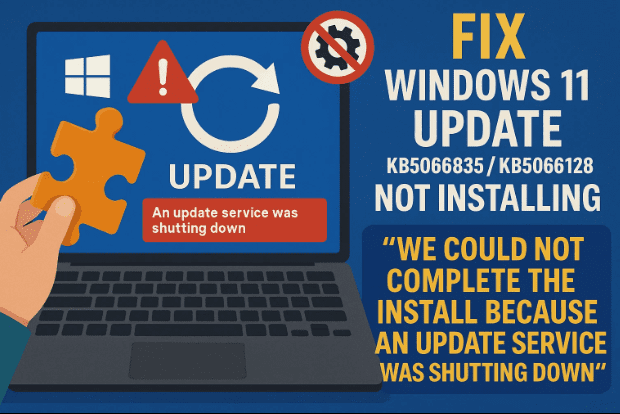
Windows updates are supposed to make your system safer and smoother, but sometimes they bring unexpected issues. Many users have recently reported problems installing the Windows 11 updates KB5066835 and KB5066128, seeing the frustrating message:
“We could not complete the install because an update service was shutting down.”
If you’ve faced this error, don’t worry — it’s not permanent. It typically happens when Windows Update components stop mid-process, or when system files get corrupted.
In this article, we’ll go through every proven fix — starting from simple retry methods to advanced repair tools like DISM, SFC, and Media Creation Tool.
Let’s dive in step by step and bring your Windows update back on track.
1. 🧠 Why This Error Happens
Before applying fixes, it’s good to understand the cause.
The message “We could not complete the install because an update service was shutting down” indicates that Windows Update service or related background components stopped unexpectedly during the update.
This can happen due to:
- Interrupted internet connection during update download.
- Corrupted system files.
- Background services like Windows Update, BITS, or App Readiness not running.
- Incomplete installation of the cumulative update (KB5066835 or KB5066128).
Understanding the root cause will help you apply the right fix instead of trial and error. Let’s start with the easiest one.
2. 🔄 Step 1: Pause and Resume Windows Update
Sometimes, the problem is temporary — caused by background services that didn’t start correctly. Simply pausing and resuming updates can refresh the process.
Here’s what to do:
- Press Windows + I to open Settings.
- Go to Windows Update from the left sidebar.
- Click Pause updates for 1 week.
- Wait a few seconds, then click Resume updates.
- Try installing the update again.
If this doesn’t help, don’t panic — it only means Windows needs deeper repair. Let’s move on to system file verification.






3. 🧰 Step 2: Run SFC and DISM Repair Commands
If system files have become corrupted, Windows Update can fail repeatedly. Microsoft provides two built-in tools for this: SFC (System File Checker) and DISM (Deployment Image Servicing and Management).
These tools verify your system integrity and automatically replace any broken components.
Steps:
- Type cmd in Windows Search.
- Right-click Command Prompt → select Run as Administrator.
- Click Yes when asked for permission.
- Copy and paste this command and press Enter:
sfc /scannow
This scan will take 5–15 minutes. Wait until it reaches 100%.
- Once done, run the next command in the same window:
DISM /Online /Cleanup-Image /RestoreHealth
- Wait again until the operation is complete (it may take 10–20 minutes).
- After both commands finish successfully, restart your computer.
Now try checking for updates again under Settings > Windows Update.
If the error still shows up, the issue may be with stopped background services.
4. ⚙️ Step 3: Start or Restart Key Windows Services
Windows uses multiple background services to install updates. If any of them are disabled or paused, installation fails.
Let’s restart three essential ones:
- Windows Update Service
- Background Intelligent Transfer Service (BITS)
- App Readiness Service
Steps:
- Press Windows + R, type
services.msc, and hit Enter. - In the list, find Windows Update.
- Double-click it.
- Set Startup type to Automatic.
- Click Start, then Apply → OK.
- Next, locate Background Intelligent Transfer Service (BITS).
- Double-click it.
- Set Startup type to Automatic.
- Click Start (if available), then OK.
- Find App Readiness near the top of the list.
- Double-click it.
- Set Startup type to Automatic.
- Click Start → Apply → OK.
Now close the Services window, return to Settings > Windows Update, and click Check for updates again.
If it still fails, let’s move to a manual installation method.
5. 🌐 Step 4: Manually Install the Update Using Microsoft Update Catalog
If automatic updates continue to fail, you can download and install the update manually. Microsoft provides an official source called the Update Catalog.
🔗 Official site: https://www.catalog.update.microsoft.com
Here’s how to use it:
- Open the Microsoft Update Catalog link above.
- In the search box, type the update name — e.g.,
KB5066835orKB5066128. - Look at your system version.
- To check it, press Windows + R, type
winver, and press Enter. - Note whether your system is Windows 11 23H2 or 25H2.
- To check it, press Windows + R, type
- Next, go to Settings > System > About, and confirm your system type (usually 64-bit).
- On the Update Catalog page, find the entry matching your version, like:
- Windows 11 Version 25H2 for x64-based Systems (KB5066835)
- Click Download next to it.
- A pop-up window will appear — click the
.msufile link to start downloading. - Once downloaded, double-click the file and follow the on-screen installation process.
This method bypasses the built-in Windows Update service entirely.
6. 🔧 Step 5: Use the “Fix Problems Using Windows Update” Option
If the update still doesn’t install even after a manual download, you can use a built-in Windows recovery feature that repairs your current Windows version without removing files or apps.
- Open Settings → Windows Update.
- Go to Advanced options → Recovery.
- Scroll down and find Fix problems using Windows Update.
- Click Reinstall now.
Windows will now reinstall the same version you’re currently using (for example, Windows 11 25H2). Your apps, files, and personal settings will remain safe.
This process can take 30–60 minutes depending on your system. Once completed, reboot your computer and try checking for updates again.
7. 💿 Step 6: Update Windows Using the Media Creation Tool
If all else fails, the Media Creation Tool is the most reliable solution. It essentially performs an in-place upgrade, refreshing the entire Windows system without erasing your data.
Download the Media Creation Tool:
👉 Official Microsoft Link: https://www.microsoft.com/en-us/software-download/windows11
Steps:
- Visit the link above.
- Scroll down and click Download Now under “Create Windows 11 Installation Media.”
- Once downloaded, run the MediaCreationTool.exe file.
- Accept the license terms.
- Choose ISO file, then click Next.
- Save it to your desktop or another location.
- Wait for the download to complete — it may take some time depending on your internet speed.
- Once finished, double-click the downloaded ISO file.
- Inside the ISO, double-click setup.exe.
- Follow the prompts:
- Click Next, then Accept.
- Make sure Keep personal files and apps is selected (this ensures no data loss).
- Click Install.
Your computer will reboot several times during installation. After completion, Windows will be up-to-date, and the problematic update will be integrated.
8. 💡 Additional Tips to Avoid Future Update Errors
Let’s take a moment to ensure you don’t face such issues again.
- Keep your PC plugged in during updates to prevent shutdown interruptions.
- Avoid third-party driver update tools; use manufacturer drivers instead.
- Disable VPNs or proxies before downloading updates.
- Ensure enough free storage space (at least 10 GB recommended).
- Run “Storage Sense” occasionally to clean temporary update files.
These small precautions go a long way toward keeping your Windows 11 installation smooth and reliable.
9. ❓ Frequently Asked Questions (FAQs)
Q1: What causes the “update service shutting down” error?
A: It usually happens when Windows Update or background services are interrupted, or when system files are corrupted.
Q2: Is it safe to install updates manually from Microsoft Catalog?
A: Yes. The Microsoft Update Catalog is an official source. Always verify the KB number before downloading.
Q3: Will I lose my files if I use the Media Creation Tool?
A: No — as long as you select “Keep personal files and apps” during setup, your data remains safe.
Q4: Should I uninstall and reinstall the update?
A: If the update partially installed, you can uninstall it via Settings → Update History → Uninstall Updates, then retry.
Q5: Can this issue affect future updates?
A: Not necessarily. Once services and system files are repaired, future updates should install normally.
10. ✅ Conclusion
Windows 11 update failures like KB5066835 and KB5066128 can be annoying, but they’re usually caused by minor software conflicts — not serious hardware problems.
By carefully following the steps above — from retrying the update and running repair commands to using the Microsoft Catalog or Media Creation Tool — you can easily fix this issue without reinstalling Windows from scratch.
Once your system is up-to-date, consider creating a System Restore Point so that you can roll back easily if future updates misbehave.
If the issue persists even after all these methods, it might be worth waiting a few days — Microsoft often releases follow-up patches to correct update-related bugs.
⚠️ Disclaimer
This guide is for educational purposes. Always back up important files before performing major Windows operations. Using repair tools like DISM and SFC is safe, but improper system interruption during update installation may cause instability.
#windows11 #kb5066835 #kb5066128 #windowsupdate #microsoft #updateerror #dism #sfcrepair #mediacreationtool #troubleshooting








