Artificial Intelligence tools are everywhere — from AI image upscalers to video enhancers and local large language models (LLMs). But here’s something most users don’t realize: AI is brutal on your GPU.
When you run AI programs locally, your GPU often runs at 100% utilization for extended periods, producing massive heat, noise, and even performance throttling. Over time, this constant stress can degrade your GPU’s lifespan or cause system instability.
But there’s a simple and effective solution — limit your GPU power using a free tool called MSI Afterburner. In this article, we’ll explore how AI workloads affect your graphics card, why capping power is necessary, and how to set it up properly step-by-step.
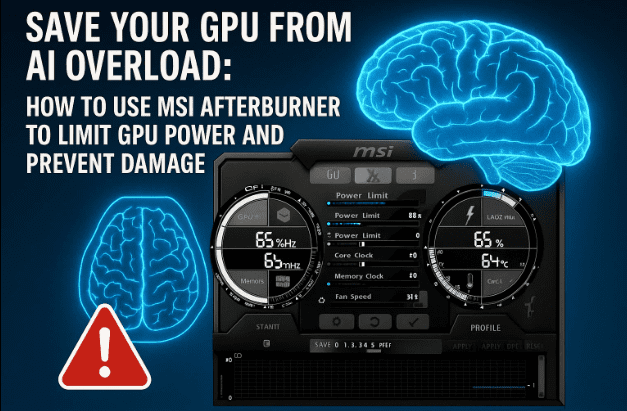
By the end, you’ll not only understand the logic behind GPU power limiting but also learn how to safely tune your GPU for longer life without losing much performance.
🧭 Table of Contents
- Why AI Is Stressing Your GPU
- What Is MSI Afterburner?
- Understanding GPU Power and Temperature Limits
- Installing and Setting Up MSI Afterburner
- How to Limit GPU Power for AI Tasks
- Testing: Running AI Workloads After Power Limiting
- How Much Power Limit Should You Use?
- Why AI Acceleration Matters in Modern Systems
- Additional Tips to Keep Your GPU Healthy
- Frequently Asked Questions (FAQ)
⚠️ 1. Why AI Is Stressing Your GPU
AI workloads — such as image upscaling, video enhancement, or local model inference — use GPU cores (CUDA, Tensor, or Stream processors) intensively. Unlike gaming, which fluctuates between 40% to 90% GPU load, AI processing pins the GPU at 100% non-stop.
For example, using an AI image upscaler to batch process multiple images forces your GPU to work at maximum power output for minutes or even hours. This leads to:
- High power draw (full wattage output)
- High heat generation
- Thermal throttling or system crashes in long sessions
If you’ve ever noticed your PC fans going wild while running an AI tool, that’s your GPU crying for help.
AI doesn’t discriminate — whether you’re using an RTX 2060 or RTX 4070, the software simply pushes the hardware to its maximum capability. That’s why limiting GPU power becomes critical, especially on systems without specialized AI accelerators.
⚙️ 2. What Is MSI Afterburner?
MSI Afterburner is a free GPU management and monitoring software that lets you:
- Overclock or underclock your GPU
- Adjust fan speed curves
- Limit power and temperature levels
- Monitor performance (usage, voltage, and temperature) in real-time
It works with almost all GPU brands — not just MSI — and supports NVIDIA, AMD, and even integrated GPUs.
Essentially, it gives you full manual control over your GPU’s performance behavior. And in this case, we’ll use it to undervolt or cap GPU power — protecting your hardware from overuse during AI sessions.









🔋 3. Understanding GPU Power and Temperature Limits
Before you start limiting power, let’s quickly understand what those numbers mean.
Every GPU has:
- Base Power Limit (100%) → The default safe maximum wattage your GPU draws.
- Temperature Limit (default ~83–85°C) → The maximum temperature before throttling.
When you run AI locally, your GPU immediately jumps to 100% power draw and hovers near its thermal limit. Sustained heat and full load can shorten the GPU’s life by degrading VRAM chips and power circuitry.
By lowering the power limit to 80–90%, you slightly reduce maximum performance (by 5–10%), but drastically cut heat, noise, and wear. It’s like driving your car at 90 km/h instead of redlining at 120 — you still reach the destination safely, with less strain.
🧩 4. Installing and Setting Up MSI Afterburner
Let’s move to the setup part. Follow these steps to install and configure MSI Afterburner properly.
Step 1: Download and Install
Visit MSI’s official website:
👉 https://www.msi.com/Landing/afterburner/graphics-cards
Download the latest version and install it. The package may also include RivaTuner Statistics Server (RTSS) — keep it checked, as it allows real-time performance monitoring on screen.
Step 2: Launch the Application
Once installed, open MSI Afterburner. You’ll see sliders labeled:
- Core Clock (MHz)
- Memory Clock (MHz)
- Fan Speed (%)
- Power Limit (%)
- Temp Limit (°C)
Step 3: Unlock Controls (If Locked)
If the sliders are greyed out:
- Click on the Settings (gear icon).
- Go to the General tab.
- Enable “Unlock voltage control” and “Unlock voltage monitoring.”
- Restart the program.
Now you’re ready to tune your GPU.
🧠 5. How to Limit GPU Power for AI Tasks
Here’s the simple method to cap GPU power:
- Locate the Power Limit (%) slider.
- Reduce it from 100% to 90% (or lower — we’ll discuss ideal values below).
- Notice that the Temp Limit slider will automatically drop in proportion.
- Click Apply (✔ icon) to confirm the new settings.
That’s it! Your GPU will now never exceed that defined power percentage.
You can run any AI program — from Stable Diffusion to an image upscaler — and your GPU will stay within the safe limit.
Example Use Case
Let’s say you’re using an AI Image Upscaler like Upscayl or Topaz Gigapixel AI.
- Normally, it pushes your GPU to 100% for several minutes.
- By limiting power to 80–85%, the workload completes only 1–2 minutes slower but generates far less heat.
Your fans stay quieter, temperatures remain 10–15°C cooler, and there’s no risk of crashing mid-process.
🔬 6. Testing: Running AI Workloads After Power Limiting
Once you’ve set your power limit, it’s time to verify how it performs in real conditions.
- Monitor GPU usage in MSI Afterburner’s graphs (bottom panel).
- Run your AI task, like image upscaling or video enhancement.
- Watch the GPU load and temperature behavior.
You’ll see something like this:
- GPU Load: 80–85% instead of 100%
- Temperature: Drops from 78°C → 65°C
- Power Draw: 90% of rated wattage
- Fan Noise: Significantly reduced
Despite the reduced power cap, the AI still completes the task successfully — just a few seconds slower.
The benefit? Your GPU doesn’t “cry,” throttle, or shut down unexpectedly.
⚖️ 7. How Much Power Limit Should You Use?
This depends on your GPU model and workload type. Here’s a general recommendation:
| GPU Type | Recommended Power Limit | Remarks |
|---|---|---|
| Entry-Level (GTX 1660, RX 580) | 75–80% | Keeps thermals low; minimal performance loss |
| Mid-Range (RTX 2060–4070) | 80–90% | Best balance for AI workloads |
| High-End (RTX 4080, 4090) | 90–100% | Can handle AI loads; power limit optional |
| Laptop GPUs | 70–85% | Prevents overheating in tight chassis |
If your AI programs are crashing due to GPU overload, start with 80% and fine-tune until stable.
Remember — every 10% reduction in power can lower GPU temperature by about 6–8°C on average.
🤖 8. Why AI Acceleration Matters in Modern Systems
Newer processors like Intel Core Ultra or AMD Ryzen AI series come with dedicated NPUs (Neural Processing Units) — hardware modules designed specifically for AI workloads.
Similarly, NVIDIA’s latest GPUs include Tensor Cores that accelerate AI tasks like upscaling and generative inference.
However, older GPUs (RTX 20-series, GTX cards, etc.) lack these optimized AI pipelines, meaning they rely entirely on raw GPU compute — causing excessive load.
If you own an older GPU, using power limits is not optional; it’s essential for maintaining long-term reliability.
🧊 9. Additional Tips to Keep Your GPU Healthy
Let’s add some extra habits to protect your GPU beyond just limiting power:
- Clean dust filters and fans regularly — clogged vents cause overheating.
- Replace thermal paste every 2–3 years for better heat dissipation.
- Use undervolting (optional) if you’re comfortable; it reduces voltage draw without losing much performance.
- Enable FPS limits or V-Sync during gaming to prevent 100% GPU load.
- Avoid running multiple AI apps simultaneously.
And most importantly, never exceed factory overclock limits unless you fully understand voltage tuning. Overclocking increases power draw and negates all the cooling benefits we’re aiming for.
❓ 10. Frequently Asked Questions (FAQ)
Q1. Is it safe to limit GPU power using MSI Afterburner?
Yes, it’s completely safe. You’re only restricting the GPU from reaching its max wattage — not overvolting or modifying core parameters.
Q2. Will limiting GPU power affect my AI results?
No. The output remains identical; the only difference is that the task may take slightly longer (a few seconds or minutes depending on workload).
Q3. Can I use MSI Afterburner on non-MSI GPUs?
Yes. It works with all major GPU brands — NVIDIA, AMD, and others.
Q4. What’s the difference between power limit and temperature limit?
Power limit caps how much electrical power (watts) the GPU can use. Temperature limit defines the max safe temperature before throttling.
Q5. Should I apply power limit before every AI task?
Once applied, MSI Afterburner remembers your settings. You can leave it running in the background or set a custom profile for AI sessions.
🔚 11. Final Thoughts
AI workloads can be thrilling to experiment with — from enhancing old photos to running local AI models — but they also push your GPU to its breaking point.
By using MSI Afterburner to limit GPU power between 80–90%, you’ll achieve the perfect balance between performance, safety, and longevity.
Your GPU will stay cooler, quieter, and healthier — and you can continue using AI tools without fearing sudden crashes or hardware stress.
Remember, performance isn’t just about speed; it’s also about sustainability.
Disclaimer: This article is for educational purposes only. Modifying hardware settings always carries risk if done incorrectly. Never raise voltage or power beyond safe levels without proper knowledge.
Tags: gpu overheating, ai gpu stress, msi afterburner tutorial, gpu power limit, ai workloads, gpu optimization, nvidia rtx, undervolting, gpu life span, pc cooling
Hashtags: #MSIAfterburner #GPULife #AIWorkloads #RTX #GPULimit #TechTips #OverheatingFix #AIPowerControl #WindowsTools #ComputerMaintenance