The web can be a noisy and dangerous place. Every now and then, you might have encountered a terrifying full-screen pop-up screaming that your computer is infected, urging you to call a fake tech support number, or asking you to “fix” your PC by paying for unnecessary software.
These deceptive pop-ups are called scareware scams — and for years, they’ve tricked millions of users into panic. But now, Microsoft has rolled out a major change that finally makes a difference.
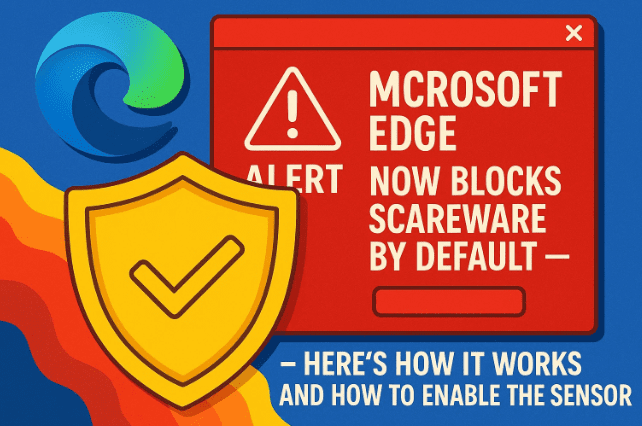
As of Edge version 142, Microsoft has announced that the Scareware Blocker feature is now enabled by default on most Windows and macOS devices.
This move represents a big step forward in browser-based security — one that uses local AI instead of cloud analysis, providing faster protection without compromising your privacy.
Let’s go step by step and understand what this feature does, how it works, and how you can make sure it’s active on your system.
⚠️ What Exactly Is Scareware?
Before we explore the new feature, it’s important to understand what scareware actually is and why it’s so effective.
Scareware is a type of social-engineering attack that manipulates users through fear. It often appears as:
- Full-screen warning pages claiming your PC is infected.
- Fake antivirus alerts with countdown timers.
- Loud alarm sounds or voice messages saying, “Do not close this page!”
- Pop-ups showing fake Microsoft or Apple support numbers.
These attacks exploit basic human psychology — urgency and fear — especially among older adults or less tech-savvy users. Many victims end up paying fake “technicians” or downloading malicious files in an attempt to “fix” a problem that never existed.
The danger of scareware is not just financial loss. It can also lead to identity theft, system hijacking, or installation of remote-access malware.
So far, traditional browser protection could only catch these scams after they had already spread widely. That’s what Microsoft Edge’s Scareware Blocker aims to change.
🧠 Introducing Microsoft Edge’s Scareware Blocker
Let’s move to the main highlight — the Scareware Blocker, now built directly into Microsoft Edge.





![How to Enable and Sync Data on Microsoft Edge Browser [Tutorial – 2025]](https://dtptips.com/wp-content/uploads/2025/06/image-526-300x175.png)




This feature automatically detects, blocks, and reports scareware pages in real time using a local AI model that runs on your device.
Here’s what makes it different:
- The AI doesn’t depend on cloud uploads or remote scanning.
- It analyzes the page structure locally — meaning no screenshots or data ever leave your computer.
- It recognizes scam patterns instantly, even before the global Microsoft Defender SmartScreen list is updated.
That means you’re protected even against brand-new scareware campaigns that haven’t yet been reported.
Minimum Device Requirements
The Scareware Blocker runs automatically on most systems that meet the following minimum specs:
- 2 GB RAM or higher
- Quad-core CPU (4 logical processors)
- Windows 10/11 or macOS (latest Edge version installed)
If your device meets these requirements, the feature is enabled by default — no extra configuration needed.
Everything happens in real time, locally, and privately.
🔍 How the Scareware Blocker Actually Works
So far we’ve done a good job understanding what the feature is — now let’s see how it works behind the scenes.
Step 1: Local AI Detection
When a full-screen web page attempts to display aggressive scare tactics — such as fake virus alerts or tech support messages — Edge’s AI instantly compares it against thousands of known scam templates stored locally.
The AI looks for:
- Fake antivirus icons or “Microsoft Security” branding.
- Overuse of red or flashing warning colors.
- JavaScript elements that disable the back button or lock the screen.
- Embedded phone numbers pretending to be support lines.
If a match is found, the AI exits full-screen mode automatically and silences any blaring sounds or voices.
Step 2: Real-Time SmartScreen Feedback
The next step involves Microsoft Defender SmartScreen — the global threat-protection network that blocks unsafe sites for all Edge users.
When your browser’s local AI detects a new scareware pattern, it alerts SmartScreen immediately (if the Scareware Sensor option is turned on).
Microsoft says that this mechanism helps block scams hours or even days earlier than traditional blacklists.
Step 3: Global Protection for Everyone
During internal testing, Microsoft found that before this new system, around 30% of users still saw a scam page before SmartScreen caught it. After introducing the sensor, that number dropped to just 5%.
That’s a massive improvement — and even more importantly, every user who reports a scareware incident now helps protect roughly 50 other users globally.
This makes Edge’s security not just reactive, but community-driven.
🧩 Understanding the “Scareware Sensor”
Let’s move on to the Scareware Sensor, an additional setting that works hand-in-hand with the blocker.
While the Scareware Blocker itself is enabled by default, the sensor — which shares anonymized scam data with Microsoft Defender — is currently off by default.
This means you can decide whether or not to participate in improving Microsoft’s scam-detection system.
If you turn it on, your browser will automatically share reports of new scam URLs with SmartScreen, helping protect millions of others.
Now let’s see how you can enable it.
⚙️ How to Enable the Scareware Sensor in Microsoft Edge
Before you start, make sure your Edge browser is updated to version 142 or later. You can check this by clicking on the three-dot menu → Help and feedback → About Microsoft Edge.
Once you’re updated, follow these steps carefully:
- Open Settings: Click the three-dot menu (⋯) in the top-right corner of Edge and select Settings.
- Navigate to Privacy: From the left sidebar, click Privacy, Search, and Services.
- Go to Security Settings: Scroll down to the Security section.
- Locate the Scareware Blocker option.
- Toggle on “Share detected scam sites with Microsoft Defender SmartScreen.”
That’s it! You’ve now activated the Scareware Sensor.
When enabled, this option ensures that new scams your system encounters are automatically reported to Microsoft — while still keeping your private browsing data secure.
🪟 What Happens When Scareware Is Detected
Once the system identifies a scareware page, Edge performs several smart actions simultaneously:
- Exits Full Screen: The browser breaks out of full-screen mode instantly to regain your control.
- Stops Audio: Any loud alarm sounds or fake voice alerts are silenced automatically.
- Displays a Safe Warning: A clear warning appears with a small thumbnail preview of the blocked page.
- Gives You Control: You can choose to continue (if you’re sure it’s a false positive) or close the page safely.
If you choose to continue, the system remembers your preference and lets you access the site, though this is not recommended unless you’re absolutely certain it’s safe.
Even if you disable the Scareware Sensor, the base protection — the local AI blocker — will still keep working silently in the background.
🧑💼 For IT Admins and Organizations
Now let’s move to a slightly more technical section.
If you manage multiple systems or devices in an organization, Microsoft has added Group Policy support for Scareware Blocker configuration.
Here’s what you can do with it:
- Enable or disable the feature across all desktops.
- Add internal or trusted domains to an allow list.
- Control how reports are shared with Microsoft Defender SmartScreen.
This ensures you can balance security with your internal workflow, especially if your organization uses custom intranet tools or local admin dashboards that occasionally mimic pop-up interfaces.
IT administrators can find full policy documentation on Microsoft’s official Edge enterprise site:
👉 https://learn.microsoft.com/en-us/deployedge/edge-security-scaryware-blocker
🧩 How Scareware Blocker Improves on Traditional Protection
Let’s take a moment to compare. Before Scareware Blocker, browsers relied mostly on online databases of known malicious URLs. That meant a scam could spread widely before being officially listed.
The new system introduces real-time proactive protection using on-device intelligence.
Here’s a quick side-by-side comparison:
| Feature | Traditional Protection | Scareware Blocker |
|---|---|---|
| Detection Method | Cloud-based blacklist | Local AI model |
| Reaction Time | Minutes to hours | Instant (on device) |
| Privacy Impact | Sends URLs/screenshots | Works offline |
| Effectiveness in Tests | 70% early detection | 95% early detection |
| User Control | Limited | User can override or report manually |
This is one of the first times a mainstream browser has used edge-AI processing (no pun intended) to handle scams at the device level.
It shows a shift in cybersecurity — from reactive to predictive, from centralized to distributed.
🧩 Why Local AI Matters
Let’s talk about something most people overlook: local AI.
Many users worry that modern AI features involve cloud tracking or background uploads. But the Scareware Blocker does everything locally — it never sends images or browsing data outside your system.
That means you get:
- Faster response time (no server delay).
- Better privacy (no personal data stored).
- No dependency on internet connection for protection.
In short, it’s AI-powered defense that respects your boundaries.
💬 Frequently Asked Questions (FAQ)
Q1. Is Scareware Blocker available on all browsers?
No. This is a Microsoft Edge-specific feature. Chrome, Firefox, and Safari have their own protection systems, but none currently use on-device AI for scareware.
Q2. Does it work offline?
Yes. The local AI model runs directly on your device and doesn’t need constant internet access to detect scams.
Q3. Will it block normal pop-ups or full-screen apps?
No. It only reacts to suspicious patterns resembling known scam behaviors — not regular websites, games, or YouTube videos.
Q4. How do I know if my version supports this feature?
Check your Edge version number. If it’s 142 or newer, Scareware Blocker is already included.
Q5. Can I disable it?
Yes. You can toggle it off under Settings → Privacy, Search, and Services → Security. But it’s strongly recommended to keep it enabled.
🧩 A Quick Recap
Let’s summarize what we’ve covered so far before concluding:
- Scareware scams are fake virus alerts and tech-support pop-ups that manipulate users.
- Edge’s Scareware Blocker uses local AI to detect and stop them instantly.
- Scareware Sensor helps report new threats to Microsoft Defender SmartScreen.
- Everything works locally and privately, requiring no user data sharing.
- Enterprise policies now let organizations manage this protection centrally.
This system makes it almost impossible for most users to even see such scams — they’re blocked automatically in the background before panic sets in.
🔒 Final Thoughts: A Quiet but Powerful Security Upgrade
So far, we’ve done a good job unpacking Microsoft’s newest protection layer.
While Edge may not be everyone’s default browser, this feature shows how serious Microsoft has become about real-world threats that affect everyday people.
Unlike viruses or ransomware, scareware doesn’t rely on coding sophistication — it relies on emotion. By stopping that manipulation at its source, Microsoft is solving a human problem with intelligent technology.
As AI continues to evolve, more browsers and security tools will likely adopt this local AI-powered approach — combining instant response with privacy preservation.
For now, if you use Edge on Windows or macOS, make sure you’re updated to version 142 and the Scareware Sensor is turned on.
You might never realize it’s there — and that’s exactly the point. A good security system protects you silently, without interrupting your work.
Stay safe, stay updated, and always question any website that tries to scare you into acting fast.
⚠️ Disclaimer:
This article is for informational purposes only. The feature discussed here is developed by Microsoft, and availability may vary by region or device. Always keep your browser and OS updated for the best security protection.
#MicrosoftEdge #ScarewareBlocker #SmartScreen #BrowserSecurity #Windows11 #CyberSafety #EdgeAI #AIPrivacy #StaySafeOnline #dtptips







