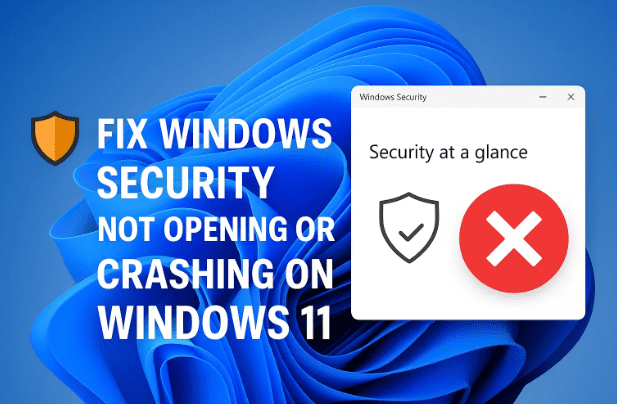
If the Windows Security app on your Windows 11 PC isn’t opening or keeps crashing unexpectedly, don’t worry — you’re not alone. This issue has become increasingly common after certain system updates or registry changes. Luckily, there are multiple safe and effective ways to fix it.
In this detailed guide, we’ll walk through every reliable method — step by step — to get your Windows Security app working again. From repairing it through Settings to running system integrity commands, and even reinstalling it manually if needed, everything is covered below.
🧩 1. Understanding the Problem
Windows Security (previously known as Windows Defender) is Microsoft’s built-in antivirus and system protection suite. It’s responsible for protecting your computer from viruses, ransomware, and malicious software.
However, sometimes users face issues such as:
- The Windows Security app not opening at all.
- The app crashing immediately after launch.
- Blank or frozen interface.
- “This app can’t open” error messages.
These problems often arise due to corrupted system files, registry conflicts, or broken app configurations. But don’t worry — most cases can be fixed without reinstalling Windows. Let’s move on to the first method.
🧰 2. Step 1: Reset and Repair the Windows Security App
Before diving into complex command-line fixes, the first thing you should do is try repairing or resetting the Windows Security app through Settings. This often resolves minor configuration or cache-related problems.
Follow these steps:
- Click the Start menu and type Windows Security in the search bar.
- Do not open the app directly. Instead, right-click on Windows Security and select App settings.
- This will open the Settings page for the app. Scroll down until you see options like Terminate, Repair, and Reset.
- Click Terminate first — this will stop any background processes related to the app.
- Next, click Repair. Windows will attempt to fix the app without deleting your data.
- If the issue persists, click Reset. This will restore the app to its default state.
After resetting, open the app again from the Start menu and see if it works.
If the app still doesn’t open or crashes again, don’t lose hope — we’ll now move to more advanced solutions.
⚙️ 3. Step 2: Use SFC and DISM Commands to Fix System Files
Sometimes, the problem lies deeper — corrupted or missing system files may prevent Windows Security from functioning correctly. Luckily, Windows includes built-in utilities to detect and repair these problems: SFC (System File Checker) and DISM (Deployment Image Servicing and Management).
Let’s fix your system files step by step.
Step 1: Open Terminal as Administrator
- Right-click on the Start button.
- Choose Terminal (Admin) or Windows PowerShell (Admin) from the list.
Step 2: Run the SFC Command
Once the terminal opens, type or paste the following command and press Enter:









sfc /scannow
This command scans all protected system files and replaces corrupted ones with cached copies. It can take 10–15 minutes to complete. Do not close the terminal during this process.
After it finishes, you’ll see a result message:
- “Windows Resource Protection found corrupt files and repaired them.” (Good!)
- “Windows Resource Protection did not find any integrity violations.” (No issues found.)
- “Windows Resource Protection found corrupt files but could not fix some.” (Proceed to DISM command below.)
Step 3: Run the DISM Command
Next, type or paste the following:
DISM /Online /Cleanup-Image /RestoreHealth
This command checks the system image and restores any damaged files from Microsoft’s servers. It can take several minutes, depending on your internet connection.
After completion, restart your PC and try opening the Windows Security app again.
If it still fails to launch, don’t worry — we’ll now try a more direct fix using PowerShell.
🧑💻 4. Step 3: Reset Windows Security via PowerShell
If repairing or scanning didn’t help, you can reset the app using a PowerShell command. This method re-registers and reinstalls the Windows Security package directly from the system.
Here’s how:
- Open the Start menu and type PowerShell.
- Right-click on Windows PowerShell and select Run as administrator.
- In the PowerShell window, copy and paste the following command:
Get-AppxPackage Microsoft.SecHealthUI -AllUsers | Reset-AppxPackage - Press Enter and wait for the process to complete.
Once it’s done, restart your computer. This command reinstalls the Windows Security app core files and should fix any corruption preventing it from opening.
If even this fails, the last resort is to reinstall the app completely.
🧩 5. Step 4: Reinstall Windows Security Manually
If none of the previous methods work, you can manually reinstall the Windows Security app. Microsoft provides an official downloadable package for this.
Steps to reinstall:
- Visit the official Microsoft Download Center at
👉 https://www.microsoft.com/en-us/software-download/
(If you are redirected, search for “Windows Security App Installer 64-bit.”) - Download the 64-bit version of the Windows Security app that matches your Windows edition.
- Once downloaded, locate the file (it usually has a
.msixbundleextension). - Right-click the file and choose Run as administrator.
- Follow the on-screen prompts to complete installation.
After installation, restart your PC and open Windows Security again — it should now work smoothly.
💡 6. Additional Tips & Checks
Sometimes, third-party interference or deeper Windows issues can affect the app. Here are a few extra things to check:
✅ Check for Pending Updates
Go to Settings → Windows Update → Check for updates and ensure your system is fully up to date.
✅ Disable Third-Party Antivirus Temporarily
External antivirus tools can sometimes conflict with Windows Security. Disable them temporarily to test if they’re causing the crash.
✅ Verify Windows Defender Services
Ensure that the following services are running:
- Windows Security Service (SecurityHealthService)
- Windows Defender Antivirus Service (WinDefend)
You can check these by typing services.msc in Run (Win + R) and looking for their status.
✅ Create a New User Profile
Corrupt user profiles can cause app-specific issues. Try creating a new local account to test if Windows Security opens there.
❓ 7. Frequently Asked Questions (FAQs)
Q1. Why does Windows Security app keep closing automatically?
A: It usually happens when background services are stopped or when system files are corrupted. Try running the SFC and DISM commands as described above.
Q2. Is it safe to reset the Windows Security app?
A: Yes, resetting only affects the app’s interface and cache data. Your security settings and protection remain active in the background.
Q3. What if I can’t download the new version from Microsoft’s website?
A: You can also reinstall Windows Security using PowerShell:
Get-AppxPackage Microsoft.SecHealthUI -AllUsers | Remove-AppxPackage
Get-AppxPackage -AllUsers Microsoft.SecHealthUI | Add-AppxPackage -Register
However, ensure you have administrative rights before running these commands.
Q4. Will this affect my Windows updates or Defender antivirus?
A: No, fixing or reinstalling Windows Security only restores its app interface. Your real-time protection remains active.
🏁 8. Conclusion
So far, we’ve explored all possible solutions — from basic repairs to full reinstallation. In most cases, resetting the Windows Security app or running the SFC/DISM commands resolves the issue.
If you’ve reached the last step and it still doesn’t open, it might indicate a deeper Windows corruption. In such cases, consider performing a Repair Install of Windows using Microsoft’s official media creation tool.
Keeping your Windows Security app functional is essential — it’s your first line of defense against online threats. So make sure it stays up and running, and don’t ignore update prompts or error messages in the future.
Disclaimer:
Always create a system restore point before executing PowerShell commands or modifying system settings. The methods described above are official and safe when followed correctly, but improper usage may cause unintended system behavior.
Tags: Windows Security, Windows 11, Troubleshooting, Microsoft Defender, PowerShell, SFC, DISM, App Repair, Antivirus, System Restore
Hashtags: #Windows11 #WindowsSecurity #Troubleshooting #Defender #Microsoft #PCFix #SystemRepair #TechGuide #dtptips








