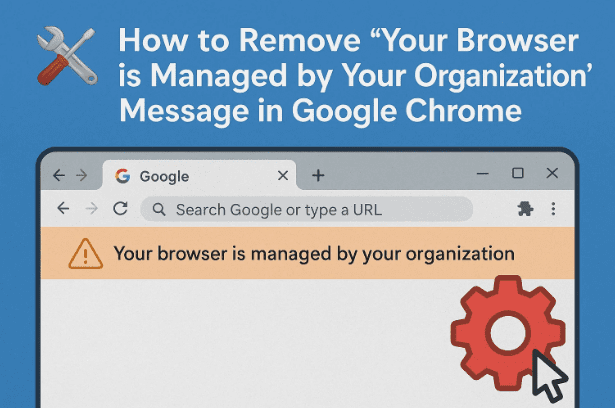
If you’ve ever opened Chrome settings and noticed the message “Your browser is managed by your organization,” it can feel alarming—especially if you’re on your personal computer and not part of any managed network. This message usually indicates that a Chrome policy has been set on your system, either by an organization (if it’s a work PC) or by third-party software (sometimes even malware) that modified system settings.
The good news? In most cases, you can safely remove this message by checking policies and cleaning up your system registry.
Let’s go step by step.
1) 🤔 Why Does Chrome Say “Managed by Your Organization”?
This message appears when Chrome detects active policies applied to your browser. Policies can:
- Control features like Incognito mode availability.
- Set custom configurations enforced by companies or administrators.
- Be left behind by third-party software.
- In rare cases, be injected by potentially unwanted programs (PUPs).
If you’re on a corporate-managed laptop, this message is normal. But if you’re on a personal PC, you probably want to remove it. However, in most cases, no, your data isn’t being stolen or your computer isn’t being hacked. And with the following steps you can fix this error. But in case if you are still now sure and want to change the browser here are some best alternatives:
- Why Brave Browser Could Be the Best Choice for Privacy and Speed
- Comet Browser Installation Guide (Windows) – Human-Friendly, Detailed, AI-Browsing 2.0
- Vivaldi Browser Full Review: A Powerful, Customizable, and Privacy-Focused Chrome Alternative
- Brave vs DuckDuckGo Browser: Which One Should You Choose?
2) 🔎 Step 1 – Check Chrome Policies
First, let’s confirm what policies are actually active.
- Open Chrome.
- In the address bar, type:
chrome://policy
- Press Enter.
Here you’ll see a list of active policies. For example:
- IncognitoModeAvailability (used to block Incognito mode).
- Other settings that restrict or control Chrome.
👉 If you see policies listed here, it means something has added them—either Windows registry entries or Chrome extensions.
3) ⚙️ Step 2 – Look for the “Show Managed UI” Flag
Sometimes, Chrome includes a setting that directly controls the display of this message.
- In Chrome’s address bar, type:
chrome://flags
- Search for: Show Managed UI.
- If the flag is present, set it to Disabled.
- If you don’t see it, that’s okay—it may not exist in your Chrome version.
This is the simplest method, but not always available.
4) 🗝️ Step 3 – Use the Windows Registry Editor to Remove Chrome Policies
If the Chrome flag doesn’t help, the next step is editing the Windows Registry, where Chrome policies are stored.





⚠️ Important: Be careful when editing the registry. A wrong change can affect system behavior. Consider creating a restore point before proceeding.
Steps:
- Press Win + R → type
regedit→ hit Enter. - Navigate to the following path (you can copy and paste it in the address bar of Registry Editor):
HKEY_LOCAL_MACHINE\SOFTWARE\Policies\Google\Chrome
- Inside this key, you’ll likely see policies like:
IncognitoModeAvailability- Other policy entries.
- Options:
- Delete a specific policy value (e.g.,
IncognitoModeAvailability). - Or, if you’re not sure, delete the entire Chrome folder under
Google.
- Delete a specific policy value (e.g.,
- Close Registry Editor.
5) 🔄 Step 4 – Restart Chrome and Verify
After making changes:
- Close all Chrome windows.
- Restart Chrome.
- Go back to Settings → the “Managed by your organization” message should now be gone.
- Double-check
chrome://policyto ensure no unwanted policies remain.
6) 🛠️ Alternative Methods You Can Try
If the above doesn’t work, here are extra steps worth checking:
- Extensions Cleanup:
- Go to
chrome://extensionsand disable or remove suspicious add-ons.
- Go to
- Group Policy Editor (Pro versions of Windows):
- Type
gpedit.msc→ check under Computer Configuration → Administrative Templates → Google → Google Chrome.
- Type
- Antivirus/Malware Scan:
- Some software installs unwanted policies—scan with Windows Defender or a trusted anti-malware tool.
7) ❓ Frequently Asked Questions
Q1. Is it dangerous if Chrome says “Managed by your organization”?
Not always. On a work PC, it’s normal. On a personal PC, it often means leftover policies or unwanted software.
Q2. Will removing Chrome policies break anything?
If it’s a personal PC, usually no. On a work PC, yes—it may remove security or compliance settings.
Q3. Can I prevent this from happening again?
Avoid installing suspicious software or extensions that add policies. Stick to Chrome’s official extensions and keep your system clean.
Q4. I deleted the Chrome key, but the message came back—what now?
Check Group Policy (gpedit.msc) and scan your PC for malware. Some apps may reapply policies automatically.
8) ⚠️ Disclaimer
Editing the registry should be done with caution. Always:
- Create a system restore point before making changes.
- Only delete Chrome-related keys under
Policies. - If your PC is company-managed, do not remove policies, as it may violate IT policies.
Tags
Chrome managed by organization, remove Chrome policy, Chrome registry fix, Windows Chrome settings, Chrome policy editor, disable managed browser
Hashtags
#GoogleChrome #Windows11 #ChromeFix #Registry #BrowserTips #TechGuide
✅ With these steps, you can remove the annoying “Your browser is managed by your organization” message in Chrome and take back full control of your browser.






