If you’ve ever faced the dreaded notification — “Storage almost full” — you know how frustrating it feels. You might have movies, songs, apps, and memories saved on your smartphone, and deleting them is often the last thing you want to do. Luckily, there’s a smart hidden setting in the Google Play Store that can save you from this situation.
This article will guide you step by step on how to enable automatic app archiving, explain how it works, and share additional tips to manage your smartphone storage effectively.
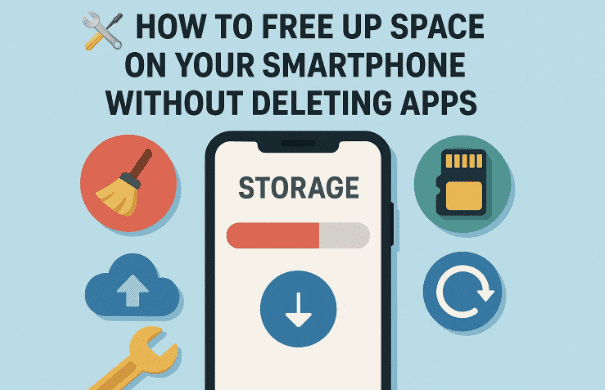
1. Why Freeing Up Space Matters on Smartphones
Smartphones today are powerful mini-computers, but storage capacity can still be a major limitation. Whether your phone has 64 GB, 128 GB, or even 256 GB, running out of space can cause:
- Slower performance when opening apps.
- Trouble updating apps or the system.
- Errors when downloading files.
- Camera refusing to take photos or videos.
Think about it — your smartphone doesn’t just store files; it also needs free space for system operations and app cache. That’s why keeping some room free is crucial for smooth performance.
2. Common Causes of Low Storage Issues
Before we jump into the solution, let’s quickly understand what usually fills up our smartphones.
- Photos and Videos – With higher resolution cameras, even short videos take up hundreds of MBs.
- Music and Movies – Offline downloads from Spotify, Netflix, or YouTube can eat gigabytes.
- Social Media Apps – Apps like WhatsApp, Instagram, and Telegram save a huge amount of cache and media.
- Games – Modern games like PUBG Mobile or Genshin Impact easily consume 5–10 GB each.
- System Updates – Android updates require extra space to download and install.
This mix makes it hard to manage space manually. So let’s see how Google has quietly built a solution into the Play Store itself.
3. Traditional Solutions People Use (and Why They Aren’t Always Ideal)
When people run out of space, the common advice is:
- Delete apps you don’t use.
- Clear cache from storage settings.
- Move photos to cloud storage.
- Transfer files to an SD card (if supported).
While these solutions work, they have drawbacks:
- Deleting apps means you lose them completely.
- Clearing cache gives temporary relief — the cache builds back quickly.
- Cloud storage needs internet and may cost money.
- Not all modern phones support SD cards anymore.
So, wouldn’t it be great if your phone could automatically manage storage without deleting apps? That’s where the hidden app archiving setting comes in.
4. The Hidden Google Play Store Setting That Solves the Problem
Google quietly introduced a feature in the Google Play Store that many people don’t know about:
👉 Automatic App Archiving











When enabled, your phone will automatically archive unused apps whenever you’re running out of space.
This means:
- You don’t have to manually delete anything.
- Rarely used apps shrink in size.
- You keep all your data and settings intact.
It’s like letting your phone act smartly to free up space in the background.
5. Step-by-Step Guide to Enable Automatic App Archiving
Now, let’s walk through the exact steps. Don’t worry, it only takes a minute:
- Open the Google Play Store on your Android device.
- Tap on your profile icon (avatar) in the top-right corner.
- From the menu, select Settings.
- Under General, scroll down until you find:
“Automatically archive apps when device is low on storage.” - Toggle the switch to Enable.
That’s it! 🎉 From now on, whenever your phone runs out of space, Play Store will automatically archive unused apps.
6. How Does App Archiving Work? (Explained Clearly)
You may wonder — what does “archiving an app” actually mean?
Here’s how it works:
- Suppose an app takes up 500 MB.
- After archiving, it may shrink to 200–300 MB.
- The system keeps only essential parts and removes extra files.
- Your data, login, and settings remain intact.
- The app’s icon still appears on your home screen, but with a small cloud symbol.
- When you need it again, just tap it — the Play Store will quickly re-download the missing files.
In short: you free space without losing apps.
7. Advantages of Enabling This Setting
Let’s pause for a moment and highlight why this feature is so useful.
- ✅ Hands-free storage management – no need to panic when your phone is full.
- ✅ Saves time – you don’t have to uninstall and reinstall apps manually.
- ✅ Keeps app data safe – no loss of logins, progress, or preferences.
- ✅ Smooth performance – your phone won’t slow down due to low storage.
- ✅ Great for budget phones – especially useful if you have only 32 GB or 64 GB storage.
8. Possible Limitations You Should Know
Of course, no feature is perfect. Here are a few things to keep in mind:
- 📌 You need an internet connection to restore an archived app.
- 📌 If the app is very large, redownloading may take time.
- 📌 Some apps with frequent updates may still use storage in the background.
- 📌 Archived apps won’t send notifications until restored.
So while this is a fantastic option, it’s not a replacement for good storage habits.
9. Extra Tips to Keep Your Phone Storage Healthy
Now that you’ve enabled automatic archiving, let’s go a step further with some practical storage tips:
- Clear Downloads Folder – many forgotten files pile up here.
- Use Google Photos (link) – it offers free cloud storage with compression.
- Delete WhatsApp Media – go to Settings > Storage and Data > Manage Storage to clear junk files.
- Stream Instead of Downloading – services like Spotify or Netflix allow online playback.
- Move Large Files to PC – periodically back up your videos to a laptop or external hard drive.
- Check Storage by App – Settings > Storage shows which apps use the most space.
By combining these with app archiving, you’ll rarely face storage issues again.
10. Frequently Asked Questions (FAQs)
Q1: Will I lose my game progress if a game app is archived?
No. Your data remains intact. When you reinstall (restore) the game, progress will continue as before.
Q2: Can I choose which apps to archive?
Not manually. The system automatically decides based on how often you use apps.
Q3: Do I need to pay to use this feature?
No, it’s completely free and built into the Google Play Store.
Q4: Does this work on all Android phones?
Yes, as long as your device runs a supported version of Google Play Store.
Q5: Can archived apps still update automatically?
No, they first need to be restored before receiving updates.
11. Final Thoughts
Running out of storage is one of the most common smartphone problems, but now you know a hidden yet powerful setting that can save you stress. By enabling automatic app archiving in Google Play Store, you free up space without deleting apps or losing data.
Pair it with good storage practices — like cleaning up downloads, managing media, and using cloud services — and your smartphone will always feel faster and lighter.
So the next time your phone warns you about low storage, you won’t panic. You’ll smile, knowing that your device is already handling it smartly in the background.
Disclaimer
This article is intended for educational purposes only. Features may vary depending on your device model, Android version, and Google Play Store updates. Always keep your apps and system updated for the best performance.
Tags
smartphone storage, android tips, google play store settings, free up space, app archiving, phone optimization, storage management
Hashtags
#AndroidTips #SmartphoneStorage #GooglePlay #AppArchiving #PhoneOptimization






