Are you struggling with Windows Update errors like 0x800705b4, 0x80070424, or c0000022 on your Windows 10 or Windows 11 PC? These error codes can appear vague and frustrating, and Microsoft’s built-in tools like SFC or DISM don’t always solve the problem. But don’t worry — there’s a simple, free, and portable tool that can help.
In this article, we’ll guide you through using Windows Update Fixer, a lightweight troubleshooting tool that resets and repairs essential update components with just a few clicks.
⚠️ Disclaimer: This article is for educational purposes only. Always download software from official or trusted sources. We are not affiliated with the tool developer. Use third-party tools at your own discretion.
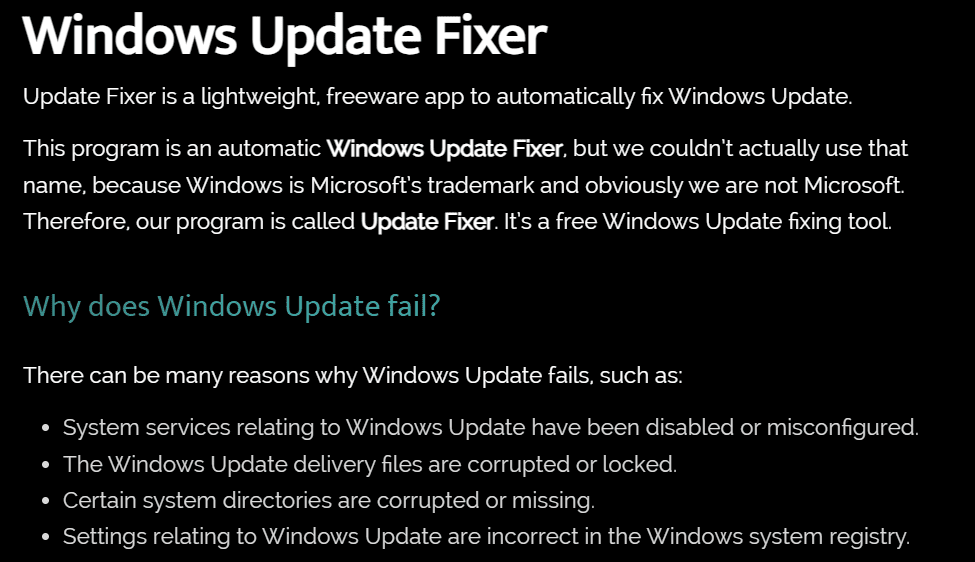
🔧 What is Windows Update Fixer?
Windows Update Fixer is a portable Windows utility that simplifies the process of repairing broken update mechanisms. It resets Windows Update components, clears corrupted files, and restores essential services — all without needing to open complex command-line tools.
It’s ideal for users facing repeated update failures, especially with vague error codes.
💡 When Should You Use It?
Use Windows Update Fixer if:
- Windows Update is stuck or fails to install updates
- You see error codes like
0x800705b4,0x80070424, orc0000022 - Update services don’t start
- You want a one-click solution before diving into manual troubleshooting (like
sfc /scannoworDISM)
📥 Step-by-Step: How to Use Windows Update Fixer
✅ Step 1: Download the Tool
- Visit the official website: https://winupdatefixer.com/
- Click on the Download button.
- Save the
.exefile to your desktop or any folder. No installation is required — it’s portable.
✅ Step 2: Launch Windows Update Fixer
- Right-click the downloaded file.
- Select Run as Administrator.
- The tool interface will appear with several options to fix update issues.
✅ Step 3: Choose the Repair Options
Once launched, you’ll see several repair actions available:
- Clear Temporary Files
- Reset Windows Update Services
- Reset the Host File
- Restore Default Services for Updates
- Flush DNS
- Re-register DLLs related to Windows Update
These are executed in a batch process. Simply click Start Fixing or a similarly labeled button to begin.
✅ Step 4: Let the Tool Run
The tool will now:
- Stop essential services
- Reset update-related registries
- Clear cached files
- Restart update services
This usually takes a few minutes. You don’t need to intervene.
✅ Step 5: Restart Your Computer
Once the fix process is complete:






- Restart your PC to apply the changes fully.
- Open Windows Settings > Update & Security > Windows Update and check for updates again.
Most update errors should now be resolved.
❓ What If the Tool Doesn’t Work?
If the Windows Update Fixer doesn’t solve the issue:
- Run
sfc /scannowin Command Prompt (Admin) - Follow up with:
DISM /Online /Cleanup-Image /RestoreHealth - Or consider using Microsoft’s official Update Troubleshooter:
👉 https://support.microsoft.com/en-us/topic/use-a-fix-it-tool-with-windows-10-8-7-2a5f5e4a-7e16-bc1b-d396-4967e0f4b36f
🧾 Summary
| Problem | Solution |
|---|---|
| Windows Update not working | Use Windows Update Fixer |
| Confusing update error codes | One-click fix with this tool |
| Persistent update failures | Reset update services and components |
Windows Update Fixer is a great first-step solution to eliminate common update errors before trying more technical fixes.
🔖 Tags
windows update fixer, fix windows 10 update error, fix windows 11 update stuck, portable update repair tool, 0x80070424 fix, 0x800705b4 solution, windows update troubleshooting, windows update repair tool, update tool windows free
📢 Hashtags
#WindowsUpdateFixer #UpdateErrorFix #Windows10Update #Windows11Update #Fix0x80070424 #Fix0x800705b4 #WindowsTroubleshooting #PCUpdateTool #WindowsRepair #UpdateTool2025
With tools like Windows Update Fixer, you don’t have to struggle with long technical steps. Just download, run, and let it resolve your update headaches. It’s fast, effective, and a helpful utility every Windows user should keep on hand.








