Resetting your PC is often the go-to solution when Windows becomes unstable, slow, or corrupted. But what happens when you try to reset your system and encounter the frustrating error message:
“Could not find the recovery environment. Insert your recovery media and restart your PC.”
This error stops you from performing a reset and leaves you stuck wondering what went wrong. Don’t worry—this guide will explain why it happens, how to fix it step by step, and how to successfully reset your PC afterward.
Let’s take it one step at a time so you not only fix the error but also understand what’s happening behind the scenes.
1. Understanding the Error
When you click Reset this PC under Windows Settings → Recovery, the system depends on a feature called Windows Recovery Environment (WinRE). This is a hidden partition that contains tools for repairing, resetting, or reinstalling Windows.
If WinRE is disabled or missing, Windows cannot find it—and that’s when you see the message:
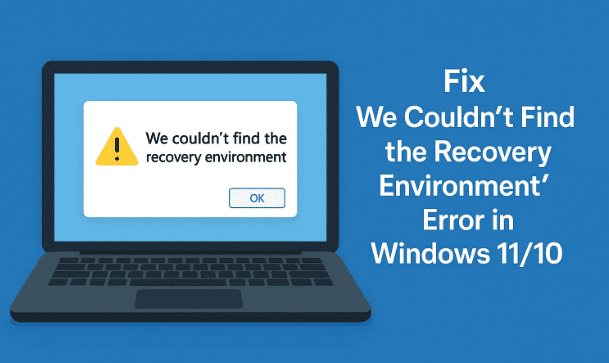
“We couldn’t find the recovery environment.”
The good news is: in most cases, the environment is still there, just disabled. And enabling it is straightforward.
2. Why Does the Recovery Environment Error Appear?
Before we dive into fixing, let’s understand the root causes. This helps you prevent it in the future:
- WinRE Disabled: Sometimes after certain updates, disk cleanup, or misconfiguration, WinRE gets disabled.
- Deleted Recovery Partition: If you manually deleted partitions to gain space, the recovery partition may be missing.
- Corrupt WinRE Files: File corruption can make Windows unable to load recovery tools.
- Third-Party Tools: Some disk management or system optimization tools accidentally disable WinRE.
👉 Most of the time, the solution is simply to re-enable WinRE via Command Prompt.
3. Step 1: Check the Windows Recovery Environment (WinRE) Status
Let’s begin with checking whether WinRE is enabled or disabled on your system.





Steps:
- Press Start, type
cmd, right-click Command Prompt, and choose Run as administrator. - In the black Command Prompt window, type:
reagentc /info
- Press Enter.
You’ll now see details about the recovery environment. Look for this line:
- Windows RE status: Enabled → You should be able to reset normally.
- Windows RE status: Disabled → This is the reason for your error.
If it shows disabled, don’t worry—we’ll fix that next.
4. Step 2: Enable the Recovery Environment Using Command Prompt
Now let’s enable WinRE. This usually solves the problem instantly.
Steps:
- In the same Command Prompt (Admin), type:
reagentc /enable
- Press Enter.
- You should see the message:
“Operation successful.” - To double-check, type:
reagentc /info
and confirm the Windows RE status now shows Enabled.
That’s it! You’ve restored the recovery environment.
5. Step 3: Test the Reset Function After Enabling WinRE
Once WinRE is enabled, let’s confirm the reset works.
- Go to Settings → System → Recovery.
- Under Reset this PC, click Reset PC.
- Choose your option:
- Keep my files (removes apps but keeps personal files).
- Remove everything (a full clean install).
- Follow the on-screen steps.
If the reset begins without showing the “could not find recovery environment” error, congratulations—you’ve fixed the issue.
6. Alternative Methods if Enabling WinRE Doesn’t Work
In rare cases, enabling WinRE doesn’t fix the issue. Maybe the recovery partition is missing or corrupted. Don’t worry—there are still ways to reset or reinstall Windows.
6.1 Use Installation Media
You can use the official Windows Media Creation Tool to reinstall or reset.
- Download the tool from Microsoft’s website: Windows 11 Download or Windows 10 Download.
- Create a bootable USB drive.
- Boot your PC from the USB.
- Choose Repair your computer → Troubleshoot → Reset this PC.
6.2 Create a Recovery Drive
Another option is to create your own recovery drive if the partition is gone.
- Plug in a USB drive (at least 16 GB).
- Search for Create a recovery drive in the Start Menu.
- Follow the wizard and select Back up system files to the recovery drive.
- Use this USB whenever you need to reset your PC.
6.3 System Restore as a Backup Plan
If your issue is recent and you had System Restore enabled, you can roll back to a previous restore point.
- Go to Control Panel → Recovery → Open System Restore.
- Choose a restore point before the issue started.
- Restart and test the reset function again.
7. FAQs About Windows Recovery Environment
Q1: What if the recovery partition is completely missing?
If it was deleted, you’ll need installation media to reinstall Windows. You can’t re-enable what no longer exists.
Q2: Will enabling WinRE delete my files?
No. The command only reactivates recovery tools—it doesn’t touch your personal files.
Q3: Can I reset my PC without WinRE at all?
Yes, by using installation media or recovery drives.
Q4: What’s the difference between “Keep my files” and “Remove everything”?
- Keep my files: Keeps your personal files in C:\Users but removes apps and resets Windows settings.
- Remove everything: Wipes your system drive completely, like a clean install.
Q5: Should I back up before resetting?
Always yes. Even if you choose “Keep my files,” unexpected issues can cause data loss.
8. Disclaimer
This guide is for educational purposes only. Enabling or disabling Windows features should be done carefully. Always back up important files before performing resets, reinstallations, or partition changes. If you’re unsure, consult with a professional or contact Microsoft support.
9. Final Thoughts
The “We couldn’t find the recovery environment” error in Windows 11/10 is usually caused by a disabled recovery environment. Fortunately, enabling it using reagentc /enable almost always fixes the issue.
If that doesn’t work, you still have options—using installation media, creating a recovery drive, or using System Restore. The key is not to panic: your system can always be reset or reinstalled, even without the built-in recovery partition.
With the steps outlined here, you now have multiple reliable methods to get your PC back in working order. Remember to keep backups handy and ensure your recovery tools are always enabled. That way, you’ll never be stuck when Windows misbehaves.
Tags
windows 11 recovery environment error, windows 10 recovery environment missing, reagentc enable winre, reset pc windows error, fix recovery environment not found, windows reset troubleshooting, recovery drive windows 11, reset this pc not working
Hashtags
#Windows11 #Windows10 #RecoveryError #TechGuide #PCRepair #Troubleshooting #WindowsReset








