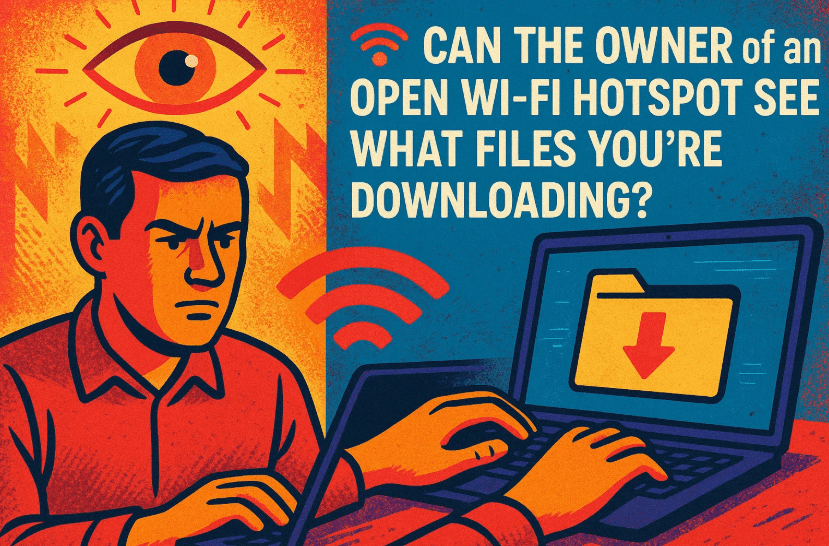
Public Wi-Fi networks are convenient — they’re available in cafes, airports, hotels, and even shopping malls. But have you ever stopped to wonder whether the person providing that Wi-Fi can actually see what you’re doing online?
It’s a fair question and one that every internet user should understand. Using an open Wi-Fi connection isn’t the same as browsing safely at home. Even if you’re not doing anything suspicious, your activities might still be visible to someone else on the same network.
In this article, we’ll break down how Wi-Fi visibility works, whether your downloads can be seen, what ISPs and network admins can monitor, and most importantly — how you can protect yourself.
🌐 1. How Public Wi-Fi Works
Before we dive into visibility and privacy, it’s important to understand how public Wi-Fi functions.
When you connect your laptop or phone to a Wi-Fi hotspot — say, “CoffeeHub Free Wi-Fi” — you’re connecting to a router owned by the establishment. That router, in turn, connects to an internet service provider (ISP), just like your home connection does.
From that moment on, every request your device makes — loading a website, downloading a file, checking emails — passes through that router and the ISP. Essentially, the person who controls that network becomes your temporary ISP.
And just like your actual ISP at home, that person (or organization) could theoretically monitor what’s happening on the network.
🔓 2. What “Open” Really Means in Wi-Fi Networks
You’ve probably seen two types of Wi-Fi networks:
- Open networks — no password required.
- Secured networks — require a WPA2 or WPA3 password.
An open Wi-Fi is not encrypted. That means when you connect to it, your data — including the websites you visit and unencrypted downloads — travels across the air in plain text. Anyone nearby with basic technical knowledge can capture and read that traffic using simple tools like Wireshark or network sniffers.
A secured Wi-Fi, on the other hand, encrypts traffic between your device and the router. This makes it harder for strangers sitting nearby to snoop. However, the Wi-Fi owner (like the cafe’s router administrator) still sits at the gateway and can see what goes through it.
So while secured networks offer more protection than open ones, they don’t make you invisible.









👀 3. What the Network Owner Can Actually See
Let’s get to the heart of the question: Can the owner of an open Wi-Fi hotspot see what files I’m downloading?
The short answer: Yes, potentially — if the connection is not encrypted.
Here’s what a network administrator (or anyone controlling the router) might be able to view:
- Websites you visit (domain names like “example.com”)
- The type and size of the files being downloaded
- The exact files, if they are not encrypted (for instance, via plain HTTP)
- The timing, frequency, and total data consumed
However, here’s what they cannot see:
- The specific content of encrypted (HTTPS) pages
- Exact files downloaded from secure connections
- Your passwords, banking information, or messages, if those services use proper encryption
Still, it’s important to remember that metadata (like what website you accessed and how much you downloaded) remains visible.
🏢 4. Why the Wi-Fi Provider Acts as Your ISP
Every internet connection must pass through an Internet Service Provider. At home, it’s a company like Comcast, Airtel, or JioFiber. But in a coffee shop or airport, that role is played by whoever runs the Wi-Fi router.
That means:
- They have access to logs of your activity.
- They can monitor data usage per device (using your MAC address or IP).
- They can set bandwidth limits or even block certain sites.
In short, they’re your temporary ISP, and ISPs — by design — can see a lot about your traffic unless it’s encrypted.
🧠 Fun fact: The “ISP visibility” problem isn’t limited to coffee shops. Even your home ISP can see which websites you visit unless you use privacy tools like DNS over HTTPS (DoH) or VPNs.
🔒 5. The Role of Encryption — HTTPS vs. Non-HTTPS Traffic
By now, you’ve likely noticed that most websites begin with https:// instead of just http://. The “S” stands for secure — meaning the data between your browser and the website is encrypted.
Let’s see how that affects visibility:
| Type | Encryption | What Others Can See | What Others Cannot See |
|---|---|---|---|
| HTTP | ❌ None | Website name, exact pages, file names, full content | Nothing hidden |
| HTTPS | ✅ Encrypted | Domain name only (e.g., amazon.com) | Pages, downloads, or any sensitive content |
So if you download a file using HTTPS (for example, from a trusted cloud service or software site), the network owner cannot see the file contents, but they can still see that you’re downloading something from that site.
However, if you’re downloading something over HTTP, everything — including the file name and content — is visible in plain text.
🧭 6. How a VPN Protects Your Downloads and Browsing
If you want to completely hide your activity from the Wi-Fi owner, you need one essential tool: a Virtual Private Network (VPN).
A VPN works by creating an encrypted tunnel between your device and the VPN server. All your online traffic — websites, downloads, even DNS lookups — passes through that tunnel.
To the Wi-Fi owner (or ISP), it looks like:
“This person is sending a lot of encrypted data to one VPN address.”
That’s it. They can’t see what websites you’re visiting, what files you’re downloading, or what data you’re exchanging.
You can use trusted VPN services like:
Or if you’re tech-savvy, you can even set up your own VPN using tools like OpenVPN or WireGuard.
⚠️ Note: Always avoid using free, unverified VPNs. They may log your data or inject ads, defeating the purpose of privacy.
📊 7. Can the Owner Still Detect Download Activity?
Even with a VPN, there’s one thing you cannot hide: that data is being transferred.
The Wi-Fi provider can see:
- That your device is connected to a VPN
- The amount of data going through
- When the data transfers occur
But what they can’t see is:
- The websites or servers you’re connecting to
- The file types or contents
So, they might notice you’re using a lot of bandwidth but won’t know what exactly for. It’s like seeing a package being mailed — they can see its size and destination city, but not what’s inside the box.
📶 8. What About Secure Wi-Fi Networks with Passwords?
Let’s assume you’re connected to a Wi-Fi that requires a password — perhaps the cafe gives it to every customer. That means the connection between your device and the router is encrypted using WPA2 or WPA3 protocols.
This prevents nearby strangers from eavesdropping on your traffic. However:
- The router administrator still sees everything passing through it.
- Your ISP (the internet provider serving the cafe) can also see metadata.
- HTTPS and VPNs are still required to keep data truly private.
So while password-protected Wi-Fi reduces local risks, it doesn’t remove upstream visibility.
🧠 9. Best Practices for Safe Browsing on Public Wi-Fi
So far, we’ve covered the “why.” Now let’s focus on the “how” — how to stay secure when using shared or public Wi-Fi.
Let’s move step by step.
✅ Use a VPN Always
A VPN encrypts all your traffic. It’s your first line of defense in open networks.
🔐 Prefer HTTPS Everywhere
Never enter sensitive information on sites that don’t use HTTPS.
You can install browser extensions like HTTPS Everywhere (by EFF) to force secure connections.
🚫 Avoid Downloading Unknown Files
Unencrypted downloads can be intercepted or tampered with. Only download from trusted HTTPS sources.
🧩 Disable Automatic Wi-Fi Connections
Many devices auto-connect to known open networks — disable this to avoid connecting unknowingly.
💾 Turn Off File Sharing
In Windows or macOS, disable file sharing and network discovery before connecting to public Wi-Fi.
🕵️ Use DNS over HTTPS (DoH)
This prevents your DNS queries from being visible to network admins. You can enable it in Chrome, Firefox, or Edge settings.
🔄 Update Your System Regularly
Security patches fix vulnerabilities that attackers exploit on shared networks.
📱 Use Mobile Hotspot When Possible
If your work is sensitive, using your phone’s data connection is far safer than public Wi-Fi.
🚫 10. Common Myths About Wi-Fi Privacy
Let’s bust a few myths people often believe about open networks.
Myth 1: “If a Wi-Fi asks for a password, it’s totally safe.”
→ Not entirely. The password protects against strangers, not the network owner or ISP.
Myth 2: “I only browse harmless sites, so I’m fine.”
→ Even harmless browsing exposes your behavior and habits — valuable data for advertisers or attackers.
Myth 3: “Using incognito mode keeps me anonymous.”
→ Incognito mode only hides history on your device. It doesn’t hide anything from your ISP or the Wi-Fi owner.
Myth 4: “Public Wi-Fi providers don’t have time to monitor.”
→ True in many cases, but systems and routers can automatically log traffic without human involvement.
Myth 5: “HTTPS alone keeps everything private.”
→ HTTPS encrypts content but not metadata — sites visited and data size remain visible.
❓ 11. Frequently Asked Questions
Q1. Can someone in the same cafe see what I’m downloading?
If the Wi-Fi is open (no password) — yes, anyone nearby can sniff your traffic.
If it’s secured (password-protected) and you’re using HTTPS or a VPN, they cannot see the content.
Q2. Can the Wi-Fi owner see my passwords?
Only if you’re using unsecured websites (HTTP). Modern HTTPS pages prevent this.
Q3. Will a VPN slow my internet down?
Slightly, yes — because of encryption overhead. But with a good VPN provider, the slowdown is usually minimal.
Q4. Is mobile data safer than public Wi-Fi?
Absolutely. Cellular networks are encrypted by default, making them much safer for sensitive tasks.
Q5. Can government agencies still track me if I use a VPN?
In some cases, yes — but it requires legal access to VPN provider logs or upstream surveillance. For general Wi-Fi security, a VPN is highly effective.
🧭 12. Final Thoughts
When you connect to public Wi-Fi, remember: you’re essentially trusting someone else’s network to carry your private data.
The owner may not be spying — but they technically can. More importantly, attackers nearby might exploit the same open connection.
To recap:
- Treat every public Wi-Fi as untrusted.
- Always use HTTPS or a VPN when sending or downloading files.
- Avoid logging into sensitive accounts (like banking or corporate portals) without encryption.
- And remember — privacy isn’t about hiding wrongdoing; it’s about maintaining control over your digital footprint.
Public Wi-Fi is convenient, but your security shouldn’t be a price for convenience. A few small precautions can make a world of difference.
⚠️ Disclaimer
The information in this article is for educational purposes only. Unauthorized monitoring or interception of network traffic is illegal. Always follow cybersecurity best practices and respect privacy laws in your region.
#CyberSecurity #VPN #OnlinePrivacy #PublicWiFi #HTTPS #TechTips #DTPtips







