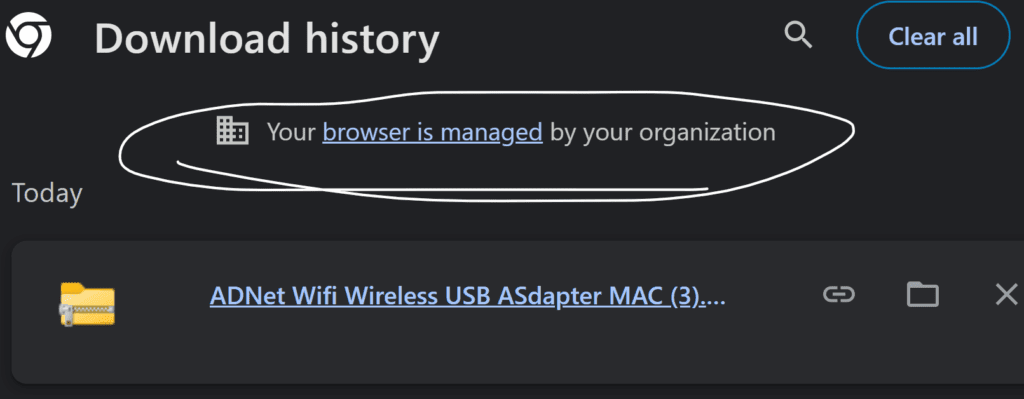
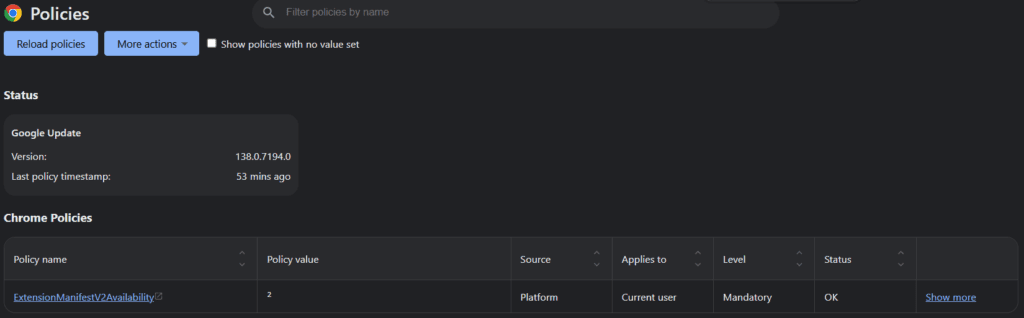
Especially if it’s your personal computer and you’re not part of any organization, this can feel like a breach of privacy or a security risk. Another message that sometimes accompanies this is related to:
ExtensionManifestV2Availability
If you’re seeing this message or policy in Chrome, don’t panic. This article will explain what’s happening, why you might see these warnings, and how to check and remove them safely.
📌 What Does “Your Browser Is Managed by Your Organization” Mean?
This warning means that a Chrome policy has been applied via your operating system’s registry. This is a common mechanism used by:
This Chrome policy controls whether extensions using the older Manifest V2 format are allowed to run. Google is gradually phasing out Manifest V2 in favor of Manifest V3, which is more secure and privacy-focused but limits what some extensions can do.
🔢 Possible Values:
Value
Description
0
Disable all Manifest V2 extensions
1
Allow only already-installed Manifest V2 extensions
2
Allow all Manifest V2 extensions
You might see this if:
You installed an older Chrome extension (like a powerful ad blocker).
Antivirus software or a developer tool added this for compatibility.
A system policy was configured — even unintentionally.
🛠 How to Check for Active Policies in Chrome
You can easily view what policies are applied to your browser:
Open Chrome
Go to: chrome://policy
Look for:
ExtensionManifestV2Availability
Any unusual policies or names you don’t recognize
🔓 How to Remove the “Managed by Your Organization” Message
If this is your personal PC and you’re not under any organization policy, you can remove this manually via the Windows Registry.
Antivirus Software: Some antivirus tools (e.g., Avast, AVG, Kaspersky) install browser extensions that manage Chrome settings.
Check their settings and uninstall any browser-related add-ons.
Group Policy (Windows Pro): Run gpedit.msc and look under: Computer Configuration > Administrative Templates > Google > Google Chrome
Extensions: Disable all Chrome extensions and re-enable one by one to isolate the issue.
If you’re on a corporate-managed laptop, this message is normal. But if you’re on a personal PC, you probably want to remove it. However, in most cases, no, your data isn’t being stolen or your computer isn’t being hacked. And with the following steps you can fix this error. But in case if you are still now sure and want to change the browser here are some best alternatives:
Meera is a browser technology analyst with a background in QA testing for web applications. She writes detailed tutorials on Chrome, Firefox, Edge, and experimental browsers, covering privacy tweaks, extension reviews, and performance testing. Her aim is to make browsing faster and safer for all.