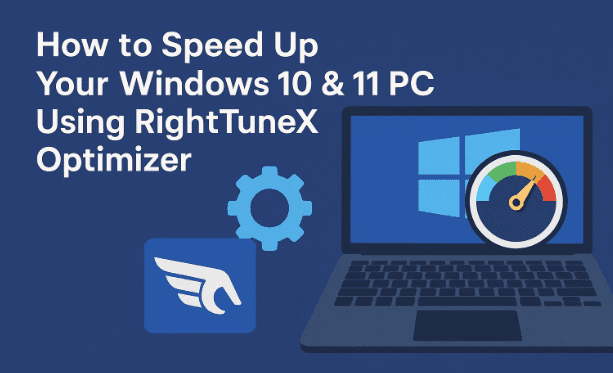
If your PC has been running painfully slow lately, you’re not alone. Many Windows 10 and Windows 11 users experience lag, unresponsive apps, and sluggish boot times after months of use. I was in the same situation — frustrated and almost ready to consider a full reinstall. But then I came across a free tool called RightTuneX, and the results were incredible.
In this article, I’ll walk you through everything you need to know about this optimizer — from downloading and installing it, to using its many powerful features. We’ll also cover important precautions like creating a restore point, and I’ll explain each option in plain English so you can decide which tweaks are right for you.
Let’s dive in step by step.
📥 Downloading RightTuneX
The first step is to get the tool from the official site. RightTuneX is free to use and works on both Windows 10 and Windows 11.
- Open your preferred browser (Chrome, Edge, Firefox).
- Search for RightTuneX or go directly to the RightTuneX official page (verify the link carefully before downloading).
- Scroll down and you’ll find two installation options:
- Automatic installation: Copy a PowerShell command provided on the website and paste it into your PowerShell window. This will download and install RightTuneX automatically.
- Manual installation: Click on the
RightTuneX_setup.zipfile to download it (around 84 MB). Once downloaded, extract the zip to access the installer.
👉 If you’re new to tools like this, I recommend the manual method so you can see what’s happening.
🛡️ Important: Create a System Restore Point
Before making any changes with optimization tools, it’s always best to create a restore point. This ensures that if something doesn’t work as expected, you can roll back your system safely.
Here’s how:
- Press Windows + S, type
restore, and click on Create a restore point. - In the window, select your main system drive (usually C:).
- If the Create button is greyed out, click Configure → Enable system protection → set Max Usage to around 25–30%.
- Click Apply and then OK.
- Now click Create, give the restore point a name (e.g., “Before RightTuneX”), and click Create again.
✅ With this done, you’re safe to proceed.
⚙️ Installing RightTuneX
Now that your system is backed up, let’s install the optimizer:
- Double-click the
RightTuneX_setup.exefile. - If you see “Windows protected your PC,” don’t panic. This appears because the developer hasn’t purchased a signing certificate. Click More info → Run anyway.
- Follow the wizard: Accept the license → Click Next → Install.
- Once completed, click OK and the dashboard will launch.
The tool will immediately recommend creating a restore point again. Since we’ve already done this, you can safely continue.
📊 Understanding the Dashboard
When RightTuneX opens, the first screen shows system monitoring information:

- CPU usage
- RAM usage
- GPU usage
- Network usage
This is handy to get a quick sense of what’s stressing your machine. But the real power lies in the tabs on the left-hand side: Optimize, Repair, Debloat, Privacy, Features, Networking, Security, and Device.
Let’s go through them one by one.
🔧 Optimize Tab – Basic & Advanced System Tweaks
The Optimize section is where you’ll likely spend most of your time. It contains dozens of performance settings, explained with simple descriptions inside the app.
Basic Optimizations
- Disable Menu Show Delay: Speeds up right-click menus and hover animations. Menus will pop instantly instead of with a lag.
- Disable Mouse Hover Time: Reduces lag when hovering over items.
- Disable Background Apps: On Windows 11, there’s no built-in setting to block background apps. This saves resources.
- Disable Crash Dump: Saves disk space, though you lose some diagnostic data. Optional.
- Disable Remote Assistance: If you never use Microsoft’s remote help feature, disable it.
- Disable Window Shake: Prevents accidental desktop rearrangements when shaking windows.
- Add Copy/Move Context Menu: Adds handy “Copy to” and “Move to” options when right-clicking files.
- Disable Remote Registry: Stops remote edits of your registry, improving security.
Advanced Optimizations
- Optimize System Profile: Adjusts system responsiveness for better performance.
- Enhance GPU Priority: Useful for gaming and graphic-intensive tasks.
- Enable Gaming Mode: Prioritizes game performance by reducing background tasks.
- Disable NTFS Time Stamps: Saves resources by not recording file access times.
- Disable SysMain (Superfetch): Stops unnecessary background preloading that often slows down SSD systems.
- Disable Service Timeout: Improves shutdown times.
👉 Take your time here. Read each description and only disable what you don’t use.
🛠️ Repair Tab – Fix Common Windows Issues
This tab provides shortcuts to built-in Windows repair tools, all in one place:
- DISM Command: Repairs corrupted Windows images.
- SFC (System File Checker): Scans and fixes corrupted system files.
- CHKDSK: Checks disk health.
- Battery Health: Useful for laptops to monitor battery condition.
- Memory Diagnostic: Runs tests on your RAM.
- Disk Optimization: Defrags HDDs or trims SSDs.
🗑️ Debloat Tab – Remove Unnecessary Apps
Windows ships with plenty of pre-installed apps you may never use. These consume disk space and sometimes run in the background.
- RightTuneX scans your system for bloatware.
- You can select unwanted apps (e.g., trial software, unused games, extra utilities) and uninstall them with one click.
👉 Example: Many users uninstall Candy Crush, Cortana (Win10), or Xbox Game Bar here.
🔒 Privacy Tab – Take Control of Your Data
One of RightTuneX’s best features is privacy control. It allows you to disable Microsoft’s tracking and advertising features in one place.
Some key options:
- Disable Advertising ID: Stops personalized ads.
- Disable Telemetry: Blocks Windows from sending diagnostic data.
- Disable Online Speech Recognition: Prevents cloud processing of your voice.
- Disable Activity Feed: Stops cross-device tracking of app usage.
- Disable Feedback Notifications: No more “Tell us what you think” popups.
- Block Telemetry in Browsers: Edge, Chrome, Firefox, Nvidia, etc.
👉 Spend a few minutes here. The more privacy settings you disable, the less data Windows shares.
🎨 Features Tab – Customize Windows Experience
This section lets you disable or enable extra Windows features:
- Disable Transparency Effects: Reduces GPU load, speeds up UI.
- Enable Dark Mode: Switch to a system-wide dark theme.
- Enable Verbose Logon: See detailed messages during startup/shutdown.
- Disable Hibernation: Saves disk space (not recommended for laptops).
- Disable Search, Error Reporting, or Game Bar: All can reduce background overhead.
- Enable Classic Context Menu: For Windows 11 users missing the old right-click menu.
- Disable Widgets, Chat, Stickers, Edge Discover Bar, and Copilot AI: If you don’t use them, disable for performance and cleaner UI.
🌐 Networking Tab – Improve Internet Performance
Sometimes your PC feels slow not because of hardware but due to network delays. RightTuneX helps here too:
- Set Custom DNS: Choose faster DNS providers like Cloudflare (1.1.1.1) or Google DNS (8.8.8.8).
- Apply DNS Settings with one click.
This can improve page loading speeds and sometimes lower ping in games.
🔐 Security Tab – Centralized Security Settings
Here, you can manage security-related configurations from one interface. Options vary depending on your Windows build, but typically include:
- Firewall adjustments
- App & browser control tweaks
- User account protections
💻 Device Tab – Hardware-Level Settings
The Device tab gives access to system-specific optimizations, like enabling/disabling unused services or drivers. While less commonly used, advanced users may find this helpful.
❓ FAQs
Q1: Is RightTuneX safe to use?
Yes, it’s safe if downloaded from the official site. But always create a restore point before applying tweaks.
Q2: Does this tool work on both Windows 10 and Windows 11?
Yes. It supports both systems, including Windows 11 22H2 and later builds.
Q3: Will this fix gaming performance issues?
It can improve FPS by disabling background apps, telemetry, and Windows Game Bar. But hardware limitations still apply.
Q4: Can I undo changes?
Yes. Use your restore point or manually toggle options back inside the app.
Q5: Is this better than doing tweaks manually?
For most users, yes. It combines dozens of system tweaks in one dashboard instead of hunting through menus and registry entries.
⚠️ Disclaimer
RightTuneX is a third-party tool. While widely considered safe, use it at your own risk. Always create a restore point before applying system tweaks. Some optimizations may disable features you personally rely on, so read descriptions carefully before toggling them.
📝 Final Thoughts
RightTuneX is one of the most powerful free optimizers for Windows 10 and 11. Instead of juggling multiple scripts, registry edits, or hidden settings, you get a single dashboard with clear explanations and one-click toggles.
Here’s what makes it worth trying:
- Huge list of performance and privacy tweaks.
- Ability to debloat Windows easily.
- Repairs and diagnostics built in.
- Fully compatible with both Windows 10 and 11.
If your PC has been running slow, this tool can breathe new life into it. Just take your time, read each option, and enable only the ones that match your needs. With a bit of patience, you’ll notice a smoother, faster, and more private Windows experience.
Tags
windows 11 optimizer, windows 10 optimizer, pc performance boost, debloat windows, disable telemetry windows 11, righttunex guide, free windows tool, speed up slow pc
Hashtags
#Windows11 #Windows10 #PCPerformance #RightTuneX #WindowsOptimizer #SpeedUpPC








