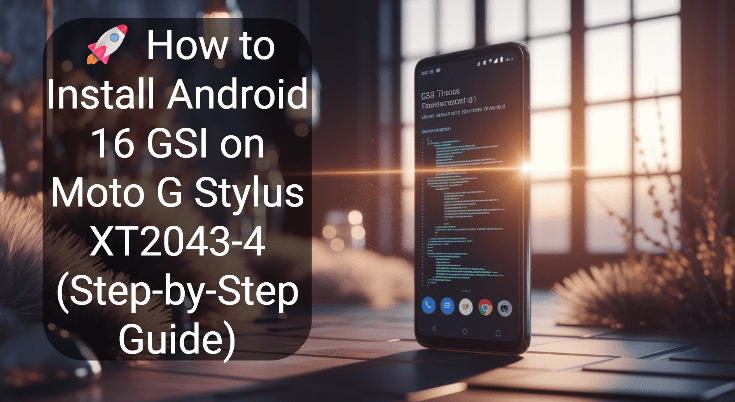
If you own a Moto G Stylus (XT2043-4) and want to upgrade to Android 16, this guide will walk you through the process of installing a Generic System Image (GSI) using Fastboot. Although this Motorola device originally came with Android 10/11, it supports Project Treble, which makes it possible to flash newer Android versions via GSI.
⚠️ Disclaimer: This process will wipe all your data and may void your warranty. Proceed at your own risk. This guide is for advanced users who are familiar with ADB/Fastboot and bootloader unlocking. DTPTips and the author are not responsible for any damage or bricked devices.
📱 Device Details
Model: Moto G Stylus
Variant: XT2043-4 (Snapdragon 665)
Partition Type: A-only
Supports Project Treble: ✅ Yes
Stock Android Version: Android 10 / 11
🧰 What You’ll Need
Item
Description
✅ Bootloader Unlocked
Use fastboot oem unlock (after enabling OEM unlock in Developer options)
Go to Settings > About phone > Tap Build number 7 times
Go to Settings > System > Developer Options
Enable OEM unlocking
Enable USB Debugging
Unlock the Bootloader Connect phone to PC, then run: adb reboot bootloader fastboot oem unlock Follow the on-screen prompts on the device. This will wipe your phone.
Check Partition Type In fastboot mode, run: fastboot getvar is-logical:system If it says no, it’s A-only (confirmed for XT2043-4).
⚙️ How to Flash Android 16 GSI
⚠️ Make sure your .img files are in the same folder as your fastboot executable.
Step 1: Boot into Fastboot
adb reboot bootloader
Step 2: Wipe Partitions
fastboot erase system
fastboot erase userdata
fastboot erase metadata
If the device gets stuck in bootloop, return to fastboot and reflash.
Make sure to always erase userdata before flashing GSI.
🧪 Troubleshooting Guide
Issue
Solution
Still booting to Android 11
You may have used the wrong partition type or skipped vbmeta flashing
Bootloop or stuck on logo
Make sure to fastboot erase userdata before booting
No WiFi or Camera
Some GSI builds may not support Moto hardware fully
GSI fails to flash
Ensure GSI is unzipped and in correct format: .img (not .xz)
❓ FAQs
Q: Can I use TWRP to flash Android 16 GSI?
A: You can, but fastboot is more reliable for flashing .img GSI files on A-only devices like XT2043-4.
Q: Will this update my phone permanently to Android 16?
A: No. GSI images are not OTA-updatable. You’ll need to reflash manually if you want updates.
Q: How to revert back to stock ROM?
A: You can flash the stock firmware using Lenovo Rescue Tool or use fastboot commands with official factory images.
✅ Summary
Step
Description
1️⃣
Unlock bootloader and prepare PC with ADB/Fastboot
2️⃣
Wipe necessary partitions and flash vbmeta.img
3️⃣
Flash GSI system image using fastboot
4️⃣
Reboot and wait for first boot
Once complete, your Moto G Stylus XT2043-4 should be running Android 16 GSI with a fresh new interface, improved system optimizations, and better compatibility with newer apps.
Sahil is a mobile technology blogger and Android developer who has worked on custom ROM projects and app testing. With a background in mobile software engineering, he reviews apps, explains Android tweaks, and creates in-depth tutorials for both casual users and advanced tinkerers.