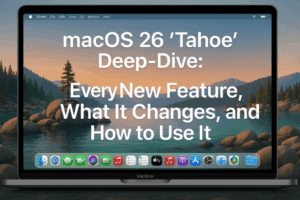
Apple’s latest macOS update, macOS Tahoe, brought several changes to how we use our Macs every day. One of the biggest surprises? Launchpad is gone.
For years, Launchpad gave Mac users a grid of all their apps, similar to the iPhone or iPad home screen. It wasn’t everyone’s favorite tool, but many relied on it as their primary way to organize and launch apps. Now that it has been removed, many users are left wondering: what do I do instead?
The good news is that there are multiple ways to launch apps on macOS Tahoe, many of which are faster and more flexible than Launchpad ever was. In this article, we’ll walk through the built-in alternatives, step-by-step setup guides, and even some clever tricks to build your own Launchpad-style replacement.

1. Why Did Apple Remove Launchpad?
Apple has been through this cycle before. Remember when people demanded iTunes be broken into smaller apps, only to later complain when Apple finally did it? The truth is, software evolves, and Apple can’t please everyone.
Many users never liked Launchpad. They ignored it, preferring Spotlight or the Dock. Others swore by it and used it daily. But in Apple’s view, Spotlight and the Dock already covered the same ground—and with more flexibility.
If you’re one of the users missing Launchpad, don’t worry. With a little adjustment, you can still get a similar (and sometimes better) experience.
2. The Dock: The Easiest Alternative
The Dock has always been designed for launching apps quickly. If you’ve never customized it, now is the time.
Here’s how to set it up:
- Open a Finder window and go to the Applications folder.
- Find an app you frequently use.
- Drag it into the Dock. It will stay there until you remove it.
- Rearrange apps by dragging them around in the Dock.
- Place your most-used apps to the left for quick access.
If you rarely use an app, drag it upward to remove it from the Dock. Ideally, keep your 10–15 most-used apps in the Dock for easy access.
👉 Pro Tip for Keyboard Lovers:
If you prefer the keyboard, you can still navigate the Dock. Press Fn (or Globe) + A to open the Dock. Use arrow keys to move around, or type the first letter of an app to jump to it. Press Return to launch.
3. Spotlight Search: Faster Than Ever
For many users, Spotlight Search has long replaced Launchpad.






- Press Command + Space to bring up Spotlight.
- Type the first few letters of an app.
- Press Return when the app appears.
That’s it—quick and efficient. Some users rely exclusively on Spotlight and never touch the Dock. Others use both: primary apps in the Dock, everything else via Spotlight.
4. Spotlight’s New Applications Mode
macOS Tahoe introduced something even closer to Launchpad: Applications Mode in Spotlight.
Here’s how to use it:
- Press Command + Space to open Spotlight.
- While holding Command, press 1. This switches Spotlight into Applications-only mode.
- Type the app name and press Return.
This mode is much faster than regular Spotlight because it only searches apps, not documents or web results.
Bonus Features:
- Apps are listed alphabetically, something Launchpad never allowed.
- Categories appear at the top, letting you filter apps by type.
- Suggestions at the top highlight your most likely choices.
👉 Customization Tip:
Go to System Settings > Keyboard > Keyboard Shortcuts > Spotlight. Enable “Show Apps” and assign your own shortcut (for example, Shift + Command + Space) to open Applications Mode directly.
5. Adding the Applications Folder to the Dock
If you miss Launchpad’s “all apps in one place” style, you can mimic it using the Applications folder.
Here’s how:
- Open Finder and go to your Applications folder.
- Drag the folder into the right side of the Dock (next to the Trash).
- Control-click on it and set:
- Display as: Folder
- View Content as: List or Grid
Now you can click it anytime to see all your apps in alphabetical order, including those in subfolders like Utilities.
This gives you an instant, Launchpad-like menu from the Dock.
6. Building Your Own “Launchpad” with Aliases
If you want something that feels even closer to Launchpad, you can create a custom folder filled with app shortcuts (aliases).
Step-by-step:
- On the Desktop, create a new folder called Launchpad.
- Open the Applications folder in Finder.
- Drag apps you want into your new Launchpad folder. This automatically creates aliases (shortcuts).
- Switch the folder to Icon View (View > As Icons).
- Sort by Name to keep it alphabetical—or turn off sorting to arrange manually.
Now you have your own Launchpad-like folder.
👉 You can even customize it:
- Change icon size and grid spacing.
- Set a custom background color or image.
- Group apps into subfolders for organization.
For power users, place this folder in the Dock and set it to View as Grid. You’ll get a Launchpad-style grid menu just a click away.
7. Customizing Folders and Grid Views
Your DIY Launchpad folder can be customized further:
- Sort by Name: Keep everything alphabetical, like Spotlight’s Applications Mode.
- Snap to Grid: Arrange icons manually but neatly.
- View Options (Command + J): Change icon size, text size, grid spacing, and even background color or image.
- Full-Screen Mode: Open the folder full-screen for a classic Launchpad feel.
You can even add emojis or custom icons to the folder itself. Control-click > Customize Folder to change its appearance in Finder and the Dock.
8. Efficiency Tips for Keyboard Users
If you relied on Launchpad for speed, these tricks will keep you just as fast:
- Assign a custom Spotlight shortcut for Applications Mode.
- Use Dock keyboard navigation (Fn + A, arrow keys, Return).
- Add your custom Launchpad folder to the Dock and jump with letters (type the app name’s first letters, then Return).
- In your DIY Launchpad folder, hold Option + Double-click to launch an app and close the folder instantly.
9. Frequently Asked Questions (FAQs)
Q1: Why did Apple remove Launchpad in macOS Tahoe?
Apple felt Spotlight and the Dock already covered the same functionality. Launchpad had a small, loyal audience but wasn’t widely used.
Q2: Can I bring Launchpad back with third-party apps?
Not exactly. Some utilities mimic it, but the best solution is creating your own Launchpad-style folder or using Spotlight’s new Applications Mode.
Q3: Is Spotlight’s Applications Mode really faster?
Yes. It skips files, folders, and web results, searching only apps. This makes it closer to Launchpad in speed and simplicity.
Q4: Can I still use keyboard shortcuts like before?
Yes. You can assign any shortcut you like to open Spotlight’s Applications Mode, making it just as quick as Launchpad.
Q5: Which method is best overall?
It depends:
- Dock for most-used apps.
- Spotlight for fast search.
- DIY Launchpad folder for visual organization.
10. Conclusion
Launchpad may be gone, but macOS Tahoe offers more than enough ways to launch apps quickly and efficiently. Whether you prefer the Dock, Spotlight’s new Applications Mode, or a custom Launchpad-style folder, you can adapt your workflow to be faster and more flexible than before.
Think of this change not as a loss, but as an opportunity to set up your Mac exactly the way you want. With a little customization, you can create a system that fits your habits better than Launchpad ever did.
Disclaimer
This article is based on macOS Tahoe features available at the time of writing. Apple may continue refining Spotlight and Dock functionality in future updates.
Tags
macOS Tahoe, Launchpad alternatives, Spotlight search, macOS Dock tips, Launchpad replacement, macOS productivity, Mac app launching, Apple Mac tips
Hashtags
#macOS #Launchpad #MacTips #Productivity #SpotlightSearch #Dock #Apple





