Playing full-screen on a single display while trying to keep up with chat can feel like a juggling act: alt-tabbing, glancing at your phone, missing messages, and losing focus mid-fight. The good news? You can float Twitch chat over your game—clean, minimal, and always in sight—without buying a second monitor or changing your streaming app.
In this complete, step-by-step guide, we’ll set up a lightweight Windows overlay that shows your Twitch chat on top of any game. It works with OBS Studio, Streamlabs, or any encoder, and you control whether your audience sees that overlay (you usually don’t want them to). We’ll also cover capture-mode gotchas (fullscreen vs. borderless), smart filtering to hide bot spam, sound cues, themes, and multi-platform chat options.
By the end, you’ll have a tidy, legible chat window placed exactly where your eyes naturally travel during gameplay.
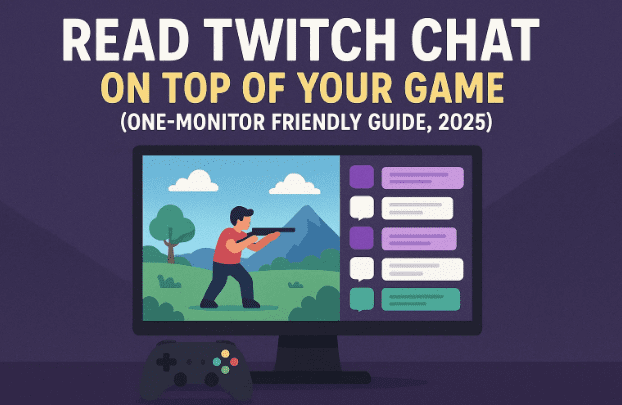
1. What We’re Building (and Who It’s For)
Before we dive into toggles and hotkeys, let’s get on the same page. The goal is simple: keep your eyes on the game while never missing a message. If you’re a one-monitor streamer—or you have two monitors but hate the neck swivel—an on-top chat overlay offers that “second screen” feel without extra hardware.
We’ll use a free, lightweight Windows app that floats a transparent chat window above everything else. You can position it where your eyes already travel (edge of the minimap, near ability bars, etc.) and tune opacity so it’s readable without hiding critical UI. No streaming app change is required.
2. How “Always-On-Top” Chat Overlays Work
It helps to know what’s happening under the hood. The overlay window:
- Connects to a Twitch chat channel and renders messages in a frameless, click-through-optional window.
- Stays always on top, even when a game is in focus.
- Lets you adjust zoom (text size), theme, and transparency so it complements the HUD instead of clashing with it.
One key caveat: some exclusive fullscreen render paths don’t allow overlays to display. That’s why you’ll see us recommend Borderless Fullscreen/Windowed if your game hides the overlay. More on that shortly.
3. Download & Install: Transparent Twitch Chat Overlay
We’ll use an established open-source utility called Transparent Twitch Chat Overlay (Windows).
- Official releases (free): https://github.com/baffler/Transparent-Twitch-Chat-Overlay/releases
You’ll typically see versioned “Releases” (e.g., Release 117). If your page shows a newer number, that’s perfect—the setup steps are the same.
Steps
Let’s move calmly through the process:
- Visit the releases page (link above).
- Download the installer build (e.g.,
TransparentTwitchChatOverlaySetup.exe). - Once downloaded, open your Downloads folder and double-click the installer.
- If SmartScreen warns you, click More info → Run anyway (details in the next section).
- Follow the on-screen setup to complete installation.
When the app launches, you’ll see a clean, floating frame—the “container” where your chat will appear.









4. First Run: Smart Security Tips (False Positives Explained)
Many capture/overlay tools trigger SmartScreen or antivirus “unknown publisher” prompts. This is common with niche open-source tools that hook windows or render on top of other apps.
- Why it happens: The overlay needs permission to draw above other windows (and sometimes to be click-through). Some security programs flag that behavior by default.
- What to do: On Windows SmartScreen, choose More info → Run anyway.
- If your antivirus flags it: Add an exception or restore from quarantine (if quarantined). Always download from the official GitHub releases page linked above to avoid tampered binaries.
Taking a minute here prevents repeated blocks later.
5. Quick Connect: Show Any Twitch Chat (No Password Needed)
One of the nicest touches: you can view a channel’s chat without logging in. That means fewer permissions to grant and faster setup during a test.
Here’s a gentle path to your first messages:
- Open the overlay app.
- Click the ☰ (three lines) menu → Settings.
- In the Twitch Username field, type the channel name whose chat you want to see.
- For your stream: type your Twitch username.
- Not live yet? You can even test with a larger channel to watch real-time messages flow.
- Click Save.
You’ll see a small status like Connecting → Chat connected → Joined channel. If the target channel is active, messages should appear quickly—often faster than Twitch’s own web chat.
Tip: If you want Channel Points redemptions or other authenticated features, you’ll need to connect your Twitch account under Connections. Otherwise, staying logged out is fine for read-only chat.
6. Clean It Up: Filters, Bots, Mods, and Fade Settings
A quick tidy before we pin this over your minimap. The overlay includes flexible filtering so you can hide noise and keep signal.
- Fade out old lines: If you enable “fade after N seconds,” messages gradually disappear (e.g., after 120s). This keeps the view uncluttered in slower chats. If you prefer a running log, disable it.
- Block bot spam: Open Chat Filter Settings → Add and enter bot usernames (e.g.,
Nightbot,StreamElements,Moobot). This hides automated chatter while leaving real viewers visible. - Allow mods only (optional): Useful during test streams or when you only want staff notes. For most creators, keep this off to see everyone.
- Allowed usernames list: Whitelist specific people (collab partners, editors) during recorded segments to minimize distraction.
A couple thoughtful minutes here can completely change how readable your overlay feels mid-match.
7. Quality of Life: Sounds, Themes, Size, and Opacity
We’ve prepared the canvas; now let’s make it pleasant to read.
- Chat “ding” on message: In Chat Sound, you can select an audio cue whenever a message arrives. This is helpful when chat is quiet, but it can become fatiguing. If in doubt, set None.
- Themes: Pick from built-in styles for contrast that fits your game’s palette. High-contrast themes shine in bright, colorful titles; subtler themes complement darker UIs.
- Zoom (text size): Use the zoom control to make text legible at a glance. Don’t be shy—oversized text is better than squinting.
- Opacity: A sweet spot is 70–85%—readable text while preserving HUD elements beneath. For games with dense HUDs, go higher opacity; for clean UIs, go lower.
Small habit that helps: when you boot a new game, spend 20 seconds nudging zoom and opacity. That micro-tune often prevents headaches later.
8. Place It Perfectly: Move, Resize, Lock/Unlock & Hotkeys
Now that messages look clean, let’s put the overlay where you’ll naturally see it without losing situational awareness.
- Click-drag the top area of the overlay to move it.
- Use corners/edges to resize.
- When it’s just right, lock it so it won’t shuffle while tabbing.
Default lock hotkey: Ctrl + Alt + F9
- Press once to lock position and borders.
- Press again to unlock and tweak placement.
If you want borderless edges while unlocked, check General for a border toggle hotkey (or bind your own). Keep your hotkeys unique to avoid conflicts with OBS or your game.
Placement tips:
- Near the minimap for MOBAs/BRs.
- Above ability bars where eyes scan constantly.
- Top-left for games with clean corners.
- Avoid the absolute center; your crosshair is sacred.
9. Make It Visible Over Games: Fullscreen vs. Borderless Windowed
Here’s where most first-timers get tripped up. Not all fullscreen modes allow overlays. If your chat disappears when you focus the game:
- Open your game’s Video/Graphics settings.
- Change Display Mode to Borderless Fullscreen (a.k.a. Windowed Fullscreen) or Windowed.
- Apply and alt-tab once. Your overlay should now appear on top.
A few games behave beautifully in exclusive fullscreen (overlay visible); many do not. When in doubt, Borderless Fullscreen is the most reliable choice for overlays and for fast tabbing to OBS without display flicker.
Try all modes if needed: Fullscreen → Borderless → Windowed. One of them almost always plays nicely with overlays.
10. Should Viewers See This Overlay? Capture Modes Explained
You likely want you to see chat, not your audience. Whether the overlay shows up on stream depends entirely on how you capture your screen in OBS/Streamlabs:
- Display Capture
- Captures everything on the monitor—including the chat overlay.
- Best if you intentionally want chat visible to viewers (rare).
- Game Capture (recommended for most)
- Hooks directly into the game process.
- Does not capture your on-top chat overlay.
- Window Capture
- Captures a specific window.
- Also does not capture the overlay floating above.
Bottom line:
- Want private on-top chat? Use Game Capture (or Window Capture).
- Want chat on stream too? Use Display Capture (or add a separate browser-source chat to your scene, which is often cleaner).
If you choose to show chat on stream, it’s better practice to add a browser-source chat widget in OBS for consistent styling and moderation tools. Keep the overlay just for your eyes.
11. Multi-Chat (YouTube, TikTok, Kick) with Widgets/Browser Sources
Many streamers simulcast or at least repurpose scenes across platforms. This overlay can render any web-based chat widget via its Widgets feature:
- In your multi-platform chat tool (e.g., a restream service or custom aggregator), copy the browser chat URL.
- Open the overlay ☰ → Widgets and paste that URL.
- Save and switch the overlay to display the widget instead of native Twitch chat.
This way, your on-top window can show combined chat from multiple platforms. If you only need Twitch, the built-in connection is simpler and snappier.
12. Troubleshooting: 20 Real Fixes for Common Issues
Things not behaving? Let’s work through the most frequent hiccups—one calm fix at a time.
- Overlay not visible in game → Switch the game to Borderless Fullscreen or Windowed.
- Overlay vanishes after alt-tab → Re-lock with
Ctrl + Alt + F9; confirm the app isn’t minimized to tray. - Messages appear but are tiny → Increase Zoom in the overlay.
- Text is hard to read → Try a higher-contrast theme and raise Opacity to ~80–90%.
- Chat delays vs. Twitch → Usually the overlay is faster, but if it lags, restart the overlay; check your network; avoid VPN relays.
- Antivirus quarantines the app → Restore from quarantine; add an exception; verify the GitHub release is the source.
- SmartScreen won’t let me run it → Click More info → Run anyway.
- Bots spamming the overlay → Add bot usernames to Filter → Blocked list.
- I only want mods to appear → Enable Allowed: Mods only in filter settings (not common, but useful during testing).
- Channel Points not showing → Connect your Twitch account under Connections; redemptions need authentication.
- I can click the overlay by accident → Ensure it’s locked (
Ctrl + Alt + F9). - Overlay captures on stream → You’re using Display Capture. Switch the scene to Game Capture if you want it hidden from viewers.
- Overlay behind game → Some titles force top-most focus. Use Borderless Fullscreen; relaunch the overlay after the game starts.
- Hotkeys conflict with a game → Rebind overlay hotkeys in General to something unused.
- Ding sound too loud → Set Chat Sound → None or choose a different output device in settings.
- DPI scaling is weird → In Windows Display Settings, set the monitor scaling to 100–125%; adjust overlay Zoom to compensate.
- Dual monitor shenanigans → If your overlay keeps jumping, lock it and avoid Windows Snap while adjusting.
- I want it click-through → Some versions let you toggle click-through/border behavior in General; otherwise keep it locked.
- Messages fade too fast → Increase the fade timer (e.g., 120–180 seconds) or disable fading entirely.
- I stream vertical content (TikTok Live) → Raise Zoom, increase Opacity, and test placement near the top third where vertical HUDs are minimal.
13. Alternatives & When To Use Them
There are multiple paths to readable chat. The overlay is superb for eyes-only viewing, but sometimes you’ll want different tools:
- OBS Docked Chat (View → Docks → Chat)
- Great if OBS is visible on a second screen. Not ideal for one-monitor gaming.
- Twitch Pop-out Chat in a Browser
- Works, but stays behind fullscreen games and gets lost while alt-tabbing.
- Browser-Source Chat in OBS (on stream)
- Perfect when you want chat visible to viewers (with branding). Not a replacement for a private overlay.
- Third-party desktop chat clients (e.g., dedicated chat apps)
- Handy for power users, but most don’t overlay on top of games reliably without extra tools.
- Phone/Tablet as a sidecar
- Works in a pinch. Drains battery, adds eye travel, and ties up a device.
If your primary goal is read chat on one monitor without alt-tabbing, the transparent overlay you set up here is the most focused solution.
14. Quick Comparison Table (Overlay vs. Dock vs. Display Capture)
Sometimes a simple side-by-side view clarifies the choice:
| Method | For Your Eyes Only? | Shows on Stream? | Works Over Fullscreen? | Best Use Case |
|---|---|---|---|---|
| Transparent Overlay (this guide) | ✅ Yes | ❌ Not with Game/Window Capture | ✅ With Borderless/Windowed (usually) | One-monitor streamers who want private, always-visible chat |
| OBS Docked Chat | ✅ Yes | ❌ No (unless captured) | ❌ Stays in OBS window | Two-monitor setups with OBS visible |
| Browser Pop-Out Chat | ✅ Yes | ❌ No (unless captured) | ❌ Behind exclusive fullscreen | Casual use, windowed gameplay |
| Browser-Source Chat (in OBS) | ❌ No | ✅ Yes (intended) | ✅ Always (it’s in scene) | Put chat on stream with branding |
| Display Capture + Any Chat | ❌ No | ✅ Yes (captures everything) | ✅ Always | Show everything on a monitor (risky for privacy) |
15. FAQs
Q1. Do I have to log into Twitch for the overlay to work?
No. You can view any public channel’s chat by typing its username. If you want Channel Points/Redemptions or other authenticated features, connect your account under Connections.
Q2. My game hides the overlay. What now?
Switch your game to Borderless Fullscreen (or Windowed). Relaunch the overlay after the game is in focus if needed.
Q3. Will my viewers see the overlay too?
Only if you use Display Capture. If you use Game Capture or Window Capture, the overlay won’t appear on your stream. To show chat to viewers, add a browser-source chat in OBS.
Q4. Is the overlay safe? Why does antivirus complain?
Overlays draw on top of other applications, which can trigger false positives. Download from the official GitHub releases and, if prompted, allow/whitelist it.
Q5. Can I combine chats from YouTube/TikTok/Kick?
Yes. Use the overlay’s Widgets feature with a browser chat URL from your multi-chat tool to render combined messages.
Q6. How big should the text be?
Big enough to read without effort. Increase Zoom until it’s glanceable. Don’t be afraid of larger fonts; clarity beats style mid-fight.
Q7. The ding sound drives me nuts.
Set Chat Sound → None or choose a milder custom sound/output device in settings.
Q8. Can I toggle the overlay per scene?
Keep the overlay app running for your eyes; control what the audience sees via OBS: use Game Capture to hide it, Display Capture to show it.
Q9. Does this work on macOS or Linux?
This specific utility targets Windows. On other OSes, look for platform-native overlays or use windowed gameplay + arranged browser chat.
Q10. Is there any performance cost?
Minimal. It’s a lightweight overlay. The biggest impact usually comes from Display Capture (if used), not from the overlay itself.
16. Wrap-Up
We’ve covered a lot—nicely done so far. You downloaded the overlay, understood why security prompts appear, connected to chat without sharing passwords, filtered out bot noise, tuned readability with themes/opacity, and most importantly, placed and locked the chat where it works for your eyes.
From here, the workflow becomes muscle memory: launch your encoder, launch the overlay, lock it, confirm your game’s display mode, and go live. Those tiny optimizations—bigger font, smarter placement, fewer distractions—add up to smoother streams and better responses to your community in real time.
If you ever change games or HUDs, take thirty seconds to re-nudge zoom and opacity. It’s a small ritual that keeps your overlay useful, not intrusive.
Enjoy the quiet superpower of seeing every message without ever breaking focus.
Disclaimer
This article is for educational purposes only. Always download software from official sources and review requested permissions. Overlays may not display in some exclusive fullscreen modes; use windowed or borderless fullscreen where necessary. Respect platform Terms of Service and community guidelines when using multi-chat tools or third-party widgets.
Tags
twitch chat overlay, read chat one monitor, borderless fullscreen overlay, obs game capture vs display capture, twitch chat filter bots, streaming setup 2025, transparent chat window, multi platform chat widget, streamer productivity
Hashtags
#Twitch #StreamingTips #OBS #Streamlabs #ContentCreation #OneMonitorSetup #TwitchChat #LiveStreaming








