If you’ve used the same PC through a few hard-drive swaps, Windows reinstallations, or user account changes, it’s perfectly normal to end up with a maze of folders that no longer feels intuitive. “Where should my files live?” “What is AppData?” “Why are there two ‘Program Files’ folders?” Let’s answer all of it—clearly, patiently, and with practical steps you can use today to tidy up without breaking anything.
Grab a coffee. We’ll walk through the fundamentals first (drives, folders, files), then the standard Windows layout (C:\ at the top, the big four: Windows, Program Files, Program Files (x86), Users), and finally the hidden but important AppData. Along the way, you’ll get pro tips, safe-to-follow steps, and an FAQ. By the end, you’ll know exactly what is where and where your stuff should be—plus how to keep it organized going forward.
📑 Table of Contents
- 🌳 Big Picture: How Windows Organizes Storage
- 💽 Drives vs. Partitions vs. Letters (C:, D:, F: …)
- 📁 Folders & 📄 Files: The Everyday Building Blocks
- 🪵 The “Tree” Model & Paths You Can Read (and Type)
- 🏠 The Standard C:\ Layout You’ll See on Most PCs
- 👤 C:\Users<YourName>\ — Your “Home” and Its Default Folders
- 🗂️ Quick Access vs. Real Locations (Why Windows Hides the Details)
- 🕵️♀️ Meet AppData: Local, LocalLow, and Roaming (What Lives There?)
- 🧭 Practical Organization Tips (Without Fighting Windows)
- 🧹 Step-by-Step: How to Clean Up Old Users & Lost Folders Safely
- ⚠️ What Not to Touch (System Folders & Permissions)
- ❓ FAQ: Your Most Common “Where Is…?” Questions
- ✅ Summary: A Simple Mental Model to Keep You Sane
- 🔒 Small Disclaimer & Helpful Microsoft Links
1. 🌳 Big Picture: How Windows Organizes Storage
Let’s set a common vocabulary so nothing feels mysterious:
- Drive / Volume / Partition
Think of a drive letter (like C: or D:) as a labeled “top-level box.” It might be a physical disk, a partition on a disk, a USB stick, or even a network location. Each letter is its own self-contained world. - Folder (a.k.a. Directory)
A container for other folders and files. Like a paper folder in a filing cabinet. Folders can nest inside folders—no practical limit you’ll hit in normal use. - File
A single item—your photo, spreadsheet, PDF, or program. The part after the last dot is the file extension (e.g.,.jpg,.docx,.pdf) and indicates the type.
That’s it. Everything else is structure layered on top of these three.
2. 💽 Drives vs. Partitions vs. Letters (C:, D:, F: …)
- C: is almost always your system drive (where Windows lives).
- D:, E:, F: might be another internal disk, a separate partition on the same disk, a DVD drive, a USB stick, or a mapped network drive.
💡 Tip: You can see all recognized drives in File Explorer → This PC. Every drive letter is independent—organize each like its own small universe.
If you’ve had “a few hard drives and system crash/reboots” over the years, it’s common to have:
- Extra drive letters from prior setups,
- Folders that look like they belong to old user accounts,
- Stray “Windows.old” (after upgrades) or backup folders someone once copied.
We’ll clean those later—safely.
3. 📁 Folders & 📄 Files: The Everyday Building Blocks
Folders are your buckets; files are the contents. Windows itself uses many folders for its own needs (system files, drivers, logs). You use folders for your stuff (Documents, Pictures, project folders, etc.).
Friendly advice: Keep your personal files under C:\Users<YourName>* (more in a minute). Resist the urge to stash personal files at the very top of **C:*—that’s where Windows expects system things.
4. 🪵 The “Tree” Model & Paths You Can Read (and Type)
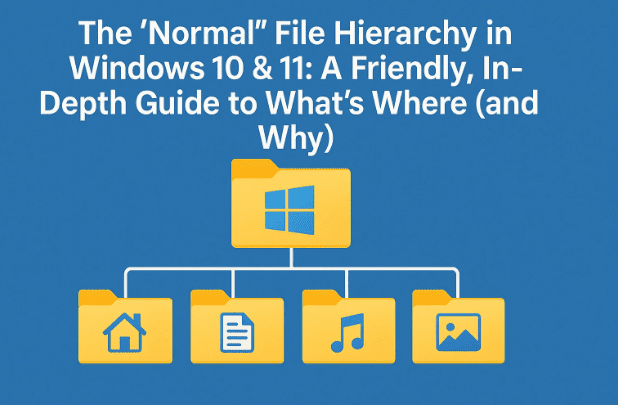
Windows’ layout is a tree:
This PC
 └─ C:\
    ├─ Program Files\
    ├─ Program Files (x86)\
    ├─ Users\
    └─ Windows\
Every item has a path you can type:









- A folder path:
C:\Users\Leo\Documents - A file path:
C:\Users\Leo\Documents\budget-2025.xlsx - Special variables that auto-expand:
%USERNAME%→ your current account name%USERPROFILE%→ your home folder (e.g.,C:\Users\Leo)%APPDATA%→ your Roaming AppData (e.g.,C:\Users\Leo\AppData\Roaming)
Try them in File Explorer’s address bar—handy when you’re not sure of the exact name.
5. 🏠 The Standard C:\ Layout You’ll See on Most PCs
Windows doesn’t enforce a ton of rules on you, but it does expect a few top-level folders on C: to exist for itself and your apps:
| Top-Level Folder | What It’s For | Should You Store Personal Files Here? |
|---|---|---|
C:\Windows\ | The Windows operating system itself | No |
C:\Program Files\ | 64-bit apps installed for all users | No |
C:\Program Files (x86)\ | 32-bit apps installed for all users | No |
C:\Users\ | A folder per user account + a few special folders | Yes — inside your own user folder |
C:\PerfLogs\ (sometimes) | Performance logs | No |
Vendor folders (e.g., C:\Dell) | PC maker utilities | No |
Your own custom folders (e.g., C:\MyStuff) | Things you (or an app) created | Better to keep personal data under your user folder instead |
Let’s move to the part you really care about: your home.
6. 👤 C:\Users<YourName>\ — Your “Home” and Its Default Folders
When you sign in, Windows creates a home for that account:
C:\Users\<YourName>\
Inside, you’ll see the familiar default libraries:
- Desktop — Items you see on your desktop
- Documents — General personal files
- Downloads — Browser & app downloads
- Music, Pictures, Videos — Self-explanatory
- OneDrive — If enabled, a special sync folder tied to your Microsoft account
- AppData — Hidden; where apps store your per-user settings/data (details soon)
Why keep your files here?
- Permissions are set so your stuff stays separate from other users on the PC.
- Backup tools expect your data here.
- Many apps default here when saving files.
A quick sanity check
Open File Explorer → This PC → C: → Users → <YourName> and confirm those folders exist. If you’ve had multiple user accounts over time (e.g., John, John_1, Admin, an email-based name), you’ll see multiple folders—we’ll clean those safely in Section 10.
7. 🗂️ Quick Access vs. Real Locations (Why Windows Hides the Details)
By default, the left sidebar shows Quick Access: handy shortcuts like Desktop, Downloads, Documents. They often don’t show the actual path, which can be confusing when you’re trying to figure out “where am I, exactly?”
Show the real path
- In File Explorer, click the address bar once: it reveals the true path (
C:\Users\<YourName>\Documents). - Or right-click a folder (e.g., Downloads) → Properties → Location to see its physical path.
If something feels “lost,” chances are you’re looking at a shortcut view instead of the real location. Switch to the address bar view to get your bearings.
8. 🕵️♀️ Meet AppData: Local, LocalLow, and Roaming (What Lives There?)
This is the most misunderstood part of your home folder:
C:\Users\<YourName>\AppData\
   ├─ Local\
   ├─ LocalLow\
   └─ Roaming\
AppData is hidden by default. To see it:
- File Explorer → View → Show → Hidden items (Windows 11)
- Or File Explorer → View → Options → View → enable Show hidden files (older versions)
What the three parts mean (in theory):
| Subfolder | Intended Use | Typical Contents |
|---|---|---|
Roaming | Data that could follow you to another machine (in corporate setups) | App settings & profiles (e.g., browser profiles, app configs). %APPDATA% points here. |
Local | Data tied to this machine only | Caches, large data sets, temp files |
LocalLow | Like Local, but for low-integrity (restricted) apps | Data for apps running with extra restrictions (e.g., browser plugins in protected mode) |
Reality check: Developers are inconsistent. You’ll find important app settings under Roaming, and under Local for other apps. That’s normal. Don’t move things around in AppData unless an app’s documentation specifically tells you to.
💡 Good to know
- Backups: Include Roaming and Local in your user-profile backups; many app settings live there.
- Space: If your disk is tight, it’s usually safe to clear caches within Local (e.g., big
Cachefolders), but prefer using the app’s own “Clear cache” button if provided.
9. 🧭 Practical Organization Tips (Without Fighting Windows)
Let’s keep things simple and resilient:
- Keep personal stuff under your user folder
Use Documents, Pictures, Videos, or create your own subfolders there. Example:C:\Users\<YourName>\Documents\Taxes\2023\C:\Users\<YourName>\Pictures\Family\2020 Trip\ - Create one master “Projects” folder
If your work spans many file types, create:C:\Users\<YourName>\Documents\Projects\ProjectName\...
Then keep everything related inside that one folder. - Avoid saving in “Program Files” or “Windows”
These are system areas; permissions may block you, and it makes backups messy. - Name smartly
Use names that sort well and make sense at a glance:2025-02 Budget.xlsx(YYYY-MM for auto-sorting)ProjectName - Meeting Notes - 2025-08-30.docx
- Use Libraries if helpful
Libraries (Documents, Pictures, etc.) can aggregate multiple locations into one view. Advanced users can add a secondary disk (say,D:\Photos) into the Pictures library. - OneDrive? Decide early
If you use Microsoft OneDrive, it creates a synchronized folder (C:\Users\<YourName>\OneDrive\). Decide whether your Documents/Pictures should live inside OneDrive for easy cloud backup, or stay local. You can relocate default folders to OneDrive via each folder’s Properties → Location tab.
10. 🧹 Step-by-Step: How to Clean Up Old Users & Lost Folders Safely
You mentioned “multiple user files created by text” and years of hardware resets—totally normal. Here’s a calm, safe way to tidy up.
Before you start:
- Make a backup of anything you might want later (external drive is fine).
- Don’t delete system folders you don’t recognize. When in doubt, move to a temporary “holding” folder outside your current profile first.
A) Identify your current home
- Open File Explorer.
- Click the address bar and type
%USERPROFILE%→ Enter. - That’s your active home:
C:\Users\<YourName>\.
B) Find old profiles
- Navigate to
C:\Users\. - You might see old folders like
John,John_1,Admin, or email-ish names. - Open each one at a time and check Documents, Pictures, Desktop for content you still want.
C) Consolidate personal files
- Copy wanted items from old profiles into your current
C:\Users\<YourName>\(e.g., Photos → into your Pictures with a subfolder likeRecovered-From-John_1). - Do not copy AppData wholesale between users; it can break apps. Migrate specific app data only if you know what you’re doing or per the app’s guide.
D) Retire old user folders (two options)
- Preferred: Leave them alone after you’ve copied what you need; they take little space if empty.
- If you truly want to remove:
- Ensure the matching user account is deleted (Settings → Accounts → Other users).
- Sign out/in (or reboot).
- As an Administrator, right-click the old user folder → Delete.
If Windows refuses, some files may be locked or permissions-protected—rename the folder to_OLD_Johnand try again after a reboot.
E) Fix duplicate “Documents/Downloads” pointing to wrong places
Sometimes the special folders were redirected in the past.
- Right-click Documents (in your current profile) → Properties → Location
- Click Restore Default if it points to a weird place, then Apply
- Repeat for Downloads, Pictures, Music, Videos, Desktop
So far, we’ve brought your files “home,” fixed misdirected special folders, and safely sidelined old profiles. Nice work! Let’s keep you out of trouble next.
11. ⚠️ What Not to Touch (System Folders & Permissions)
- Don’t move or rename:
C:\Windows\,C:\Program Files\,C:\Program Files (x86)\
Apps and Windows depend on these exact names and locations. - Don’t manually relocate AppData
You can break apps unexpectedly. If an app supports portable profiles or exports, use that. - Avoid mixing user data into another user’s profile
Keep your files in yourC:\Users\<YourName>\…for sane permissions and backups. - Be careful with “cleaners”
Tools that delete “junk” from AppData can remove more than caches. Prefer built-in app options like “Clear cache” or Windows Disk Cleanup/Storage Sense.
12. ❓ FAQ: Your Most Common “Where Is…?” Questions
Q: Where should I save my personal files?
A: Inside C:\Users\<YourName>\—use Documents, Pictures, Videos, etc., or create your own subfolders there.
Q: What’s the difference between “Program Files” and “Program Files (x86)”?
A: 64-bit apps go in Program Files; 32-bit apps go in Program Files (x86). Windows manages this—don’t move installed apps manually.
Q: What is “Public”?
A: C:\Users\Public\ lets all user accounts on the same PC share files easily. Anything you put there is accessible to other local users.
Q: I don’t see AppData. How do I find it?
A: In File Explorer: View → Show → Hidden items (Windows 11). Or type %APPDATA% in the address bar to jump straight to Roaming.
Q: Can I store files directly on C:\ (top level)?
A: You can, but it’s better to keep personal files under your user profile. Top-level C:\ is intended for system folders and installed apps.
Q: Why do I have multiple user folders I never use?
A: They’re remnants of old accounts or migrations. Use Section 10 to safely harvest what you need and retire the rest.
Q: Are “Documents” and “My Documents” the same?
A: In modern Windows, it’s Documents. Older “My Documents” naming is mostly gone; if you see it, it’s likely a legacy alias.
Q: How do I see the full path easily?
A: Click the File Explorer address bar once to toggle from breadcrumb view to full path. Or right-click a file → Properties → Location.
Q: Is it OK to move my Documents to D:?
A: Yes—right-click Documents → Properties → Location → Move. Consider your backup plan and OneDrive setup before doing so.
Q: What’s the safe way to back up my stuff?
A: Back up your entire user folder (C:\Users\<YourName>\) plus any custom folders you made elsewhere. That generally captures your personal content and most app settings (Roaming).
13. ✅ Summary: A Simple Mental Model to Keep You Sane
- *C:* is the house. Windows owns certain rooms: Windows, Program Files, Program Files (x86).
- Your room is
C:\Users\<YourName>\. Put your life there—Documents, Pictures, Videos, and custom project folders. - AppData is the closet where applications stash settings. It’s hidden for a reason; let apps manage it.
- Quick Access is just shortcuts. When in doubt, check the address bar for the real path.
- Cleaning up? Copy what you need into your current profile, fix special-folder locations, and retire old folders calmly and patiently.
So far, we’ve built a clean mental map and taken safe, concrete steps to make your PC coherent again. From here on, everything you save will have a sensible place to live—and you’ll always know how to find it.
14. 🔒 Small Disclaimer & Helpful Microsoft Links
Disclaimer: The steps above are safe for typical home users. Still, before deleting any old user folders or changing default locations, make a backup. Avoid altering C:\Windows or either Program Files directory.
Helpful official resources (Microsoft):
- Manage files & folders in File Explorer: https://support.microsoft.com/windows
- Show hidden files in Windows: search “Show hidden files Windows 11” on Microsoft Support
- OneDrive known folder move (Documents/Pictures/Desktop): https://support.microsoft.com/onedrive
Tags
windows file hierarchy, windows 10 folders, windows 11 folders, appdata explained, program files vs program files x86, users folder, roaming vs local, organize files windows, file explorer tips, cleanup old user profiles
Hashtags
#Windows #FileExplorer #Windows11 #Windows10 #AppData #ProgramFiles #UserProfile #PCMaintenance #FileOrganization #TechGuide








