The Snipping Tool in Windows 11 has evolved significantly over the years. What started as a basic screenshot utility is now a powerful built-in tool for capturing, editing, annotating, redacting, and even screen recording.
In this guide, we’ll walk you through every feature available in the Snipping Tool — from simple rectangle snips to full-screen recordings and advanced tools like text recognition and redaction.
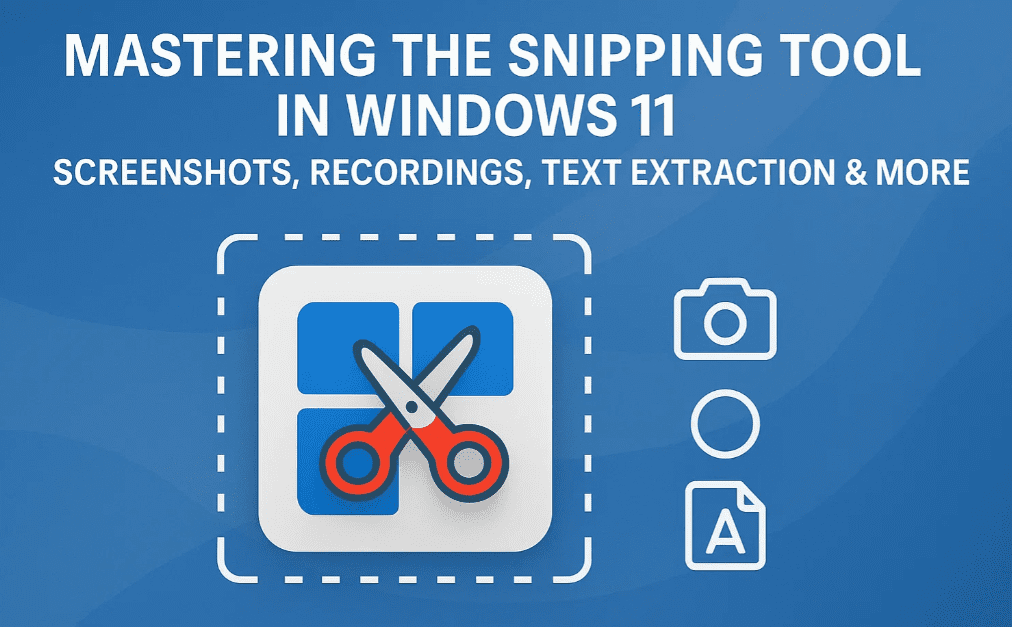
✨ How to Open the Snipping Tool
There are two easy ways to open the Snipping Tool:
1. From the Search Bar
- Click the search box on your taskbar
- Type “Snipping Tool”
- Select the app from the results
2. With a Shortcut
- Press Windows + Shift + S
- This opens the snipping bar at the top of your screen for quick capture
✅ Tip: This shortcut is the fastest way to capture screenshots anytime!
📸 Snipping Modes Explained
When you click the “New” button or use the keyboard shortcut, your screen will dim slightly, and the cursor changes into a crosshair.
The Snipping Tool supports four capture modes:
1. Rectangle Mode (Default)
- Left-click and drag to draw a rectangle
- Great for capturing specific parts of the screen
2. Window Mode
- Select a specific open window
- Ideal for clean app or browser screenshots
3. Full Screen
- Captures everything on your screen (even all monitors if you have multiple)
4. Freeform Mode
- Draw any shape by hand; captures only the area inside your drawing
⏱️ Using Delay Timers
Want to capture a disappearing menu or tooltip?
- Use the Delay Timer!
- Choose between 3s, 5s, or 10s delay
- Select your snip mode and hit New — your capture will be delayed accordingly
🖍️ Marking Up Screenshots (Editor Features)
Once you’ve taken a screenshot, the Snipping Tool opens the markup editor. Here are the tools available:
✏️ Ballpoint Pen
- Draw or write on the image
- Adjust thickness and color
- Great for underlining or circling items
🖌️ Highlighter
- Highlight key areas or text
- Adjustable size and color options
🧽 Eraser
- Erase individual annotations
- Use the dropdown to Erase All Markups instantly
🧱 Shapes Tool
- Add perfect squares, circles, arrows, and lines
- Customize fill color, border color, opacity, and size
✂️ Crop Tool
- Trim unwanted parts from your screenshot
- Drag handles to resize and click ✅ to apply
⌨️ Text Actions – OCR (Text Extraction)
- Click Text Actions > Copy All Text
- The tool uses Optical Character Recognition (OCR) to extract text from images
Paste the copied text into a document, chat, or email — super handy!
🔒 Redact Sensitive Information
Worried about exposing phone numbers or email addresses?
- Use Text Actions > Quick Redact
- Automatically blurs out detected emails and phone numbers
💡 Didn’t catch something? You can manually redact by right-clicking the text > Redact Text



💾 Save or Edit Screenshots in Paint
Once done:
- Click Save As to store the image anywhere
- Need more tools? Click Edit in Paint to open the screenshot in the enhanced Paint app
🎥 Screen Recording with Snipping Tool
Yes, the Snipping Tool can now record your screen!
To Start Recording:
- Open Snipping Tool
- Click the Record icon (video camera)
- Press New, then select the area to record
Once the box appears:
- Select your microphone input
- Adjust area with drag handles
- Click Start to begin recording
When done, press the Stop button. The recording is automatically saved in your Videos folder.
🎯 Tip: Use Windows + Shift + R as a shortcut to start a recording.
⚙️ Change Screen Recording Save Location
Don’t want everything saved to your Videos folder?
- Click the three-dot menu > Settings
- Scroll to Screen Recording section
- Click Open Folder and choose a new location
📋 Frequently Asked Questions (FAQ)
❓ What file format are screenshots saved in?
PNG by default. You can choose JPG, GIF, or others via Save As.
❓ Can I record the entire screen or only part of it?
Only custom-selected areas can be recorded for now — not the entire screen like with OBS.
❓ Is the Snipping Tool available on Windows 10?
Yes, but screen recording and advanced features (like OCR and redaction) are exclusive to Windows 11.
❓ Can I copy text from a screenshot taken earlier?
Yes, if opened in the Snipping Tool — use Text Actions > Copy All Text
📝 Final Thoughts
The Snipping Tool in Windows 11 is more powerful than ever. Whether you’re capturing error messages, building tutorials, editing documents, or recording software demos, this tool is perfect for everyday productivity.
No more need for third-party apps like Lightshot, ShareX, or OBS for basic tasks — the built-in Snipping Tool can handle most of it now!
🔖 Tags
Windows 11, Snipping Tool, Screenshot Windows, Windows screen recorder, screen capture Windows 11, Windows 11 tutorial, OCR in Snipping Tool, screen record Windows 11, redact screenshots, Snipping Tool tutorial
📢 Hashtags
#Windows11 #SnippingTool #ScreenRecording #WindowsTips #Tutorial #ScreenshotTool #OCR #ProductivityTools #MicrosoftWindows
⚠️ Disclaimer
This article is intended for educational purposes. Screen recordings and text extractions may be subject to copyright or privacy policies depending on the content being captured. Use responsibly.








