Today I got a message from one of my friends asking about a strange problem with his Epson L130 printer. The green power light was constantly on, but the ink and paper lights were blinking alternately. He had tried switching the printer off and on, checking the ink levels, and even reloading paper, but nothing worked.
If you’ve faced the same issue, don’t worry—you are not alone. This is one of the most common errors on Epson L130 printers and is usually caused by the Waste Ink Pad Counter reaching its limit. The good news is that it can be fixed at home within minutes using the Epson Adjustment Program.
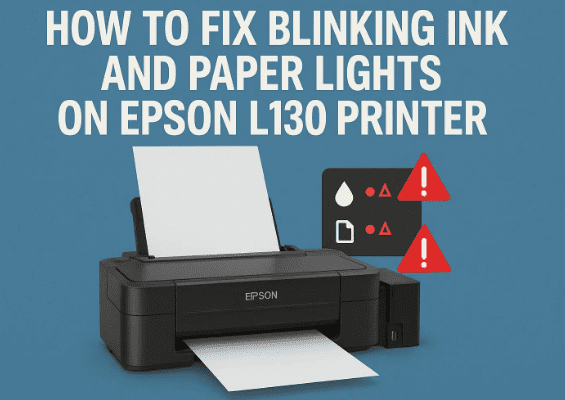
In this article, I’ll walk you through why this happens, how you can reset it, and the precautions you must take to avoid the problem coming back too soon.
Before we dive in, if you are setting up your printer for the very first time, I recommend checking out this guide:
👉 How to Install Epson L130/L130A Ink Tank Printer: First Time Setup and Print Test
1. 🔎 Why Ink and Paper Lights Blink Alternately
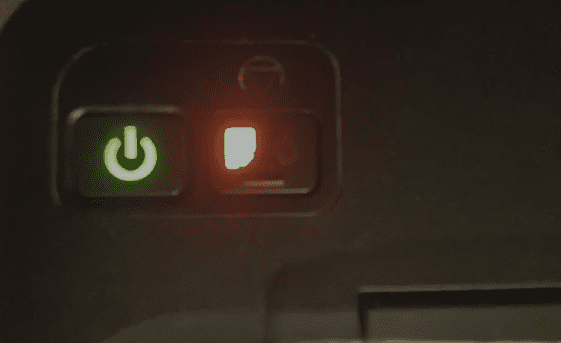
When the Ink and Paper lights on Epson L130 blink one after another, it indicates a general error or maintenance required situation.
The most common cause is:
- Waste Ink Pad Counter Full – Epson printers collect excess ink into a sponge-like pad whenever you clean print heads or during automatic maintenance. Once the counter reaches its maximum limit, the printer refuses to print and shows this blinking error.
Other possible causes:
- Carriage jam (print head stuck due to dust or debris)
- Encoder strip dirty (printer can’t read head position)
- Paper jam or feed error
However, if both ink and paper lights are blinking alternately, 90% of the time it is the Waste Ink Pad Counter problem, which can be solved with a reset tool.
2. 💾 Download Epson Adjustment Program
To reset the Waste Ink Pad Counter, you need a small software tool called the Epson Adjustment Program.
👉 Download Epson Adjustment Program Reset Tool (L130, L220, L310, L360, L365)
Once downloaded, extract the ZIP file and look for AdjProg.exe.









⚠️ Note: Some antivirus programs may flag this tool because it modifies printer counters. It’s safe to use for this purpose, but you may need to temporarily disable antivirus during reset.
3. 🛠️ Step-by-Step: Resetting Waste Ink Pad Counter
Now, let’s go through the reset process step by step.
Step 1: Run the Program
- Open AdjProg.exe from the extracted folder.
- Select Model = Epson L130 (usually auto-selected).
- Keep Port = Auto Selection.
Step 2: Select Adjustment Mode
- On the main screen, click Particular Adjustment Mode (right-hand option).
Step 3: Open Waste Ink Pad Counter
- In the next window, look under Maintenance.
- Select Waste Ink Pad Counter.
- Click OK.
Step 4: Initialize the Counter
- Tick both options:
- Main Pad Counter
- Platen Pad Counter
- Click Check → this will show you how full the counter is.
- Then click Initialization.
- Wait a few seconds until the program shows Reset Complete.
Step 5: Restart the Printer
- Close the program.
- Turn off your printer, then turn it back on.
- The blinking lights should now be gone. 🎉
4. ⚠️ Important Precautions After Reset
Resetting the counter does not clean or replace the waste ink pad inside the printer. The pad may actually be full of ink.
If you only reset without cleaning, the risk is:
- Ink may overflow inside the printer.
- Internal parts may get damaged.
👉 What you should do:
- Either replace the waste ink pad at a service center, or
- Install an external waste ink tank (a small bottle connected with a tube to collect excess ink).
This way, your printer stays clean and won’t run into the same problem quickly.
5. ❓ Frequently Asked Questions (FAQ)
Q1. My printer still blinks after reset. What should I do?
A. Check for carriage jams, paper jams, or a dirty encoder strip. If everything looks fine, repeat the reset process.
Q2. Is using the Adjustment Program safe?
A. Yes, it’s safe for resetting the counter. Just ensure you download from a trusted source (link above).
Q3. Do I need to replace the waste ink pad every time?
A. Not always, but after a few resets, the pad definitely gets saturated. Installing an external waste ink tank is a practical long-term solution.
Q4. Can I use this same tool for other Epson models?
A. Yes, this reset tool also works for L220, L310, L360, and L365.
6. 📝 Final Thoughts
The blinking ink and paper lights on Epson L130 can be scary at first, but it’s usually just a maintenance reminder. By using the Epson Adjustment Program, you can reset the Waste Ink Pad Counter in a few minutes and get your printer working again.
Just remember: resetting alone is temporary. For long-term peace of mind, either change the waste ink pad or use an external waste tank.
And if you’re still new to your Epson L130 printer, don’t forget to check this essential guide:
👉 How to Install Epson L130/L130A Ink Tank Printer: First Time Setup and Print Test
Tags
epson l130 printer, epson l130 reset, waste ink pad counter, epson adjustment program, printer blinking lights fix, epson l220 reset, epson l310 reset, epson l360 reset, epson l365 reset
Hashtags
#Epson #PrinterFix #EpsonL130 #WasteInkPad #PrinterReset #TechTips








