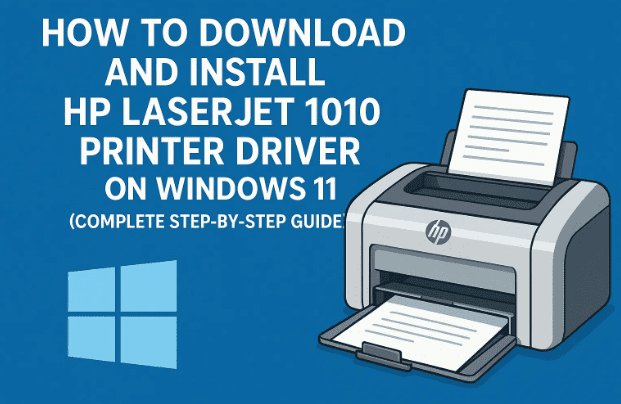
If you recently upgraded to Windows 11 and your HP LaserJet 1010 printer stopped working, you’re not alone.
The LaserJet 1010 is one of HP’s most reliable legacy printers, but it was designed for older versions of Windows like XP and 7. Since Windows 11 doesn’t automatically recognize it, users must manually install its driver for it to function properly.
In this detailed guide, we’ll go through how to download, extract, and install the HP LaserJet 1010 driver on your Windows 11 PC — completely offline and safely. We’ll also add a few troubleshooting tips and answer common questions along the way.
🧩 Step 1: Go to the Official HP Driver Download Page
Before we begin, make sure you download the official driver directly from HP’s support website to avoid fake or corrupted files.
- Open any web browser such as Microsoft Edge, Chrome, or Firefox.
- In the address bar, type:
HP LaserJet 1010 driver download - From the results, click the official HP link:
👉 HP LaserJet 1010 Printer Drivers
This is HP’s official driver download page for the LaserJet 1010 printer series.
⚠️ Note: HP no longer lists “Windows 11” directly on the driver page, but the same Windows 10 drivers work perfectly fine on Windows 11. HP’s universal driver framework ensures backward compatibility.
💾 Step 2: Select the Right Version and Download the Driver
Once you open the HP driver page, you’ll see an automatic detection of your operating system (it may show Windows 10 or Windows 8).
That’s okay — don’t change it.
Follow these steps:
- Scroll down to the section titled “Driver – Product Installation Software”.
- You’ll find the file labeled something like:
HP LaserJet 1010/1012/1015 Host Based Plug and Play Basic Driver. - Click the Download button next to it.
Your browser will now begin downloading the file. It’s usually a small ZIP or EXE file (between 5–10 MB). Once the download finishes, move to the next step.
💡 Tip: Save the file to your Desktop or Downloads folder for easy access.
🗂️ Step 3: Extract the Driver Files
After the file finishes downloading, it needs to be extracted before installation.
- Locate the downloaded ZIP file (for example,
lj1010_1012_1015.zip). - Right-click on it and choose:
Show more options → Extract files… - Choose a destination folder, like your Desktop, and click OK.
You’ll now see a new folder on your desktop containing several driver files (INF, DLL, and setup information).





Keep this folder open — we’ll use it shortly when manually installing the driver.
⚙️ Step 4: Open Control Panel on Windows 11
Now let’s move to the installation part. Since this is an older printer, Windows won’t automatically detect it. We’ll manually add it through Control Panel.
- Click the Start button.
- Type Control Panel and open it.
- Under the “Hardware and Sound” section, click Devices and Printers.
- At the top, click Add a Printer.
Windows will now start searching for available printers.
Since HP LaserJet 1010 is a legacy model, it likely won’t appear automatically — and that’s perfectly fine.
🧭 Step 5: Choose “The Printer That I Want Isn’t Listed”
When the search finishes, look for the line:
“The printer that I want isn’t listed.”
Click it.
This option allows us to manually set up the printer.
🖨️ Step 6: Select “Add a Local Printer or Network Printer with Manual Settings”
A new window will open showing several options.
- Select the radio button:
Add a local printer or network printer with manual settings - Click Next.
This tells Windows that you’ll manually choose the printer port and driver, rather than relying on automatic detection.
🔌 Step 7: Choose the Correct USB Port
This step is crucial.
Your printer connects to your computer via USB.
In the list of available ports, look for one that says:
USB001 (Virtual printer port for USB)
or
USB002
Select the correct USB port, then click Next.
If you’re unsure, USB001 is the default and usually works for most HP USB printers.
📁 Step 8: Install the Driver Manually Using “Have Disk…”
Now, we’ll link the driver folder we extracted earlier.
- Click on the Have Disk… button.
- In the popup, click Browse.
- Go to the folder where you extracted the driver files (for example, Desktop → HP1010Driver).
- Inside that folder, look for a file ending in
.INF, such as:hpc1010.inf - Select it and click Open → OK.
Windows will now read the driver file and show a list of compatible printer models.
Select:
HP LaserJet 1010
Then click Next.
🧰 Step 9: Finalize Installation
Now Windows will begin copying the driver files and configuring your printer.
If it asks you to replace an existing driver, choose Replace the current driver to ensure the latest version is installed.
When the installation completes, you’ll see the message:
“The printer has been successfully installed.”
You can now rename your printer if you like (for example, “HP LaserJet 1010 Office”).
Click Next to proceed.
🧾 Step 10: Print a Test Page (Optional but Recommended)
To verify that everything is working correctly:
- Click Print a Test Page.
- Your printer should start printing within a few seconds.
If you see a clean, properly formatted page — congratulations, your setup is complete! 🎉
If you prefer to test later, click Finish to close the setup wizard.
🔍 Step 11: Verify Printer Installation in Control Panel
Now that installation is done, let’s make sure Windows recognizes it properly.
- Go back to Control Panel → Devices and Printers.
- You should now see HP LaserJet 1010 listed under “Printers.”
If it shows a green checkmark, that means it’s your default printer.
If not, right-click it and select Set as Default Printer.
🧩 Step 12: Troubleshooting Common Problems
Sometimes, older HP printers may not print immediately even after installation. Here’s what to do if you run into issues.
1. Printer Not Detected
- Ensure the USB cable is properly connected.
- Try a different USB port.
- Use the USB 2.0 port instead of USB 3.0 if your computer has both.
- Restart both your printer and PC.
2. Printing Blank or Garbled Pages
- Verify you installed the correct HP LaserJet 1010 driver, not a similar model (like 1012 or 1015).
- Clean the printer’s toner cartridge or replace it if needed.
3. Print Spooler Error
- Press Windows + R, type
services.msc, and press Enter. - Locate Print Spooler, right-click it → Restart.
4. Driver Not Installing
- Run the setup as Administrator (Right-click → Run as Administrator).
- Temporarily disable antivirus if it blocks installation.
- Try reinstalling after reboot.
💡 Additional Information: Why Manual Installation Is Needed
The HP LaserJet 1010 is a classic model that uses a host-based driver, meaning it relies on software installed on your PC rather than built-in printer firmware.
Modern Windows systems (like 10 or 11) no longer include these older drivers by default.
However, HP still provides official PCL (Printer Command Language) drivers that fully support this model.
These work seamlessly with all 64-bit versions of Windows once installed manually.
📘 Tip: Always install the 64-bit version of the driver if your Windows 11 is 64-bit.
You can check this under:
Settings → System → About → System Type.
🧠 Frequently Asked Questions (FAQ)
Q1: Can I use the HP LaserJet 1010 on Windows 11 directly?
Yes. The driver designed for Windows 10 also works on Windows 11. You just need to install it manually using the “Add Printer” method.
Q2: Where can I find the official HP driver?
You can download it from HP’s official support site here:
👉 HP LaserJet 1010 Driver Page
Q3: What if my printer doesn’t show up in the port list?
Try connecting it again to a different USB port. If it still doesn’t appear, click Add Port → USB, then retry.
Q4: Do I need an internet connection to install?
Only for downloading the driver. After that, the entire installation is offline.
Q5: Is it safe to use third-party driver sites?
No. Always download from the official HP website. Third-party sites may include outdated or infected drivers.
Q6: Will this driver also work for LaserJet 1012 or 1015?
Yes. The same driver package supports HP LaserJet 1010, 1012, and 1015 printer models.
🧾 Recap – Full Process in Short
If you just need a quick recap of what we’ve covered so far:
- Visit HP’s official driver page.
- Download the correct ZIP driver file.
- Extract it to a folder.
- Open Control Panel → Devices and Printers → Add a Printer.
- Choose “The printer that I want isn’t listed.”
- Select “Add a local printer with manual settings.”
- Pick the correct USB port (usually USB001).
- Click “Have Disk” and locate the extracted driver folder.
- Choose “HP LaserJet 1010.”
- Finish the setup and print a test page.
Once done, your HP LaserJet 1010 will work like new — even on Windows 11.
⚠️ Important Disclaimer
HP LaserJet 1010 is a legacy printer officially supported up to Windows 10.
However, its drivers remain fully functional on Windows 11.
Always download software only from HP’s official website and avoid any external or modified driver packages to prevent system instability or security risks.
#HPLaserJet #PrinterDriver #Windows11 #HPPrinterSetup #PrinterFix #TechGuide








