Printers and scanners remain essential devices for both home and office users. Even in the age of cloud storage and digital documents, there are always times when you need to print a form, scan an ID card, or prepare physical copies of important documents.
Fortunately, Windows 10 and Windows 11 make adding and managing printers or scanners relatively straightforward. However, things don’t always work perfectly out of the box. Sometimes Windows installs a generic driver that lacks advanced functions such as scanning, duplex printing, or maintenance utilities. In other cases, your printer may not be detected at all.
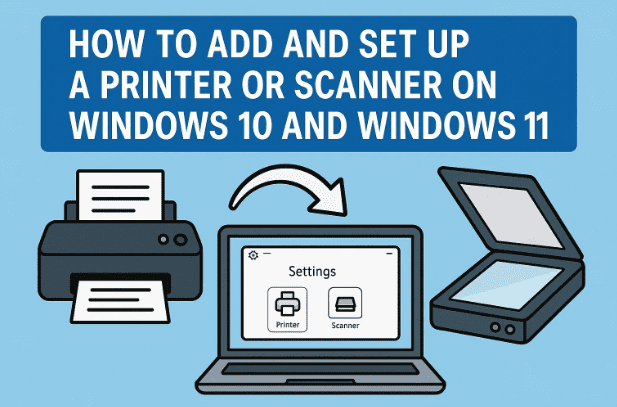
In this comprehensive guide, I’ll walk you through the complete process of connecting and setting up your printer or scanner in Windows 10 and 11. We’ll cover both wired USB connections and wireless network printers, explain how to install the right drivers, and go over troubleshooting steps if your device doesn’t appear.
By the end, you’ll not only know how to add your printer but also how to test, manage, and scan documents with it.
1. Step 1: Connecting Your Printer or Scanner
The first step is straightforward: physically connect the printer or ensure that your wireless device is accessible.
For Wired Printers:
- Plug your printer into your computer using a USB cable.
- Windows may automatically attempt to install a driver.
For Wireless Printers:
- Connect the printer to your Wi-Fi network. Most modern printers include a small control panel or screen where you can enter your Wi-Fi password.
- Make sure your PC is connected to the same Wi-Fi network.
💡 Tip: If you’re using Ethernet, you can connect the printer directly to your router with a LAN cable. This often provides a more stable connection.
2. Step 2: Installing the Correct Driver
Now that your printer is connected, you need to ensure Windows uses the official manufacturer’s driver instead of a generic one. A generic driver may allow basic printing but will often miss important features such as scanning, ink level monitoring, or paper size adjustments.
Why Drivers Matter:
- Basic drivers: Installed automatically by Windows; may only support simple printing.
- Full drivers (MP or multifunction drivers): Downloaded from the manufacturer’s website; include full support for printing, scanning, and maintenance.
Example: Canon Pixma G2010
Let’s walk through an example using Canon’s Pixma G2010.
- Open your browser and go to the official Canon support page.
- Enter your printer model (Pixma G2010) in the search bar.
- Select your operating system (Windows 10 or Windows 11).
- From the results, download the MP Drivers.
- Run the installer and follow the on-screen instructions.
💡 During installation, you may be asked to reconnect your printer. Do this if prompted.
Once the driver is installed, your printer will be fully functional with both printing and scanning features. But in case if you have another like F4400 you can read this guide Download / Install HP Deskjet F4400 Printer Driver or looking for a solution to Fix Printer Error 0x00000bbb (“Operation Could Not Be Completed”) in Windows 11 & 10 – 5 Proven Methods + Extra Pro Tips or more printer/scanner related issues – here is the complete list.
3. Step 3: Adding the Printer or Scanner in Windows Settings
After installing drivers, we need to check that the device is properly added in Windows.







- Open the Start Menu → Settings.
- Go to Bluetooth & devices → Printers & scanners.
- Click Add device.
- Windows will search for available printers.
- If it’s connected via USB, it should appear immediately.
- For wireless printers, it may take a few seconds to detect.
When your printer appears (e.g., “Canon G2010 Series”), click Add device.
💡 If the printer doesn’t show up:
- Try unplugging and reconnecting the USB cable.
- Restart both the PC and the printer.
- Confirm you installed the correct driver.
4. Step 4: Managing Printer Settings and Printing a Test Page
Once your printer is added, you’ll want to confirm it works correctly.
- In Printers & scanners, click on your printer’s name.
- Select Manage.
- From here you can:
- Print a test page.
- View or cancel print jobs.
- Set the printer as default.
- Run troubleshooting.
A successful test page means your printer is ready for regular use.
5. Step 5: Setting Up the Scanner and Scanning Documents
If you have a multifunction printer (MFP), it likely includes a scanner. Once drivers are installed, scanning becomes easy.
Two Ways to Scan:
- Windows Scan App
- Download the Windows Scan app from the Microsoft Store.
- Open the app, select your printer, and choose Scan.
- Save the scanned file as PDF or JPEG.
- Manufacturer Utility
- Many brands provide their own scanning apps with more features.
- Example: Canon’s IJ Scan Utility comes with its driver package.
- This app lets you adjust DPI, choose color vs grayscale, and scan multiple pages.
6. Troubleshooting Common Printer and Scanner Issues
Even with correct setup, printers can be finicky. Here’s how to handle common problems:
- Printer not detected
- Reinstall drivers from the official website.
- Change USB ports or cables.
- For wireless printers, reset Wi-Fi and reconnect.
- Print jobs stuck in queue
- Open Control Panel → Devices and Printers → Right-click Printer → See what’s printing → Cancel all documents.
- Restart the printer service: Run
services.msc→ Restart Print Spooler.
- Scanner not working
- Check if you installed the full multifunction driver.
- Use the manufacturer’s scan utility instead of Windows default.
- Poor print quality
- Run head cleaning or nozzle check from the printer utility.
- Ensure you’re using the correct paper type setting.
7. Best Practices for Reliable Printing and Scanning
- Always use official drivers from your manufacturer.
- Keep your printer’s firmware updated (many brands provide firmware tools).
- Avoid overloading the print queue; wait until one job finishes.
- Regularly clean your printer and use genuine ink/toner for best results.
- For scanners, use higher DPI for text documents (300 DPI) and images (600 DPI).
8. Frequently Asked Questions (FAQs)
Q1: Can I add multiple printers to my PC?
Yes, you can add as many printers as you like. Just repeat the steps for each device.
Q2: Do I need internet access to install drivers?
Yes, unless you already have the driver installer file. Most official drivers are hosted online.
Q3: Can I use the printer without installing drivers?
Yes, Windows may provide a basic driver, but advanced features like scanning may not work.
Q4: What if my printer is very old?
Check the manufacturer’s site for legacy drivers. If none exist, you may use generic drivers, but functionality will be limited.
Q5: Is it safe to use third-party driver websites?
No. Always use the official manufacturer’s website to avoid malware.
9. Conclusion
Adding a printer or scanner to Windows 10 or 11 may seem intimidating, but once you know the steps, it’s fairly straightforward. By:
- Connecting your device (USB or Wi-Fi)
- Installing the correct drivers from the official website
- Adding the printer in Windows settings
- Testing it with a print page
- Setting up scanning features
… you’ll have a fully working printer/scanner setup in no time.
Remember, printers can be finicky, but patience plus the right drivers usually solve most issues. With this guide, you should now be able to handle both the initial setup and any troubleshooting along the way.
Disclaimer
This guide is for educational purposes. Always download drivers only from official manufacturer websites (Canon, HP, Epson, Brother, etc.). Installing from third-party sites may harm your PC.
Tags
add printer windows 11, add printer windows 10, how to install scanner windows, printer driver installation, troubleshoot printer not detected, canon printer setup, windows 11 printing guide, scanner setup windows
Hashtags
#Windows11 #Windows10 #PrinterSetup #ScannerSetup #TechGuide #Canon #DriverInstall







