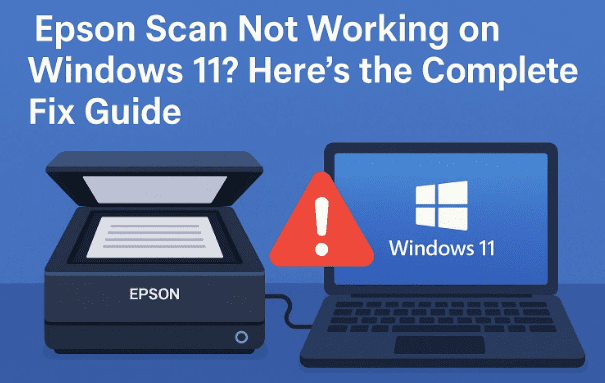
If your Epson scanner suddenly stops working on Windows 11, you’re not alone. Many users face issues where the scanner is detected but doesn’t respond, or the Epson Scan utility simply refuses to open. This can be frustrating, especially if you rely on your scanner for work, school, or personal tasks.
Fortunately, there are several methods you can try to restore Epson Scan functionality. In this article, we’ll walk step by step through different troubleshooting methods, starting with basic service restarts and moving toward advanced solutions like running system commands. Each method builds upon the previous one, so it’s a good idea to try them in order.
Let’s dive in and fix your Epson scanner on Windows 11 once and for all.
1. 🔄 Restart Windows Services (Hardware Detection & Printer Spooler)
One of the most common reasons Epson Scan stops working is because the required Windows services are either stuck or disabled. Two critical services are:
- Shell Hardware Detection (responsible for detecting connected devices like scanners and cameras)
- Printer Spooler (responsible for managing printing and scanning jobs)
Restarting these services often solves the issue immediately.
Steps to Restart Services:
- Open the Start Menu and type services.
- When you see Services App, right-click it and choose Run as administrator.
- This is important, because administrative access ensures you can start/stop services.
- If prompted, click Yes on the UAC (User Account Control) popup.
Restart Shell Hardware Detection:
- In the Services list, scroll down and locate Shell Hardware Detection.
- Double-click on it.
- If the service is running, click Stop, wait a few seconds, and then click Start again.
- Set the Startup type to Automatic so it starts with Windows.
- Click Apply and then OK.
Restart Printer Spooler:
- Press the P key on your keyboard to quickly jump to services starting with “P”.
- Locate Print Spooler (sometimes labeled as “Printer Spooler”).
- Double-click it, then repeat the same process: Stop → Start → Apply → OK.
- Again, make sure the Startup type is set to Automatic.
Finally, close the Services window and test your Epson Scan application again.
2. 🛠️ Use the Built-in Windows Troubleshooter
If restarting services didn’t fix the issue, the next step is to use Windows 11’s built-in Troubleshooter. Microsoft includes dedicated troubleshooters for common hardware problems, including printers and scanners.
How to Run the Printer Troubleshooter:
- Open the Start Menu and click Settings.
- In the left-hand menu, select System.
- Scroll down and click Troubleshoot.
- Now choose Other troubleshooters.
- Find Printer in the list and click Run.
The troubleshooter will automatically detect problems and attempt to fix them. Once it’s finished, you’ll see a report of what it found and corrected.
This method works especially well if the problem is related to Windows misconfiguration, such as a stuck printing job or miscommunication between the OS and the scanner.
3. 🖥️ Update Epson Printer & Scanner Drivers
Drivers are the bridge between your hardware (scanner) and software (Windows 11). If they’re outdated or corrupted, your scanner won’t function properly. Updating drivers can fix compatibility issues, especially after a Windows update.
Steps to Update Drivers:
- Right-click the Start Menu and select Device Manager.
- In Device Manager, locate your Printer/Scanner. It may appear under:
- Printers
- Imaging Devices
- Other devices (if the driver is missing)
- Right-click on your Epson device and select Update driver.
- Choose Search automatically for drivers.
- Windows will look for updates online and install them if available.
If Windows doesn’t find anything, you should manually visit the Epson Support Website and download the latest drivers for your exact model.








👉 Tip: Always make sure you download drivers for Windows 11 (64-bit) if that’s your version. Installing older Windows 10 drivers may still work, but it’s best to use officially supported ones.
4. 💻 Run System Commands via Command Prompt (CMD)
If none of the above methods work, it’s possible that some critical system files are corrupted. Luckily, Windows includes built-in tools that can scan and repair these files automatically.
This involves using the Command Prompt with administrator privileges. Don’t worry, I’ll explain each command clearly.
Steps:
- Open the Start Menu, type cmd.
- Right-click Command Prompt and select Run as administrator.
- If prompted, click Yes to allow changes.
Now enter the following commands one by one. Press Enter after each command and wait until it completes before typing the next.
Command 1 – System File Checker (SFC)
sfc /scannow
- This scans all protected system files and replaces corrupted ones.
- The process may take 5–10 minutes.
Command 2 – DISM Health Check
DISM /Online /Cleanup-Image /CheckHealth
- Quickly checks whether your system image has any corruption.
Command 3 – DISM Scan
DISM /Online /Cleanup-Image /ScanHealth
- Performs a more thorough scan for problems.
Command 4 – DISM Repair
DISM /Online /Cleanup-Image /RestoreHealth
- Repairs issues found in the system image.
Once all four commands are executed successfully, restart your computer. Try running Epson Scan again — in many cases, this completely resolves the issue.
5. 📚 Other Useful Fixes and Preventive Tips
If the above four main methods didn’t solve the issue, don’t worry. Here are some additional fixes and preventive steps:
- Restart Your PC after applying changes — sometimes, services and driver changes only take effect after a reboot.
- Check USB Cable/Port – If you’re using a USB scanner, try switching cables or ports. Faulty connections are surprisingly common.
- Disable Third-Party Antivirus Temporarily – Some antivirus programs mistakenly block scanner utilities. Temporarily disable and test.
- Uninstall & Reinstall Epson Scan Utility – Download the latest version of the utility from Epson’s website and reinstall it.
- Check Windows Update – Ensure you’re running the latest cumulative update, as Microsoft often releases patches for hardware issues.
6. ❓ Frequently Asked Questions (FAQs)
Q1. Why does Epson Scan stop working after Windows Updates?
Updates sometimes reset services or overwrite drivers, leading to conflicts. Restarting services or reinstalling drivers usually fixes this.
Q2. Can I use Epson Scan with Windows 11 if my model is old?
Yes, but you may need to download Windows 10 drivers. Epson provides backward-compatible drivers for many older devices.
Q3. What if my scanner is detected but doesn’t scan?
Check if Shell Hardware Detection and Print Spooler are running. Also, make sure no pending print jobs are blocking the queue.
Q4. Should I reinstall Windows if nothing works?
No, reinstalling should be the last resort. Most issues can be fixed with driver updates, DISM/SFC commands, or reinstalling the Epson Scan software.
Q5. Where can I get Epson drivers safely?
Always download from the official Epson Support Website. Avoid third-party driver websites as they may contain malware.
7. ⚠️ Disclaimer
The steps described in this article involve modifying system settings, restarting services, and running administrative commands. While these are standard troubleshooting methods, improper execution may affect your Windows system.
- Proceed carefully and follow the instructions step by step.
- Always back up important data before making significant system changes.
- If you’re unsure, consider contacting Epson Support or a certified technician.
✅ Conclusion
Fixing Epson Scan not working on Windows 11 doesn’t have to be stressful. By systematically restarting services, using Windows troubleshooters, updating drivers, and running system commands, you can usually resolve the issue without professional help.
Start with the simple methods (service restart and troubleshooting), then work your way up to advanced solutions (drivers and system repair commands). With patience, you’ll get your scanner back in action.
Tags
epson scan fix, windows 11 scanner problem, epson driver update, printer spooler error, epson scan utility, troubleshooting scanner windows, epson not working
Hashtags
#Epson #Windows11 #ScannerFix #Troubleshooting #Drivers #TechTips #PrinterSpooler








