When you buy a new PC or laptop today, chances are it comes pre-installed with Windows 11. But if you’ve looked closely at the specifications, you’ll notice that Windows 11 comes in multiple editions. For most consumers and small businesses, the choice usually boils down to Windows 11 Home vs Windows 11 Pro.
At first glance, both look nearly identical. You still get the familiar Start Menu, Taskbar, File Explorer, Windows Security, and the ability to install apps and games. So, does Pro actually give you anything useful, or is it just a way for Microsoft to charge more?
In this article, we’ll take a deep dive into Windows 11 Home vs Pro, covering:
- Core similarities and differences
- Exclusive Pro features like BitLocker, Group Policy Editor, Remote Desktop Host, and Hyper-V
- Less common Pro features designed for business environments
- When to choose Home and when to choose Pro
- Upgrade and downgrade paths
- Frequently asked questions
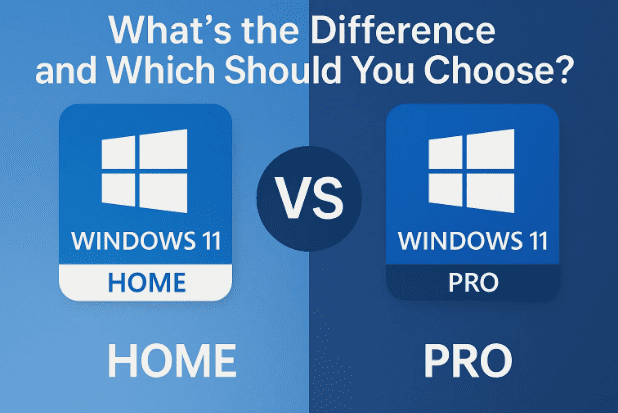
By the end, you’ll have a clear picture of which edition best suits your needs—and whether paying extra for Pro is worth it.
1. What Both Windows 11 Home and Pro Share
Before we jump into differences, it’s important to stress that Windows 11 Home and Pro are fundamentally the same operating system. Both editions give you:
- Start Menu and Taskbar with the centered design introduced in Windows 11.
- Widgets, Snap Layouts, and Virtual Desktops for multitasking.
- Microsoft Store access for apps and games.
- Windows Security features like firewall, antivirus, and ransomware protection.
- Windows Update for regular feature and security patches.
- Gaming features like DirectStorage, Auto HDR, and Xbox Game Pass compatibility.
- Default applications such as Edge, Photos, Mail, and Calculator.
For the average user who browses the web, streams videos, edits documents, and plays games, Home already feels complete.
But the differences start to matter if you’re someone who wants more control, security, or advanced networking features. That’s where Windows 11 Pro justifies its existence.
2. Key Features Exclusive to Windows 11 Pro
Let’s move to the heart of the comparison: what Pro offers that Home doesn’t. From a consumer perspective, the most relevant differences are:
2.1 BitLocker Device Encryption
BitLocker is Microsoft’s full-disk encryption tool that protects your data if your PC is lost or stolen.
- Windows 11 Pro: BitLocker can be managed through a full user interface, letting you encrypt drives, manage recovery keys, and control settings.
- Windows 11 Home: Includes a watered-down “Device Encryption,” which uses BitLocker in the background but hides most controls. Recovery keys are tied to your Microsoft account, giving you less flexibility.
➡️ If you carry sensitive files (work documents, financial data) on a laptop, Pro’s BitLocker control is worth it.
2.2 Group Policy Editor (gpedit.msc)
System tweaks and advanced configuration often rely on the Group Policy Editor.




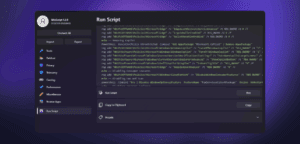
- Windows 11 Pro: Includes Group Policy Editor, which lets you enable/disable features, enforce settings, or fix problems without digging into the registry.
- Windows 11 Home: No Group Policy Editor. You’d have to manually edit the Registry, which is risky for beginners.
Example: Disabling lock screen ads, blocking Cortana, or preventing automatic driver updates—all are much easier with Group Policy.
2.3 Remote Desktop Host
Remote Desktop lets you connect to a PC from anywhere and use it as if you’re sitting in front of it.
- Windows 11 Pro: Can act as a Remote Desktop Host, meaning you can log into your PC remotely using Microsoft’s Remote Desktop client.
- Windows 11 Home: Can only be a client, not a host. If you want remote access, you’ll need third-party tools like Chrome Remote Desktop or TeamViewer.
For anyone who travels and needs to connect back to their work or home machine, this is a major Pro advantage.
2.4 Hyper-V Virtualization
Hyper-V is Microsoft’s built-in virtualization platform.
- Windows 11 Pro: Lets you create and run virtual machines (VMs) directly. Perfect for testing other operating systems (like Linux), sandboxing risky apps, or creating development environments.
- Windows 11 Home: Does not include Hyper-V. You’d need alternatives like VirtualBox or VMware Workstation Player.
If you’re into IT, coding, or experimenting with software, Hyper-V alone can justify Pro.
3. Less Common but Notable Pro Features
While the four above matter most to advanced home users, Pro also includes features more relevant to businesses:
- Assigned Access (Kiosk Mode) – Restricts a user account to a single app, useful for kiosks or customer-facing PCs.
- Active Directory & Azure AD Join – Lets IT admins centrally manage PCs, common in corporate environments.
- Windows Update for Business – Provides centralized control over when updates are applied.
Most regular home users won’t need these, but they matter in small business or office setups.
4. When Windows 11 Home is Enough
Now that we’ve covered the extras, let’s take a step back. Who really needs those features?
You should choose Windows 11 Home if:
- You mainly use your PC for casual browsing, office work, media, or gaming.
- You don’t need encryption beyond basic device protection.
- You don’t plan to run virtual machines.
- You’re not interested in advanced system tweaks.
- You’re price-sensitive—Home costs less, and every bit of savings matters.
For the majority of consumers, Home is more than sufficient.
5. When Windows 11 Pro is Worth It
On the other hand, consider Windows 11 Pro if:
- You want full control over BitLocker for data security.
- You need to host Remote Desktop connections.
- You frequently test software or run other operating systems with Hyper-V.
- You often follow online guides that require Group Policy Editor.
- You’re in a small business setup where centralized control matters.
For IT professionals, developers, or advanced users, the extra cost is an investment in flexibility.
6. Upgrading from Home to Pro
If you bought a PC with Windows 11 Home but realize later that you need Pro, upgrading is straightforward:
- Open Settings → System → Activation.
- Choose Upgrade your edition of Windows.
- Either enter a Pro product key you’ve purchased, or buy the upgrade directly from the Microsoft Store.
Windows will reconfigure itself without reinstalling, preserving your files and apps.
➡️ Official Microsoft link: Upgrade Windows Home to Pro
7. Downgrading from Pro to Home
The reverse is much harder. If you already have Windows 11 Pro and want to switch back to Home, there is no in-place downgrade. The only way is to:
- Backup your data.
- Perform a clean install of Windows 11 Home.
This wipes your system, so it’s rarely worth doing unless you specifically need to reduce costs on licensing.
8. Price Difference Between Home and Pro
Windows 11 Home typically comes pre-installed on most consumer laptops and desktops. Pro is pre-loaded on business laptops or offered as an upgrade.
- Windows 11 Home license: Around $139 (official Microsoft pricing).
- Windows 11 Pro license: Around $199.
That’s a $60 difference if you buy directly. For OEM PCs, the difference may vary depending on the manufacturer.
9. FAQs
Q1. Does Windows 11 Home support BitLocker?
➡ Home has “Device Encryption” (based on BitLocker) but lacks the full UI. Only Pro gives full control.
Q2. Can I run virtual machines on Windows 11 Home?
➡ Not with Hyper-V, but you can use third-party tools like VirtualBox.
Q3. Can I connect to my PC remotely if I use Windows 11 Home?
➡ Not with Microsoft’s Remote Desktop Host. You’ll need tools like Chrome Remote Desktop.
Q4. Is Windows 11 Pro faster than Home?
➡ No. Performance is identical for everyday tasks. The difference is in features, not speed.
Q5. Do gamers need Pro?
➡ Not really. Gaming performance is the same. Home already supports DirectX 12, Auto HDR, and Game Mode.
⚠️ Disclaimer
All prices and features are based on official Microsoft documentation as of 2025. Availability may vary by region or device. Always buy genuine licenses from Microsoft’s official store or authorized resellers to avoid activation issues.
10. Final Thoughts: Should You Choose Home or Pro?
So, Windows 11 Home vs Pro—who wins?
- For most consumers, families, and gamers, Home is more than enough. It’s cheaper, simpler, and includes all the essentials.
- For advanced users, IT professionals, developers, or business owners, Pro is worth the investment thanks to BitLocker, Group Policy Editor, Remote Desktop Host, and Hyper-V.
If you’re unsure, start with Home—upgrading later is easy. But if you already know you’ll need remote access, encryption, or virtualization, go Pro right away.
At the end of the day, the choice depends on your budget, workflow, and security needs.
Tags
Windows 11 Home vs Pro, Windows 11 differences, BitLocker Windows 11, Hyper-V Windows 11, Remote Desktop Host, Group Policy Editor Windows 11
Hashtags
#Windows11 #Windows11Pro #Windows11Home #TechGuide #Microsoft








