Have you ever wished you could control your Android phone like a computer terminal—executing commands, installing apps, or even removing unwanted software with just a few keystrokes? Well, the tool to make that possible has been around for years. It’s called ADB (Android Debug Bridge), and it’s one of the most powerful ways to interact with your Android device.
Whether you’re a developer, a tech enthusiast, or just someone who wants more control over their phone, learning ADB will unlock a new world of possibilities. Don’t worry if you’re completely new—this guide will walk you through everything step by step, from installation to real-world use cases.
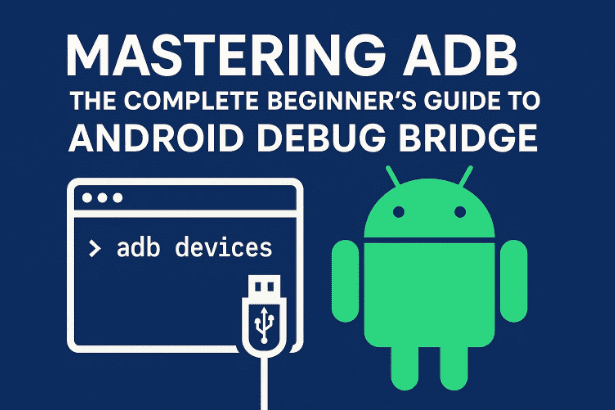
👉 Official ADB download page: Google Android SDK Platform Tools
📑 Table of Contents
- 1. What is ADB?
- 2. How ADB Works (Client, Server, Daemon)
- 3. Why Use ADB? (Everyday Scenarios)
- 4. How to Install ADB (Windows, Mac, Linux)
- 5. Preparing Your Android Device (Developer Options)
- 6. Connecting Your Device to ADB
- 7. Common Issues and Fixes
- 8. Essential ADB Commands You Should Know
- 9. Advanced Uses of ADB
- 10. Security, Risks, and Best Practices
- 11. Frequently Asked Questions (FAQs)
- 12. Final Thoughts
1. What is ADB?
ADB stands for Android Debug Bridge. Think of it as a translator between your computer and your Android device. Instead of tapping through menus on your phone, you can type commands on your PC or Mac to make things happen instantly.
ADB was introduced back in 2007 with the first Android SDK. Originally designed for developers, it has since become an essential tool for advanced users, system administrators, and even casual Android fans who want more control.
2. How ADB Works (Client, Server, Daemon)
ADB has a very clean architecture with three parts:
- Client – the program on your computer where you type commands.
- Server – manages communication between your computer and the device.
- Daemon (adbd) – runs on your Android phone and executes commands.
When you run a command, here’s what happens:
- The client sends it from your terminal or command prompt.
- The server on your computer (usually on port 5037) processes it.
- The daemon on your Android executes it.
This system supports multiple devices at once, so you could have Android Studio debugging an app while also issuing ADB commands from your terminal.
Security is built in—ADB uses RSA keys to authenticate new devices. That’s why the first time you connect, your phone asks whether to “Allow USB debugging” from that computer.
3. Why Use ADB? (Everyday Scenarios)
So, why bother with ADB when you already have a touchscreen? The answer lies in what ADB can do that normal apps can’t.
Here are some real-world scenarios:








- Install APKs that aren’t on the Play Store.
- Take screenshots or record your screen directly from your PC.
- Remove pre-installed bloatware that normally can’t be uninstalled.
- Debug apps in development.
- Transfer files quickly and reliably.
- Access hidden system settings.
- Automate tasks using batch scripts.
In short, ADB gives you admin-level control over your device—something you can’t achieve with regular touch input alone.
4. How to Install ADB (Windows, Mac, Linux)
Let’s move to the installation process. Thankfully, Google makes this straightforward.
👉 Download link: Google SDK Platform Tools
Windows
- Download the ZIP file for Windows.
- Extract it to a folder (e.g.,
C:\adb). - Open Command Prompt in that folder.
- Optional: Add it to your PATH environment variable for easier use.
Mac
- Download the ZIP for macOS.
- Extract it to a folder like
~/adb. - Open Terminal, navigate to the folder.
- Use commands like
./adb devices.
Linux
- Download and extract the Linux package.
- Move the folder to
/usr/local/binfor system-wide use. - Run commands from the terminal.
💡 Tip: If you’re on Linux, you may also need to install USB drivers/udev rules depending on your distribution.
5. Preparing Your Android Device (Developer Options)
ADB won’t work until you enable Developer Options on your phone. Here’s how:
- Open Settings → About Phone.
- Find Build Number. Tap it 7 times until you see “You are now a developer”.
- Go back to Settings → Developer Options.
- Enable USB Debugging.
- (Optional but recommended): Enable Stay Awake while charging to keep your phone screen active.
Don’t worry about the warning message—ADB debugging is safe as long as you trust the computer you’re connecting to.
6. Connecting Your Device to ADB
Now for the fun part: connecting your device.
- Use a USB data cable (not just a charging cable).
- Plug your phone into the computer.
- Open your terminal/command prompt and type:
adb devices
- On your phone, approve the Allow USB debugging popup.
- You should now see your device’s serial number listed.
If you see it—congratulations! Your setup is complete.
7. Common Issues and Fixes
Things don’t always go smoothly the first time. Here are quick fixes:
- Device not showing up? Try another USB cable/port.
- Still not detected? Ensure USB debugging is ON.
- Server error? Run:
adb kill-server adb start-server - Windows driver issues? Install your phone manufacturer’s official USB drivers.
👉 Pro tip: If nothing works, reboot both your computer and phone—it often solves mysterious issues.
8. Essential ADB Commands You Should Know
Once connected, ADB becomes your Swiss Army knife. Let’s explore some must-know commands.
- Check devices:
adb devices - Install an APK:
adb install appname.apk - Uninstall an app:
adb uninstall com.example.app - Take a screenshot:
adb shell screencap /sdcard/screen.png adb pull /sdcard/screen.png - Record your screen:
adb shell screenrecord /sdcard/demo.mp4 adb pull /sdcard/demo.mp4 - Reboot your device:
adb reboot - Access device shell:
adb shell
Each of these commands can save you time, enable hidden features, or give you tools for deeper control.
9. Advanced Uses of ADB
Now that you’ve got the basics, let’s move into more advanced territory:
- Remove bloatware: Many manufacturers ship apps you don’t need. With ADB, you can disable or uninstall them safely.
- Custom ROMs: ADB is essential for unlocking bootloaders and flashing new firmware.
- Debugging logs: Use
adb logcatto see real-time system logs—vital for developers. - Wireless debugging: Connect over Wi-Fi with
adb tcpip 5555. - Automated scripts: Batch operations let you push files, install multiple APKs, or apply settings across many devices.
10. Security, Risks, and Best Practices
With great power comes great responsibility. ADB gives deep system access, so follow these safety tips:
- Only enable USB debugging when needed. Turn it off afterward.
- Never accept debugging requests from unknown computers.
- Download ADB only from Google’s official site.
- Be careful with system commands—you could brick your device if you misuse them.
11. Frequently Asked Questions (FAQs)
Q1. Is ADB safe for beginners?
Yes, as long as you only use trusted commands and official downloads.
Q2. Do I need root to use ADB?
No. Many features work without root, though advanced mods may require it.
Q3. Can I use ADB wirelessly?
Yes. You can connect over Wi-Fi once you pair your device.
Q4. Can I uninstall bloatware permanently with ADB?
Yes, but uninstalling critical system apps may cause issues. Always research the package name before removing it.
Q5. Is ADB available on all Android versions?
Yes, from the earliest versions of Android to the latest.
12. Final Thoughts
So far, we’ve explored what ADB is, how it works, how to install it, and what powerful commands it gives you. At its core, ADB is about unlocking the hidden potential of your Android device.
- Developers use it for debugging.
- Power users use it for customization.
- Even casual users can benefit by removing unwanted apps or capturing their phone’s screen.
With the latest Android updates, ADB has remained as relevant as ever. It’s simple to set up, free, and official—no sketchy software required.
If you’ve never tried it before, give it a shot. Start with basic commands, experiment, and slowly build your confidence. You’ll quickly see why ADB is considered the Swiss Army knife of Android tools.
👉 Download the official package here: Google Android SDK Platform Tools
⚠️ Disclaimer
ADB is a developer tool that provides advanced access to your Android device. While most commands are safe, misuse can cause system instability. Follow this guide carefully, research commands before running them, and always back up your data.
Tags: adb tutorial, android debug bridge, install adb windows, adb commands, android customization, remove bloatware android, wireless adb, adb mac linux
Hashtags: #Android #ADB #TechGuide #AndroidCustomization #DevTools








