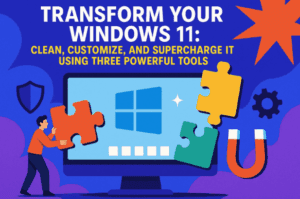
Windows is without doubt one of the most popular operating systems in the world. It powers millions of desktops and laptops across different hardware ranges. But let’s be honest—Windows in its default state is far from perfect. That’s why so many users turn to third-party customization tools to enhance their setup.
With the help of tools like Rainmeter, Windhawk, and Wallpaper Engine, you can transform your desktop into a clean, minimalistic, and stylish experience. But here comes the big question almost everyone asks when they first learn about customization:
👉 Does all this visual tweaking slow down my system?
In this blog, we’ll find out. We’ll test the most popular customization tools on both high-end and mid-range laptops, measuring CPU and RAM usage, startup speeds, and even battery life for portable users. By the end, you’ll know exactly how much performance you might lose—or not lose—when customizing Windows.
1. Test Setup and Hardware Used
To provide balanced insights, we tested customization apps on two very different machines:
- High-End Laptop: Lenovo Legion Slim 7
- AMD Ryzen 7 7840HS
- 32 GB DDR5 RAM
- NVIDIA RTX 4060 GPU
- Mid-Range Laptop: HP EliteBook 850 G8
- Intel Core i5-1145G7
- 16 GB DDR4 RAM
- Integrated Intel graphics
This combination allows us to see how customization behaves both on gaming-class hardware and on more common business-class laptops.
We monitored performance using Windows Performance Monitor and MSI Afterburner to track CPU, RAM, and overall system impact. For battery results, we measured real-world usage with active customization tools.
2. Custom Wallpapers: Wallpaper Engine vs Lively Wallpaper
The first step in most customizations is the wallpaper. Moving from static backgrounds to animated ones is a big leap visually, but it also introduces system load.
Wallpaper Engine
- Cost: $4 (paid, Steam)
- Library: Thousands of community-made animated wallpapers
- CPU Usage: ~0.35% (very minimal)
- RAM Usage: ~110 MB
- Battery Life: Minor drop on high-end systems (about 20 minutes)
👉 On most PCs, you won’t notice any slowdowns. The app is also highly optimized, pausing animations when you’re running fullscreen apps or games.
Official site: Wallpaper Engine on Steam
Lively Wallpaper
- Cost: Free
- Library: Requires manual import of MP4 or WebP files
- CPU Usage: Slightly lower than Wallpaper Engine
- RAM Usage: Much higher, especially noticeable on mid-range laptops
- Battery Life: Up to 2 hours less on HP EliteBook
👉 Lively can be a better option if you want free customization, but it is less optimized. For weaker laptops, expect bigger battery drains.



Official site: Lively Wallpaper
So far, we can say wallpapers are safe for desktops, but laptop users should tread carefully if they want long battery life.
3. System Tweaks with Windhawk
After wallpapers, many users want to customize Windows itself—things like the taskbar, context menus, and Explorer tweaks. For that, Windhawk is the ultimate tool.
Why Windhawk?
- Extremely lightweight (uses less than 0.01% CPU)
- RAM usage: just a few MB
- Startup speed: Instant, no delay
- Customization options: Taskbar tweaks, Start menu adjustments, Explorer mods, and more
Windhawk feels almost invisible in terms of system resources. Even laptop users won’t see a drop in battery life with this running.
Official site: Windhawk
👉 So far, so good—Windhawk proves that not all customization costs performance.
4. Desktop Widgets with Rainmeter
Rainmeter is perhaps the most famous customization app. It allows you to add skins (widgets) such as clocks, weather, CPU monitors, or even full taskbar replacements.
Light Usage (Minimal Skins like “M”)
- CPU: ~0.2%
- RAM: Very small increase
- Works well even on mid-range laptops
Heavy Usage (Skins like Droptop 4 + Jack’s Core + Monterey Widgets)
- CPU: ~0.5–1% depending on complexity
- RAM: Can exceed 200 MB
- Startup: Noticeably slower
- Battery: Heavy drain on laptops
👉 If you’re on a gaming PC or workstation, Rainmeter is fantastic. But for laptops with smaller batteries, you should stick to lightweight skins.
Official site: Rainmeter
5. Sleek UI: All-in-One Taskbar + Top Bar
Sleek UI (also called CnUI in some communities) tries to combine features of Rainmeter and Windhawk. You get a custom top bar and a tweaked taskbar in one package.
- CPU: ~0.5% on high-end, ~0.9% on mid-range
- RAM: Around 150 MB
- Stability: More buggy than Rainmeter
- Best for: Users who want one app instead of combining Rainmeter + Windhawk
👉 While convenient, Sleek UI isn’t as stable or efficient. Unless you specifically want an all-in-one, Rainmeter + Windhawk is still the safer combo.
6. Testing a Full Customization Setup
Now let’s put everything together: Rainmeter widgets + Windhawk tweaks + wallpaper engine.
Idle Baseline (no customization)
- High-End Laptop: 2–3% CPU idle
- Mid-Range Laptop: ~7% CPU idle
With Full Setup Running
- High-End Laptop: CPU ~5.4%, RAM ~7.85 GB
- Mid-Range Laptop: CPU ~10%, RAM ~7.8 GB
The difference is clear: high-end PCs barely notice these changes, while mid-range ones already start to feel sluggish.
7. Battery Life Impact
Battery life is often the deal-breaker for laptop users.
- High-End Lenovo Legion Slim 7: Dropped from 5 hours → 3 hours 45 minutes
- HP EliteBook 850 G8: Dropped from 4h 40m → under 2 hours
If you mainly use your laptop unplugged, complex Rainmeter setups and live wallpapers are not recommended.
8. Startup Speed Analysis
Here’s how long tools take to load after boot:
- Windhawk: Instant
- Wallpaper Engine: Slow, but can be optimized with priority settings
- Rainmeter: Noticeably slower, especially with many skins
For smooth boot times, keep Rainmeter skins minimal.
9. Summary: Which Tools Are Worth It?
Here’s a quick comparison:
| Tool / Feature | CPU Impact | RAM Impact | Battery Impact | Verdict |
|---|---|---|---|---|
| Windhawk | <0.01% | Few MB | None | Must-Have |
| Wallpaper Engine | ~0.35% | 110 MB | Low–Medium | Great if on desktop |
| Lively Wallpaper | Low CPU | High RAM | High on laptops | Stick to desktop |
| Rainmeter (light) | ~0.2% | 50–100 MB | Low | Safe |
| Rainmeter (heavy) | 0.5–1% | 200+ MB | High | Avoid on laptops |
| Sleek UI | ~0.9% | 150 MB | Medium | Buggy, not essential |
👉 For desktops, almost everything is fine. For laptops, stick with Windhawk + Wallpaper Engine (or Lively if you want free). Avoid heavy Rainmeter setups.
10. FAQs About Windows Customization
Q1. Does customizing Windows void the warranty?
No, these tools only change visuals and don’t affect your Windows license.
Q2. Are these apps safe?
Yes, if downloaded from official sites (linked above). Avoid shady third-party download mirrors.
Q3. Can I uninstall everything?
Yes. Simply uninstall the apps. If issues remain, use Windows Restore Points.
Q4. Do these tools affect gaming performance?
Not significantly, since most tools pause during fullscreen apps. Only heavy Rainmeter skins may add small CPU load.
Q5. Is there any free alternative to Wallpaper Engine?
Yes, Lively Wallpaper, though it uses more RAM and drains laptop batteries faster.
11. Final Thoughts
Windows customization is one of the best ways to breathe life into an otherwise ordinary desktop. Whether it’s through animated wallpapers, custom icons, or sleek widgets, you can create a setup that reflects your style.
The key takeaway is:
- Desktops with powerful hardware → Feel free to go all in.
- Laptops with weaker hardware → Keep it minimal (Windhawk + lightweight wallpaper).
Ultimately, it’s about balance. A visually stunning desktop is great, but not if it costs you hours of battery life or slows down your workflow.
So the final question is: How much performance are you willing to trade for customization? That choice is yours.
Disclaimer
Customization involves third-party software. Always download from official sources and create a restore point before making major system changes. Battery results may vary depending on your device.
Tags
windows customization, rainmeter performance, wallpaper engine vs lively, windhawk customization, windows 11 tweaks, battery impact customization, rainmeter skins, windows performance optimization
Hashtags
#Windows11 #Customization #Rainmeter #Windhawk #WallpaperEngine #PerformanceTest #BatteryLife








