If you’ve been following tech news lately, you already know that Windows 10 support is rapidly approaching its end of life. For many people, this has triggered panic buying of new computers, even though their existing hardware might still be perfectly capable. The only real difference between Windows 10 and Windows 11 requirements is TPM 2.0 support — yet many users are being pushed toward upgrades.
But there’s another way. Instead of discarding older, fully functional machines and contributing to unnecessary e-waste, some users are choosing to make the switch to Linux. Linux runs beautifully on older systems, is free, and offers long-term support without forced obsolescence.
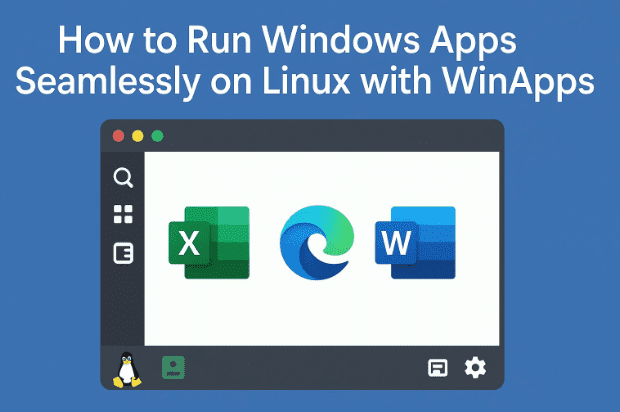
However, the biggest hurdle for newcomers isn’t always the operating system itself — it’s the software compatibility. Tools like Microsoft Office, Adobe Photoshop, After Effects, or other Windows-only applications don’t work natively on Linux. While open-source alternatives like LibreOffice, GIMP, and Inkscape exist, not everyone is ready to switch away from the programs they’ve been using for years.
So here’s the big question: What if you could continue using Microsoft Word, Excel, or even Adobe Photoshop directly inside Linux, without dual-booting?
That’s exactly what WinApps makes possible.
📌 Table of Contents
- 1. What is WinApps?
- 2. Why Use WinApps Instead of Alternatives?
- 3. System Requirements for WinApps
- 4. Preparing Your Linux System
- 5. Setting Up Virtualization
- 6. Installing and Configuring WinApps
- 7. File Sharing Between Linux and Windows VM
- 8. Using WinApps with RDP for Better Performance
- 9. Supported Applications
- 10. Limitations of WinApps
- 11. Security Considerations
- 12. WinApps vs Dual Boot vs Wine
- 13. FAQs
- 14. Final Thoughts
1. What is WinApps?
WinApps is an open-source project that allows you to run Windows applications inside Linux using a lightweight virtual machine. Unlike typical virtual machines where you see a full Windows desktop, WinApps integrates applications directly into your Linux environment.
For example:
- You can launch Microsoft Word from your Linux application menu.
- Photoshop opens in its own window as if it were a native Linux app.
- Files can be shared easily between Linux and Windows.
Think of it as WSL (Windows Subsystem for Linux) but in reverse: a Linux subsystem that can run Windows apps.
👉 Project page: WinApps GitHub Repository
2. Why Use WinApps Instead of Alternatives?
Before we jump into setup, let’s understand why WinApps is appealing.
Many Linux users rely on open-source tools like:

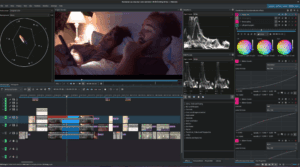






- LibreOffice instead of Microsoft Office
- GIMP instead of Adobe Photoshop
- Kdenlive instead of Adobe Premiere
These are powerful alternatives, but sometimes:
- You need a specific Excel feature not available in LibreOffice Calc.
- Your client requires you to use a Photoshop PSD file with all layers intact.
- Industry-standard file formats force you to stick with Adobe/Microsoft.
WinApps bridges this gap by letting you keep your favorite Linux environment while still running Windows software when needed.
3. System Requirements for WinApps
The good news is that most modern systems built in the last 10 years can handle WinApps. But let’s be specific:
- CPU: A processor that supports virtualization (Intel VT-x or AMD-V).
- RAM: At least 8 GB (4 GB for Linux, 4 GB for Windows VM). More is better.
- Disk Space: 40 GB minimum (Windows installation + apps).
- BIOS/UEFI Settings: Virtualization enabled (disabled by default on many systems).
- Operating System: Any modern Linux distribution such as Ubuntu, Fedora, or Arch.
💡 Tip: On laptops older than 2015, check BIOS to ensure virtualization is enabled. Without it, you can’t run the Windows VM.
4. Preparing Your Linux System
Before installing WinApps, ensure your Linux system is updated. Open a terminal and run:
sudo apt update && sudo apt upgrade   # For Ubuntu/Debian
sudo dnf update                      # For Fedora
sudo pacman -Syu                     # For Arch Linux
You’ll also need:
- Docker or Podman as the virtualization backend.
- XFreeRDP for remote desktop protocol support.
Install them with:
# On Ubuntu/Debian
sudo apt install docker.io freerdp2-x11 -y

# On Fedora
sudo dnf install docker freerdp -y

# On Arch
sudo pacman -S docker freerdp
5. Setting Up Virtualization
Now comes the fun part. WinApps uses Docker Compose to spin up a Windows virtual machine.
- Download the WinApps Compose Template from GitHub.
- Edit the
docker-compose.ymlfile:- Set your Windows username/password.
- Allocate RAM and CPU cores based on your machine’s resources.
- Choose your Windows version (Windows 10 or 11).
💡 Recommendation: If your PC has 16 GB RAM, allocate 6–8 GB to Windows for smooth Adobe usage.
Once ready, launch the VM:
docker-compose up -d
The first boot will take time, as it installs Windows automatically.
6. Installing and Configuring WinApps
When the VM is running:
- Open your browser and go to:
http://localhost:8006 - You’ll see the Windows installation interface. Complete the setup just like a normal Windows installation.
Now install your applications:
- Microsoft Office (requires a valid Office 365 subscription).
- Adobe Creative Cloud (requires a valid subscription).
⚠️ Disclaimer: Avoid pirated software. Using unauthorized ISOs or cracks is unsafe and illegal. Stick to legitimate licenses.
7. File Sharing Between Linux and Windows VM
One of the best parts about WinApps is seamless file sharing.
- The VM mounts your Linux home directory automatically.
- Files can be copied via Windows Explorer → Network → Host.
- Create a dedicated
WinAppsfolder for organizing shared files.
This means you can edit a file in Photoshop inside Windows and then immediately access it on Linux for backup or upload.
8. Using WinApps with RDP for Better Performance
Although the browser interface works, RDP (Remote Desktop Protocol) offers better performance.
Install FreeRDP (already done in earlier step). Then configure:
xfreerdp /u:YourUsername /p:YourPassword /v:localhost:8006
You can also adjust scaling for high-resolution monitors (140% or 180% recommended for 4K).
9. Supported Applications
WinApps supports many official applications, including:
- Microsoft Office (Word, Excel, PowerPoint, Outlook).
- Adobe Photoshop, Illustrator, Premiere Pro, After Effects.
- Other Windows utilities and apps.
You can even create Linux menu shortcuts for these apps, making them feel native.
10. Limitations of WinApps
It’s important to manage expectations. WinApps is powerful but not perfect:
- Performance Lag: First-time app launch after reboot can take 20–30 seconds.
- Gaming: Not suitable due to high input lag via RDP.
- Graphics Work: Heavy Photoshop/Premiere projects may stutter unless GPU passthrough is configured.
- Wayland: Currently limited support; best experience is with X11.
11. Security Considerations
Since passwords are stored in config files:
- Restrict file permissions to your Linux user only.
- If you’re privacy-conscious, route the VM’s traffic through a VPN. This way, Microsoft’s telemetry stays inside the containerized VM.
12. WinApps vs Dual Boot vs Wine
| Method | Pros | Cons |
|---|---|---|
| Dual Boot | Full performance, native compatibility | Requires reboot, inconvenient |
| Wine | No VM overhead, lightweight | Limited compatibility, frequent bugs |
| WinApps | Seamless integration, good compatibility | Slight lag, requires VM resources |
For most office and light creative users, WinApps is the sweet spot.
13. FAQs
Q1: Can I run games with WinApps?
No, gaming isn’t practical due to high latency in RDP. Stick to native Linux games or Proton/Steam Play.
Q2: Do I need a Windows license?
Yes. While you can technically install unlicensed Windows, you should activate it to stay compliant.
Q3: Is GPU passthrough necessary?
Not for Office apps, but recommended for Photoshop/Premiere.
Q4: Can I use this on ARM-based laptops like Raspberry Pi?
Currently, WinApps is best on x86_64 systems. ARM support is experimental.
14. Final Thoughts
So far, we’ve seen how WinApps makes it possible to run Microsoft Office, Photoshop, and other Windows programs directly inside Linux. The setup may look intimidating at first, but with Docker and a bit of configuration, it’s surprisingly manageable.
If you’re someone who doesn’t want to throw away a perfectly working PC just because Microsoft says Windows 10 is obsolete, WinApps is an excellent solution. It bridges the gap between Linux freedom and Windows compatibility, giving you the best of both worlds.
Yes, there are limitations like performance lag and limited gaming support, but for office work, professional design, or occasional Adobe use, this tool is a lifesaver.
The future of computing is about flexibility and sustainability. WinApps is a shining example of how open-source innovation can help us reduce waste, save money, and still get work done with the tools we rely on.
Tags
windows 10 end of life, run windows apps on linux, winapps tutorial, microsoft office on linux, photoshop on linux, docker windows vm, linux virtualization
Hashtags
#Windows10 #Linux #WinApps #OpenSource #MicrosoftOffice #AdobePhotoshop #Docker #Virtualization #TechTips #Sustainability
Would you like me to also add step-by-step screenshots/commands in a structured guide format so that this article looks like a proper tutorial instead of just text? That could boost reader engagement for dtptips.









Good guide. You just forgot a couple of things. You need to download Docker Compose on Arch. Along with that, the site is http://localhost:8006,/, not http://localhost:806/.
Thanks Cooper, i have updated the article.