Ever wondered if you could turn your Linux desktop into a fully functional Android TV system? Not just an emulator—but a real Android TV interface that runs smoothly and natively?
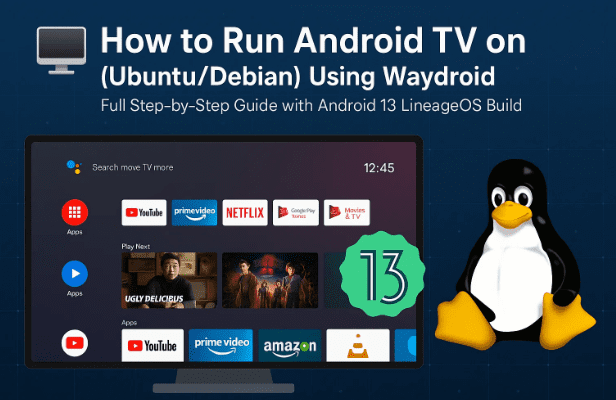
In this guide, we’ll walk you through how to install Android TV on your Ubuntu or Debian-based Linux system using Waydroid, a containerized Android environment that offers near-native performance.
You’ll end up with a complete Android TV experience powered by LineageOS 20 (Android 13), complete with Google Play Store, hardware acceleration, and support for popular streaming apps like YouTube, Prime Video, and Netflix.
1. 🌐 Introduction: What Is Waydroid and Why Use It
Before we begin, let’s understand what Waydroid actually is.
Waydroid isn’t a traditional emulator like Bluestacks or Genymotion. Instead, it’s a container system that runs a full Android OS image directly on top of your Linux kernel using LXC (Linux Containers).
This means apps don’t need to be emulated — they run with near-native performance, making the experience extremely fast and smooth.
In this guide, we’ll use a special custom Android TV build for Waydroid, based on LineageOS 20 (Android 13).
This build already includes:
- ✅ Google Play Store and Play Services
- ✅ Widevine L3 DRM for streaming apps
- ✅ VA-API hardware acceleration for Intel and AMD GPUs
So, you’ll be able to install and stream from apps like YouTube, Prime Video, MX Player, Hotstar, and more—just like on a real smart TV.
2. ⚙️ System Requirements and Preparations
Before jumping into installation, let’s check what you’ll need.
Minimum Requirements:
- A 64-bit Ubuntu/Debian system (tested on Ubuntu 22.04 and Debian 12)
- At least 4 GB of RAM (8 GB recommended)
- Dual-core CPU or better
- 10 GB of free disk space
- Internet connection for downloading packages and Android TV image
Make sure your system is updated:
sudo apt update && sudo apt upgrade -yNow let’s move to the next step—installing Waydroid itself.
3. 🧩 Installing Waydroid on Ubuntu/Debian
Waydroid can be installed easily using the official repository.
Let’s go step-by-step so you don’t miss anything.
Step 1: Install Required Dependencies
Open your terminal and install curl and ca-certificates:



sudo apt install curl ca-certificates -y
Step 2: Add the Official Waydroid Repository
Now, add the repository using curl: curl https://repo.waydro.id | sudo bash
This ensures you always get the latest stable version.
Step 3: Update and Install Waydroid
Once the repository is added:
sudo apt update && sudo apt install waydroid -y
That’s it!
You’ve successfully installed Waydroid. You can now find it in your Applications Menu under “Waydroid”.
But before you run it, we need to install the Android TV image.
4. 📦 Downloading the Android TV Build (LineageOS 20)
Now it’s time to get the Android TV build that runs inside Waydroid.
We’ll use a custom LineageOS 20 (Android 13) build made by the GitHub user SuperChicken, available at:
👉 https://github.com/supechicken/waydroid-androidtv-build
Features of This Build:
- Based on LineageOS 20 (Android 13)
- Includes Google Play Store & Play Services
- Supports Widevine L3 DRM for apps like Netflix and Prime Video
- Optimized for Intel and AMD GPUs using VA-API acceleration
Step-by-Step:
- Scroll down to the “Releases” section on the GitHub page.
- Download the latest ZIP file for your x86_64 (64-bit) system.
The file size should be around 1 GB. - After downloading, right-click → Extract it.
- Inside, you’ll see two files:
system.imgvendor.img
These files are the actual Android system and vendor images that Waydroid uses to boot Android TV.
Let’s now move these into the proper location.
5. 🧠 Setting Up Android TV Inside Waydroid
We’re now ready to configure Waydroid to boot into the new Android TV system.
Let’s go step-by-step again:
Step 1: Clean Up Old Data (if applicable)
If you’ve used Waydroid before, clean up old files:
waydroid session stop
sudo rm -rf ~/.local/share/waydroid
sudo rm -rf /var/lib/waydroid/overlay*
If this is your first time, you can skip this cleanup.
Step 2: Copy Android TV Images
Create the directory for custom images and move both files:
sudo mkdir -p /etc/waydroid-extra/images/
sudo cp ~/Downloads/system.img /etc/waydroid-extra/images/system.img
sudo cp ~/Downloads/vendor.img /etc/waydroid-extra/images/vendor.img
(Adjust the ~/Downloads/ path if your files are elsewhere.)
Step 3: Initialize Waydroid with the New Images
Now run:
sudo waydroid init -f
This tells Waydroid to use the new Android TV images instead of the default one.
Step 4: Launch Waydroid
You can now launch it from the Applications Menu or use:
waydroid session start
The first boot may take a few minutes, so be patient. Once it finishes, you’ll see the Android TV home screen right on your Linux desktop!
6. 🔐 Registering Android TV with Google
Since this Android TV build isn’t officially certified, Google Play Store may not allow login until you register your device ID.
Here’s how to fix it.
Step 1: Get Your Android ID
Open terminal and run:
sudo waydroid shell -- sh -c "sqlite3 /data/data/*/*/gservices.db 'select * from main where name=\"android_id\";'"
This will display a unique numeric Android ID.
Step 2: Register Your Device
- Visit Google’s Uncertified Device Registration Page:
🔗 https://www.google.com/android/uncertified - Log in using the same Google account you’ll use on Android TV.
- Paste your Android ID into the box, complete the CAPTCHA, and click Register.
- You’ll see a confirmation message saying your device ID is registered.
Step 3: Restart Waydroid
Now restart your Android TV container:
waydroid session stop
waydroid session start
Open Google Play Store and sign in — it should now work without any error.
7. 📲 Installing Apps via Play Store or Aurora Store
Once Google Play is working, you can install any Android TV-compatible app.
Popular choices include:
- YouTube
- Amazon Prime Video
- Disney+ Hotstar
- MX Player
- Spotify
- Plex
- VLC
Simply open the Play Store, search, and click Install.
Each app will automatically appear on your Android TV home screen.
If you prefer not to log in to Google, you can use Aurora Store as an alternative:
waydroid app install ~/Downloads/AuroraStore*.apk
Aurora Store lets you download Play Store apps anonymously.
8. 🎬 Testing Streaming Apps and Performance
Now comes the fun part—testing your new Android TV setup!
Step 1: Launch YouTube
When you open YouTube, a QR code may appear for sign-in.
Simply scan it with your phone’s camera and link your account instantly.
Videos should play smoothly in HD quality, thanks to hardware acceleration.
Step 2: Test Amazon Prime Video or Netflix
Sign in to your account and stream any video.
Widevine L3 DRM allows playback for most streaming platforms (though not 4K for DRM-protected apps).
You’ll notice that the performance feels native, not emulated.
This is because Waydroid directly uses your system’s GPU and CPU resources.
9. 🧹 How to Uninstall or Remove Waydroid
If you ever decide to remove Android TV or reclaim disk space, here’s how to uninstall Waydroid completely.
Step 1: Stop the Running Session
waydroid session stop
Step 2: Uninstall Waydroid
sudo apt remove --purge waydroid -y
Step 3: Delete Residual Data and Configurations
sudo rm -rf ~/.local/share/waydroid
sudo rm -rf /var/lib/waydroid
sudo rm -rf /etc/waydroid-extra
rm -f ~/.local/share/applications/waydroid.*
sudo rm -f /usr/share/applications/waydroid.*
That’s it—Waydroid and Android TV are now fully removed.
10. ❓ FAQs and Common Questions
Q1. Is Waydroid an emulator?
No. Waydroid is a container, not an emulator. It runs Android natively on your Linux kernel, offering much better speed and integration than traditional emulators.
Q2. Can I use NVIDIA GPUs?
Waydroid currently supports Intel and AMD GPUs best due to VA-API support. NVIDIA users may face limited acceleration, but basic functionality still works.
Q3. Is it safe to sign in to Google Play?
Yes, but since the device is uncertified, you must manually register your Android ID on Google’s official site to avoid login issues.
Q4. Can I install games?
Yes, lightweight games and streaming-based games (like emulators or cloud apps) work fine. However, heavy 3D titles may not perform optimally due to GPU driver limitations.
Q5. What if the screen is blank or crashes?
Run cleanup commands and reinitialize Waydroid:
waydroid session stop
sudo waydroid init -f
Then reboot your system.
11. ⚠️ Disclaimer
This tutorial is for educational purposes only.
The custom Android TV build used here is community-maintained and not officially endorsed by Google or LineageOS.
Streaming apps using DRM (like Netflix or Prime Video) may have limited resolution due to L3 certification.
Always ensure you comply with local laws and service terms when using custom builds or third-party images.
🔗 Useful Links
- Official Waydroid Website: https://waydro.id/
- Android TV Build (GitHub): https://github.com/supechicken/waydroid-androidtv-build
#Waydroid #AndroidTV #LinuxTips #Ubuntu #Debian #Android13 #LineageOS #GooglePlay #TechGuide #OpenSource








