Have you ever wondered how well your computer’s hardware is performing compared to what it should be capable of? Windows once had a built-in scoring system called the Windows Experience Index (WEI), also referred to as the Windows Performance Index.
This tool assigns scores to different components of your system, such as the processor, RAM, graphics card, and storage drive. Even though Microsoft has hidden this feature in newer versions of Windows (from Windows 8.1 onwards), it’s still present under the hood. With a few steps, you can bring it back and use it to measure your PC’s performance.
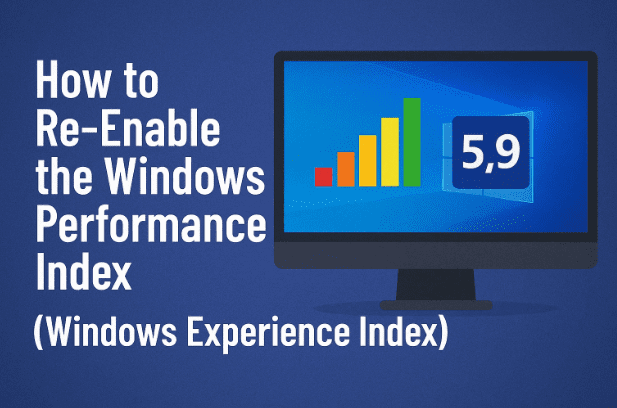
In this article, we’ll go step by step through the process of re-enabling the Windows Performance Index, viewing the scores, and interpreting them to make informed decisions about upgrades or optimizations.
1. 🌟 What is the Windows Performance Index?
The Windows Performance Index (or Windows Experience Index, WEI) was originally introduced in Windows Vista and carried into Windows 7 and 8. It provided users with a quick, numeric representation of their PC’s performance.
- Processor (CPU): Measures how fast your CPU can handle calculations.
- Memory (RAM): Evaluates how quickly data can be accessed and processed.
- Graphics (Desktop): Checks how well your GPU handles everyday visual tasks.
- Gaming Graphics (3D): Focuses on 3D rendering and game performance.
- Primary Hard Disk: Tests read/write speed of your system drive.
Each component gets a sub-score, and the lowest score becomes your base score.
👉 Example: If your system scores 7.4 in CPU, 7.1 in RAM, 6.8 in Graphics, but only 5.9 in Disk, then 5.9 is your WEI base score. This means your hard disk is the bottleneck.
2. 🤔 Why Microsoft Hid It (and Why You Might Still Need It)
Starting with Windows 8.1, Microsoft decided to remove the visible WEI GUI panel. The reason was that many users misunderstood the scores and assumed a low number meant their PC was outdated or “bad.”
However, the WinSAT tool (Windows System Assessment Tool) is still available behind the scenes. If you run it, you can still generate updated scores.
Why you might still want it:
- To spot bottlenecks in your system.
- To compare before and after upgrades (e.g., HDD → SSD swap).
- To validate performance after tweaking BIOS, drivers, or system settings.
- To benchmark an older PC to decide whether it’s worth upgrading.
Not only just this, but there are many other features that you can unhide like
- 5 Hidden Windows Features You Should Be Using in 2025: A Step-by-Step Guide
- How to Show Hidden Files and Folders in Windows File Explorer: A Quick Guide
- How to Unlock Hidden Education Themes in Windows 11
- How to Check Your Windows PC’s Hidden Performance Score Using PowerShell
- Or you can check out all such articles here
3. ⚠️ Before You Begin: Important Preparations
Before we dive into the steps, let’s take a moment to prepare:







- Run as Administrator – The WinSAT tool requires elevated privileges. Without it, the tool won’t execute properly.
- Save Your Work – Running the assessment stresses your CPU, GPU, and storage. It may temporarily slow down your PC. Save all important documents first.
- Know the Location – The results are stored in a specific folder (
C:\Windows\Performance\WinSAT\DataStore). - Patience Needed – The assessment may take anywhere from 2 to 10 minutes, depending on your system.
4. 🖱️ Step 1 – Open the Command Prompt with Administrator Rights
This is the first and most important step. Without administrator privileges, the WinSAT tool will fail to run.
- Press Start and type cmd.
- Right-click on Command Prompt.
- Select Run as administrator.
If prompted by User Account Control (UAC), click Yes.
5. ⚙️ Step 2 – Run the Windows System Assessment Tool (WinSAT)
Once the elevated Command Prompt is open, you’re ready to start the test.
Type the following command and press Enter:
winsat formal
This command instructs Windows to perform a full formal assessment of all hardware components.
6. ⏳ Step 3 – Wait for the Hardware Assessment to Finish
When you press Enter, Windows will start testing:
- Processor speed and multi-threading.
- Memory access speed.
- Graphics rendering.
- Gaming graphics performance.
- Hard disk read/write speed.
During this process:
- Your screen may flash as graphics tests run.
- CPU may hit 100% usage temporarily.
- Fans might spin louder due to stress tests.
💡 Don’t panic—this is normal.
7. 📂 Step 4 – Locate and Read the Results (XML Files)
Once the test is complete, results are automatically saved in the following location:
C:\Windows\Performance\WinSAT\DataStore
Inside this folder, look for files with names like:
Formal.Assessment (Recent).WinSAT.xml
To read the file:
- Double-click it. It should open in your default web browser.
- You’ll see detailed scores for CPU, RAM, Graphics, Gaming, and Disk.
8. 🖥️ Step 5 – Alternative Way: View Scores from Control Panel
If you prefer a GUI method:
- Open Control Panel.
- Navigate to: System and Security > Security and Maintenance.
- Look for Performance Information and Tools.
- If available, select Re-run the assessment to refresh scores.
Note: In newer versions of Windows 10/11, this option may no longer appear. That’s why the XML method remains the most reliable.
9. 📊 How to Interpret the Windows Experience Index Scores
Here’s how to read the scores:
- CPU (Processor):
- 5.0 – 6.0 = older dual-core CPU
- 6.5 – 7.5 = decent modern quad-core
- 8.0+ = high-performance multi-core CPU
- RAM (Memory):
- Below 5.5 = needs an upgrade
- 6.0 – 7.5 = sufficient for most users
- 8.0+ = great for heavy multitasking, VMs, editing
- Graphics (Desktop):
- Below 4.5 = struggles with HD/4K displays
- 5.5 – 6.5 = fine for everyday tasks
- 7.0+ = smooth performance for high-res and multi-monitor setups
- Gaming Graphics (3D):
- Below 5.0 = not suitable for modern games
- 6.0 – 7.0 = casual gaming possible
- 8.0+ = capable of modern AAA titles
- Disk (Storage):
- 5.5 or below = likely HDD
- 7.0+ = SSD (fast performance boost)
10. 🔧 Using WEI Scores to Plan Upgrades
The biggest advantage of WEI is spotting the weakest link in your system:
- Low CPU score? Consider upgrading to a newer processor (if your motherboard supports it).
- Low RAM score? Add more memory sticks or upgrade to faster DDR modules.
- Low Graphics score? Upgrade to a dedicated GPU.
- Low Disk score? Replace your HDD with an SSD for instant performance gains.
11. 📌 Tips to Keep Performance Scores Relevant
- Re-run after major upgrades.
- Close apps before testing to avoid false results.
- Use SSDs for best improvements.
- Update drivers to improve GPU/CPU performance.
12. ❓ Frequently Asked Questions (FAQ)
Q1: Does Windows Experience Index affect performance?
No. It only measures performance, it doesn’t change it.
Q2: Why did Microsoft remove the visible WEI panel?
To avoid confusion—many users thought low scores meant their PC was faulty.
Q3: Can I use third-party apps to view WEI scores?
Yes. Tools like ChrisPC Win Experience Index display scores in a GUI. Official site.
Q4: Does WEI work on Windows 11?
Yes, but only through the WinSAT command and XML files.
13. ✅ Final Thoughts
Re-enabling the Windows Performance Index is a great way to get an inside look at your PC’s strengths and weaknesses. While it’s no longer highlighted by Microsoft, it still provides valuable insights for upgrading, tweaking, or simply satisfying your curiosity.
So next time you wonder “Why does my PC feel slow?”, run the WinSAT test, check your WEI scores, and you’ll know exactly which component is holding you back.
⚠️ Disclaimer: The Windows Experience Index is not a professional benchmark tool. It’s best used for quick, internal checks. For in-depth benchmarking, tools like Cinebench, CrystalDiskMark, or 3DMark are more accurate.
Tags
Windows performance index, Windows experience index, WinSAT, Windows 11 optimization, Windows 10 performance, PC benchmarking, hardware upgrades, disk score, CPU performance, RAM benchmark
Hashtags
#Windows11 #Windows10 #Performance #Benchmark #PCOptimization #TechGuide #WinSAT








