If you’re into web development or want to experiment with server-side scripting, one of the first things you’ll need is PHP (Hypertext Preprocessor). PHP powers a majority of the web today, from simple dynamic websites to big platforms like WordPress, Drupal, and Joomla.
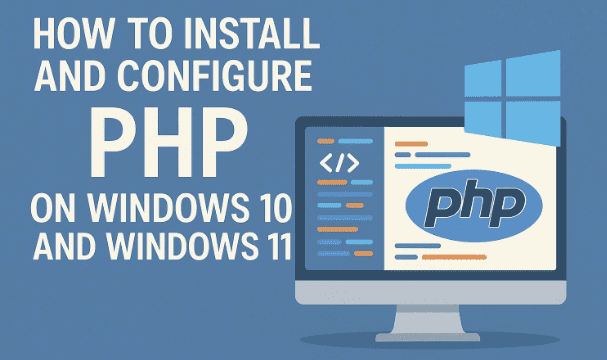
In this article, we’ll walk step by step through the installation and configuration of PHP on Windows 10 and Windows 11. By the end, you’ll not only have PHP set up, but also test it by running a simple script.
Let’s get started.
1. Introduction: Why Install PHP Locally?
Before diving into the steps, let’s understand why you need PHP installed on your local computer:
- To run and test PHP scripts before deploying them online.
- To build dynamic websites or applications that need server-side logic.
- To set up a local environment for WordPress or other CMS platforms.
- To practice PHP programming and improve your coding skills.
On Windows, PHP doesn’t come pre-installed, so we need to configure it manually. But don’t worry — the process is straightforward if you follow the steps carefully.
2. Prerequisites
Before you begin, make sure you have the following:
- A Windows 10 or Windows 11 PC with administrative rights.
- A stable internet connection to download PHP.
- A text editor like Notepad (built into Windows) or better yet, Notepad++ or Visual Studio Code.
- Basic understanding of navigating files and folders in Windows.
3. Downloading PHP for Windows
The first step is to grab PHP from the official website.
- Open Google Chrome (or any browser).
- Search for PHP for Windows or directly visit: https://windows.php.net/download.
- On the page, you’ll see different builds. Look for the Non-Thread Safe (NTS) version since it’s easier to configure for development.
- Download the ZIP file of the latest stable version.
💡 Tip: Always pick the x64 architecture build if you’re on a 64-bit Windows (which is almost always the case).
4. Extracting and Organizing PHP Files
Once the ZIP file is downloaded:
- Navigate to your Downloads folder.
- Right-click the downloaded ZIP and select Extract All.
- Windows will create a folder with the same name as the ZIP file.
For better management:
- Rename the folder to something simpler, like
php82(if you downloaded PHP 8.2). - This makes it easier when setting environment paths later.
5. Moving PHP to the Program Files Directory
Now, let’s move PHP to a permanent place.






- Right-click the renamed PHP folder and choose Copy.
- Go to C:\Program Files.
- Right-click inside and select Paste.
- Windows might ask for admin permission — click Continue.
That’s it! Your PHP folder is now inside C:\Program Files\php82.
6. Configuring Environment Variables
This step is crucial. Without it, Windows won’t recognize PHP commands.
- In the Start Menu Search Bar, type:
Advanced System Settingsand open it. - Go to System Properties → Advanced → Environment Variables.
- Under System Variables, find Path and double-click it.
- Click New, then paste the path of your PHP folder. Example:
C:\Program Files\php82 - Click OK, then OK again to save changes.
So far, so good — we’ve connected PHP to the system.
7. Verifying PHP Installation
Time to test whether PHP is installed correctly.
- Press Windows + R, type
cmd, and hit Enter. - In the command prompt, type:
php --version - If everything went well, you’ll see details like:
PHP 8.2.x (cli) (built: …) Copyright (c) The PHP Group - If you get an error like “php not recognized”, double-check the environment variable path.
8. Creating and Running Your First PHP Script
Let’s now run a test script to confirm PHP is working.
- Open File Explorer and go to the D drive (or any other drive).
- Create a new folder called
AAA. - Inside it, create a new Text Document and rename it to:
index.php(Windows will warn about changing the extension — click Yes). - Right-click
index.php→ Open with → Notepad. - Add the following code:
<?php echo "Hello World"; ?> - Save and close the file.
- Now open Command Prompt again and type:
D: cd AAA php index.php - You should see:
Hello World
🎉 Congratulations! You just created and executed your first PHP program on Windows.
9. Common Issues and Troubleshooting
Even with careful steps, you might face errors. Here are some common ones:
- PHP not recognized in CMD → Check if the correct path is added in Environment Variables.
- Wrong PHP version showing → You might have multiple PHP installations. Remove older paths from Environment Variables.
- Script not executing properly → Ensure the file extension is
.php, not.txt. - Access denied while copying files → Run Explorer or CMD as Administrator.
10. FAQs
Q1. Can I install multiple versions of PHP on the same PC?
Yes, but you’ll need to manage paths carefully. Tools like XAMPP or Laragon can help manage multiple versions.
Q2. Do I need a server like Apache to run PHP?
For basic CLI scripts, no. But if you want to serve web pages, you’ll need a web server (Apache, Nginx, or built-in PHP server).
Q3. Is PHP free to use?
Absolutely. PHP is open-source and licensed under the PHP License.
Q4. Will these steps work for both Windows 10 and Windows 11?
Yes, the process is the same on both versions.
11. Conclusion
So far, we’ve successfully:
- Downloaded PHP,
- Extracted and moved it into Program Files,
- Configured environment variables,
- Verified installation, and
- Created our first PHP script.
Setting up PHP on Windows might look intimidating at first, but once you break it down, it’s just a sequence of logical steps. With PHP running, you can now dive deeper into building dynamic applications, testing CMS platforms, or simply learning programming at your own pace.
✅ Disclaimer: This guide is intended for educational purposes. Be cautious when editing system files or environment variables, as incorrect changes may affect your system. Always double-check steps before applying them.
Tags
php installation, install php windows 10, insatall php windows 11, configure php, run php script, php beginner guide
Hashtags
#PHP #Windows11 #Windows10 #WebDevelopment #Programming #Coding







