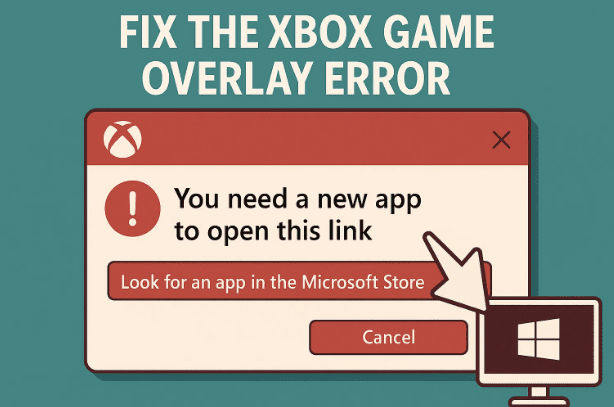
If you’ve tried launching a game or program in fullscreen mode on Windows and suddenly see an annoying popup saying you need another app to open the overlay, you’re not alone. This is a common error tied to the Xbox Game Bar service built into Windows.
The error doesn’t usually crash your game, but it pops up every time you open something in fullscreen, which quickly becomes frustrating. The good news is that this issue has a straightforward solution: either tweak your system’s registry manually or use a ready-made script to disable the problematic overlay once and for all.
In this article, we’ll go step by step through the fixes. Along the way, we’ll explain what causes this error, why it happens even after disabling Xbox Game Bar, and how to safely remove it without breaking your system.
🎮 What Is the Xbox Game Bar and Why Does It Cause Errors?
The Xbox Game Bar is a gaming overlay built into Windows that allows you to:
- Record gameplay.
- Capture screenshots.
- Chat with Xbox friends.
- Monitor system performance during gaming.
When enabled, pressing shortcuts like Win + G brings up this overlay.
The problem is, if you’ve disabled or uninstalled Xbox Game Bar, Windows still looks for its overlay whenever you launch a fullscreen app. Since it can’t find it, you get a popup error asking for a different app to handle the overlay.
This doesn’t block you from playing, but it becomes an irritating interruption every time you open a game.
⚠️ Why You Might See This Error
Let’s outline the main reasons this bug occurs:
- Xbox Game Bar Disabled
- If you’ve turned it off in Settings > Gaming, Windows still tries to call its overlay.
- Xbox Game Bar Uninstalled
- Some users remove it to save resources, but Windows doesn’t fully stop referencing it.
- Registry Values Still Active
- Even after disabling, certain registry keys keep telling Windows to use the overlay.
🔧 Step 1: Confirm Xbox Game Bar Status
Before applying fixes, it’s smart to check whether Xbox Game Bar is enabled or disabled.
- Press Win + I to open Settings.
- Go to Gaming > Xbox Game Bar.
- See if the toggle is On or Off.
- If it’s off, that explains why Windows is trying to find something else for the overlay.
- If it’s on but still giving errors, the issue is deeper (registry-level).
🔧 Step 2: Fixing the Error Using a Ready Registry File
The easiest way to stop the error is by using a pre-made registry (.reg) file.
This small file automatically adds or modifies a key in your system registry to prevent Windows from trying to launch the Xbox Game Bar overlay.



How to Use the .reg File
- Download the registry file (commonly shared as
remove_xbox_game_bar.reg). - Extract the file if it’s inside a zipped folder.
- Double-click the
.regfile. - Windows will show a warning since registry edits can affect the system. Click Yes.
- You’ll see a confirmation: “The keys and values have been successfully added.”
- Restart your computer.
After rebooting, the popup error should disappear when launching fullscreen apps.
🔧 Step 3: Fixing It Manually via Registry Editor
If you prefer to do it yourself instead of downloading files, you can manually edit the registry.
⚠️ Warning: Editing the registry incorrectly can cause system instability. Always create a backup first.
Backing Up Your Registry
- Press Win + R, type
regedit, and hit Enter. - In the Registry Editor, click File > Export.
- Choose a location and save the backup.
Editing the Keys
- Open Registry Editor (
regedit). - Navigate to the following path:
HKEY_CURRENT_USER\Software\Microsoft\Windows\CurrentVersion\GameDVR
- Inside this folder, look for a key called:
AppCaptureEnabled(or similar entries like GameDVR_Enabled).
- If it exists, right-click it and select Modify.
- Change its value to 0.
- If it doesn’t exist, create a new DWORD (32-bit) Value called
AppCaptureEnabledand set it to 0. - Exit Registry Editor and restart your PC.
This will completely disable Windows from trying to load the Xbox overlay.
✅ What Happens After the Fix
Once the registry is updated (either manually or via the .reg file):
- Windows stops checking for Xbox Game Bar when launching fullscreen apps.
- The annoying popup error will no longer appear.
- Your games and programs will launch normally without interruptions.
📚 Additional Notes
- If you rely on Game DVR recording features (screen capture or background recording), disabling Xbox Game Bar will remove them. Consider alternatives like OBS Studio.
- If you reinstall Xbox Game Bar in the future from the Microsoft Store, you may need to re-enable the registry values to restore functionality.
❓ Frequently Asked Questions (FAQ)
Q1: Will disabling Xbox Game Bar affect my games?
No. Games will run normally. The only thing you lose are overlay features like built-in recording.
Q2: Is it safe to use a .reg file from the internet?
Only if it comes from a trusted source. Always open the .reg file in Notepad first to see what it modifies.
Q3: Can I completely uninstall Xbox Game Bar?
Yes, but even after uninstalling, Windows sometimes references it, which is why the registry fix is necessary.
Q4: Can I re-enable it later?
Yes. Change the registry value back to 1 or reinstall Xbox Game Bar from the Microsoft Store.
Q5: Is this error harmful to my PC?
Not at all. It’s just an annoyance. Fixing it improves your experience, especially if you play many fullscreen games.
⚠️ Disclaimer
This guide involves editing the Windows Registry. While the process is safe if followed carefully, mistakes can cause system instability. Always back up your registry or create a System Restore Point before making changes.
📌 Final Thoughts
The Xbox Game Bar overlay error is a small but irritating bug for Windows gamers. It happens when the overlay is disabled or uninstalled but Windows still tries to use it. Thankfully, the fix is straightforward: either apply a registry patch or edit the keys manually.
After applying the solution and rebooting, you should be able to enjoy fullscreen games without that nagging popup ever again.
Tags: xbox game bar error, disable xbox overlay windows, game dvr registry fix, windows gaming overlay issue, fix fullscreen error windows, xbox overlay popup fix, xbox bar disable regedit
Hashtags: #Windows10 #Windows11 #XboxGameBar #GamingPC #FixError #RegistryFix #FullScreenError








