Remote Desktop Protocol (RDP) is one of the most widely used tools in enterprise IT environments. It allows administrators and users to connect to Windows devices remotely for troubleshooting, software installation, or day-to-day work.
By default, Remote Desktop is disabled on Windows 11 and most other Windows client operating systems. Enabling it manually on every device is impractical in an organizational environment where hundreds or even thousands of machines are joined to the same domain. That’s where Group Policy Management comes in.
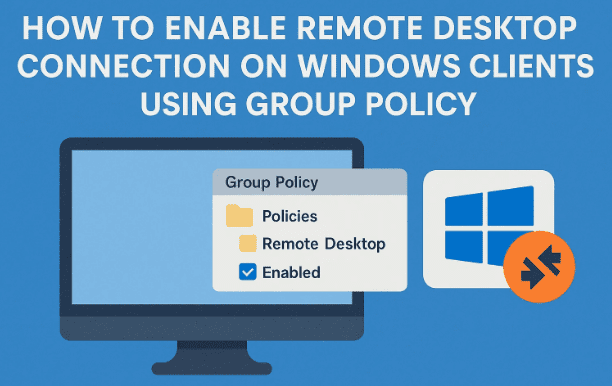
In this article, we’ll explore step by step how to enable Remote Desktop Connection for all client devices in your domain using Group Policy. We’ll also discuss best practices, common pitfalls, and alternatives like Microsoft Intune.
📑 Table of Contents
- What is Remote Desktop and Why It’s Important
- Why Use Group Policy Instead of Manual Configuration
- Requirements Before You Begin
- Accessing Group Policy Management
- Creating an Organizational Unit (OU) for Clients
- Linking a Group Policy Object (GPO)
- Editing the Policy to Enable Remote Desktop
- Forcing the Policy Update
- Testing Remote Desktop Connectivity
- Limitations and Disadvantages of RDP
- Alternative: Using Microsoft Intune
- Troubleshooting Common Issues
- Frequently Asked Questions (FAQs)
- Conclusion
1. What is Remote Desktop and Why It’s Important
Before diving into the technical steps, let’s understand why enabling Remote Desktop is such a crucial administrative task.
Remote Desktop Protocol (RDP) allows you to connect to a Windows computer from another location. Once connected, you can control the desktop as if you were physically in front of it.
Key benefits include:
- Remote Troubleshooting: IT admins can fix issues without visiting desks.
- Remote Work: Users can connect to their office PC from home or another office.
- Centralized Management: Control over remote access ensures consistency and compliance.
Without Remote Desktop enabled, remote management becomes tedious, requiring physical access or third-party software.
2. Why Use Group Policy Instead of Manual Configuration
You could, of course, enable Remote Desktop individually by going to:
Settings → System → Remote Desktop → Enable
But imagine repeating this on 200 computers. That’s time-consuming and error-prone.
Using Group Policy offers:











- Scalability: Apply settings to thousands of devices at once.
- Consistency: All machines receive the same configuration.
- Security: Users cannot disable the policy once applied.
- Automation: The setting is applied automatically during login or refresh.
If your organization uses Microsoft Intune or another Mobile Device Management (MDM) solution, you could achieve similar results there. But in traditional Active Directory environments, Group Policy remains the go-to method.
3. Requirements Before You Begin
To follow this guide, ensure you have:
- Domain Controller with Group Policy Management Console installed.
- Administrative Privileges on the domain.
- Active Directory Organizational Units (OUs) containing client devices.
- Windows Pro, Enterprise, or Education editions on the client side (RDP is not supported on Windows Home).
It’s also a good idea to test these steps in a staging environment before applying them to production.
4. Accessing Group Policy Management
Now that we’re clear on requirements, let’s get started.
- Log into your Domain Controller.
- Open the Server Manager dashboard.
- In the top menu, select Tools → Group Policy Management.
This opens the Group Policy Management Console (GPMC), which is the central tool for creating and managing Group Policy Objects (GPOs).
5. Creating an Organizational Unit (OU) for Clients
Before applying policies, it’s best practice to structure your Active Directory.
- In Active Directory Users and Computers (ADUC), create an Organizational Unit (OU) for your client devices.
- For example, you might name it
GlobalICT_Clients. - Move all the relevant computers into this OU.
This way, when we apply the GPO, it will affect only the intended devices.
6. Linking a Group Policy Object (GPO)
Now that the OU is ready, we’ll link a new GPO to it.
- In Group Policy Management, right-click the OU (e.g.,
GlobalICT_Clients). - Choose Create a GPO in this domain, and Link it here.
- Give it a descriptive name such as:
Enable_RemoteDesktop_GPO.
- Click OK.
At this point, the GPO exists but has no configuration. Next, we’ll edit it.
7. Editing the Policy to Enable Remote Desktop
Here comes the crucial part—telling Windows to allow RDP connections.
- Right-click your new GPO → Edit.
- In the Group Policy Management Editor, navigate to:
Computer Configuration → Policies → Administrative Templates → Windows Components → Remote Desktop Services → Remote Desktop Session Host → Connections - Locate the setting: Allow users to connect remotely using Remote Desktop Services.
- Double-click it.
- Select Enabled.
- Optionally, add a comment like “Configured by [Your Name]” so future admins know who created the policy.
- Click OK.
That’s it—the GPO now instructs all devices in the OU to enable Remote Desktop.
8. Forcing the Policy Update
Normally, Group Policy updates automatically every 90 minutes on client devices. However, you can force it immediately:
- On a client PC, open Command Prompt as Administrator.
- Run:
gpupdate /force - The policy will refresh instantly.
Once applied, the Remote Desktop settings on the client will display:
“Some settings are managed by your organization.”
This confirms that the GPO is active.
9. Testing Remote Desktop Connectivity
It’s important to verify that the configuration works as intended.
- From your Domain Controller or another machine, open Remote Desktop Connection (mstsc.exe).
- Enter the hostname or IP of the client PC.
- Provide domain credentials.
- If everything is correct, you should connect successfully.
⚠️ Note: If someone is already logged into the client machine, they will be signed out when you connect remotely. This is a limitation of standard Remote Desktop on Windows client editions.
10. Limitations and Disadvantages of RDP
While RDP is powerful, you should be aware of its limitations:
- User Displacement: Only one session is allowed. If you connect, the local user is logged out.
- Security Risks: Exposing RDP over the internet without VPN or firewall rules can make your network vulnerable.
- Licensing: For multiple simultaneous sessions, you’d need Remote Desktop Services (RDS) with Client Access Licenses (CALs).
This is why many organizations use RDP internally but restrict external access to VPN-authenticated users.
11. Alternative: Using Microsoft Intune
If your organization uses Microsoft Intune or Endpoint Manager, you can enable Remote Desktop through configuration profiles instead of GPOs.
Benefits of Intune include:
- Works for devices outside the corporate network.
- Cloud-based policy management.
- Easier integration with modern device management.
However, if your environment is still heavily Active Directory–based, GPO remains the faster option.
12. Troubleshooting Common Issues
Sometimes Remote Desktop may still not work even after applying the policy. Here are common causes:
- Firewall not configured: Ensure that Remote Desktop is allowed through Windows Firewall.
- Wrong OU placement: Verify the client computer is in the OU linked to the GPO.
- Policy not applied: Run
gpresult /ron the client to confirm the GPO is active. - Incorrect edition: Windows Home editions don’t support Remote Desktop hosting.
13. Frequently Asked Questions (FAQs)
Q1: Can users disable Remote Desktop after the policy is applied?
No. Once enforced by GPO, the setting is grayed out and controlled centrally.
Q2: How long does it take for the GPO to apply automatically?
Typically 90 minutes, plus a random offset. You can force it with gpupdate /force.
Q3: Is it safe to enable Remote Desktop on all clients?
Yes, if it’s secured with strong passwords, network restrictions, and ideally a VPN. Directly exposing RDP to the internet is not recommended.
Q4: Can I enable Remote Desktop for only certain groups of users?
Yes. Use OU targeting and security filtering in Group Policy to restrict where the GPO applies.
Q5: Will this method work for Windows Server as well?
Yes, but servers usually require additional RDS configuration for multiple sessions.
14. Conclusion
Enabling Remote Desktop across your organization doesn’t have to be a manual, repetitive task. By leveraging Group Policy Management, you can roll out the setting once and ensure all client devices follow it consistently.
We walked through creating an OU, linking a GPO, editing it to allow RDP, forcing updates, and testing connectivity. Along the way, we highlighted limitations and alternatives like Microsoft Intune.
With proper configuration, you’ll save countless hours and improve remote management efficiency in your IT environment.
15. Disclaimer
This article is for educational purposes only. Enabling Remote Desktop opens potential security risks if not configured correctly. Always ensure that your organization’s firewall rules, VPN access, and password policies are strong before exposing RDP services.
Tags
remote desktop, group policy, enable rdp windows 11, active directory tutorial, windows server, IT administration, microsoft management
Hashtags
#Windows11 #RemoteDesktop #GroupPolicy #ActiveDirectory #ITAdmin #SystemAdministration








