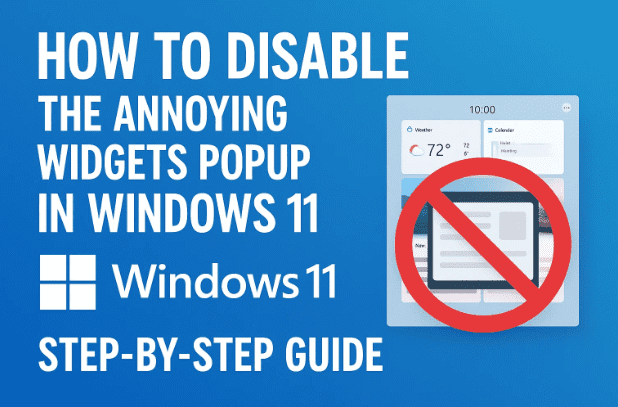
Windows 11 brings many design changes and features compared to Windows 10, but not all of them are universally loved. One of the most common complaints from users is the widgets popup that appears when you hover your mouse over the widget icon on the taskbar.
On smaller screens, this popup can even cover large parts of the display, making it frustrating to work with multiple windows. The good news is that you have full control over this feature. Whether you want to stop the widget board from opening on hover or completely remove the widget icon from your taskbar, Windows 11 gives you two simple ways to manage it.
In this guide, we’ll go through both methods in detail, explain why they exist, and also provide troubleshooting tips if the setting doesn’t work as expected.
1. What Are Windows 11 Widgets?
Widgets in Windows 11 are small, interactive panels that provide quick access to news, weather, calendar, stocks, and personalized updates.
- You access them from the taskbar widget icon (usually located near the Start button).
- By default, the widget panel appears when you hover your mouse over the icon.
- It can show you things like local weather, recent headlines, and reminders.
While some users enjoy this feature, others find it unnecessary, distracting, or simply annoying because it interrupts their workflow.
2. Why the Widgets Popup Annoys Users
Here’s why the widget popup can be disruptive:
- Accidental activation: If your mouse passes over the widget icon, the panel immediately pops up.
- Screen space issues: On smaller laptops or tablets, the widget board can cover the entire screen.
- Performance impact: Widgets use background resources (internet, memory, etc.), which can slow older devices.
- Lack of customization: Some users prefer not to see news feeds or suggested content pushed by Microsoft.
The good news is you can control this behavior easily. Let’s move on to the fixes.
3. Method 1: Stop Widgets Popup on Hover
If you like having the widget icon available but just don’t want it to open automatically when you hover your mouse over it, this is the best option. With this setting, widgets will only appear when you click on the icon, not when you simply move the cursor across it.
Steps:
- Hover your mouse over the widget icon on the taskbar until the widget board opens.
- In the top-right corner of the widget panel, click the ⚙️ Settings (cogwheel) icon.
- A settings menu will appear. Look for the option “Open widget board on hover.”
- Toggle the switch off.
- Click anywhere outside the menu to close it.
Now, the widget panel will no longer open when you hover. Instead, it will only appear if you left-click the widget icon.
👉 When to use this method:
- If you want to keep quick access to widgets but reduce accidental popups.
- If you occasionally check weather, calendar, or headlines but don’t want them interrupting you.
4. Method 2: Remove Widgets from Taskbar Entirely
If you never use widgets at all, the better option is to remove them completely from your taskbar. This not only prevents the popup but also declutters your taskbar.
Steps:
- Right-click on an empty space in your taskbar.
- Select Taskbar settings from the context menu.
- The Taskbar personalization settings window will open.
- Look for the option labeled Widgets.
- Toggle the switch off.
The widget icon will instantly disappear from your taskbar.
👉 When to use this method:
- If you never use widgets at all.
- If you want a cleaner, distraction-free taskbar.
- If you prefer relying on dedicated apps (like a weather app or news app) instead of the built-in widget panel.
5. Alternative Way: Restore Hover Functionality
At any time, you can bring back the hover functionality or re-enable widgets.
- To restore hover behavior:
- Open the widget board by clicking on the icon.
- Click the ⚙️ Settings cogwheel.
- Toggle “Open widget board on hover” back on.
- To restore widgets to your taskbar:
- Go back to Taskbar settings.
- Toggle the Widgets option back on.
6. Extra Notes: What Happens When You Disable Widgets?
- Disabling widgets does not delete or uninstall them. It only hides the entry point from your taskbar.
- Background updates (like weather) will stop using system resources once widgets are turned off.
- You can re-enable them anytime if you change your mind.
7. Frequently Asked Questions
Q1. Will disabling widgets speed up my computer?
- On modern PCs, the performance difference is small. On older or low-spec laptops, disabling widgets can free up memory and CPU usage.
Q2. Can I uninstall widgets completely from Windows 11?
- By default, Microsoft does not allow a full uninstall through Settings. However, advanced users can remove the widgets package via PowerShell. For most people, hiding the icon is enough.
Q3. What if the setting to disable hover doesn’t appear?
- Make sure you are running the latest Windows 11 update. Older builds may not include the hover toggle option.
Q4. Can I assign a keyboard shortcut to open widgets instead?
- Yes. By default, pressing Windows + W opens the widget panel. This works even if the taskbar icon is disabled.
Q5. Do widgets work offline?
- Some, like calendar or to-do list, may show cached data. But most widgets (news, weather, sports updates) require an internet connection.
8. Final Thoughts
The widget board in Windows 11 is one of those features that you either love or hate. For many, it provides useful quick-glance information. But for others, it’s nothing more than a distraction that pops up too often.
Luckily, Microsoft has included simple settings that let you:
- Turn off the hover behavior so you only see widgets when you want to.
- Completely remove the widget icon if you never use it.
With just a few clicks, you can take control of your taskbar, reduce distractions, and enjoy a smoother Windows 11 experience.
⚠️ Disclaimer
This guide is based on official Windows 11 features available at the time of writing. Settings may vary slightly depending on the version or update of your Windows 11 installation. Always ensure your system is up to date by going to Settings > Windows Update.
For more official details, you can visit: Microsoft’s Windows 11 Support Page.
Tags
Windows 11 widgets, disable widgets Windows 11, stop widget hover popup, remove widgets from taskbar, Windows 11 taskbar customization
Hashtags
#Windows11 #Widgets #Microsoft #Taskbar #ProductivityTips #PCGuide








