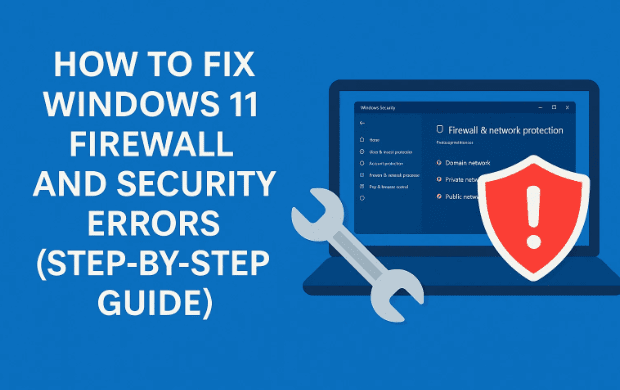
Windows 11 is a stable operating system, but sometimes users encounter problems related to Windows Firewall and system security settings. These issues can prevent certain apps from running, block network access, or cause strange system errors.
Fortunately, most of these problems can be fixed with a few built-in tools that Microsoft provides, such as the System File Checker (SFC) and the Windows Defender Firewall reset options. In this detailed article, we’ll walk through the entire process step by step.
1. Introduction: Why This Fix Works
When Windows 11 firewall or security features stop working properly, the cause is often:
- Corrupted system files: Important files may get damaged due to crashes, malware, or incomplete updates.
- Disabled services: Windows Firewall services may be set to “Disabled” or “Manual,” preventing them from running.
- Misconfigured firewall settings: Sometimes custom rules or third-party apps change firewall configurations in ways that break connections.
The fix involves three main parts:
- Running SFC Scan to repair corrupted files.
- Ensuring Windows Firewall service is enabled and set to automatic.
- Restoring firewall settings to default to eliminate wrong configurations.
2. Step 1: Open Services Tool
We’ll start by opening the Services management console. This tool controls background processes in Windows.
Steps:
- Press Windows + S and type
services. - Click Services from the search results.
- A new window opens, showing a long list of background services.
👉 Here you can manage whether a service is running, stopped, disabled, or set to automatic.
3. Step 2: Launch Command Prompt from System32
The Command Prompt (cmd.exe) is essential for running administrative commands like SFC.
Steps:
- In the Services window, right-click on the blank space and select Task Manager.
- In Task Manager, click Run new task.
- In the new window, click Browse.
- Navigate to:
This PC > C: Drive > Windows > System32 - Scroll down and find cmd.exe.
- Select it and click Open.
- Check the box Create this task with administrative privileges.
- Click OK.
You now have an administrator Command Prompt window open.
4. Step 3: Run the System File Checker (SFC Scan)
The SFC tool scans Windows for missing or corrupted system files and repairs them. This often fixes hidden errors that cause the firewall to malfunction.
Steps:
- In the Command Prompt, type:
sfc /scannow - Press Enter.
- Wait for the scan to complete. This may take 10–20 minutes, depending on your system speed.
Possible Results:
- No integrity violations: Your system files are fine.
- Errors found and fixed: SFC repaired corrupted files.
- Errors found but not fixed: You may need to run DISM tool (an advanced repair method).
5. Step 4: Configure Windows Defender Firewall Service
Now let’s make sure the Windows Defender Firewall service is set up correctly. If it’s disabled or not running, your firewall won’t work.
Steps:
- In the Services window, scroll down to find Windows Defender Firewall.
- Right-click it and select Properties.
- Under Startup type, set it to Automatic.
- If the service status shows Stopped, click Start.
- Click Apply, then OK.
👉 This ensures that the firewall starts every time Windows boots up.








6. Step 5: Open Windows Security Settings
Next, we’ll reset firewall configurations from within Windows Security, the built-in protection suite of Windows 11.
Steps:
- Press Windows + S and type Settings.
- Open Settings > Privacy & Security.
- Click Windows Security.
- Select Open Windows Security.
Inside this dashboard, you’ll see all security components: Firewall, Virus Protection, Account Protection, App Control, Device Security, etc.
7. Step 6: Restore Firewall to Default Settings
If custom rules or third-party apps broke the firewall, restoring it to defaults is the easiest fix.
Steps:
- In Windows Security, click Firewall & Network Protection.
- Scroll down and select Restore firewalls to default.
- Confirm by clicking Restore Defaults > Yes.
This removes all custom firewall rules and resets everything back to factory settings.
👉 Don’t worry—Windows will automatically recreate the necessary default rules for essential services.
8. Step 7: Close Command Prompt and Restart
Finally, exit Command Prompt and reboot your system.
Steps:
- In Command Prompt, type:
exit - Press Enter.
- Restart your PC from the Start Menu > Power > Restart.
After rebooting, Windows should load with a fully functional firewall and repaired system files.
9. Frequently Asked Questions
Q1. Why does Windows Firewall stop working?
- It may be disabled manually, corrupted by malware, or misconfigured by third-party apps.
Q2. Is SFC Scan safe to run?
- Yes, it’s an official Microsoft tool. It doesn’t delete files but repairs or replaces corrupted system files.
Q3. What if SFC doesn’t fix my problem?
- You may need to run:
DISM /Online /Cleanup-Image /RestoreHealthThis uses Windows Update to replace damaged files.
Q4. Does restoring firewall defaults delete my apps?
- No, it only resets firewall rules. You may need to allow certain apps through the firewall again (e.g., games or servers).
Q5. Do I need an antivirus if Windows Firewall is fixed?
- Yes. Firewall controls network access, but you still need antivirus (Windows Defender or third-party) for malware protection.
10. Final Thoughts
By running an SFC Scan, re-enabling Windows Firewall service, and restoring firewall rules, most common firewall and security errors in Windows 11 can be resolved.
These built-in tools are powerful and safe, so you don’t need third-party “fixer” software. Always restart after making changes to ensure they apply correctly.
If problems persist, it could indicate:
- A deeper Windows corruption issue.
- A malware infection.
- Or outdated system updates.
In such cases, running DISM, applying the latest Windows Update, or even performing a repair install may be necessary.
⚠️ Disclaimer
This guide is for educational purposes only. The steps provided use official Microsoft tools and settings, which are safe when used correctly. Always back up important data before making major system changes.
For official Microsoft documentation, visit: Microsoft Support – Windows Security.
Tags
Windows 11 firewall fix, SFC scan Windows 11, Windows Defender firewall not working, reset firewall Windows 11, fix system files Windows 11
Hashtags
#Windows11 #Firewall #Troubleshooting #Microsoft #TechGuide #SystemFix







