If you’re seeing the AMD Software Adrenalin Edition warning on your system after updating to Windows 11 version 23H2, you’re not alone. Many users are facing this issue where the system mistakenly replaces the AMD graphics driver, causing performance glitches and driver mismatches.
In this article, we’ll walk you through a quick and effective solution to restore the correct AMD driver, whether you’re using the Pro Edition or the Adrenalin Edition of AMD software.
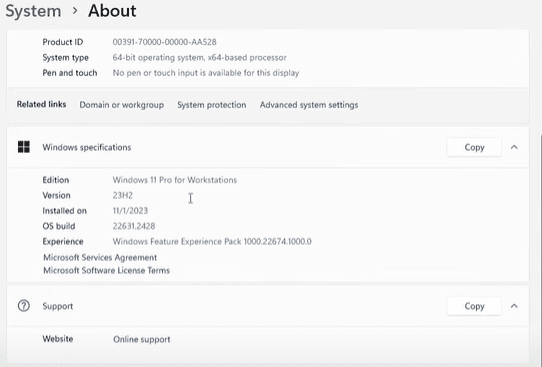
🖥️ System Overview (for Context)
This solution was tested on a high-performance workstation with the following specifications:
- RAM: 128 GB
- Processor: Intel Xeon W-2145 Octa-Core
- Graphics Card: AMD Radeon Pro WX 7100
- Operating System: Windows 11 (version 23H2)
Even with this powerful setup, the issue still occurred—showing how widespread the problem is.
✅ Step-by-Step Guide to Fix the AMD Software Warning
Step 1: Access Device Manager
- Right-click on ‘This PC’ on your desktop or in File Explorer.
- Select ‘Show more options’ (or just click Manage).
- This opens the Computer Management console. From here, go to:
- System Tools > Device Manager
Step 2: Locate the Display Adapter
- Expand the Display Adapters section.
- Right-click your AMD graphics card (e.g., AMD Radeon Pro WX 7100).
- Click on ‘Update Driver’.
Step 3: Choose the Correct Driver Manually
- Select ‘Browse my computer for drivers’.
- Then choose ‘Let me pick from a list of available drivers on my computer’.
- A list of compatible drivers will appear.
💡 Look for the driver provided by Advanced Micro Devices, Inc. — usually the one you manually installed before (such as through the AMD Adrenalin or Pro Edition software).
- Select the correct driver from the list and click Next.
- Windows will now install the selected driver.
Step 4: Verify the Fix
After installation:
- Open your AMD Software (Adrenalin or Pro Edition).
- Check for any remaining warnings or error messages.
- If no error appears, congratulations—the fix worked!
🧠 Why This Happens
When you update to Windows 11 23H2, the OS may automatically replace your dedicated AMD driver with a Microsoft Basic Display Driver or other generic version. This is often done in an attempt to maintain compatibility, but it can cause issues with AMD’s software suite.
Manually re-selecting the proper AMD driver ensures that the GPU is running with optimal performance and full feature support.
📌 Extra Tips
- If you are using AMD Adrenalin Edition, make sure your driver is up to date by downloading it from the official AMD support website.
- For Pro Edition users, consider sticking with WHQL-certified drivers for maximum stability.
- Disable automatic driver updates through Group Policy if this issue keeps recurring.
🔚 Final Thoughts
Dealing with driver issues can be frustrating, especially after major OS updates. Luckily, Windows still gives you the ability to manually select and install the correct driver, helping you quickly resolve errors like the AMD Software Adrenalin Edition warning.
This simple fix ensures your system performs as expected and maintains full compatibility with AMD’s powerful features.
📁 Tags and Hashtags
Tags: AMD Adrenalin Edition, AMD Pro Edition, Windows 11 23H2, GPU driver fix, AMD driver error, Microsoft display driver, Radeon WX 7100, fix AMD warning, update graphics driver, AMD Adrenalin software









Hashtags:
#AMD #AdrenalinEdition #Windows11Update #DriverFix #GraphicsCardError #AMDRadeon #ProEdition #TechFix #TipsToFix #GPUPerformance








