In today’s digital landscape, protecting your sensitive information is more critical than ever. We often think about encrypting a single file, but what about an entire collection of data—a folder and all of its subfolders? Whether you’re a business professional safeguarding proprietary data or an individual protecting personal records, folder encryption offers a robust layer of defense against unauthorized access.
The need for folder encryption arises when simply protecting one file just isn’t enough. You want a comprehensive solution that covers everything within a specific directory, ensuring that even if your device falls into the wrong hands, your data remains locked away. Fortunately, there are several powerful options available, each with its own set of advantages and compromises.
In this detailed guide, we’ll walk through three distinct methods for encrypting a folder, examining the steps involved, their pros and cons, and when you might choose one over the other. We’ll start with the built-in option in Windows and then explore two excellent third-party tools, VeraCrypt and Cryptomator, that take security to the next level. Let’s get started on securing your files!
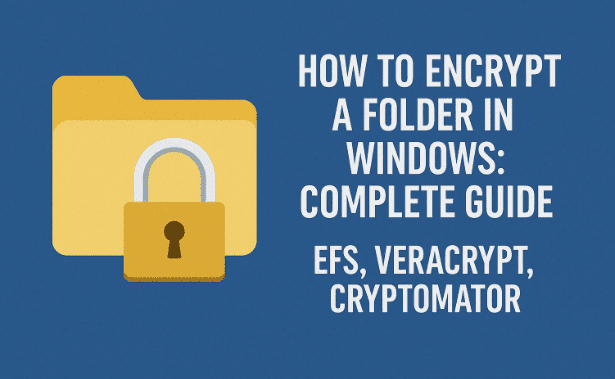
Method 1: Harnessing Windows’ Built-in Encryption (EFS)
For users running Windows, the most immediate and accessible option is the Encrypting File System (EFS). This feature, available in Windows Pro editions and requiring your disk to be formatted with the NTFS file system (which most are), offers a seamless way to protect folders and files. The great thing about EFS is its simplicity and transparency once set up.
The Step-by-Step Guide to Using Windows EFS
Securing your data with EFS is straightforward. Here are the steps to encrypt your chosen folder:
- Locate Your Folder: Navigate to the folder you wish to encrypt. For this example, let’s call it our “Sensitive Data” folder.
- Access Properties: Right-click on the folder and select Properties from the context menu.
- Find the Advanced Settings: In the General tab of the Properties window, look for and click the Advanced… button. This is where the encryption option is intentionally hidden.
- Enable Encryption: In the Advanced Attributes window, you will find the option: “Encrypt contents to secure data.” Check this box. This is the “magic” that enables the encryption.
- Apply the Changes: Click OK on the Advanced Attributes window, and then click Apply on the main Properties window.
- Scope Selection: A dialog box will appear asking you to specify the scope of the encryption:
- Apply changes to this folder only: This encrypts only the contents currently in the main folder.
- Apply changes to this folder, subfolders and files: This is generally the preferred choice. If you are encrypting a folder, you typically want everything inside it, including any new files or subfolders you create later, to be automatically encrypted. Select this option to ensure comprehensive protection.
- Complete the Process: Click OK to begin the encryption process.
And just like that, your folder is encrypted!
The Critical Step: Backing Up Your Encryption Key
Immediately after encrypting your folder, Windows will prompt you to back up your encryption key. Do not skip this step! This key is essential for accessing your data later, particularly if something goes wrong with your Windows user profile or your hard drive.
- Start the Backup: When prompted, click Back up now (or a similar option).
- Export the Key: Windows will guide you through the process of exporting the key into a secure file format, typically a .pfx file (e.g.,
myencryptionkey.pfx). - Protect the Exported File: You will be asked to create a strong password to protect this exported key file. This is crucial—anyone with the
.pfxfile and this password can decrypt your data. - Save the Key Securely: Save the
.pfxfile and its password to a secure location separate from your main machine, such as an external hard drive or a secure cloud storage service. This ensures that if your current hard drive fails, you still have the means to recover your encrypted data.
Note on Key Backup: Some users who rely on a robust, unencrypted data backup strategy (where the backup contains the files in their unencrypted state) might be tempted to skip the key backup. Their reasoning is that they could simply recover the unencrypted files from the backup if their primary drive fails. However, relying solely on an external backup for recovery is risky. Always back up your encryption key. It’s a small step that provides a significant safety net for a wide variety of unexpected scenarios.
EFS: The Trade-offs
Now that we’ve successfully secured a folder, let’s look at the advantages and disadvantages of using Windows’ built-in solution.
| Pros | Cons |
| Simplicity | Vulnerability While Logged In |
| It’s already part of the Windows operating system (Pro editions). | Any user or malware with access to your computer while you are logged in can access the files, as the system automatically decrypts them for you. |
| Transparency | Platform Dependency |
| Files are automatically encrypted/decrypted when you read/write them. You don’t have to take extra steps. | This encryption is tied to your Windows user account and the specific machine’s installation. Moving the files to another operating system or another Windows account without the key is highly complicated, if not impossible. |
| Effective Against Theft | No Passphrase Protection |
| If a thief steals your hard drive and tries to access the files on another machine, they will be inaccessible (assuming they don’t have your key). | The security is tied to your login; there is no separate passphrase required every time you access the folder, making it less secure if your primary login is compromised. |
Method 2: High-Quality Encryption with VeraCrypt
Moving beyond the operating system’s built-in options, we come to VeraCrypt. VeraCrypt is a powerful, open-source tool and is the spiritual successor to the extremely popular (and now discontinued) TrueCrypt. It offers an excellent level of high-quality, cross-platform encryption.
VeraCrypt’s approach to encrypting a folder is slightly different from EFS. It doesn’t encrypt a directory directly; instead, it allows you to create an encrypted file container (often called a “vault”). This container is a single, large file stored on your hard drive. When you want to access the data, you “mount” this container, which makes its unencrypted contents appear as a separate, virtual drive (like a new M: drive) on your system.





VeraCrypt Website Link: You can find the official software and documentation at https://www.veracrypt.fr/.
Creating Your VeraCrypt Encrypted Vault
Before starting, you’ll need to download and install VeraCrypt from their official website. Once installed, follow these steps to create your secure container:
- Launch VeraCrypt: Open the application.
- Start Volume Creation: Click the Create Volume button.
- Select Volume Type: Choose “Create an encrypted file container” and click Next.
- Choose Volume Mode: Select “Standard VeraCrypt volume” (unless you have a specific need for a hidden volume). Click Next.
- Specify Location: Click Select File… to choose the location and name for your container file. This is the single encrypted file that will hold all your data. A common practice is to use an extension like
.hc(e.g.,myveracryptvault.hc). - Select Encryption Options: The default Encryption Algorithm (e.g., AES) and Hash Algorithm (e.g., SHA-512) are generally excellent and secure. Click Next.
- Define Size: Specify the size of your container. This size is fixed and sets the maximum amount of data you can ever store in the vault. For instance, you might create a 5 Gigabyte volume. Click Next.
- Set Your Passphrase: This is the most crucial step. Enter a strong, unique passphrase for your vault. Unlike EFS, this passphrase is required every time you mount the volume. While demonstrating the software, one might use a simple password, but for actual security, ensure your passphrase is long and complex! Click Next.
- Handle Large Files: VeraCrypt will ask if you intend to store files larger than 4GB. This affects the file system format. For most needs, selecting No is fine. Click Next.
- The Randomness Generation: VeraCrypt requires a source of randomness to generate strong encryption keys. You’ll be prompted to move your mouse randomly within the window for a set amount of time. The more random the movement, the stronger the key.
- Format the Volume: While the randomness is being collected, you can typically choose the file system for the new volume. NTFS is suitable if you only plan to use the vault on Windows machines. Click Format.
- Volume Created: Once formatting is complete, you’ll receive a confirmation. Click Exit.
Mounting and Using the Encrypted Vault
Now that the encrypted container is created, you need to “mount” it to access the files:
- Select a Drive Letter: Back in the main VeraCrypt window, select an available drive letter (e.g.,
M:for “Mount”). - Locate the File: Click the Select File… button and find the encrypted container file (
myveracryptvault.hc). - Mount the Volume: Click Mount.
- Enter Passphrase: You will be prompted to enter the passphrase you set during creation. Enter it and click OK.
- Access the Virtual Drive: The volume is now mounted and appears as a new drive (e.g., Local Disk M:) on your system.
Encrypting Your Folder’s Contents
With the volume mounted, encrypting your folder is as simple as a copy-and-paste operation:
- Copy the Data: Copy your original sensitive folder (e.g., “Sensitive Data”).
- Paste to the Vault: Paste the entire folder into the newly mounted VeraCrypt drive (e.g., Drive M:). All data copied here is transparently encrypted as it’s written to the container file.
- Delete the Original: Once you’ve verified the data is in the vault, you can delete the original, unencrypted folder from its original location (e.g., your Documents folder).
Dismounting for Security
When you’re finished working with your sensitive files, you must dismount the volume to secure it:
- Dismount: In the VeraCrypt application, select the mounted volume (M:) and click Dismount.
- Inaccessibility: The virtual drive disappears, and the data is once again inaccessible, locked within the single, encrypted container file (
myveracryptvault.hc), requiring the passphrase and VeraCrypt to open it again.
VeraCrypt: The Trade-offs
VeraCrypt provides phenomenal security, but it’s important to understand the compromises.
| Pros | Cons |
| Highest Quality Encryption | Monolithic Container |
| Uses strong, well-vetted encryption and hashing algorithms. | All your files are contained within a single file. If you have a 5GB vault, the vault file is 5GB, even if it only holds 1MB of actual data. The space is permanently allocated. |
| Passphrase Security | Fixed Size |
| The data is protected by a strong passphrase and is not tied to a user login, making it much more robust than EFS. | The size of the container is fixed upon creation. While some tools might allow for expansion, you generally cannot shrink the container, leading to wasted space if your needs change. |
| Cross-Platform Compatibility | Moving Encrypted Data |
| Containers can be copied and opened on other machines and different operating systems (Windows, macOS, Linux) that have VeraCrypt installed. | The only way to move the encrypted data is to move the entire (potentially huge) container file. You cannot easily move individual encrypted files. |
Method 3: Files and Folders Encryption Tailored for the Cloud with Cryptomator
Our final option, Cryptomator, addresses one of the primary drawbacks of VeraCrypt: the monolithic container. Cryptomator is designed to work seamlessly with online cloud services but is also perfectly functional for local encryption.
The core difference is that Cryptomator maintains your data as individually encrypted files and folders, rather than stuffing everything into one giant container file. When you write a file to the virtual drive, Cryptomator encrypts it and saves it as a unique, scrambled file within a designated folder. When you read the file, it is decrypted on the fly.
Cryptomator Website Link: You can download Cryptomator and find more information at https://cryptomator.org/.
Setting Up Your Cryptomator Vault
Just like with VeraCrypt, you’ll first need to download and install Cryptomator.
- Run Cryptomator: Open the application.
- Add a New Vault: Click the option to “Click here to add a vault.”
- Create a New Vault: Select “Create a new vault.”
- Name the Vault: Choose a descriptive name for your vault.
- Choose a Location: Select a Custom Location for your vault. This is the empty folder where Cryptomator will store all the individually encrypted files. For cloud users, this folder would typically be within their cloud sync directory (like OneDrive or Dropbox). For local storage, a simple folder in your Documents is fine.
- Set Your Password (Passphrase): Enter a strong, unique password/passphrase. This will be used to unlock the vault. Click Next.
- The Recovery Key (Crucial Step): Cryptomator will offer you a Recovery Key. You should always save this! This key (often a long string of text) is your fallback if you ever forget your passphrase.
- Copy the Key: Copy the text to your clipboard.
- Save Securely: Paste the key into a document (e.g.,
recovery_key.txt) and save it to a location that is separate from your vault and your main computer (e.g., a physical printout, an external drive, or a dedicated, secure password manager).
- Vault Creation: Click Create Vault.
Unlocking and Using the Cryptomator Drive
Once the vault is created, the process is very similar to VeraCrypt:
- Unlock the Vault: In the Cryptomator main window, select your new vault and click Unlock (or simply double-click it).
- Enter Password: Provide your vault’s passphrase.
- Access the Virtual Drive: Cryptomator automatically mounts the vault as a new virtual drive (e.g., Drive E:).
- Encrypt Data: Any file or folder you drag, copy, or save into this new drive (Drive E:) will be transparently encrypted and saved into the designated vault folder (the one you specified in step 5 of the setup). You can now use this drive just like any other folder to securely store your data.
Locking the Vault
To secure your data when you’re done:
- Lock the Drive: Return to the Cryptomator application and click the Lock button for your vault.
- Files Become Unreadable: The virtual drive (E:) disappears. If you navigate to the original vault folder in your documents, you will only see a scrambled mess of unrecognizable files and folders—the encrypted versions of your data.
Cryptomator: The Trade-offs
Cryptomator shines in specific scenarios, particularly for cloud users.
| Pros | Cons |
| High-Quality Encryption | Complexity in Data Transfer |
| Utilizes strong encryption standards to protect individual files. | Like VeraCrypt, the entire encrypted folder must be copied to another machine to move the data securely. Extracting a single encrypted file for individual transfer is not a practical approach. |
| Cloud Storage Optimized | Less Suited for Single-File Encryption |
| Perfect for cloud services (Dropbox, Google Drive, etc.). Since each file is individually encrypted, the sync client only needs to upload a tiny change when one file is modified (unlike VeraCrypt, where any change means uploading the entire monolithic container). | Its design is centered around a whole folder structure, making it slightly more involved than simply encrypting one file on its own. |
| Passphrase Security | Requires Separate Application |
| Like VeraCrypt, security is based on a strong passphrase, making it independent of your user login. | Requires a third-party application to function, which might not be an option in highly restrictive computing environments. |
The Bottom Line: Which Tool Should You Choose?
So far, we have done a great job of walking through three very different approaches to folder encryption. Now, let’s wrap up with some final thoughts on selecting the right tool for your specific needs.
Honestly, there is no single “best” choice here. These tools solve the generic problem of “how to encrypt a folder” with different trade-offs in mind. Your choice should reflect your primary use case:
- Choose Windows EFS (Method 1) if:
- You need the absolute simplest, most transparent solution and you are a Windows Pro user.
- Your primary threat is physical theft of your machine while it is powered off.
- BUT: You accept the risk that any malware or person accessing your computer while you are logged in can also access your data.
- Choose VeraCrypt (Method 2) if:
- You require the highest level of security and cross-platform compatibility.
- You are fine with the fixed-size, monolithic container structure and are not storing the vault on a cloud service.
- You want a solution that is entirely independent of your operating system’s user login.
- Choose Cryptomator (Method 3) if:
- Your primary goal is to securely store sensitive data on cloud storage services (e.g., Dropbox, Google Drive, etc.).
- You want individual file encryption so that syncs are fast and efficient.
- You want security based on a strong passphrase, separate from your Windows login.
The author of this article, for example, heavily uses Cryptomator because of a heavy reliance on cloud storage. Cryptomator ensures that anything considered even slightly sensitive is stored securely encrypted before it ever leaves the local machine for the cloud. They also tend to steer clear of the file/folder level operating system encryption (EFS) due to the security risk while logged in.
Ultimately, your security solution must fit your workflow and threat model. Evaluate the trade-offs outlined in this article and make the choice that provides the best balance of security and convenience for you.
Frequently Asked Questions (FAQ)
Q: Is encryption always completely unbreakable?
A: No, but for practical purposes, it is extremely strong when implemented correctly. The encryption algorithms used by tools like VeraCrypt and Cryptomator (e.g., AES-256) are considered military-grade and would take thousands, if not millions, of years to break with current computing power, provided you use a strong, unique passphrase. The weakest link is almost always the user’s password/passphrase or a lost key.
Q: If my data is encrypted, why do I still need a recovery key or backup key?
A: The key is a safeguard against technical failure, not just security threats. If:
- Your Windows user profile becomes corrupted (for EFS).
- Your VeraCrypt or Cryptomator passphrase is forgotten.
- Your hard drive develops a partial fault, but the data is still recoverable by a professional.
In these scenarios, the recovery key (or the EFS backup key) is the only thing that can unlock your data, saving you from permanent data loss.
Q: Can I use VeraCrypt or Cryptomator on a Mac or Linux machine?
A: Yes! This is a major advantage of both third-party solutions.
- VeraCrypt is available for Windows, macOS, and Linux. This means you can create a vault on one system and access it on another.
- Cryptomator is also available for all major desktop platforms and has mobile apps, making it exceptionally versatile for cross-device, cloud-based use.
Disclaimer
The information provided in this article is for educational purposes only. While these encryption methods are highly robust, the security of your data ultimately depends on the strength of your passwords/passphrases and your diligence in securely backing up any necessary recovery keys. The author and publisher of this article are not responsible for any data loss resulting from forgotten passwords, lost keys, or improper use of the software. Always follow best practices for password management and data backup.
Tags
encryption, folder security, data protection, veracrypt, cryptomator, windows efs, encrypting file system, file security, data privacy, security software
Hashtags
#Encryption #DataSecurity #VeraCrypt #Cryptomator #FolderEncryption #CyberSecurity #TechTips #OnlineSafety








